

Create a Microsoft Access Database.
First, start Microsoft Access. The following window will be displayed:
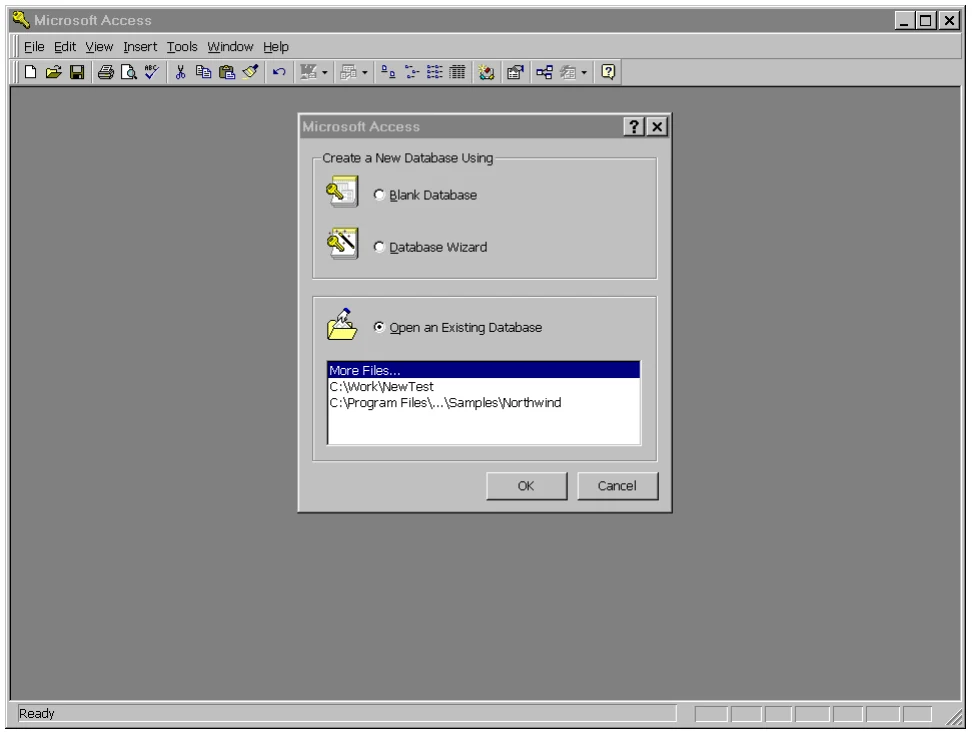
Select Blank Database and press the OK button. The File New Database dialog box will be displayed.
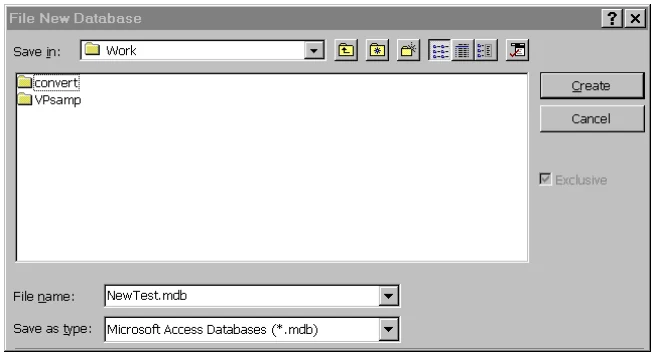
In the File name: text box, type NewTest.mdb. Press the Create button. The NewTest:Database dialog box will be displayed.
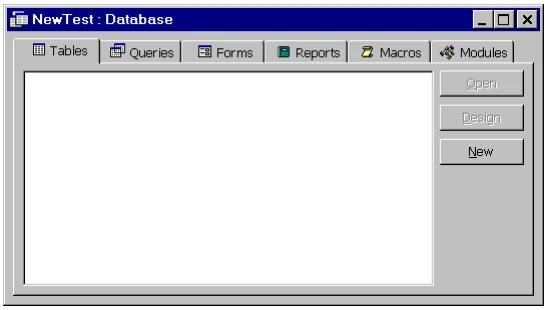
Press the New button. The New Table dialog box will be displayed.
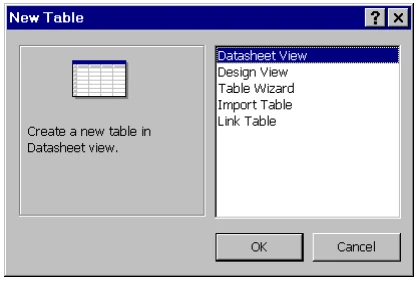
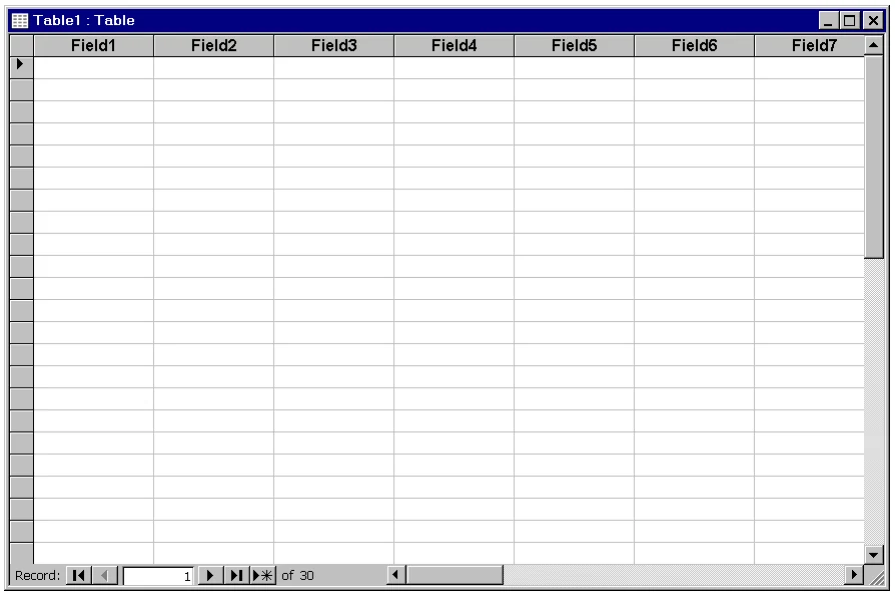
Select the Datasheet View option and press the OK button. The Table1:Table view will be displayed:
Save and close the NewTest.mdb database. Close Microsoft Access.
From the ODBC Client Capability Supplement, version 8.9.1. Open this page in the PDF