

Help
Dictionary-IV provides an on-line help system, which includes a dictionary, Help Editor, and advanced help window processing.
If you are operating in a Multi-Language environment, see Multi-Language in the Dictionary-IV Administrator Guide.
In Dictionary-IV, or any other Thoroughbred product, press F6 at any message, data entry field, menu, or screen to get a detailed explanation of what you should do next and what options are available.
The Dictionary-IV help system has been created with Dictionary-IV; likewise, you can create help for your own Dictionary-IV applications. Dictionary help text can be created in Help definition or in any definition (except the Global Dictionary) which has a help field.
Following is a list of the places where help can be accessed:
- Help definition maintenance.
- Data Name attributes in Format definition.
- Header and menu selection specifications in Menu definition.
- Message dictionary maintenance (except prompt/constant messages).
- An option is provided to modify existing help whenever help is requested by the user. This option makes it very convenient to maintain and update help text. If the operator is defined as a developer, help can be created or modified when it is referenced. For more information, see Set Developer/User in the Dictionary-IV Administrator Guide.
Selection
Section titled “Selection”Select 1-Edit from the Dictionary-IV Development Menu or press F1 from any Dictionary-IV menu. The system displays the Class pop-up menu:
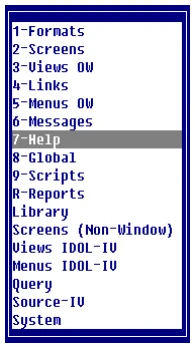
Select 7-Help.
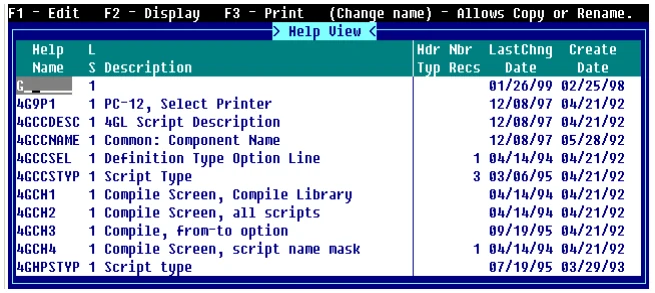
Components of Help View
Section titled “Components of Help View”The Help View is composed of two parts: header information and help editor.
Help View Header Information
Section titled “Help View Header Information”The help header information provides the specifications for the Help definition. These fields are used to identify the help module in the System Dictionary and to define the help size and display position.
You may enter the following information:
Help Name Type from 3 to 8 alphanumeric characters for the name of this definition and press Enter. This field is mandatory.
Characters one and two are the Library name. Characters three through eight are the help name.
For more information, see Class definition in this document, which provides a file naming convention you may implement.
LS
For internal use.
Description Type up to 30 alphanumeric characters for the description of this help definition and press Enter. This field is optional.
Header Type (Hdr Typ)
This field controls the use of the screen description in the window’s top border.
Select one of the following:
blank Screen description does not appear in the window title area.
- C
- Screen description is centered in the top border of the screen's window.
- R
- Screen description is right justified in the top border of the screen's window.
- L
- Screen description is left justified in the top border of the screen's window.
The default is blank.
Number Records (Nbr Recs)
Specifies the number of records used to create a data file. Valid entries range from 0 to 2, 147,483,647. The default value is 300 records. To specify an auto expanding direct or sort file, set the file type to I and the number of records to 0.
Last Change Date
Displays the date of the last change to the selected Help.
Create Date
Displays the date of creation of the selected Help.
Help Editor
Section titled “Help Editor”Once you complete the header information and press Enter at the last field, the help Editor displays. The window displays according to the size, position, and border code you specify.
The help editor is a Text Editor. It allows you to cut and paste, text, and perform search and replace. For more information, see Text Editor in the Dictionary-IV User Guide.
Using the Help Editor
Section titled “Using the Help Editor”Window help allows you to create Simple help Text, Indexed help, Pop-up Menu help, and Function Key help.
Simple Help Text
Section titled “Simple Help Text”Type the text characters and/or graphic characters exactly as you want them to be displayed in the window. Remember Page Up and Page Down will toggle between display attributes and F15 allows you to select display attributes, to select colors, and to toggle between character and graphic modes. The operator will view the text as entered.
F15 - You may toggle Reverse Video, Background, Underline, Blink, Graphic, and Color on and off from this option. Once you make your selections select <Execute>. These terms are defined in the Screen definition. The color attributes cannot be changed if the ability to save the color attributes has been disabled. Once this feature has been disabled, color attributes will be lost when the window is saved. If color text is saved on a non-color terminal, color attributes will be lost when the window is saved.
Example:
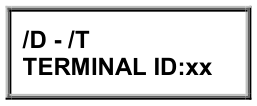
Type the following in the Help Editor:

Substitution Values Characters in the help text (substitution text) can be replaced by values (substitution values) passed into 8HELP. This is only available from the Dictionary-IV API 8HELP. For more information, see the Thoroughbred Basic Reference Manual.
Example:
This displays the following for the operator:
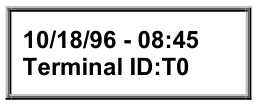
The text to be replaced must be a unique pattern of characters. In the example the text characters to be replaced are ID, IT, and xx. If the first character of the characters to be replaced is an I then replacement characters will be inserted into the text. Otherwise, an overlay of replacement characters will be done.
When the insert mode is specified, text will be truncated when it exceeds the window width.
An example of the substitution parameter string is as follows.
HELPTXT$=“/Id/”+D$+“;It/”+T$+“;xx/”=FID(0)
The first byte must be / or \ indicating the string contains substitution values to be evaluated. This is also the delimiter used to separate the substitution text and the substitution values. Multiple substitution strings must be separated by a ; (semi-colon).
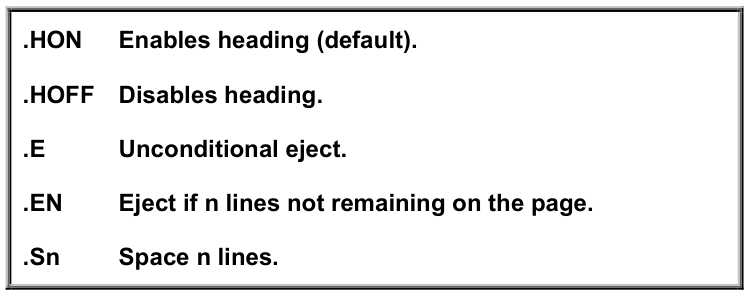
Printer Control Commands These are commands imbedded in the text. Each command must start on the left margin and must be on its own line. Command lines are removed when the help is displayed or the text is printed.
Indexed Help
Section titled “Indexed Help”The first line in the help Index module must be .HI. to indicate this type of module.
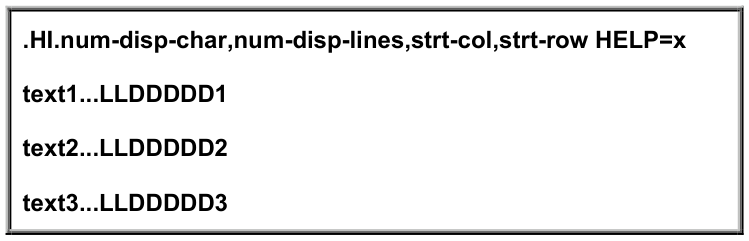
- .HI.
- defines this as a Help Index.
- num-disp-char
- is the number of display characters per line.
- num-disp-lines
- is the number of display lines.
- strt-col
- is the starting column of the window.
- strt-row
- is the starting row of the window.
- text
- is the text that displays in the window.
- LLDDDDD
- is the name of the help module that displays when the line is selected. The position of the help name is beyond the specified display characters per line.
- x
- is a 3 to 8 alphanumeric character help code that displays when F6 is pressed from the view.
Example:
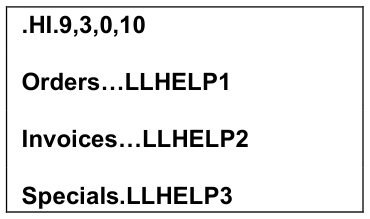
This defines a help Index of 3 lines with 9 characters in each line. The window starting position is column 0 line 10. Orders, Invoices, and Specials appear in the window as text. Line 1 (Orders) displays help module LLHELP1, Line 2 (Invoices) displays help module LLHELP2, and Line 3 (Specials) displays help module LLHELP3. No help is defined from this view.
Pop-up Menu Help
Section titled “Pop-up Menu Help”A pop-up menu allows you to define a selection window. The first line in the pop-up menu must be .HM. or .MN. to indicate this type of module.
Pop-up menus are used with the 8MENU Dictionary-IV API (but are not limited to it). Returning selection values only apply when used with 8MENU. For more information about Dictionary-IV APIs, see Thoroughbred Basic Reference Manual.
Simple Pop-up Menu Returning a Selected Value
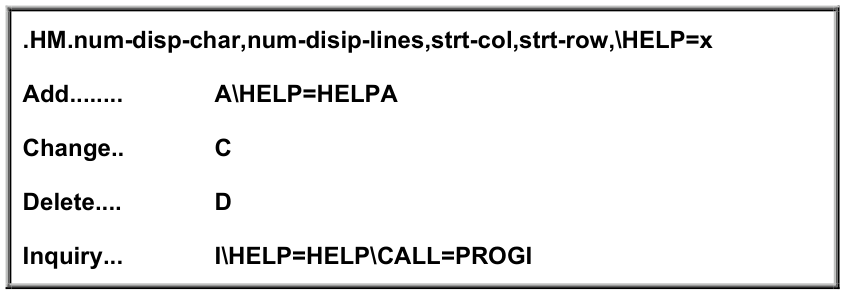
This displays the following for the operator:

Optional parameters are displayed in background.
Parameters for a given line item can be continued onto one or more lines without affecting the display of the pop-up menu by using continuation character which is the colon ( : ). It must be in column 0 and must be in normal video/background. With the cursor in column 0, press F11, the continuation character will be inserted (see the last example in this section).
Menu Parameter
- .HM.
- defines this as a pop-up menu (can also use .MN.).
- num-disp-char
- is the number of display characters per line.
- num-disp-lines
- is the number of display lines.
- strt-col
- is the starting column of the window.
- strt-row
- is the starting row of the window.
- opt
- is the option that displays in the window.
- a
- is the value to be returned when the line is selected. Return values can be variable length, leading and trailing spaces are ignored.
- !
- is the supplied terminator. When using the default terminator (\) it is not required in the menu parameter list. When specifying a terminator, it must be used as shown. It must be in the menu selection line.
- HELP=x
- is a 3 to 8 alphanumeric character help code that displays when F6 is pressed from the view.
Option Definition
- Add
- When selected, the value A will be returned in the menu selection variable of the 8MENU call variable list. F6 will display help module HELPA, then return to the menu.
- Change
- When selected, the value C will be returned in the menu selection variable of the 8MENU call variable list. F6 will display the default help module HELPNAME, then return to the menu.
- Delete
- When selected, the values or D will be returned in the menu selection variable of the 8MENU call variable list. F6 will display the default help module HELPNAME, then return to the menu.
- Inquiry
- When selected, the public program PPROGI will be called using the following CALL list: CALL "PPROGI", PPA$[ALL], ]SYSV$ The string array PPA$[ALL] is the only way to pass arguments to and from 8MENU and then to public program specified by CALL=name. If public ENTER list does not match the above call list the program is assumed to be a public type containing an ENTER PUBLIC command which contains no parameters.
Returning from the public program does not exit 8MENU. To exit either press F4 or select another menu option that does not call a public program.
F4 on a selection that calls a public program will return the selected value. In this example the value of I will be returned in the menu selection variable of the 8MENU call variable list. F6 will display the help module HELPI then return to the menu.
Pop-up Menu Invoking a Network of Menus, Help, and Commands
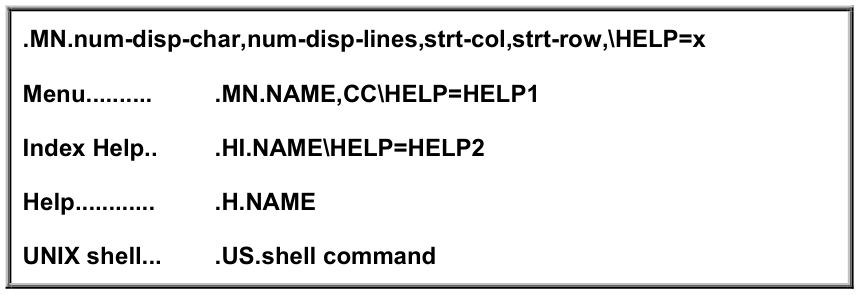
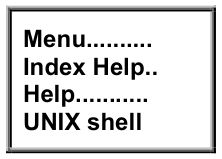
This displays the following for the operator:
Menu Parameter
- .MN.
- defines this as a pop-up menu (can also use .HM.).
- num-disp-char
- is the number of display characters per line.
- num-disp-lines
- is the number of display lines.
- strt-col
- is the starting column of the window.
- strt-row
- is the starting row of the window.
- opt
- is the option that displays in the window.
- a
- is the value to be returned when the line is selected. Return values can be variable length, leading and trailing spaces are ignored.
- !
- is the supplied terminator. When using the default terminator (\) it is not required in the menu parameter list. When specifying a terminator, it must be used as shown. It must be in the menu selection line.
- HELP=x
- is a 3 to 8 alphanumeric character help code that displays when F6 is pressed from the view.
Option Definition
- Menu
- is a pop-up menu to be processed. When selected, 8MENU will call 8MENU to process the supplied pop-up menu.
- Index Help
- is an indexed help module to be processed. When selected 8MENU will call 8HELP to process the supplied index help module.
- Help
- is a simple help module to be processed. When selected 8MENU will call 8HELP to process the supplied help module. You may use .HI. to define this line.
- UNIX shell
- is a UNIX or Linux shell command to be processed. When selected, the supplied system command will be processed. The UNIX or Xenix shell command, for example, ps -ef |pg.
When a sub menu or help module is terminated with an Enter, the 8MENU will exit to the root program, which initiated the call to 8MENU, returning the selected value from the lowest level pop-up menu. When a sub menu or help module is terminated with an F4, 8MENU will exit one level, returning to the previous pop-up menu or help module.
PREV= to preview
This example illustrates the use of PREV= to preview the corresponding sub menus when scrolling through a pop-up menu.

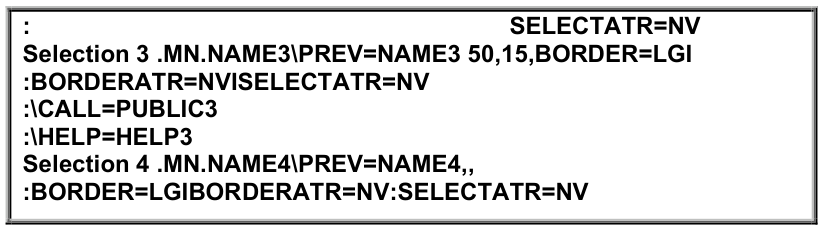
This displays the following for the operator:
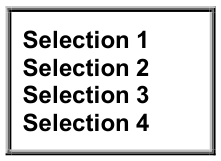
The syntax definitions are the same as in the previous examples with the following exceptions:
- PREV=
- is the name of the pop-up menu to display when the lightbar is scrolled onto that menu selection line. The sub menu is always displayed with FUNC$="x": display no scroll, no action on exit.
- 50
- is the column for the sub menu window display spacing. The comma following the column position is required syntax even when the value is not supplied. (See selection 4 in the above example.) If not specified, the column position from line of the sub menu will be used.
- 15
- is the row for the sub menu window display. The comma following the row position is required syntax even when the value is not supplied. (See position 4 in the above example.) If not specified, the row position from the line of the sub menu will be used.
- :
- is the continuation line character. With the cursor in column 0, press F11.
Window Create Attributes These are attributes to be used when the sub menu window is displayed. At the time the window is created, the attributes from the parameter list are compared to the Dictionary APIs (Public Programming Services) default values.
The default values will be used for all attributes not supplied in the parameter list. The syntax for the Window Create Attribute list must follow the format specified by the Window Create directive.
The vertical bar ( | ) or the separator character defined by SEP=character, must be used to chain multiple attributes. See the Window Create directive for details on the required syntax.
The Window Create directive requires the use of quotes around the attribute keyword and values. Quotes should not be used in the sub menu parameter list.
Function Key Help
Section titled “Function Key Help”The first line in the help Index module must be .HF. to indicate this type of module.
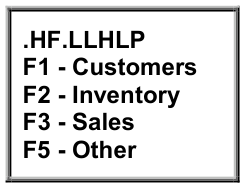
- .HF.
- indicates a function key type help module.
- LLHLP
- is the name of the help module prefix. It can be from 3 to 6 alphanumeric characters in length. The prefix combined with the function key value build the name of the help module to be displayed then the function key is pressed. In this example, pressing F3 would display a help module named LLHLP03.
From the Dictionary-IV Developer Guide, version 8.9.1. Open this page in the PDF