

Database Maintenance
Database Maintenance is a process of adding, changing, or deleting records in a database. This section explains the general concepts of database maintenance. To understand how to perform database maintenance in Dictionary-IV CONNECT SCREEN, and CONNECT VIEW, you may also use the Dictionary-IV Quick Database Lesson for additional assistance.
Types of Database Maintenance
Thoroughbred Dictionary-IV provides two types of database maintenance:
- CONNECT SCREEN (Single-Record Maintenance)
- CONNECT VIEW (Multi-Record Maintenance)
CONNECT SCREEN Edits or creates a single record at a time, using a data entry screen. For more information see Screen Definition in the Dictionary-IV Developer Guide.
CONNECT VIEW Edits or creates multiple records using a view of the data file. For more information, see View Definition in the Dictionary-IV Developer Guide.
A view displays multiple records at one time. Each record may have one or more fields.
| Example | of a | Dictionary-IV View | ||
|---|---|---|---|---|
| Record # | Field 1 | Field 2 | Field 3 | |
| 1 | Red | Oriole | Five | |
| 2 | Purple | Cat | One Hundred | |
| 3 | Orange | Snake | Thirty Two | |
| 4 | Blue | Fish | Eleven |
Both CONNECT SCREEN and CONNECT VIEW can be performed on the same data file.
Creating a Database
Section titled “Creating a Database”You must create a format for the database. After creating the format the first time you select screen or view database maintenance, the system prompts you through the creation of a new data file.
It then generates a default data entry screen (or view) and link.
Create the Definitions
Section titled “Create the Definitions”The following are components of database maintenance:
Format The format identifies the data elements in the file. You must create the format before you can use database maintenance. This is the minimum requirement to perform database maintenance. Dictionary-IV creates necessary default definitions required to perform database maintenance. For more information, see Format Definition in the Dictionary-IV Developer Guide.
Data File This is the file that stores the data. Database maintenance can use an existing data file or one that it creates. From the information in Format and Link definition, database maintenance determines the type of data file (key, index, or sort), the default record size, the number of records, and the directory where the file is to be located. For more information see Format and Link Definitions in the Dictionary-IV Developer Guide.
Screen or View These definitions collect the data. You may perform database maintenance using a custom screen or view that you create, or a default screen or view that database maintenance creates. For more information see Screen and View Definitions in the Dictionary-IV Developer Guide.
Link The Link is the Dictionary-IV interface to a data file, sort definitions, security, and the Screen or View definition. Database Maintenance can use the Link you define or one that database maintenance creates. For more information see Link Definition in the Dictionary-IV Developer Guide.
Create the Data File
Section titled “Create the Data File”If this is the first time you are performing Screen (or View) Maintenance using the Screen (or View), Link, or Format name, the system displays the following:
Create Data File - CONNECT SCREEN and CONNECT VIEW
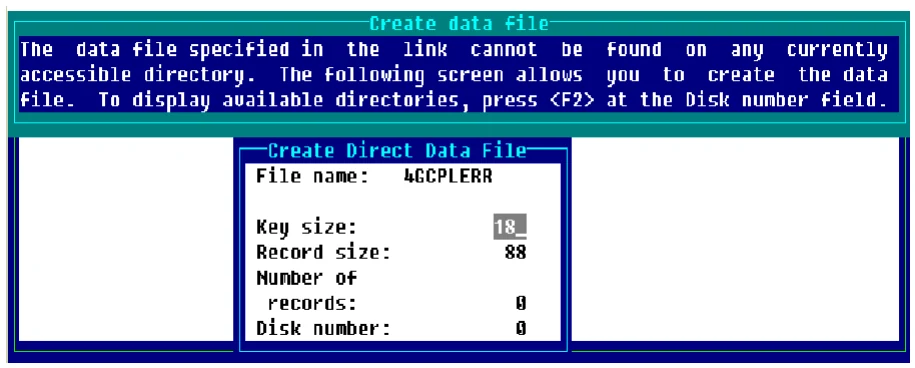
Below are the descriptions of the Create Direct Data File fields:
File name
Displays the name of the data file.
Key size Displays the key size. The system calculates this from the Format Definition. If the file is an Index file, the key size is not applicable. The range for the key size is system dependent and can normally be from 4 to 144. When text fields are defined in the Format Definition and the file type is Direct, the key size is automatically increased by 4.
Press Enter to accept the default value.
Record size Displays the record size in bytes. The system calculates the record size from the Format Definition. You may increase the size. The valid range is from 4 to 32767 bytes.
The minimum record size for auto-expanding Direct files is 6 bytes. Smaller record sizes are adjusted automatically.
Press Enter to accept the default value.
Number of records
The system displays a default value. You may enter a value from 0 to 2,147,483,647.
Auto-expanding Direct and Sort files are created by specifying 0 records. This is not valid for Index files (no key fields). The minimum record size for auto-expanding Direct files is 6 bytes. Smaller record sizes are adjusted automatically.
Static files are created by entering a value greater than 0. They are expanded by Dictionary-IV when full.
Press Enter to accept the default value.
Disk Number/Directory Number The system displays the disk where Dictionary-IV is installed. You may enter a valid logical disk ID (0 to 9 or A to Z), representing the directory where the file will be created. The system displays a message if the disk is currently unavailable.
Press Enter to accept the default value.
With the last entry the system prompts:
Is the displayed information correct?
Select one of the following:
Y Creates the data file.
N Returns to the previous screen.
The system creates and displays a default screen (or default view if you were performing View Maintenance) and you may begin database maintenance.
Create a Default Screen
Section titled “Create a Default Screen”If you select a database that does not have a custom screen, the system generates a default screen for this maintenance session only.
The data elements appear in the order in which they appear in Format Definition. For more information see Format and Screen definitions in the Dictionary-IV Developer Guide.
Create a Default View
Section titled “Create a Default View”If you select a database that does not have a custom view, the system generates a default view.
Sample Default View (CONNECT VIEW
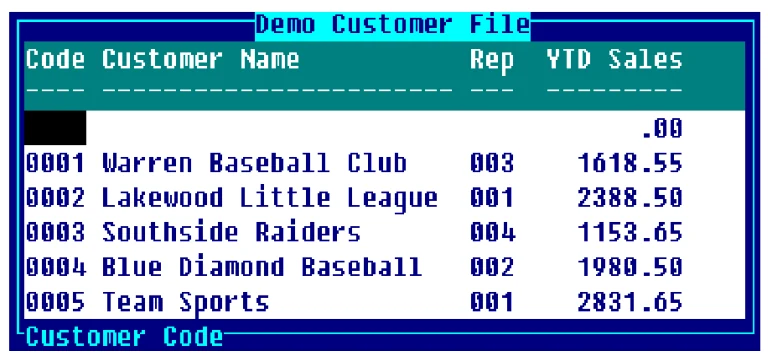
The data elements appear in the order in which they appear in Format Definition. For more information see Format and View definitions in the Dictionary-IV Developer Guide.
Using Definition Linkage
Section titled “Using Definition Linkage”Dictionary-IV stores definitions independently in the system dictionary. Database linkage allows you to share database definitions.
You may achieve the linkage in one of two ways:
- Reference a Link Definition. This Link ties together supporting data file(s), Format definitions, Screen definitions, and View definitions.
- Reference a non-Link Definition.
Definition Pointers
Section titled “Definition Pointers”To create this definition linkage, Dictionary-IV uses definition pointers. They are the fields in a Class definition that point to another Class definition. Screens, Views, and Links all contain definition pointers.
A brief description follows. For more information see Screen, View, and Link Definition in the Dictionary-IV Developer Guide.
Screen Definition
The Screen Definition points to a Link or a Format definition from the Link/Format Name field.
View Definition
The View Definition points to a Link or a Format definition from the Link/Format Name field.
Link Definition The Link Definition determines the database. It contains several pointers because this is a primary function of the Link. The Link points to a Format Definition and a data file. It may also point to a Screen and View user interface for the database.
Database Selection Rules
Section titled “Database Selection Rules”When you select a Database Maintenance option from the Dictionary-IV Development Menu, the system displays the following:
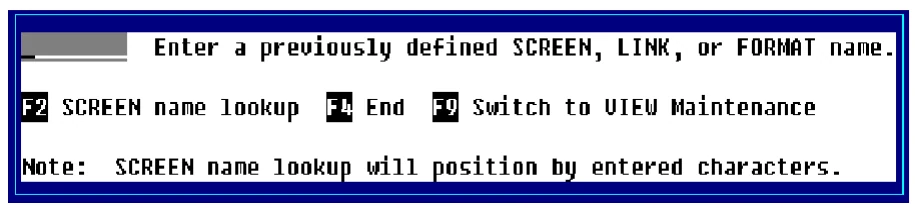
Dictionary-IV selects the database according to the following rules:
- It first determines the type of definition that has been entered by first checking Screens (or Views), second checking Links, and third checking Formats.
- It then determines whether the definition exists.
This priority is reflected in the database maintenance prompts listed above.
At the prompt you may enter the following information:
Screen/View Name The database selection process is parallel for Screen and View database maintenance. Although the following explanation refers to Screens, it also applies to views.
If the name matches an existing Screen name, that Screen definition is displayed for file maintenance. Multiple Screens can share the same database. More than one Screen can point to the same Link or Format, providing multiple user interfaces to the same database.
Example: An employee address Screen and a pay rate Screen both interface to the employee file.
The system attempts to read a Link Definition using the Link/Format Name specified in the Screen Definition. If a Link does not exist the system attempts to read a Format Definition using the same Link/Format Name.
If database linkage is defined, the specified Screen is used for the interface.
Link Name When the entered name does not match a Screen name, but matches a Link name, the Screen specified in the Link Definition is used for file maintenance. This allows multiple databases to share the same Screen and the same Format definitions. More than one Link can point to the same Screen and Format definition, providing a common user interface to multiple related databases.
For example, a prospect maintenance Screen can interface to both a hot prospect file and a cold prospect file.
Format Name When the entered name does not match a Link or a Screen definition, but matches a Format Definition, the default Screen is generated for file maintenance.
This option provides a quick way to create a database. Once you create a Format Definition, enter this name at Screen (or View) Maintenance. The system creates the necessary definitions using the same name as the Format. It creates a Link Definition, creates a data file, and provides a default Screen.
When you press F2 for a lookup of Screen or View Names, the system displays a header (view) similar to the following:
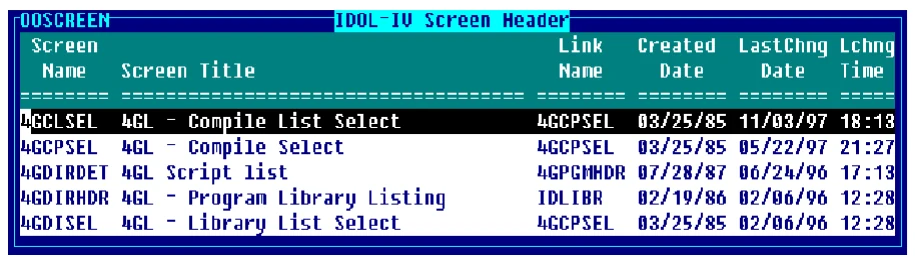
Maintenance within the header (view)
Section titled “Maintenance within the header (view)”The maintenance options within the header (view) are described in the following sections:
To add a definition press Line Insert from the header (view). The system inserts a blank line. Enter a definition name from three through eight characters long. If you enter a name and the library does not exist, you will be allowed to create the library automatically.
If you enter a new name, you are adding a new definition. If you enter an existing name, the system will display the following message
A record already exists with the key used to define the record being added to the file. Add request will be denied.
Change
Section titled “Change”To make changes to a definition from the Header (view) select the definition and highlight the field to be changed, type over the information displayed. If you make changes to the definition name the system displays a window showing the definition name and the name the definition is being changed to. The system then displays a pop-up menu with the option to Cancel, Copy, or Rename.
To make changes to the definition press F1-Edit, make the changes, and press F4 to save the definition or changes to the definition. The following prompt is displayed:
Save report modifications (Y/N)?
Select one of the following:
Y Saves the definition.
N Does not save the definition.
Delete
Section titled “Delete”To delete a definition from the Header (view), highlight the definition name and press Line Delete. The following prompt is displayed:
Delete Record (Y/N)?
Select one of the following:
Y Deletes the definition.
N Keeps the definition.
Rename
Section titled “Rename”To rename a definition from the Header (view), highlight the definition name and type the new name over the existing name. The system will display a window showing the definition name and the name the definition is being renamed to. The system also displays a pop-up menu with the option to Cancel, Copy, or Rename. Select Rename to rename the definition.
When you rename a definition, it does not have to remain in the same library. If you rename it to a library that does not exist, you can create the library automatically.
To copy a definition, select the definition name from the Header (view) and type the name to copy to over the existing text. The system will display a window showing the definition name and the name the definition is being copied to. The system also displays a pop-up menu with the option to Cancel, Copy, or Rename. Selecting Copy will copy the definition with the new name and the original definition will still exist.
When you copy the definition, it does not have to remain in the same library. If you copy it to a library that does not exist, you can create the library automatically.
Using Multiple Occurrence Fields
Section titled “Using Multiple Occurrence Fields”If the Format Definition specifies a data name with multiple occurrences, data entry to the multiple occurrence field operates as follows:
- The multiple occurrence field displays as a single field in the Screen or View. The field serves as a window in which each occurrence can be accessed. When you enter the field, the system accesses the first occurrence. You can move from occurrence to occurrence the same way that you move from field to field, by pressing Enter, Up Arrow, or Down Arrow.
- The current occurrence number displays at the top right of the Screen or View.
For more information, see CONNECT SCREEN, and CONNECT VIEW.
Creating Database Security
Section titled “Creating Database Security”You may include a password in the Link or View definition to access to the database. You must then enter the password before performing database maintenance.
You may also restrict access by terminal or operator code in the definition. For more information see Link Definition in the Dictionary-IV Developer Guide.

Expanding Database Files-Automatically
Section titled “Expanding Database Files-Automatically”If a static sized data file becomes full during database maintenance, Dictionary-IV automatically expands it based on the number of records in the file.
| Database Expansion | |
|---|---|
| File Size | Expanded By |
| 1-99 | 250 Records |
| 100-999 | 200% |
| 1,000-19,999 | 30% |
| 20,000 and up | 15% |
If the system attempts to expand a file that is being used by another operator, the following error message displays:
File is Full! Can’t Expand (BUSY). <Return>=Retry, <F4>=Emergency Abort
All other operators should exit the file.
Press Enter to retry the expansion. The system automatically retries the expansion every 60 seconds unless the operator presses F4.
Using the File Suffix
Section titled “Using the File Suffix”The file suffix indicator is the @ character and can be specified anywhere in the Data, Sort, or Text file names in the Link Definition or in Script-IV.
If the file suffix indicator is used in a Link and that Link is used for database maintenance, database maintenance will substitute a file suffix value for the file indicator. The resulting file name will be used.
To assign a file suffix value, you must use Script-IV. Write a script that sets the FILE-SUFFIX variable to the desired file suffix value. When each operator runs the script, the file suffix value is assigned to the operator. If the file suffix value is null or spaces, the file suffix indicator is dropped from the file name.

For more information see FILE-SUFFIX in the Script-IV Language Reference.
From the Dictionary-IV User Guide, version 8.9.1. Open this page in the PDF