

Run TS Environment for Windows
Starting a Local Basic Session
Section titled “Starting a Local Basic Session”From the Start menu select All Programs–>Thoroughbred Software–>TS Environment for Windows.
From your Desktop, click on a custom shortcut. For more information on creating shortcuts see the Creating Desktop Shortcuts section of this manual.
Starting Basic as a Telnet Session
Section titled “Starting Basic as a Telnet Session”By default, the Thoroughbred Manager will listen on port 23 for telnet-like connections. If you have multiple Basics loaded, it will execute the first b.exe and its iplinput.txt found in your PATH variable. For more information see PATH Variable.
Using the terminal emulator of your choice connect to your workstation.
TbredComm is Thoroughbred’s terminal emulator (telnet/ssh) designed specifically for the TS Environment for Windows. TbredComm may be purchased separately. For more information, please contact your sales representative.
When using TbredComm AutoLogons, check the Windows O/S option to populate INF(3,2) and INF(5,2) with the Domain User Name to provides a unique account name for each Basic session. For more information on AutoLogons please refer to the WorkStation Manager and TbredComm manuals.
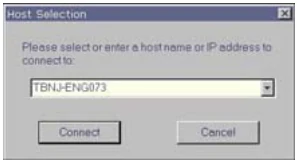
The following illustrates starting a Basic session using TbredComm to connect to a TS Environment for Windows.
From the TS Environment for Windows Installation Guide, version 8.9.1. Open this page in the PDF