

Setup Thoroughbred Data for Use by the Microsoft Access Database
Open the Thoroughbred Environment. Go to the Thoroughbred Dictionary-IV Control Menu:
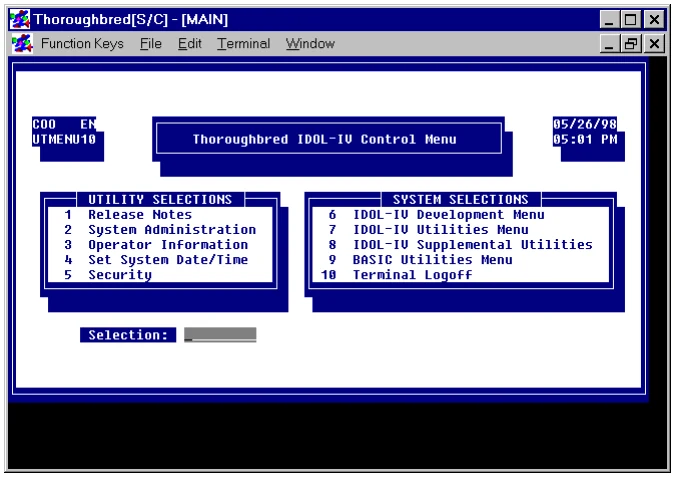
The Thoroughbred OPENworkshop provides a more efficient environment for work. To specify OPENworkshop, type OO and press the Enter key. The following menu will be displayed:
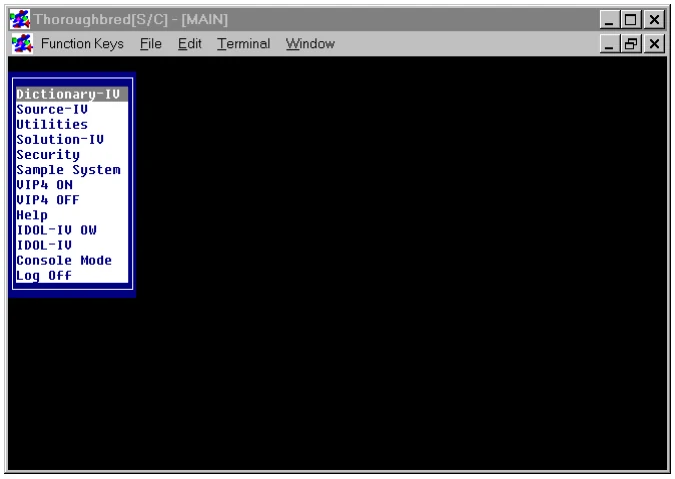
Select OW. You will return to the Thoroughbred Dictionary-IV Control Menu:
Type 6 and press the Enter key. The Thoroughbred Dictionary-IV Development Menu will be displayed:
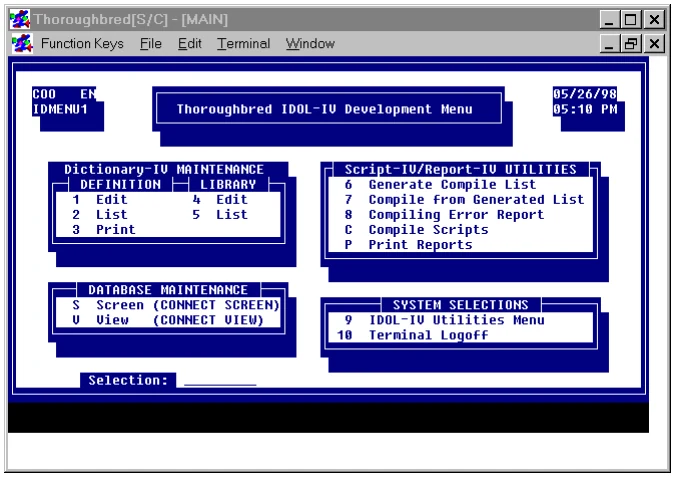
Type 1 and press the Enter key. The following pop-up menu will be displayed:
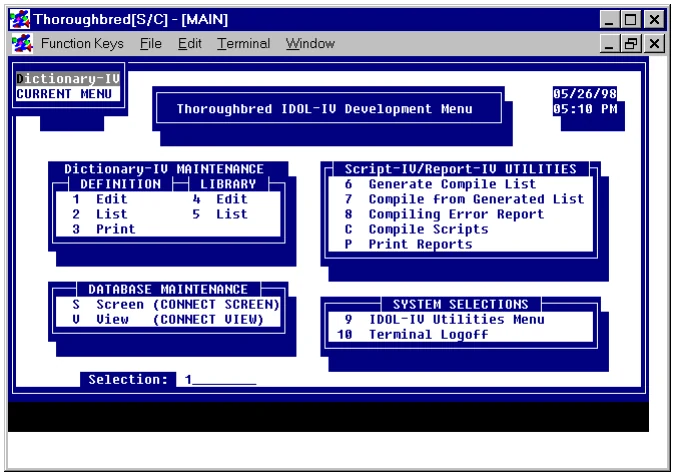
Select Dictionary-IV. The following pop-up menu will be displayed:
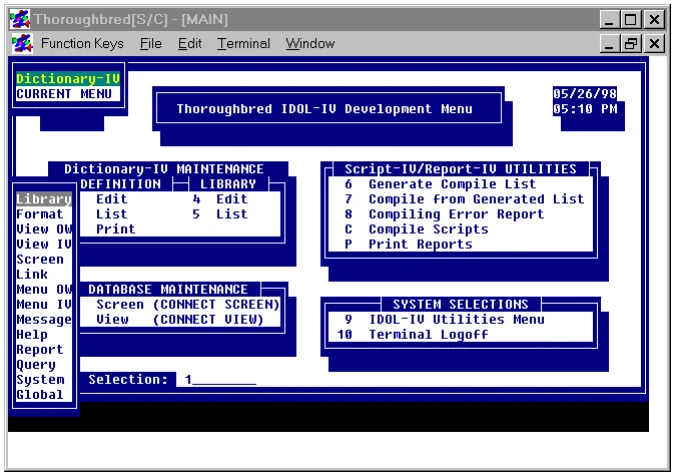
Select Format. A format view will be displayed:
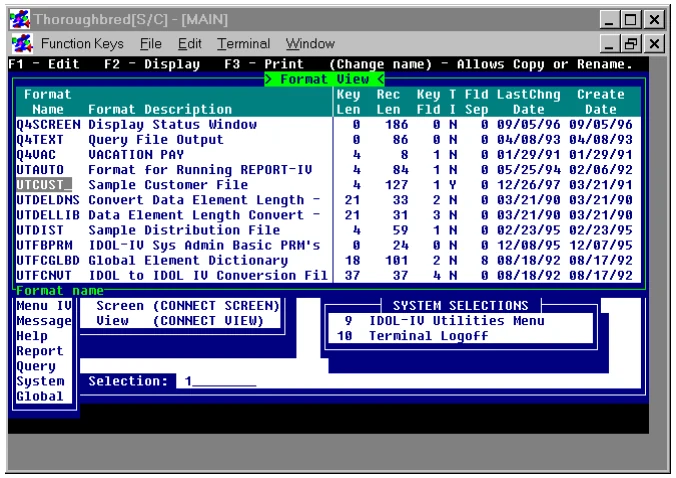
Go to the UTCUST format name. Overtype UTCUST with UTFODBC. Press the Enter key. The following pop-up menu will be displayed:
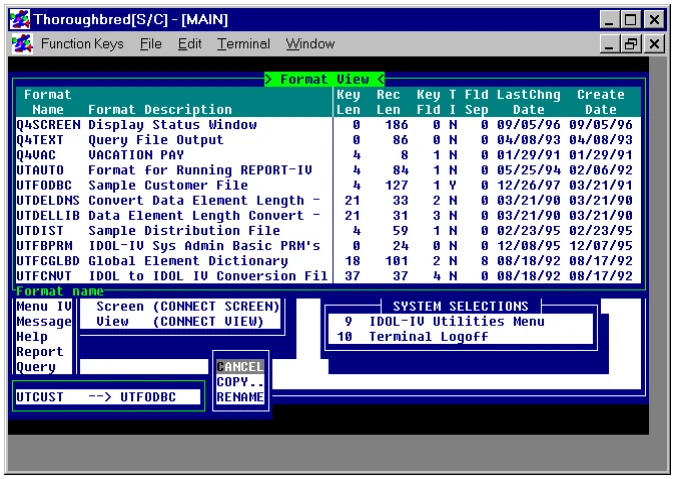
Select COPY. To edit the UTFODBC format, select UTFODBC and press the F1 key:
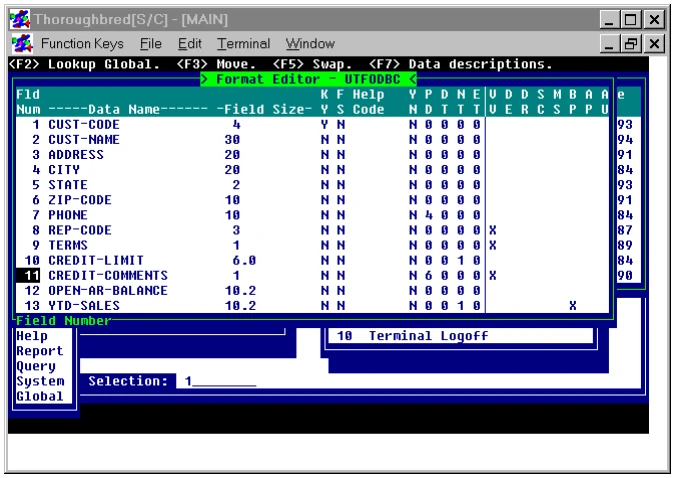
ODBC does not recognize text fields. Select CREDIT-COMMENTS. Press the Line Delete key to remove this data element:
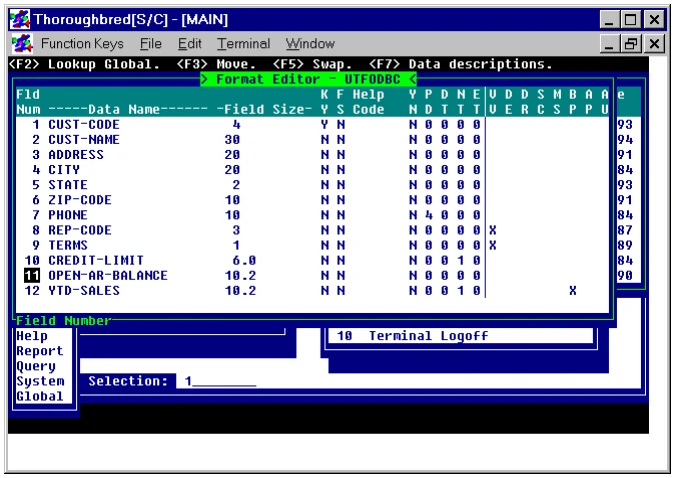
Press the F4 key to save the format. Press the F4 key to return to the Thoroughbred Dictionary-IV Development Menu:
Select Link. The following view will be displayed:
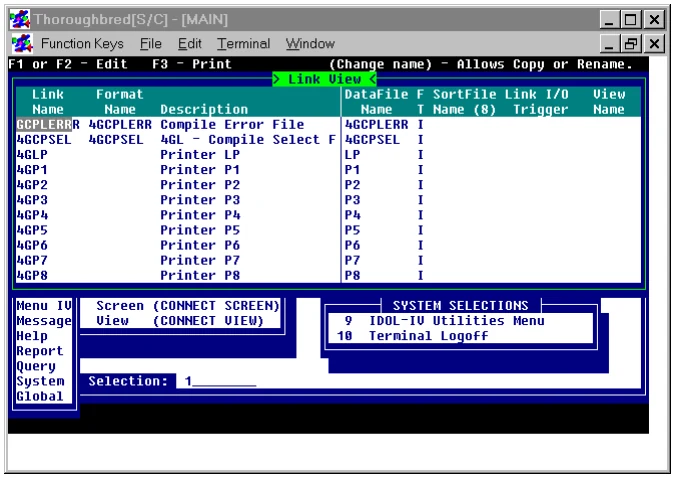
To add a new link, press the Line Insert key:
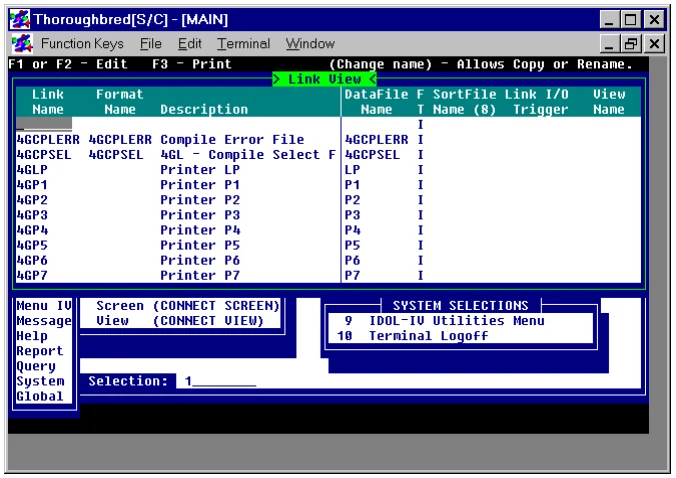
To specify the link, enter values in the following fields:
- In the Link Name field, type UTLODBC and press the Enter key.
- In the Format Name field, type UTFODBC and press the Enter key.
- In the Description field, type a description and press the Enter key.
- In the F T (File Type) field, type M and press the Enter key.
- Use the Tab key to move to the Link Server Table Name column. Because this view may be missing a field, press the Insert key. From the displayed pop-up menu, select LINK-SERVER ID to bring this field into the view. In this field, type S1 and press the Enter key.
- In the Link Server Table Name field, type Customers and press the Enter key. This entry must match the name of the table specified to the ODBC-compliant database. In this case, a table will be created in Microsoft Access with the name Customers.
After entering these specifications, press the F4 key to save the UTLODBC link. You will return to the Thoroughbred Dictionary-IV Development Menu:
Select VIEW OW. The current set of object views will be displayed:
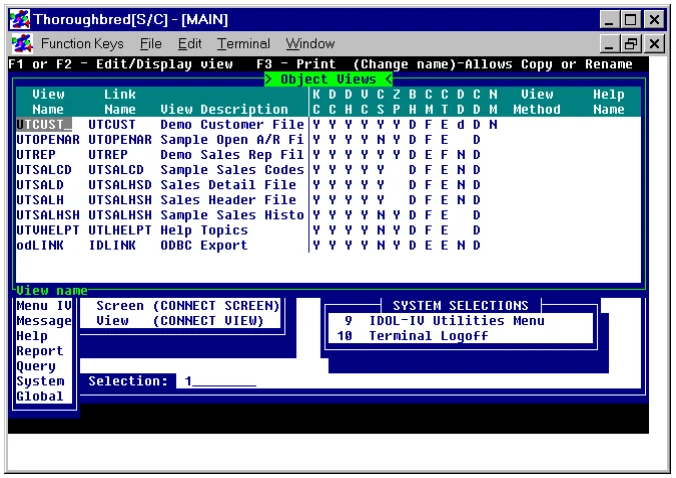
Highlight the UTCUST view. To enter the view, press the F1 key:
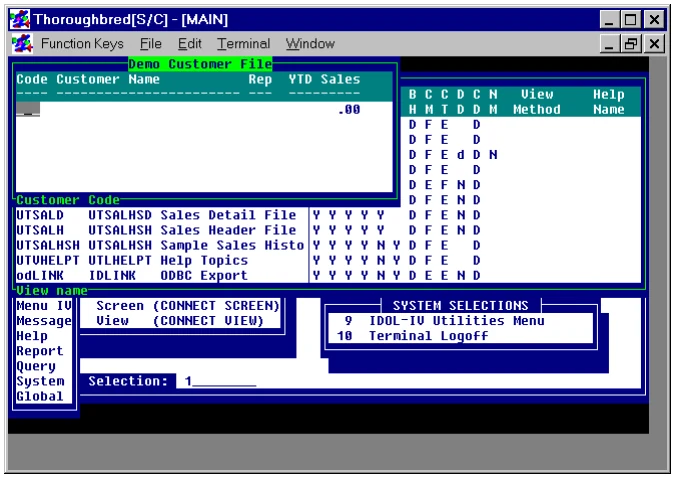
Press the F8 key. From the displayed pop-up menu, select COPY, and copy everything to UTLODBC. When asked if you want to create the data source and accept the defaults, choose Y.
At this point, you can exit from Dictionary-IV.
For more information on formats and links, please refer to Thoroughbred Dictionary-IV documentation. For more information on views, please refer to Thoroughbred OPENworkshop documentation.
From the ODBC Client Capability Supplement, version 8.9.1. Open this page in the PDF