

Activating
To complete the installation, the TS ODBC DataServer server component must be activated. The following procedure outlines the steps for a successful activation.
UNIX Server
Section titled “UNIX Server”-
Move to the directory where the server component was loaded. Execute the tfodbca program.
cd /usr/local/tsodbc./tfodbca -
The system will display a screen similar to the following:
******************************************************************** ** ** TS ODBC DataServer Activation Process ** ** ********************************************************************This system contains a temporary installation ofTS ODBC DataServer.You have less that ‘30’ days before the numberof active users is restricted to 3.SSN = XXXXXXXXX-XXInstallation code = XXXXXXXXXDo you want to enter the Activation Key(Y/N):N
Until you enter a valid Activation Key, the system will operate as a temporary installation. Before you contact Thoroughbred Software International make sure you have the following information handy.
- Your Dealer Code
- The software serial number, which is found on the label on the distribution media or on the displayed Activation screen.
- The Installation Code, which is also displayed on the Activation screen.
To get an Activation Key you can:
- Visit our web page, www.tbred.com, and select the Activations option.
- Call Thoroughbred Software International at (800) 524-0430 or (732) 560-1377 and ask for the Activation Desk.
After Thoroughbred Software International provides the Activation Key, you must enter the value using the following procedure.
When the system prompts:
Do you want to enter the Activation Key?(Y/N):
Type Y and press the Enter key. The following message will be displayed:
Enter Activation Key:
Enter the Activation Key you received from Thoroughbred Software International and press the Enter key. The following message will be displayed:
Performing final installation of TS ODBC DataServer…
After some time elapses the following message will be displayed:
TS ODBC DataServer Installation part 2 completed successfully.
Windows Server
Section titled “Windows Server”From the Start menu, select the Thoroughbred Software program group. Select TS ODBC DataServer Activation. The following screen will display:
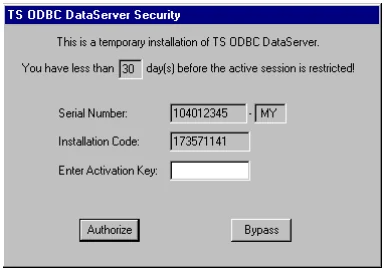
Until you enter a valid Activation Key, the system will operate as a temporary installation. Before you contact Thoroughbred Software International make sure you have the following information handy.
- Your Dealer Code
- The software serial number, which is found on the label on the distribution media or on the displayed Activation screen
- The Installation Code, which is also displayed on the Activation screen
To get an Activation Key you can:
- Visit our web page, www.tbred.com, and select the Activations option
- Call Thoroughbred Software International at (800) 524-0430 or (732) 560-1377 and ask for the Activation Desk.
After Thoroughbred Software International provides the Activation Key, you must enter the value using the following procedure.
Enter the Key in the Enter Activation Key field and click the Authorize button.
Following a successful activation, the system responds with this screen:
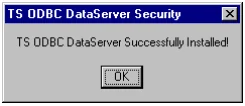
Click OK. The server is now activated.
If an invalid Activation key is entered, the following screen will display:
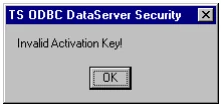
Click OK. The system will return to the main Activation window.
To verify that the server is activated, execute the Server Activation program. The following screen will display:
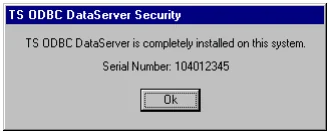
Click OK to close the window.
From the TS ODBC DataServer Installation and Activation Guide, version 8.9.1. Open this page in the PDF