

Client and Server Environment
To set up TS DataServer for MS SQL Server, the following files must be created or modified:
- SERVER.MAP
- IPLINPUT
- Registry Settings ( optional )
SERVER.MAP
Section titled “SERVER.MAP”The SERVER.MAP text file establishes a relationship between a 2-character server ID used by Thoroughbred and the server system. This file is a simple text file.

Thoroughbred uses the Server ID to reference the server system. Each line in the file represents an entry for one Server. The syntax for an entry is:
server-id:[host-name or TCP/IP-address]:TCP/IP-port : DataSource- server-id
- is a 2-character alphanumeric string used within Basic to reference a particular server system.
- host-name
- is the host name for the server system. For installations where the Thoroughbred client and database server environments reside on the same physical system (Windows Network Basic) this field can contain the loop back address or host name.
- TCP/IP-address
- is the TCP/IP address for the server system. For installations where the Thoroughbred client and database server environments reside on the same physical system (Windows Network Basic) this field can contain the loop back address or host name.
- TCP/IP-port
- port number is an optional parameter. It is used to override the default port number (5674), in the event of a conflict with another process using TCP/IP. The transport protocol layer of the TCP/IP process uses the port number to deliver the packet data to the appropriate application.
In the event of a conflict on a particular system, add the port number to the SERVER.MAP file and execute the server process using the port number as an argument. For more information see Server Process in the following section.
- DataSource
- is an optional setting. Data Sources are defined using the Microsoft Administration Tools. Data Sources allow multiple users to share the same settings (i.e. default SQL Server database).
By default, the LocalServer Data Source is used. See Setting Up a Data Source section later in this document.
DataSource names in the SERVER.MAP file may contain up to 32 alphanumeric characters (no dashes or underscores).
Example
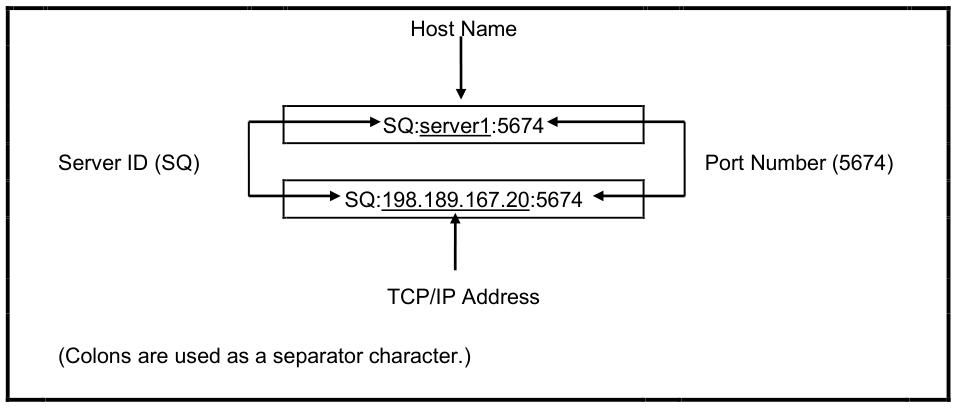
The fields in a SERVER.MAP entry are separated by a colon ( : ). The following are examples of valid SERVER.MAP entries:
Server ID or TCP/IP Address
IPLINPUT
Section titled “IPLINPUT”Once you establish the server ID you can make the required entries for the IPLINPUT file.
Each DEV line corresponds to a directory on the Server. The syntax for a DEV line is:
DEV device-name,1,,server-flag,authentication-type,logon-cache,case-sensitivity,server-id:log/pswd- device-name
- is device ID used to reference logical disk directories. Valid values range from D0 through D9, DA through DZ, and Da through Dz.
- server-flag
- indicates that this will be a client to the configured server system. The value for the SQL server is 4.
- authentication-type
- indicates whether logins to the SQL Server database are done with Windows authentication or SQL Server authentication. The default is Windows (blank or 0). To use SQL Server authentication, set this flag to 1.
- logon-cache
- configures a value for the maximum number of active logins to the SQL Server database. For more information see Logon Cache in the Performance Tuning section.
- case-sensitivity
- indicates whether or not to perform a case sensitive comparison of the key value returned from the SQL data server during a READ, KEY= operation. The default is to perform a case sensitive comparison (blank or 0). To have Basic perform a case insensitive comparison, set this flag to 1.
- server-id
- is the two-character alphanumeric code assigned to this server. The server ID on the DEV line must match an entry in the SERVER.MAP file.
- log/pswd
- when using SQL Server authentication, this is the SQL Server login and password used to access the database. The id and password are optional. If omitted, the system prompts for the information when the client is executed. You cannot mix authentication modes. If the authentication-type is 0, this field must be blank.
If multiple MS SQL Servers are configured for SQL Server authentication and the login/password are the same for each, the PRM MSSQL-LOGIN may be used as a shortcut to defining the login/password on each DEV line.
PRM MSSQL-LOGIN=login/passwordlogin/password is the MS SQL Server login and password used to connect to the database. Only the login and slash ( / ) character are required. A prompt for the password will appear when the client connects.
PRM CREATWDBATTRThis parameter will create new tables using the attributes from the system dictionary. Mandatory fields (Entry Type 2 and 3 and the first key field) will be created with a NOT NULL constraint. In addition, any fixed length fields (Entry Type 1 or 3) will be created with the CHAR data type so the field always contains data.
PRM ORA_NVLNULLSPRM ORA_DONTWRITENULLSThese parameters control how the system orders records when the key field contains nulls. For more information see Null Processing.
PRM SQL_NO_SEPARATORSThis parameter controls how short data values are sent to/from the SQL DataServer. If enabled, a short data value will be sent with trailing spaces. If disabled, a short data value will be sent with a trailing field separator, $8A$.
PRM SQL_NUMERIC_NULLSThis parameter controls how numeric null values are stored in the database. When the data for a numeric field is sent over from a Thoroughbred Basic application as all spaces, if enabled, then this data will be written to the database as a null value, otherwise, it will be written to the database as a 0 value.
PRM UNIQUE-KEYSThis parameter will force all table creates to have unique secondary keys. This is accomplished by adding the Primary key to each sort definition. Some accommodations are made when the same data element name is used more than once in a sort definition. This is not supported by SQL Server.
Control Parameters
Section titled “Control Parameters”The following control parameters for the tsmssql server process are stored in the Windows registry:
HKEY_LOCAL_MACHINE\SOFTWARE\Thoroughbred Software International, Inc.\TS DataServer for MS SQL Server
The first time a tsmssql process is executed, the default values for these control parameters are created in the Windows registry.
Please do not edit the Windows Registry unless you are confident about doing so.
Starting with release level 8.9.0, the following control parameters for the tsmssql server process are stored in the TSMSSQL section of the TSI.ini file located in the C:\ProgramData\Thoroughbred Software directory.
CLIENT-SYSTEM-INFOThis flag will enable process and host information to be logged. For more information see Using the Debugging Facility.
COMMIT-COUNTThis entry is used to specify the commit count. The maximum commit count is 65535. If the specified commit count is greater than the maximum, the maximum value will be used. The default commit count is 1.
The commit count can be overridden by SET CTC in Basic.
DEBUG-LEVELThis entry is used to specify the debugging level. For more information see Using the Debugging Facility.
DEBUG-FLAGSThis entry is used to enable or disable additional information that can be written into the debug log file. The Flag values are:
| Flag Number | Description |
| 1 | Disable logging of the process ID number |
| 2 | Enable logging of a time stamp |
| 4 | Enable logging of parameter values. |
| 8 | Enable logging of fetched values |
| 16 | Enable logging of I/O to/from the SQL DataServer |
| 32 | Enable logging of connection information for the SQL DataServer. |
DEBUG-WIDTH=#The entry is used to specify the width of the output in the /usr/lib/basic/tsmysql.debug file. The default width is 80.
LDA-CACHEThe entry is used to specify the logon cache count. For more information see Logon Cache.
NO-OPENLOCKThe flag will disable the use of the TS_TABLE_LOCK table.
READUNCOMMITTEDThe flag is used to add ‘WITH (NOLOCK)’ to SQL statements when READing. This flag is enabled by default.
UNIQUE-SORTSThis flag will enable tables to be created with unique secondary keys.
Setup Example
Section titled “Setup Example”This environment consists of two SQL Servers on two different host systems.
Existing server-name TCP/IP address information:
The SERVER.MAP file may be set up in one of the following ways:
- Using host names
S1:acct
S2:dev - Using TCP/IP addresses S1:125.32.1.1 S2:125.32.1.10
- Using a combination of host names and TCP/IP addresses S1:125.32.1.1
S2:dev - Specifying a DataSource name other than the default LocalServer S1:125.32.1.1::Production
In this example the login information to the SQL Server database (using SQL Server authentication) is as follows:
- acct:
- login id = mary password = mjs
- dev:
- login id = kurt password = ktc
The IPLINPUT should reflect the following:
DEV D8,1,,4,1,,,S1:mary/mjs
DEV D9,1,,4,1,,,S2:kurt/ktc
After Basic is executed, there will now be a tsmssql process on each of the server systems (acct and dev). If the Authentication Flag is not 1, Basic will display an error message.
Start the Windows Service (tsmssqlmgr)
Section titled “Start the Windows Service (tsmssqlmgr)”The tsmssqlmgr manager is a system service that is installed on the server system. Each time a Basic client executes, a tsmssql process is started. The manager process is installed by default with a startup type of automatic. Each time the server restarts, this service will be automatically started. The Log On value for this service should be a valid Windows user (not the Local System account).
- The service
- can be started with the following Start parameters:
- -d
- Debug Logging
- -p
- Override default port
The –d option is followed by a non-zero value indicating the debug level. The –p option is followed by a TCP/IP port number. By default, the manager will listen on port 5674. If this causes a conflict, use the –p option to override the default port. For more information using the –d option, see Using the Debugging Facility.
Setting Up a Data Source
Section titled “Setting Up a Data Source”The tsmssql manager requires a System data source. The System data source stores information about how to connect to the SQL Server database. The tsmssql manager will by default use a System data source called LocalServer. If the System data source is not named LocalServer, then it must be specified in either Registry or the SERVER.MAP file (for more information see the SERVER.MAP section earlier in this manual). System data sources can be added using the ODBC Data Source Administrator accessible via the Control Panel.
From the TS DataServer for MS SQL Server, version 8.9.1. Open this page in the PDF