

Source Locking and Edit History
Source-IV provides the developer with the ability to lock a Source document, restricting access to other developers, while automatically recording all revisions made to the Source. This feature prevents other developers from making concurrent and unrelated changes to the same Source code while providing a history of revisions which cannot only be reviewed but can be rolled back restoring the document to a previous state.
When a Source document is locked, the Dictionary-IV operator code is used to identify the developer who has locked the Source along with the date, time, and other information. Access to this Source document will be restricted to display mode only for all other developers. Only the developer who has locked the Source can load the Source code for editing.
Locking the Source also records a lock interval in the edit history. This lock interval remains in effect until the developer who locked the Source selects the option to unlock the Source. While the Source is locked, each time the Source is loaded into the editor and changes saved, those changes are recorded in the edit history as an edit session. A lock interval is composed of one or many edit sessions.
Each edit session, a range of edit sessions or all edit sessions in a lock interval can be reviewed to identify the changes made to the Source. This can be done by viewing the details of the edit sessions or by producing an Undo Change Notice. This will show the net effect of all changes made in the selected edit session. Optionally, the edit sessions can be rolled back to revert the Source document to a previous state.
Enabling Source Locking and Edit History Maintenance
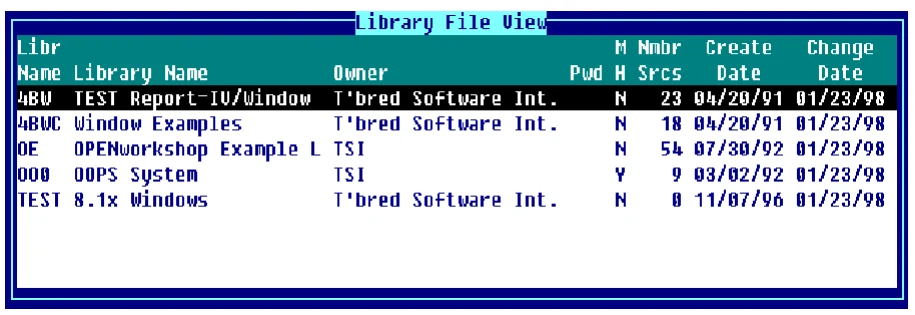
Section titled “Enabling Source Locking and Edit History Maintenance”When you select Library/Source Maintenance from the Source-IV Main Menu the system displays the Library File View:
- Note:
- The MH field can also be accessed when adding a new Source library.
The MH (Maintain Edit History) field indicates whether or not Source-IV should enable Source locking and maintain the edit history for all Source documents in this library. From the Library File View, place the cursor on the MH field and type either Y or N to enable or disable Source locking and maintain edit session history:
Y Source locking will be enabled and edit history will be maintained for all Source in this library.
N Source locking will not be enabled and edit history will not be maintained for all Source in this library. If the Source library was previously set to Y and edit history exists, when a Source document is edited, you will be prompted to remove the edit history for that Source.
Source Locking
Section titled “Source Locking”Locking a Source document will record a lock interval in the Source edit history and restrict access to the Source by all other developers. Once a Source document has been locked, each time the Source is loaded and changes saved, a history of those changes will be recorded in an edit session.
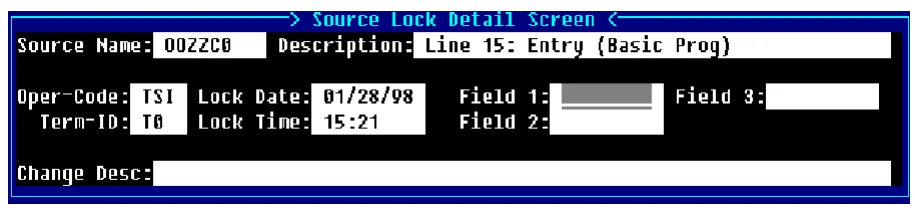
From the Source-IV Main Menu select Edit Source and enter a Library.Source name. After the Source document has been loaded, press F7 and select Lock source. The system displays the Source Lock Detail Screen:
Source Name
The system displays the Source document name.
Description
The system displays the Source document description.
Oper-Code The system displays the current Dictionary-IV or OPENworkshop operator code. Only a developer with this operator code can access the Source document for editing. All other developers will be restricted to display mode only. Only a developer with this operator code can unlock the Source document.
Term-ID
The system displays the current terminal ID.
Lock Date
The system displays the date the Source was locked.
Lock Time
The system displays the time the Source was locked.
Field 1, Field 2,
and Field 3
These are optional 8-byte string fields and can be used to help identify the particular lock interval. These fields can also be sorted when using the Undo Change Notice selection and viewing the Source lock changes.
Change Description
This is an optional 80-character field, which can be used to provide a brief description of the lock interval.
Lock Notes
This is a text field, which can be used to provide a detailed description of the lock interval.
Source Unlocking
Section titled “Source Unlocking”Unlocking a Source document will mark the end of a lock interval and allows full access to the Source document by all developers.
From the Source-IV Main Menu select Edit Source and type a Library.Source name. After the Source document has been loaded, press F7 and select Unlock source. The Source Lock Detail Screen will be displayed and you will be prompted:
Are you sure you want to unlock this source?Select one of the following:
Y The Source document will be unlocked. If no changes were made during this lock interval, the lock interval header will also be removed. If changes were made during this lock interval, the number of edit sessions, which have been logged, will be displayed on the screen.
N The Source will remain locked.
Source can also be unlocked from the Source Lock View, see below.
Source Lock View
Section titled “Source Lock View”From the Source-IV Main Menu select Other Functions. From the Other Functions menu select Source Lock View.
The system displays the Currently Locked Source View:
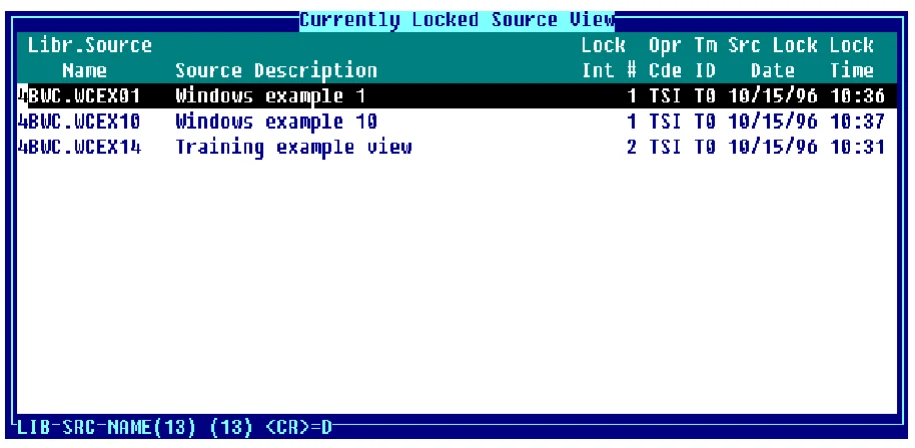
The Currently Locked Source View lists the library.source document name, Source description, the operator code that currently has the Source locked, their Terminal ID, the Source lock date and time.
Select the source-name and press F1 to edit that source.
There are several sorts available from this view. To change the sort order of the view, press F5 the system displays the following:

Highlight the desired sort and press Enter. The Currently Locked Source View will be re-displayed in the selected sort order.
To unlock a Source document from this view, highlight the Source document to be unlocked and press Line Delete the system prompts:
Delete Record?If you answer Y to Delete Record the system will display another prompt to verify your answer:
Are you sure you want to unlock this source?If you answer N to Delete Record the Source will remain locked.
If your operator code is the same as the operator code who locked the Source, you will be given the option to unlock the Source as described above. If your operator code does not match, you will be unable to unlock the Source.
Undo Change Notice
Section titled “Undo Change Notice”The Undo Change Notice feature provides several tools for viewing and managing edit history.
All lock intervals for all Source documents by library can be viewed. This provides access to all the descriptive and header information associated with a lock interval.
A view of the detailed edit history for all Source documents by library can be viewed. The level of detail recorded here may not always be a practical approach to reviewing and analyzing edit history. A more useful approach is the UndoCN (Undo Change Notice View/Report).
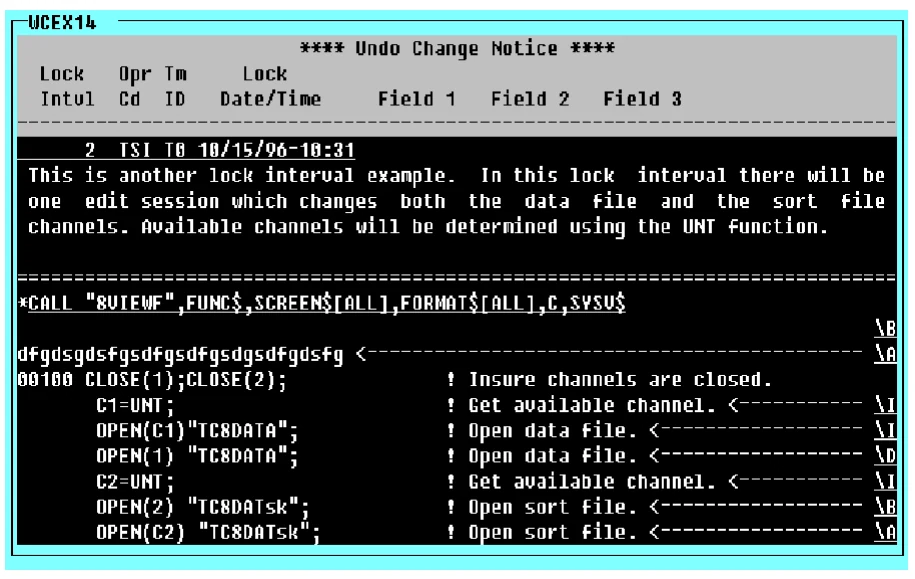
An UndoCN document shows the net effect of edit history applied to the Source, showing statement changes, deletions, and insertions.
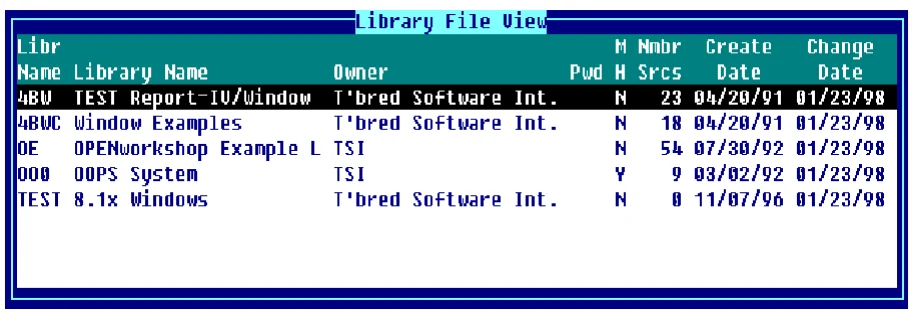
From the Source-IV Main Menu select Other Functions. From the Other Functions menu select Undo Change Notice. The system will display the Library File View:
Select a library name and the system displays the Source Lock Interval View:
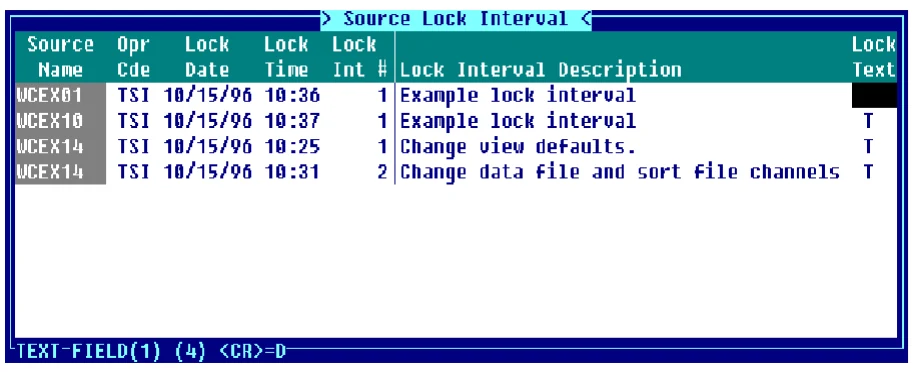
All lock intervals are displayed in Source document order. It includes the Source name, operator code of the developer who locked the Source, lock date and time, number of lock intervals and lock interval description.
To display or edit the Lock Notes (text field), place the cursor on the Lock Text field and press Enter. The system displays the Lock Notes window:
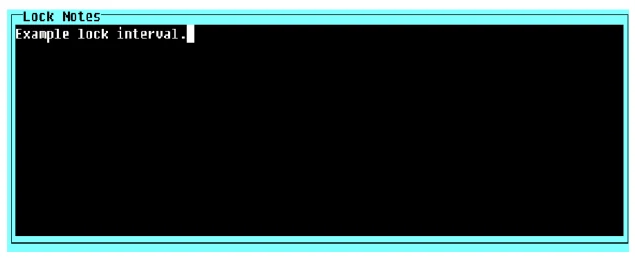
For more information, see the section on Source Locking in this document.
To view the edit history detail, from the Source Lock Interval View highlight the Source lock interval and press Enter. The system displays a view of the Edit Sessions for the selected lock interval:
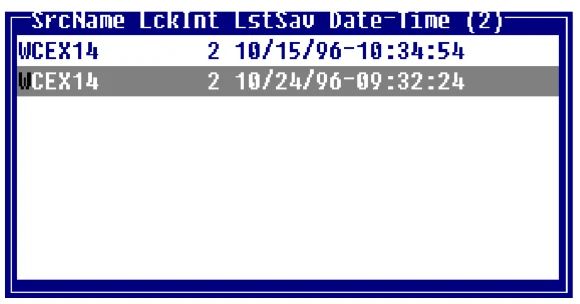
Highlight the edit session and press Enter. Select View, a view of all the edits made during this session is displayed:
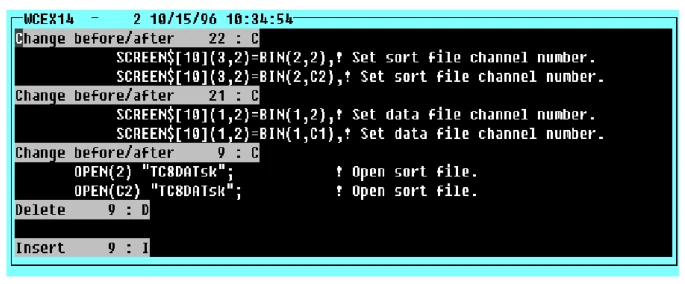
To view or print the UndoCN, highlight the edit session and press Enter. Select UndoCN. The system displays the following:
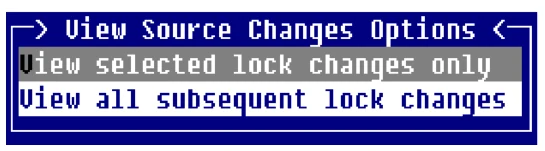
View selected lock changes only This selection will display only the edit session changes made for the selected lock interval and not subsequent lock intervals.
View all subsequent lock changes This selection will display all the edit session changes for the selected lock interval and all subsequent lock intervals.
After making your selection, the system displays the following:
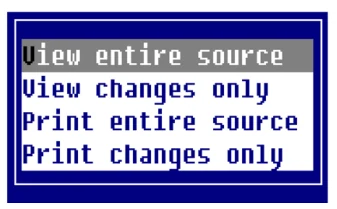
View entire source Displays the entire Source document showing the net effect of statement changes, deletions, and insertions.
View changes only Displays only those Source statements that have been changed, showing the net effect of statement changes, deletions, and insertion.
Print entire source Prints the entire Source to the selected printer. This will print a report similar to the View entire source option above.
Print changes only
Prints only the Source statements that were changed, inserted, or deleted to the selected printer.
Below is an example of an Undo Change Notice. The example below has View all subsequent lock changes and View changes only selected. The information displayed in the Undo Change Notice will vary depending on your selections:
- Note:
- Edit sessions and lock intervals are cumulative. For example, if you select the first edit session, the UndoCN will include all edit sessions for that lock interval. If you select session number 5 of 10, the UndoCN will include edit sessions 5 through 10. This is done since subsequent edits may be dependent upon edits made in a previous session. Edit sessions must be viewed historically.
Undo Edit Session History
Section titled “Undo Edit Session History”The Undo Edit Session History option allows you to roll back selected edit sessions or an entire lock interval if it should become necessary to revert the Source back to a previous state. Once this option has been selected, the edit history cannot be recovered. As with the UndoCN option, edit sessions and lock intervals are cumulative. For example, if you select to undo the first edit session, all edit sessions for that lock interval will be undone. If you select to undo edit session number 5 of 10, edit sessions 5 through 10 will be undone.
From the Source-IV Main Menu select Edit Source. Enter the library and Source, once the Source is loaded press F7 (Special Functions). Select Edit session history. The system displays the Source Lock Interval View:
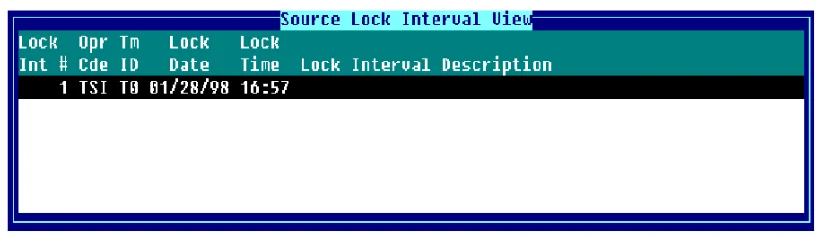
Highlight the appropriate lock interval and press Enter. A view of all of the edit sessions for that lock interval will be displayed (see above). Highlight the edit session for which the Undo Edit Session History is to be performed and press Enter. The system displays the following:
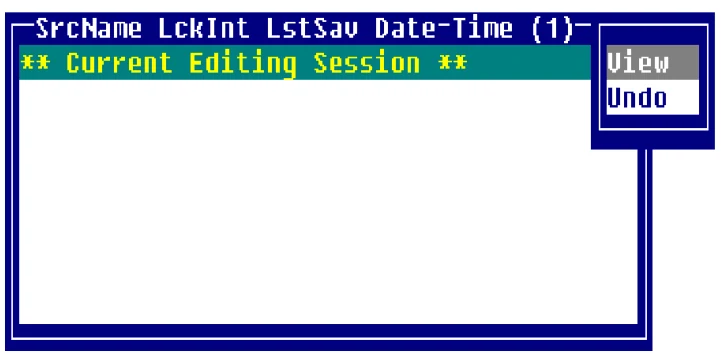
View
Displays the detailed edit session history of the selected edit session.
Undo
Will undo the selected and all subsequent edit sessions from the Source.
After selecting Undo the Source will be redisplayed in the editor reflecting the undo. To save the Source, press F4. The system prompts:
Save?Select one of the following:
Y Save new text or text changes and exit the editor.
N Will not save new text or text changes.
The system then prompts:
Are you sure?Select one of the following:
Y If you answered N to the Save? prompt and you answer Yes to the Are you Sure? prompt then new text or text changes will not be saved. If you answered Y to the Save? prompt and Y to the Are you sure? prompt the system will display the warning screen as seen below.
N Save? prompt will be asked again because you are not sure.
If you have selected an edit session, which requires subsequent edit sessions to also be undone, the following warning screen will be displayed:
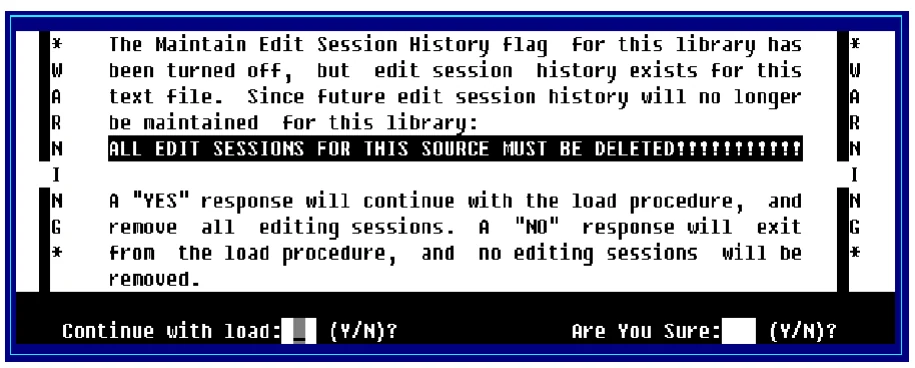
From the warning screen you are prompted:
Continue with save?The Edit Session History function was used on this Source module and was not reset to the Current Editing Session, therefore some editing sessions will have to be deleted.
Y Source will be saved in its current state, and the specified number of editing sessions will be deleted.
N Source will not be saved, and the specified number of editing sessions will not be deleted.
Are you Sure?This is an additional message that allows you to verify your answer to the previous question.
Y Will perform the specified procedure.
N Will return to the previous question and allows you to change your answer.
If you have selected to undo all edit sessions in a lock interval, the lock interval will also be removed.
From the Source-IV, version 8.9.1. Open this page in the PDF