

URL Parameters
Similar to AutoLogons in TbredComm, you can specify your user name and password when starting a web terminal session. You can also suppress the startup banner, change the font size, the cursor and the window title. This is accomplished by appending one or more URL parameters to your connection URL.
To specify a URL parameter, append a ? and the URL parameter to your connection URL. Multiple parameters can be specified by appending an & and the URL parameter after the first URL parameter:
http://<system-name>:5622/?<url-paramenter-1>[&<url-parameter-2>…]
Current URL Parameters:
Section titled “Current URL Parameters:”-
user=<value>
-
pass=<value>
-
banner=no
-
fontSize=<number>
The default fontSize is 14.
-
cursorStyle=block|underline|bar
The default cursorStyle is block.
-
titleFixed=<string>
The new title <string> will be displayed after a connection has been established.
To specify your user name when starting a web terminal session, enter the following into the address bar of the browser and replace <username> with your user id.
http://<system-name>:5622/?user=<username> When connected to the system, you will be presented with just a password prompt.
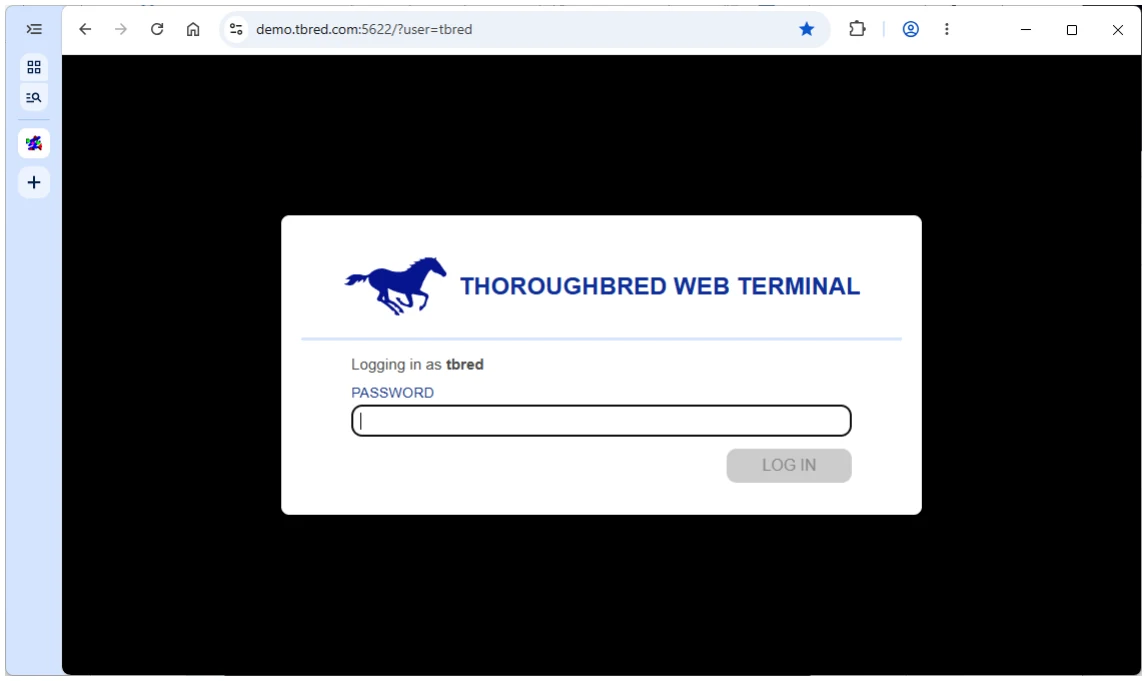
To start a web terminal session without having to enter your user id or password, enter the following into the address bar of the browser, replace <username> with your user id and <password> with your password:
http://<system-name>:5622/?user=<username>&pass=<password>
The security implications of specifying a password in the URL must be considered by the user. It is recommended that this type of connection is only done on a secure network.
From the Thoroughbred Web Terminal Reference, version 8.9.1. Open this page in the PDF