

Dictionary Compare
This utility can be used in one of two ways:
- Compare a new dictionary with an old dictionary.
- Compare a standard TSI dictionary with a translated dictionary.
Select Dictionary Compare from the Dictionary-IV Utilities Menu. The system displays the following screen:
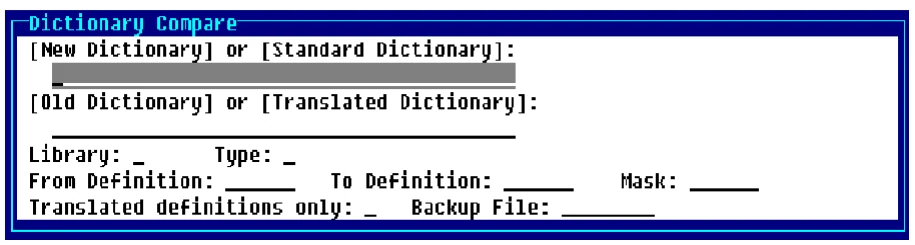
Compare new dictionary with an old dictionary This will compare the dictionary of a new release with that of a previous release. This will report definitions that have been changed or added in the new release. It will compare only the English version of each definition.
Compare standard dictionary with a translated dictionary This will report definitions with language codes other than English. For those definition types that are not supported by the Multi-Language feature, any definition in the translated dictionary that is not identical to the same definition in the standard dictionary, will be assumed to be translated. Currently the Multi-Language feature supports the following definition types: Formats, Screens, Views, Messages, Window Help, Reports, and Queries.
A ‘bk’ file will be created with the translated definitions. This allows translated definitions to be readily identified and restored into another dictionary.
Library From this field you can press Enter for a list of library names. The system displays a toggle menu allowing you to toggle Yes or No to select the libraries to compare. Once selections are made you must select <Execute>.
Type From this field you can press Enter for a list of definition types. The system displays a toggle menu allowing you to toggle Yes or No to select the definitions to compare. You can use the toggle all option to select Yes or No for all definitions. Once selections are made you must select <Execute>.
From Definition Enter a six-character definition name. Press F2 for a view of definitions. If a definition name is not specified the default is First.
To Definition Enter a six-character definition name. Press F2 for a view of definitions. If a definition name is not specified the default is Last.
Mask This allows you to specify a matching mask when selecting definitions. Enter characters to be matched to and a ? for non-matching characters. Enter a @ for non-matching characters from that position in the name through the last character in the definition name. If a name mask is not specified the default is None.
Example:
- ?B?D??
- Will select any definition where the second character is B and the fourth character is D.
- AB@
- Will select any definition where the first two characters are AB.
Translated definitions only
Select one of the following:
Y Reports definitions with language codes other than English. For those definition types that are not supported by the Multi-Language feature, any definition in the translated Dictionary that is not identical to the same definition in the standard Dictionary, will be assumed to be translated. Currently the Multi-Language feature supports the following definition types: Formats, Screens, Views, Messages, Window Help, Reports, and Queries.
N Compares the dictionary of a new release with that of a previous release. This will report definitions that have been added in the new release and definitions, which have changed in the new release. It will compare only the English version of each definition.
A ‘bk’ file will be created with the translated definitions. This allows translated definitions to be readily identified and restored to another dictionary.
Backup File If you answered Y to Translated definitions only a backup file will be created with the translated definitions. Enter the name of the backup file in this field. The system will skip this field if you answer N to Translated definitions only.
From the Dictionary-IV Administrator Guide, version 8.9.1. Open this page in the PDF