

*NPSD - Terminal Configurator
Purpose
This utility is used to define and configure terminal tables for the terminals on your system. The information provided in this section applies to all Thoroughbred Basic installations.
Note: Thoroughbred Basic requires that all terminals on the system have the ability to roll the screen up one line when data is entered on the last line of the screen (auto scroll).
Procedure
To run this utility from Thoroughbred Basic Console Mode, type:
RUN “*NPSD” and press Enter.
To select this utility from the Thoroughbred Basic Utilities Menu, type one of the following:
N and press Enter.
*N and press Enter.
*NPSD and press Enter.
Menu option # and press Enter.
The following prompt is displayed:
DEPRESS THE CARRIAGE RETURN KEY:
Press Enter. A screen similar to the following is displayed:
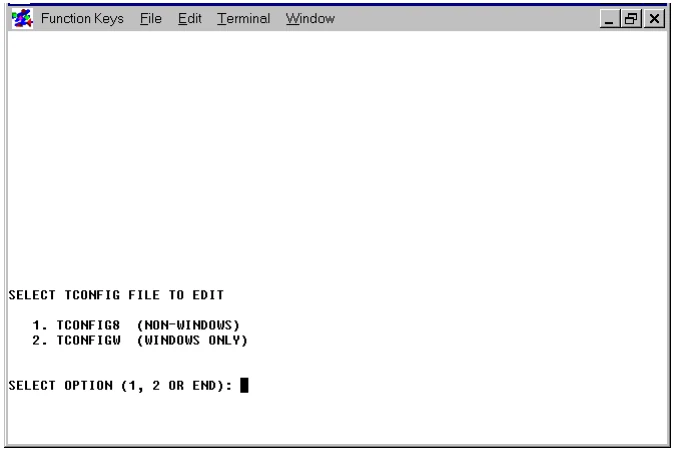
Choose the appropriate option and press Enter. A screen similar to the following is displayed:
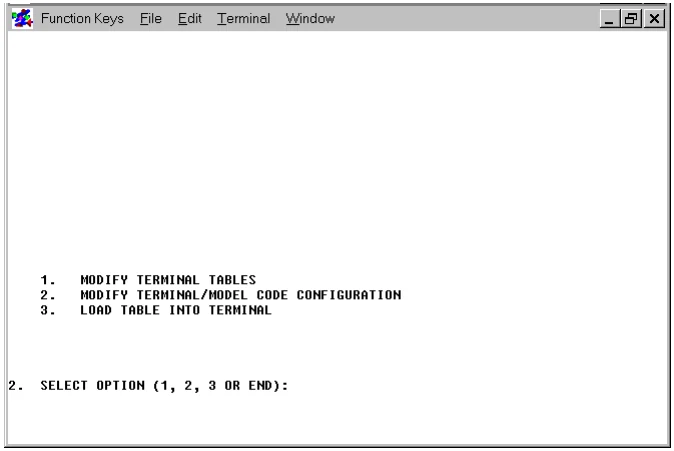
All prompts in the terminal configurator are numbered. Option 1 begins with prompt 3; option 2 with prompt 22. The following keywords are among the valid responses:
- END
- Allows you to exit the configurator and save or cancel the modified or newly defined terminal table (Prompts 20 and 21). Once you begin to modify the mnemonics, do not use END until the modifications are complete.
- BACKn
- Returns the procedure to the prompt number specified by n.
- TABLE
- Causes the configurator to redisplay the terminal table list, or under option 2, the terminal/model code table. Beyond prompt 7 you have the option of saving the terminal table that is being created or modified before reprinting the terminal table list.
- NULL
- Causes the configurator to generate a null entry for a given prompt.
- <CR>
- A carriage return causes the configurator to retain the existing value for a given parameter.
- MODIFYING TERMINAL TABLES
Select option 1 on the terminal configurator screen. The system displays a list of predefined terminal types. The following is a sample screen and may vary from the list provided with your system:
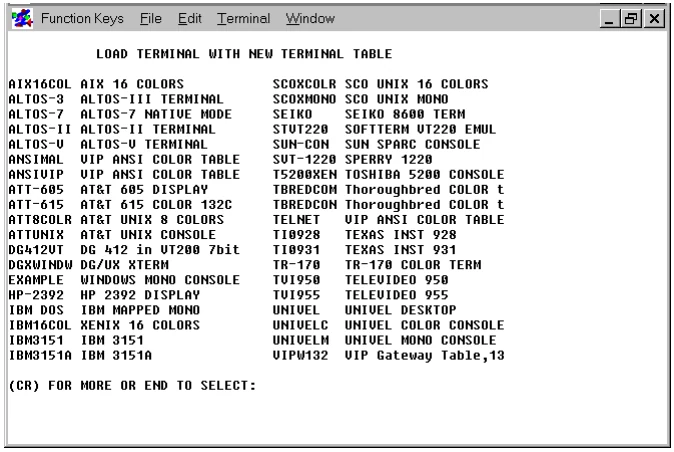
(CR) FOR MORE OR END TO SELECT:
To see more selections, press the Enter key. To enter a selection, END and press the Enter key. The following sample screen may vary from the list provided with your system:
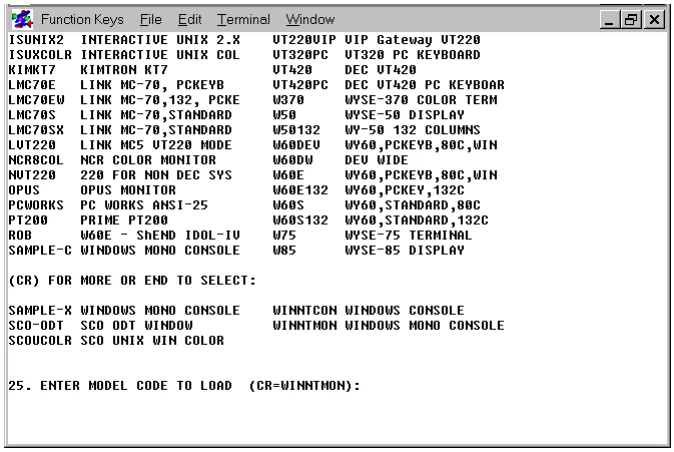
Each terminal table is identified by a model code. These model codes are displayed on the defined terminal table list screen along with the corresponding descriptions of the terminals.
Note: The listed model code should match the model code entered in Option 2. In the sample screen above, the listed model code is WINNTMON.
Thoroughbred Basic is shipped with many terminal tables already configured. In most cases, one of these tables can be used, making it unnecessary to define a new table. Therefore, you should first check the defined terminal table list under option 1 to see if your terminal is listed. If not, follow the procedure described in the section entitled, Create a New Table.
Create a New Table
At prompt 3, select C to create a new terminal table. The system prompts you for a terminal table. Enter a new model code (from 1 to 8 characters in length) to identify the table. (If you enter a model code that already exists, the system displays an INVALID message.) The system allows you to base the new terminal table upon an existing table or to start from scratch:
- ENTER BASE TERMINAL TABLE OR CARRIAGE RETURN:
To use an existing terminal table as the basis for the new one, enter the model code of the existing table. To create the table from scratch, press Enter.
The system then prompts for each value to be entered into the new table. These prompts are the same as those described in the section entitled Modify a Table.
Modify a Table
Note: The manual that you received with your terminal should provide detailed information on all terminal functions, codes, and escape sequences. You need to have the manual handy to respond to the prompts in this procedure.
At prompt 3, select M to modify an existing terminal table. After you enter the model code of an existing terminal table, the system displays a series of prompts and allows you to enter new values or press Enter to retain the existing values. The following information discusses each prompt and the information needed.
- ENTER TERMINAL NAME (20 CHARACTERS MAX)
Type a new name and press Enter or press Enter to retain the previously defined terminal name.
- ENTER TERMINAL BACKSPACE CODE (HH)
Type a hex value and press Enter or press Enter to use the default. Since most terminals use the hex value of 08 for backspace, the configurator uses the hex value of 08 as the default.
- ENTER TERMINAL NULL CHARACTER CODE (HH)
Type a hex value and press Enter or press Enter to use the default. Since most terminals use the hex value of 00 for null, the configurator uses the hex value of 00 as the default.
- ENTER BASIC ESCAPE CODE (HH)
Type a hex code and press Enter or press Enter to use the default. Since most programmers use 1B as the escape code that Thoroughbred Basic recognizes, the configurator uses the hex value of 1B as a default. This should not be confused with prompt 10, which is the escape code that is transmitted to the terminal to invoke terminal special features.
- ENTER TERMINAL ESCAPE CODE (HH)
Type a hex value and press Enter or press Enter to use the default. Since most terminals recognize the hex value of 1B for an escape, the configurator supplies the hex value of 1B as the default. This should not be confused with prompt 9, which refers to the escape code Thoroughbred Basic recognizes from a terminal.
This hex code is used in conjunction with prompt 11 to provide a keyboard entry for the escape code that will be transmitted to the terminal as part of the mnemonics (described later).
- ENTER A CHARACTER THAT REPRESENTS AN ESCAPE (X)
Type one character and press Enter or press Enter to use the default. Since the definition of terminal mnemonics can require an escape code followed by some character(s), this character will be used to syntactically represent the escape code specified by prompt 10. Pressing Enter defaults to the character E.
- ENTER CODE(S) THAT ARE TO BE IGNORED
Type one or more hex codes and press Enter or press Enter to use the default. Since some terminals transmit codes back to the CPU after the completion of certain terminal functions, it may be necessary to have Thoroughbred Basic ignore these codes. Pressing Enter indicates that no codes should be ignored.
For example, 0102FEFF indicates that the four hex codes 01, 02, FE, and FF should be ignored when these codes are transmitted from the terminal to Thoroughbred Basic. Take care when specifying these codes to ensure that valid keyboard character codes are not ignored.
- ENTER LEADING BLANK REPLACEMENT CHARACTER (HH)
Type a hex code and press Enter or press Enter to use the default. Some terminals look for a special code in place of the first leading blank transmitted. If the code is not supplied, leading blanks may be lost.
| The system then prompts | for the following | edit codes: |
|---|---|---|
| Left arrow | Line insert | Control P |
| Down arrow | Line delete | Page down |
| Up arrow | Line erase | Page up |
| Backspace | Tab | Screen up |
| Character delete | Back tab | Screen down |
| Character insert | Home | Boundary down |
- Right arrow
- Boundary up
- ENTER THE NUMBER OF TERMINAL FUNCTION KEYS:
Type a numeric value from 4 to 99 and press Enter or press Enter to use the default (4). After specifying the number of function keys available, the configurator prompts for the hex values that the terminal transmits when a function key is entered:
34.1 ENTER FUNCTION KEY 01 CODE
34.2 ENTER FUNCTION KEY 02 CODE
34.3 ENTER FUNCTION KEY 03 CODE
34.4 ENTER FUNCTION KEY 04 CODE
34.n ENTER FUNCTION KEY n CODE
Type the hex value that is transmitted from the terminal to the CPU for each function key and press Enter. The hex value can be one or more hex codes.
Examples: 01, 02, 03, 04, 0F, 01400D, 01410D, 01420D, 01430D, 014F0D.
Consult your terminal manual to determine whether one, two, or more hex digits are needed for each function key value.
It is important to note that hex values can be specified for terminals that do not have function keys. In this case, the codes recognized as function keys are also specified.
- DOES TERMINAL HAVE CLEAR FOREGROUND (Y/N)?
Type Y and press Enter if the terminal has the “CF” (Clear Foreground) mnemonic; Type N and press Enter if the terminal does not. This means that Thoroughbred Basic must keep a bit map for data that is printed in the foreground so that the “CF” mnemonic can clear the foreground data using the bit map.
- ENTER CURSOR CONTROL FORMAT MASK (APYLZ)
This parameter is used for cursor positioning functions in Thoroughbred Basic, for example:
PRINT @(10,15), “REPORT #1”.
Examples: APL AALP AAAPYLZZ APL NULL
Cursor positioning functions are:
A Represents a leading control character.
P Represents a cursor position within a line value.
Y Represents a control character to follow the cursor control position value.
L Represents a cursor line value.
Z Represents a control character to follow the cursor control line value.
As shown in the examples, a mask must be entered that represents the format of the cursor control sequence. Once the mask is defined, the system prompts for the specific hex values to be used for each part of the mask. Prompts are issued in the following order: A’s, P, Y’s, L, Z’s.
Prompts are only issued for characters that are in the mask. More than one A, Y, or Z may be in the mask, indicating that more than one character is transmitted for each code. Multiple occurrences of the characters A, Y, and Z must be contiguous. That is, AALP is valid and ALPA is not. Both the L and P codes are required and can occur only once.
For example, the mask AALP would result in the following prompts (sample operator responses are shown):
36.1 VALUE FOR AA (HH): 1B01
36.2 STARTING VALUE FOR P (HH): 20
36.3 NUMBER OF CHARS PER LINE FOR P: 80
36.4 STARTING VALUE FOR L (HH): 20
36.5 NUMBER OF LINES FOR L: 24
In the example above the cursor control sequence consists of a hex 1B01, followed by the cursor position number with the starting value for position 0 (hex 20), followed by the cursor line number with the starting value for line 0 (hex 20).
Entering the mask AAAPYLZZ results in the following:
36.1 VALUE FOR AAA (HH): 1B0102
36.2 STARTING VALUE FOR P (HH): 00
36.3 NUMBER OF CHARS PER LINE FOR P: 80
36.4 VALUE FOR Y (HH): 3B
36.5 STARTING VALUE FOR L (HH): 20
36.6 NUMBER OF LINES FOR L: 24
36.7 VALUE FOR ZZ (HH): 6667
In the example above, the cursor control sequence consists of a hex 1B0102, followed by the cursor position number with the starting value for position 0 (hex 00), followed by a hex value 3B to terminate the line position, followed by the cursor line number with the starting value for line 0 (hex 00), followed by a hex value of 6667 to terminate the line value. This cursor control format is by far the most cumbersome. Fortunately, most terminals do not require this format; instead, most terminals follow the pattern AAPL.
A NULL mask can be used to disable the cursor positioning functions. In this case, any cursor positioning commands (PRINT @. . .) in Thoroughbred Basic will be ignored.
- BINARY FORMAT FOR CURSOR POSITION AND LINE (Y/N)
If Y is entered, the configurator expects a one-byte binary value for the cursor position and line values. The valid range for cursor position is based on the hex starting value specified for P plus the value specified for the number of characters per line. The valid range for line position is based on the hex starting value specified for L plus the number of lines. The starting value for P and L is the base value: zero-base, one-base, space-base (hex 20) or any other base that is required by the terminal.
If N is entered, the configurator assumes that the cursor position and line values are in ASCII format: one byte for each digit, cursor position, or cursor line number. Normally, if a terminal requires this format for the cursor position and line values, the terminal also requires the terminating characters (characters Y and Z in cursor mask) for position and line since the cursor position and line values are variable length, as shown in the above examples.
- ENTER NUMBER OF NULLS FOR SCREEN ROLL (1 THROUGH 99)
Type a numeric value from 1 to 99 and press Enter or press Enter to use the default, null. In this case, null is interpreted by the system as a zero. Most terminals require a delay following terminal functions that cause the screen to roll. Thoroughbred Basic performs such delays by sending null characters after screen roll functions. This ensures that other valid data sent to the terminal after a screen roll will not be lost.
The system displays the List of Defined Mnemonics screen, similar to the following:
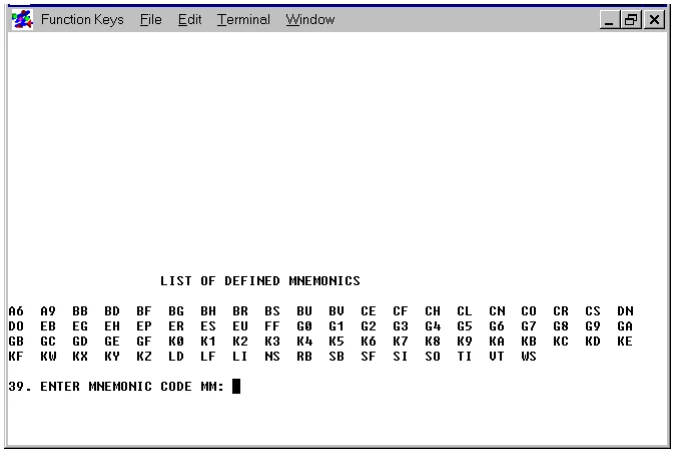
- ENTER MNEMONIC CODE MM
Type a new or existing mnemonic code and press Enter, the keyword TABLE and press Enter, or press Enter. Refer to the following table for information on these options:
| Option | Response |
|---|---|
| A mnemonic code has previously been defined | You are given the option to modify the old values |
| A mnemonic code has not been previously defined | You are prompted to enter a new mnemonic definition |
| Type keyword TABLE and press Enter | The list of defined mnemonics is redisplayed |
| Press Enter | The configurator displays the next defined mnemonic and gives you the option of modifying the mnemonic |
The following prompts are used to define or modify each mnemonic; descriptions of the available parameters follow each prompt:
39.1 ENTER CODE TO BE TRANSMITTED TO TERMINAL
Enter NULL, DELETE, a hex value, or a keyboard string value that will be transmitted to the terminal when the mnemonic is used.
The special code NULL indicates that no codes are transmitted, which causes a mnemonic to be ignored (i.e., FF - form feed). The special code DELETE indicates that the mnemonic code is to be deleted. The following are examples of valid input:
| $1B31 | KE1 | NULL |
| $01 | KEr | DELETE |
| $1BFE91 | KE.0 |
The above examples illustrate that a $ or K must precede a character string. Strings that are preceded by a $ are assumed to be hex values. Strings preceded by a K are assumed to be keyboard characters. Note that in the above example, the E is assumed to be an escape code previously defined in prompt 11.
39.2 ENTER NUMBER OF NULLS TO TRANSMIT AFTER CODE
Type 0 to 99 and press Enter or press Enter to assume that no nulls are transmitted after the mnemonic code. Some terminals require a delay after certain terminal commands; transmitting nulls accomplishes this delay.
39.3 ENTER CURSOR UPDATE MODE
Enter one of the following codes to define the cursor position after a terminal function is executed:
0 This mnemonic does not affect the cursor position.
1 The cursor moves to the beginning of the next line or, if the cursor is on the last line, the screen rolls.
2 The cursor moves down one line. If the function was executed on the last line of the screen, the screen rolls.
3 The cursor moves up one line. If the cursor is on the first line, this function does not move the cursor.
4 The cursor moves back one position. If the function was executed on the first character of a line, the cursor moves to the last character of the previous line. This function has no effect if executed on the first character of the first line.
5 The cursor moves to the beginning of the next line. If this function is executed on the last line of the screen, the cursor moves to the first character of the first line.
6 The cursor moves down one line. If this function is executed on the last line of the screen, the cursor moves to the first line.
7 The cursor moves up one line. If this function is executed on the first line on the screen, the cursor moves to the last line on the screen.
8 The cursor moves back one position. If the function is executed on the first character of a line, the cursor moves to the last character of the previous line. If the cursor is on the first character of the first line, the cursor moves to the last character of the last line.
9 The cursor moves to the first position of the current line.
A The cursor moves back one position. If the cursor is on the first position of a line, the cursor does not move.
B The cursor moves to the first character of the first line.
39.4 ENTER SPECIAL EDIT CODE
If the terminal does not have a clear foreground capability, specify one of the following codes for the mnemonic depending on the type of mnemonic being defined:
| 0 | No Special Edit Required, |
| 1 | Clear Screen, |
| 2 | Clear Line, |
| 3 | Line Delete, |
| 4 | Line Insert |
| 5 | Roll Screen Up |
| 6 | Clear Foreground |
| 7 | Roll Screen Down |
39.5 ENTER FOREGROUND/BACKGROUND CODE
Type one of the following values and press Enter or press Enter to use the default, 0. These codes describe how the mnemonic affects the foreground/background status of the terminal:
| 0 | Does not affect foreground/background Status (default). |
| 1 | Puts the terminal in foreground mode. |
| 2 | Puts the terminal in background mode. |
- SAVE NEW TERMINAL TABLE (Y/N)
If N is entered, the configurator does not save the newly created or modified terminal table. If Y is entered, the configurator saves the newly created or modified terminal table and displays the message:
GENERATING CONTROL TABLE XXXXX SUCCESSFULLY GENERATED TERMINAL TABLE XXXXX PROPERLY SAVED
The system then provides the option to return to the Terminal Configurator screen to define or modify more tables:
- CREATE OR MODIFY MORE TERMINAL TABLES (Y/N)
If Y is entered the system returns to the Terminal Configurator screen (prompt 2). If N is entered, the Terminal Configurator terminates and the Thoroughbred Basic Utilities Menu is displayed.
Delete a Table
At prompt 3, type D and press Enter to delete a terminal table. The system prompts for a terminal table. If you enter a nonexistent table, the system displays an INVALID message. Otherwise, the system prompts:
4.1 DELETE (Y/N)?
- WARNING:
- When you enter Y to execute the delete, the table is immediately deleted from the system without providing you the opportunity to cancel the operation.
Type Y and press Enter to delete the table or Type N and press Enter to return to the “ENTER TERMINAL TABLE” prompt.
List Table on Printer
At prompt 3, type L and press Enter to print either the Defined Terminal Table List or a selected terminal table. The following prompt is displayed:
TABLE LISTING ONLY (Y/N)?
This refers to the Defined Terminal Table List displayed on the screen. Typing Y and pressing Enter allows you to select a printer to print the Defined Terminal Table List. Typing N and pressing Enter allows you to select a specific terminal table to print. If you attempt to print a nonexistent table, the system displays the “INVALID” message.
- MODIFY TERMINAL/MODEL CODE CONFIGURATION
Select option 2 on the Terminal Configurator screen. The system displays a list of terminal ID’s and the model codes (Terminal Tables) associated with them.
The prompt displayed refers to a Thoroughbred Basic terminal ID. Valid ID’s consist of the letter T followed by any character. If you are defining a new terminal ID (one not displayed), the system skips the next prompt. Otherwise, if you selected an existing terminal ID, the system responds with:
- DELETE (Y/N)
If you type Y and press Enter, the entry for the specified terminal ID will be deleted and prompt 22 is displayed. If you type N and press Enter, the system allows you to change the model code associated with that terminal.
- ENTER MODEL CODE (8 CHARACTERS MAX)
If the model code that you enter does not identify a defined terminal table, the following message is displayed:
***MODEL CODE NOT DEFINED . . . ACCEPTED ANYWAY***
The Terminal ID/model code association is entered in the table and the system redisplays prompt 22.
Enter TABLE to redisplay the list. Enter END or BACK to exit this selection. If you modified the Terminal ID/Model Code table, the system displays the following prompt and allows you to save or cancel the changes.
SAVE NEW TERMINAL/MODEL TABLE (Y/N)
A Y response saves the new table; an N response cancels it. The system will return to the Terminal Configurator menu.
Note: You must use option 3: LOAD TABLE INTO TERMINAL to activate the terminal table for the terminal specified in option 2.
- LOAD TABLE INTO TERMINAL
Select option 3 on the Terminal Configurator screen. The system responds with:
- ENTER MODEL CODE TO LOAD (CR=xxxxxxxx)
Enter a defined model code or one of the keywords. If the terminal is defined in the terminal ID/model code list, the x’s in the prompt are replaced by the model code for the terminal. This model code is used as the default if you press Enter. If the terminal is not defined, the (CR=xxxxxxxx) is not displayed and a terminal model code must be entered.
When the terminal model code is entered, the new configuration is loaded into the terminal and the program redisplays prompt 1.
Error Messages
CANNOT FIND OR CREATE ‘TCONFIG’ FILE
CONFIGURATOR TERMINATED ABNORMALLY
This message is displayed when the configurator cannot open or create the file TCONFIG. If this message is displayed, try to recreate “TCONFIG” from a backup or Thoroughbred Basic master file. When this error occurs, the system enters Thoroughbred Basic Console Mode automatically.
- ENTER DISK NUMBER WHERE 'TCONFIG' CAN BE CREATED
- The terminal tables are maintained in the DIRECT file TCONFIG. (TONFIG8 for Thoroughbred Basic version 8.) If this file cannot be opened by Thoroughbred Basic (i.e., TCONFIG has been deleted or is located on a disabled directory), the configurator attempts to create a new TCONFIG on the UTIL directory (D0). If UTIL cannot be accessed, the system prompts you for a disk directory from 0 to 9 where TCONFIG can be created.
- ***** INVALID *****
- This message is displayed any time an invalid entry is made in response to a prompt. The message is displayed below the prompt and the configurator redisplays the prompt and waits for a valid response. When this message is displayed, refer to the explanation of the prompt where the error message occurred.
- MESSAGE TABLE ERROR, CONFIGURATOR TERMINATED ABNORMALLY
- This message is displayed when the system attempts to call a prompt from the message table but is unable to locate the message. This error might occur if modifications have been made to the configurator program. When this error occurs the system automatically returns to Thoroughbred Basic Console Mode.
From the Thoroughbred Basic Utilities, version 8.9.1. Open this page in the PDF