

Features
Unless otherwise noted, the features documented below only apply to local Basic sessions. If you are connecting via telnet using TbredComm, please refer to the TbredComm and WorkStation Manager manuals for information on features.
Menu Bar
Section titled “Menu Bar”The TS Environment for Windows includes a menu bar with five selections. While executing any Thoroughbred based application, you will have access to these five selections: Function Keys, File, Edit, Terminal, and Window.
Function Keys
Section titled “Function Keys”This menu option allows the user to select function keys using a mouse. The Function Key Menu option is active for keyboard operation and, when selected, will be added to the input buffer.
The File menu option has three selections: Print Setup, Exit, and About Thoroughbred.
Print Setup – If active (see Print Manager section in this guide), provides access to Windows Print Setup
Exit – if active (see Windows API section in this guide), allows the user to exit (Ctrl-B or RELEASE) back to the Windows Program Manager.
About Thoroughbred – provides workstation information including Version, User, and Serial Number.
This option enables the user to Copy marked text to the clipboard. Because some products require a break carrier other than “CR,” you may have to switch to OEM Display format used by Microsoft Windows applications when viewing the copied text with other products.
Terminal
Section titled “Terminal”This submenu is used to access options that support multiple font selection. The three items are Select Font, Autosize, and 132 Column.
Select Font – the user may select a font, style, and size using a Font Common Dialog. This font will be used for all subsequent screen displays.
Autosize – this option automatically calculates and resizes the Basic window after a new font has been selected. In addition, if the user resizes the Basic window by dragging one of the window’s edges or corners, a new font size will be calculated to fit the screen. A check mark will be displayed next to the item when it is active.
132 Column – this option will allow the Basic window to contain 132 columns. A check mark will be displayed next to the item when it is active. When 132 Columns mode is not active, the Basic window will contain 80 columns.
See the Font and Character Set section of this manual for additional details.
Window
Section titled “Window”This option is reserved for future use.
Thoroughbred Environment Configuration
Section titled “Thoroughbred Environment Configuration”Additional options are available through the Thoroughbred Environment Configuration by executing C:\Program Files (x86)\Tbsc\TBConfig.exe.
Basic Tab
Section titled “Basic Tab”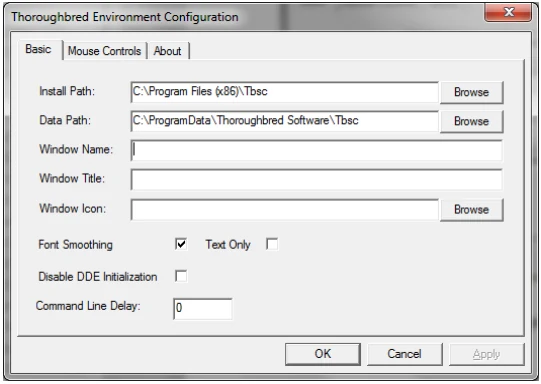
Install Path This value should not be modified. Attempting to move the install location of Basic can cause unexpected results.
Data Path This value should not be modified. Attempting to move the data path location for Basic can cause unexpected results.
Window Name
Set this to change the name that appears in the main Basic window.
Window Title
Set this to change the title that appears in the main Basic window.
Window Icon
Set this to change the icon that appears in the main Basic window.
Font Smoothing Check this to enable ClearType. ClearType is a software technology developed by Microsoft to improve the display of fonts on LCD monitors. ClearType is enabled by default.
Text Only
Check this to disable ClearType for graphics characters, but leave it enabled for text.
Disable DDE Initialization
Check this to disable DDE initialization during Basic startup.
Command Line Delay Enter the number of milliseconds for the Telnet Basic to wait at startup for the command line arguments from a remote TbredComm. The default value is 0 milliseconds.
Mouse Controls Tab
Section titled “Mouse Controls Tab”Click on the Mouse Controls tab to enable mouse events in Basic.
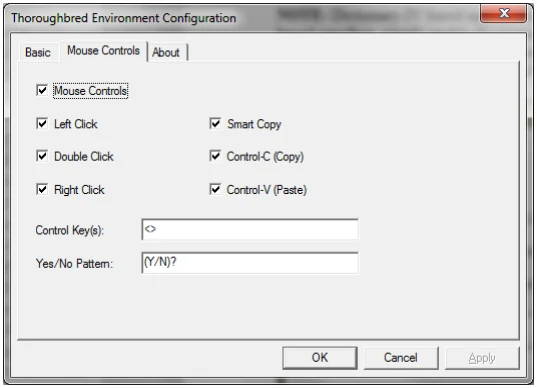
Mouse Controls
Check to enable the mouse.
Left Click
Check to enabled left click.
Double Click
Check to enable double click.
Right Click
Check to enable right click.
Smart Copy Check to enable smart copy. This option determines how to highlight multiple lines of text. When smart copy is disabled, the selection of multiple lines of text will wrap around the end of each line. When smart copy is enabled, the selection of multiple lines of text will not wrap around the end of each line, allowing the selection of a column.
Control-C (Copy)
Check to enable the ability to copy text using the Ctrl+C keys.
Control-V (Paste)
Check to enable the ability to paste text using the Ctrl+V keys.
Control Keys Control keys are identified by a starting and ending character, for example type “<>” in the Control Key text box. When the user clicks in an area encompassed by the start and end characters, the text will be interpreted. If the text contains a known control key code, then that control key will be posted to the Basic INPUT statement.
Multiple Control Key values can be defined. Use a comma to separate entries. For example, type “<>”, “()”,“{}” in the Control Key text box.
For example, if you type “<>” in the Control Key(s) text box, clicking on the “F” or the “4” in <F4> returns a CTL value of 4.
For example:
[MOUSE]yesno=(*/*)?controlkey=<>Yes/No Pattern
The Yes and No characters are identified by a starting, ending and separator character, for example (Y/N).
( is the start character
) is the end character
/ is the separator character
When the user clicks in an area encompassed by the starting and separator character or the separator and ending character, the text will be interpreted. If the text matches the yes/no pattern, the clicked character will be posted to the Basic INPUT statement. Only a single character is sent to INPUT, this is equivalent to an INPUT SIZ=1.
For example, if you type “(Y/N)” in the Yes/No Pattern text box, clicking on the “Y” in (Y/N)? returns a Y. Clicking on the “N” (Y/N)? returns an N.
Multiple Sessions
Section titled “Multiple Sessions”The TS Environment can be executed more than once, creating multiple local Basic sessions and multiple telnet sessions. The terminal id [FID(0)] for each session will be generated automatically using the TERMINAL file. This allows sequential id (T0, T1, T2, etc.) to be used. The number of Thoroughbred sessions is limited only by the Thoroughbred Basic Serial Number. The default is 3 sessions.
When executing multiple local sessions, the Window Menu title for the first session will be Thoroughbred [S/C]. All additional sessions will have a Window Menu title of Thoroughbred [C].
When using a local session with VIP/Gateway for Windows or any DDE conversation, please note the following.
- All TS Environment sessions can act as a client in a DDE conversation. For example, one session may be poking data to a Microsoft Excel spreadsheet and a second session updating a Microsoft Word document.
- The session designated as Thoroughbred [S/C] can also act as a server in a DDE conversation. If your DDE application requires two-way communication, it can only interface with the Thoroughbred [S/C] session.
- See the VIP/Gateway for Windows Reference Manual for details on DDE Client/Server operations.
Window Task Control
Section titled “Window Task Control”The TS Environment provides two min/max buttons in the top right corner. TS Environment for Windows is Windows MDI compliant. To resize the entire Thoroughbred task window, select the top minimize or maximize buttons.
Thoroughbred uses the TSICONST.INI file to store Basic’s state prior to exiting. Subsequent
Thoroughbred sessions will use these values for the Window size position, and font selection.
Font and Character Set
Section titled “Font and Character Set”The Tbred font is not supported. TS Environment for Windows now use the DejaVu mono font as a default. This installation will also install the DejaVu font family along with a copy of its license agreement. The font is an open source project and has become the standard for many versions of Linux including recent releases of Red Hat Fedora, Ubuntu and SuSE. For more information, see http://dejavu.sourceforge.net/wiki/index.php/Main_Page.
Two terminal tables are included in TCONFIGW with the TS Environment for Windows:
WINNTMON and WINNTCON
The default terminal table is WINNTCON. The WINNTCON terminal table uses the Microsoft Windows color scheme. The WINTMON table uses the Microsoft Windows Color Settings for various video attributes. To maintain colors for this table, select Color Settings from the Windows Control Panel.
For example, the Dictionary-IV installation will display characters in normal video, reverse video foreground, and reverse video background. Those attributes will display using Color Settings from the Windows Control Panel.
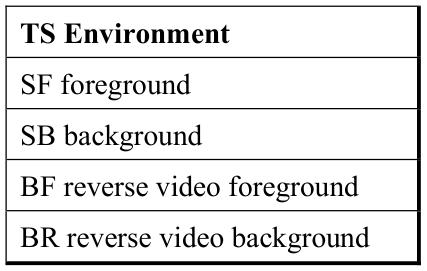
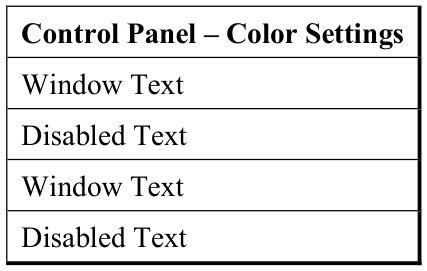
uses
uses
uses reversed
uses reversed
Sharing Data between Environments
Section titled “Sharing Data between Environments”The TS Environment for Windows (local and telnet) is capable of sharing data files between multiple Thoroughbred sessions. For file sharing to work properly, the TS Environment uses the TERMINAL file to assign unique identifications for each session. Executing multiple sessions will generate terminal identifications T0, T1, T2, etc. If environments from different workstations running TS Environment for Windows want to share files, each environment will require a unique Terminal ID.
BTRIEVE Access
Section titled “BTRIEVE Access”PRM BTRIEVE is supported in the Windows environment (local and telnet). This IPL file parameter enables Thoroughbred to create files in BTRIEVE format. This statement does not affect files that have already been saved in another format.
Data access can be improved dramatically by using BTRIEVE. The BTRIEVE Server must be configured properly. Thoroughbred requires that a Brequester is running on the workstation. The IPLINPUT.TXT file must have the parameter PRM BTRIEVE. This allows Thoroughbred to use the Brequester to send data to the BTRIEVE Server. The BTRIEVE.N>LM must be loaded on the BTRIEVE server as well as an appropriate communication driver (i.e. BSPXCOM.NLM).
To confirm that a data file is BTRIEVE, OPEN the file and test the first byte in the FID. BTRIEVE files will return a B in this byte.
READONLY Parameter
Section titled “READONLY Parameter”This IPL file parameter allows programs to READ data records that are currently EXTRACTed (locked) by another task (or the same task). This capability has been available for operating systems that support advisory locking. This capability requires a new locking scheme for DIRECT files. The new scheme is not compatible with previous releases. When sharing data files between multiple workstations, (local and telnet) all workstations should be using TS Environment versions 8.40A and up regardless of the PRM READONLY feature being active. There is no change to the actual file format.
The TS Environment for Windows supports DDE. This is accomplished by either using Gateway for Windows (GWW) or Thoroughbred Basic syntax.
DDE conversations are established using the file I/O subsystem. For detailed syntax and information, refer to the OPEN directive found in the Thoroughbred Basic Language Reference Volume II.
When using GWW, your interfaces built for UNIX host environments will execute with no program modifications.
Operating System Interface
Section titled “Operating System Interface”Operating system interfacing is accomplished through Microsoft Windows. Thoroughbred syntax designed to interface with the UNIX operating system such as XCALL and OPEN (ch, OPT=“SHELL”…) is not supported. Access to the Windows system is accomplished using Windows API calls.
The SYSTEM command does include the following characteristics:
- SYSTEM by itself will execute the CMD.EXE.
- SYSTEM followed by a string will attempt to RUN the string value. If it gets an error, it will then try DOSPRMPT,PIF /C string-value. Upon the conclusion of the process, control will be returned to your application.
- SYSTEM followed by a string that terminates with the character ’&” will return control immediately to your application.
- Currently, the SYSTEM commands that fail do not return error codes.
Window API
Section titled “Window API”The TS Environment for Windows supports access to the Windows API. There are many books available that cover and explain the technological capabilities of the Windows API. It is recommended that you visit your local computer bookstore to acquire books on this topic.
For detailed syntax and information, refer to the API directive found in the Thoroughbred Basic Developer Guide.
Print Manager
Section titled “Print Manager”Access to printer devices can be accomplished in either a raw or a spooled Print Manager mode.
Raw mode bypasses the Windows Print Manager and allows direct access to the device. This is the typical method used in your existing UNIX applications. It requires printer tables to be defined in Dictionary-IV that recognize unique escape sequences for unique printers.
The spooled Print Manager mode is the preferred Windows print access method. The Print Manager mode can run in either standard or pass-through mode. Both modes will spool all output to the Windows Print Manger. Standard mode uses a standard set of limited mnemonics that need to be defined in your system dictionary, while pass-through mode will use your existing Dictionary-IV printer tables.
To activate the Windows Print Manager, you need to set the spooler flag in IPLINPUT.TXT.
| DEV LP,4,,,,1,,LPT1 | Type 1 uses the existing Dictionary-IV Printer Tables. If you change printer types using the Printer Setup facility, you will have to reassign your printer table to the new type. |
|---|---|
| DEV LP,4,,,,3,,LPT1 | Type 3 requires the creation of a standard Printer Table (see below). This table allows printing to any printer in the Windows Printer Setup facility without change. |
Using Type 1 or 3 will send all LP output to the Windows Print Manager. Programs using escape sequences and mnemonics not recognized by the Print Manager will generate errors. When the print Manager is active, you will be able to access Printer Setup by clicking the File option from the Menu Bar.
Spooled printers will use the default font Courier New for text and Microsoft Line Draw for graphics. Thoroughbred Basic does not query the Windows Printer Drivers to determine supported fonts. If the font is not recognized, most printers will switch into graphics mode and print individual pixels.
To use a spooled printed (type 3); you will have to use the STNDRD Dictionary-IV printer table.
From the TS Environment for Windows Installation Guide, version 8.9.1. Open this page in the PDF