

Window Configurator
This option allows you to set up window characteristics for all window types created by Dictionary-IV. You can configure the following types of windows: Menus, Views, Screens, Help, and Editor.
The configurator for these five types of windows controls the presentation of all parts of Dictionary-IV. The following chart details the Dictionary-IV components controlled by each window type:
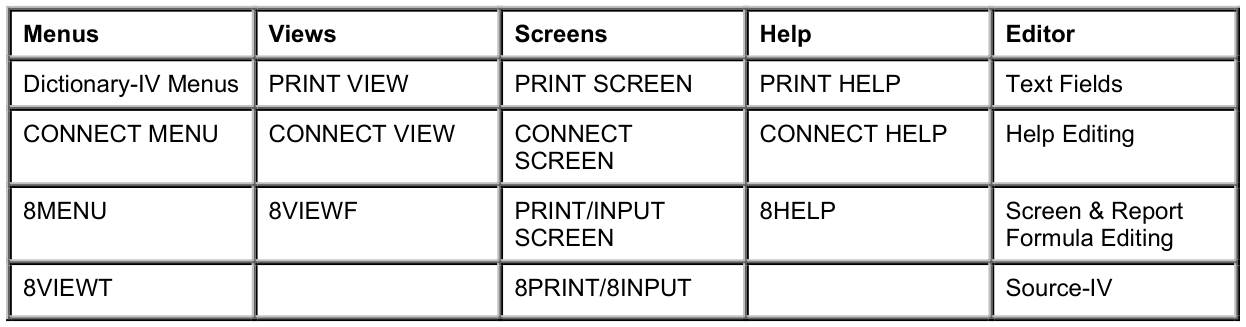
Select Window Configurator from the System Administration options. The system displays the following screen:
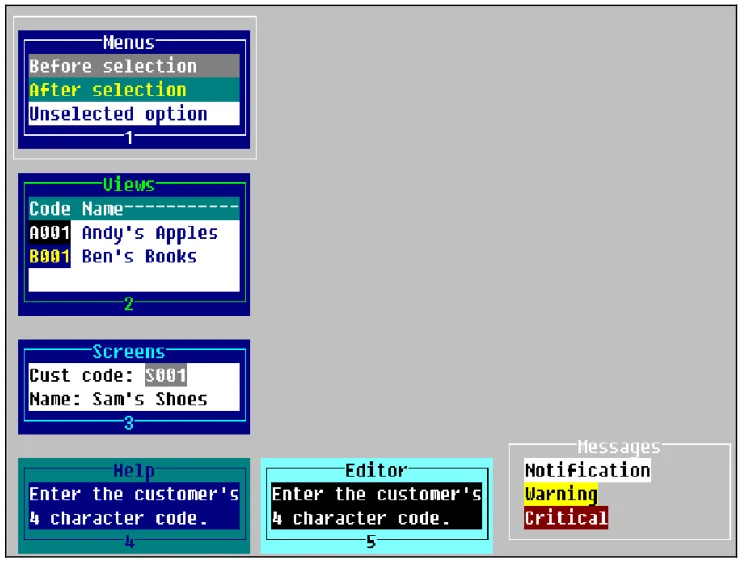

The following chart outlines the major options available.
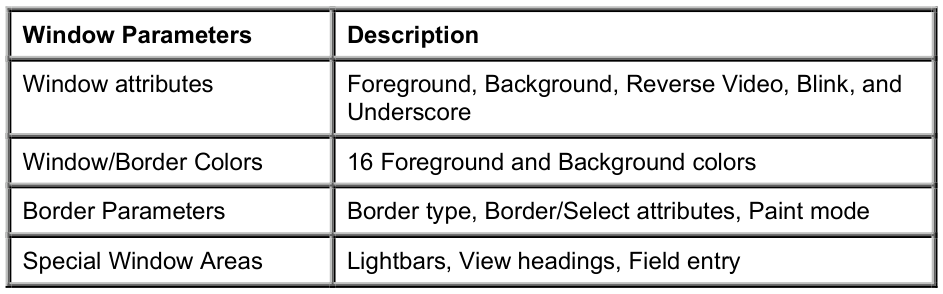
Terms Used in the Window Configurator
Section titled “Terms Used in the Window Configurator”The following terms are used in describing the window configuration procedure:
after selection This color/attribute combination is used after a Menu or View selection has been made (press Enter or F4 in a pop-up menu) to re-print the lightbar.
This color/attribute combination is also known as the background lightbar. It is used in Menus and Views.
background lightbar After a selection has been made, the lightbar is re-printed using the background lightbar’s color and attribute settings. The background lightbar indicates which option or field was selected before the Menu or View processed the selection or was exited.
before selection This color/attribute combination is used by the lightbar before a selection is made. When a selection has been made, the lightbar is re-printed using the after selection (or background lightbar color and attribute settings).
This color/attribute combination is also known as the lightbar. It is used in menus and views.
border
The border area refers to the area of the window’s border.
field entry Whenever data for an individual field is entered, the field is edited using the field entry color and attribute settings. The field entry settings are used when editing fields in screen entry, editing data fields in views, and editing Dictionary-IV menu option entries.
headings View headings are column labels used in data views. View rows used as headings print using the heading color and attribute settings.
lightbar Before a Menu or View selection is made, the lightbar color and attribute settings are used to highlight the current option. The lightbar appears when scrolling through menu options or when moving between fields in a view. Once a selection is made or F4 is pressed to exit the view or menu, the lightbar is re-printed using the background lightbar’s colors and attributes.
deselected option The color/attribute combination is used to display all menu options not currently highlighted by the lightbar. It is the same as the menu window color/attribute.
window The window area refers to the area within the window border. Color/attribute settings affect the text, which appears inside the window.
Using the Window Configurator
Section titled “Using the Window Configurator”Select the type of window to configure, to do so you may:
- Use the arrow keys to highlight the desired window type then press Enter.
- Type the number 1 through 5 corresponding to the number in the border of the desired window type.
Press F4 to exit the window configurator. If changes have been made, the system prompts:
Save changes?
The system displays the following pop-up menu:
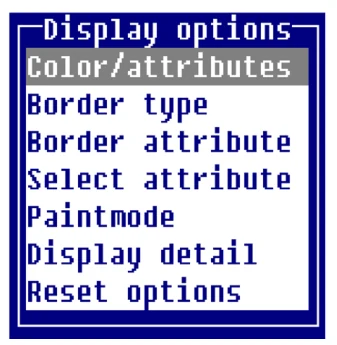
Select one of the following:
Color/attributes The color indicates which colors are to be used in the area being configured. There are 16 different colors. They are selected for both the foreground (text) and background (area not printed) of each character position. In this context, the words foreground and background refer to the part of each character position either printed or not printed, instead of a video display attribute.
The attribute controls the type of video display to be used in the area being configured. There are 16 different attributes representing all combinations of foreground, background, reverse video, underscore, and blink.
For more information see the Text Editor section in the Dictionary-IV User Guide.
The system displays a menu of configurable areas for this window type. The following options appear for Menus:
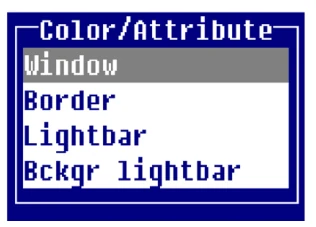
Colors and display attributes can be maintained for each of these areas. (For more information see the Menu, View, Screen, Help, or Editor window options sections following.)
Border type The border type indicates the contents of the window’s border. The window border is the box-shaped region, which surrounds the window.
The system displays the following pop-up menu:
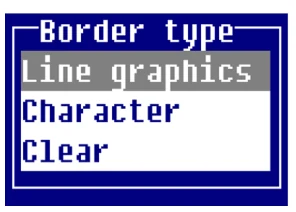
The valid border types are:
Line graphics solid line graphics in the window border.
Character user-selected characters in the window border.
Clear solid window border.
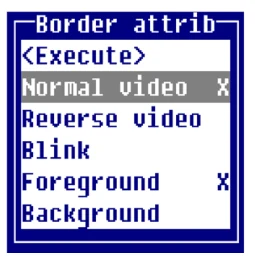
Border attribute The border attribute controls which video display attributes will be used to create the window’s border. Any combination of attributes can be selected.
The system displays the following toggle menu:
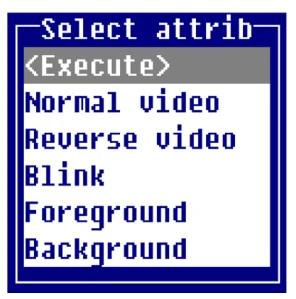
Select attribute The select attribute controls which video display attributes will be used to display the window’s border when the window is selected. To disable the select attribute, deselect all attributes in the select attribute menu. Any combination of attributes can be selected.
The system displays the following toggle menu:
Paint mode
The Paint mode indicates how the window is to be created and deleted.
The system displays the following pop-up menu:
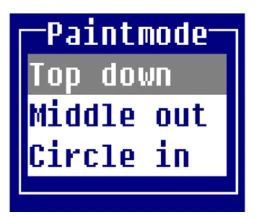
Display detail
This option displays all color, attributes, and parameters used by the current window type.
Reset options The reset options are used to reset or restore the configuration of the current window or all windows to an initial state.
The system displays the following pop-up menu:
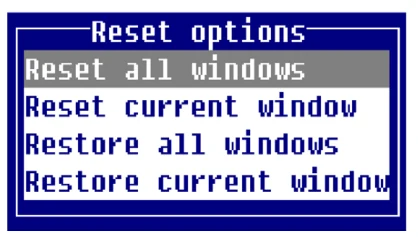
- Reset all
- Resets the configuration of all window types to the last saved settings.
- Reset current
- Resets the configuration of the current window type to the last saved settings.
- Restore all
- Restores the configuration of all windows to the system default values.
- Restore current
- Restores the configuration of the current window type to the system default values.
Menu Window Options
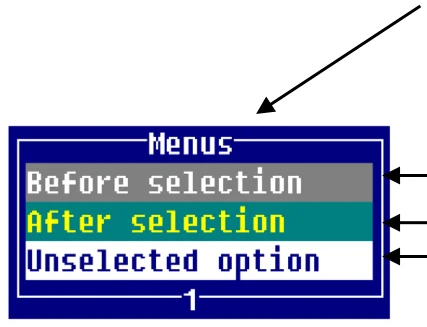
Section titled “Menu Window Options”Colors and display attributes can be maintained for 4 areas of the menu window.
1 Menu window border.
2 Lightbar used before a menu selection has been made.
3 Background lightbar appears after a selection is made.
4 Menu window text area.
1
2 3 4
Lightbar At any time only one lightbar appears in the menu or view. Both lightbars appear in the sample windows for window configuration purposes.
If the lightbar display attribute matches the window display attribute, the cursor is displayed instead of the lightbar on monochrome terminals.
View Window Options
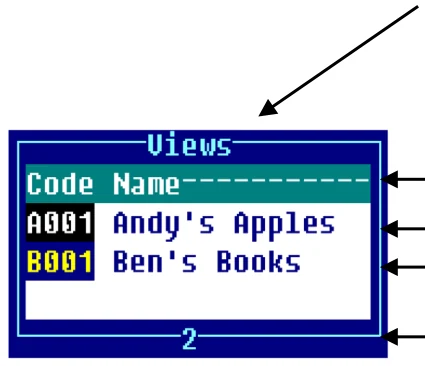
Section titled “View Window Options”Colors and display attributes may be maintained for 5 parts of the view window.
1 View window border.
2 Lightbar used before a view selection has been made.
3 Background lightbar appears once a selection is made.
4 Headings.
5 View window text area (data records).
1
2 3 4
5
Lightbar At any time only one lightbar appears in the menu or view. Both lightbars appear in the sample windows for window configuration purposes. If the lightbar display attribute matches the window display attribute, the cursor is displayed instead of the lightbar on monochrome terminals.
Screen Window Options
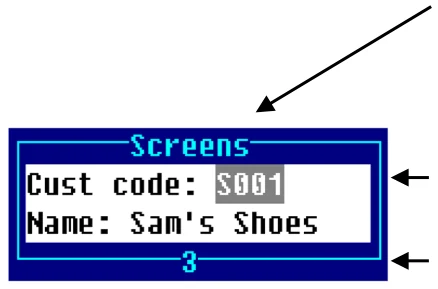
Section titled “Screen Window Options”Colors and display attributes may be maintained for 3 parts of the screen window.
1 Screen window border.
2 Screen window text area.
3 Field entry parameters.
1
2
3
The field entry color and attributes are used in menus, views, and screens.
Help Window Options
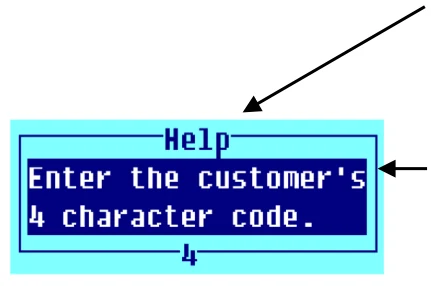
Section titled “Help Window Options”Colors and display attributes may be maintained for 2 parts of the help window.
1 Help window border.
2 Help window text area.
1
2
Editor Window Options
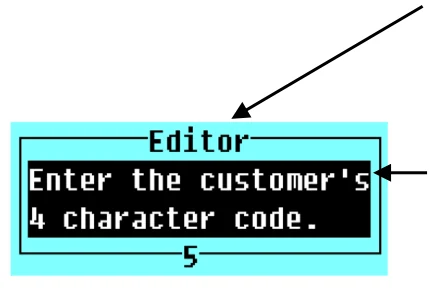
Section titled “Editor Window Options”Color and display attributes may be maintained for 2 parts of the editor window.
1 Editor window border.
2 Editor window text area.
1
2
Messages Window
Section titled “Messages Window”The Messages window is for reference only. Messages always use either white (notification), yellow (warning), or red (critical):
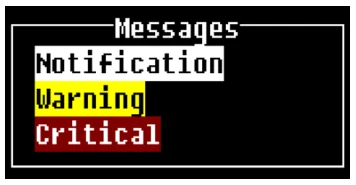
For information on setting message colors see the Messages section of the Dictionary-IV Developer Guide.
Important Notes
Section titled “Important Notes”- Window configurations are saved by operator code.
- The combination of display attribute and color may produce unexpected results on color terminals or monitors, which do not support background intensity. In this case, Thoroughbred Basic will use a different color to simulate background intensity.
- Specific colors and attributes may be embedded in Screens and Help text. In this case the system will use the Display Using Default Colors indicator in Operator Information to determine whether to use the colors and attributes stored in the text, or use the Window Configuration colors and attributes.
- On monochrome terminals, if the lightbar display attribute (Menus or Views) matches the window attribute, the result causes the lightbar to be invisible. When this occurs, the cursor is turned on for reference. The cursor is not turned on for color terminals.
From the Dictionary-IV Administrator Guide, version 8.9.1. Open this page in the PDF