Access to Developer's Facilities
OPENworkshop provides programmers with facilities to help speed the development process. These facilities are designed to encourage a prototyping, incremental approach to development.
System classes are all highly accessible while an application is running so that they can be inspected and modified at will. Powerful tracing facilities and where-used views make it easy to trace the recent history of processing and control in the application under development.
To help learn the wide-ranging facilities, OPENworkshop’s context-sensitive help system prompts the developer whenever required.
Dictionary-IV Menu
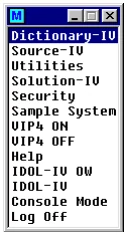
Section titled “Dictionary-IV Menu”When you first log on to OPENworkshop, a short menu is displayed. Select the option Dictionary-IV to display a menu of classes that you can work with, as displayed here.
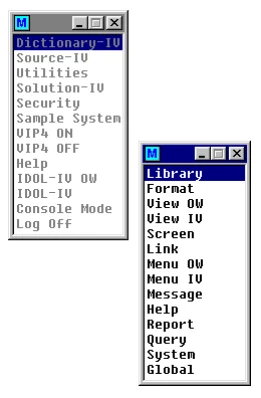
The Dictionary-IV Menu provides access to all classes in the environment, either by selecting FORMAT from the menu, or indirectly by first selecting a library, and then formats within the library.
The Dictionary-IV Menu, shown here, is available from the main OPENworkshop Menu and also from the Ctrl-P hotkey, which can be used at any time during operation of an application.
Access to these facilities is protected, ensuring that only users with developer status can access them.
RUN”OO”/Ctrl-P Hotkey
Section titled “RUN”OO”/Ctrl-P Hotkey”The Dictionary-IV Menu and other utilities are available at any time to developers by running the OO program. RUN”OO” from Thoroughbred Basic Console mode or OO from any Dictionary-IV menu selection field.
Try it during your exploration of the OPENworkshop system. Select Close (F4) to return to your previous position.
Note: Do not try DEVELOPER ON/OFF from the System Utilities until you have reviewed the Developer Status section of this manual. The facilities for developers are controlled by this switch and will become unavailable to you. For more information see the Dictionary-IV Administrator Guide.
The Library View
Section titled “The Library View”The first option of the Dictionary-IV Menu displays the Library View, a typical example of which is shown below. This view provides a summary of all the classes and objects in the system. Select Library from the menu to display the following view.
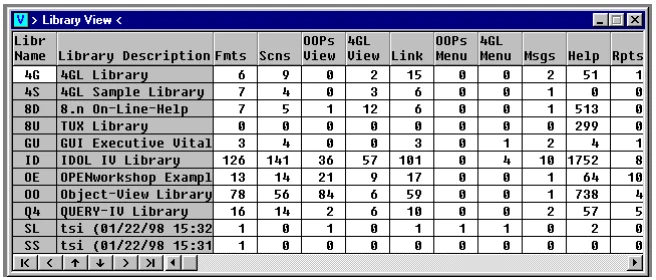
More than just displaying the list, the Library View provides access to all the objects in the system. Try this for yourself. Move the highlight cursor to, the Fmts column and the OE row, which is highlighted in the illustration above then, press Enter. A list of formats from the OE library will be displayed.
Access Related Objects
Section titled “Access Related Objects”In many cases, objects are related to others. A view uses a link. The view may have an associated view method and help.
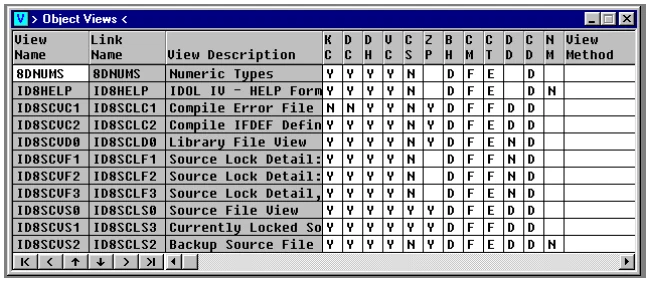
Wherever you are displaying the Object Views, all of these related objects are available. Simply move the cursor to the relevant field and select an option.
Select Close (F4) to return to the Library View.
Special Functions
Section titled “Special Functions”In views and screens the Special functions (F7) option provides access to a menu of maintenance functions for developers. The specific list of available functions may change from place to place, as you move through the system.
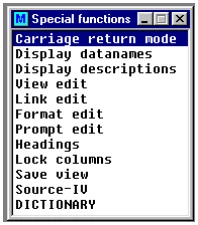
Select Special functions while the Library Header is displayed to see a typical example of the special functions available while in a view.
F10 Key
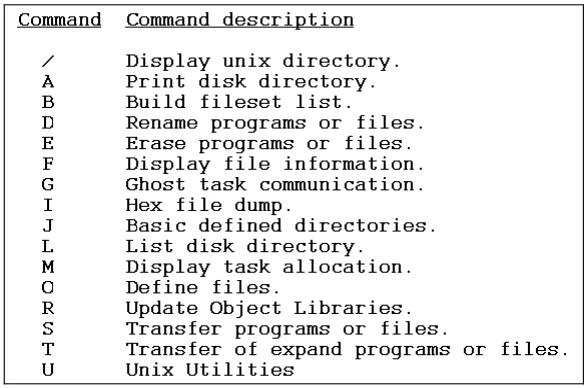
Section titled “F10 Key”In a menu or help, the F10 key presents a command line, allowing you to connect to Dictionary-IV maintenance and a set of utilities. Access to the F10 command line can be blocked by disabling this feature in the Installation Information screen. The following tables show the commands that may be entered:
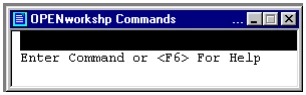
Press F6 and select Dictionary Commands.
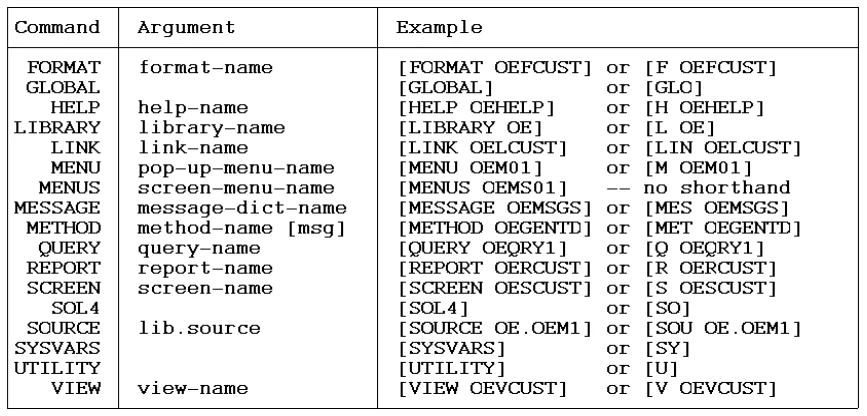
Press F6 and select Utility Commands.
F1 Key
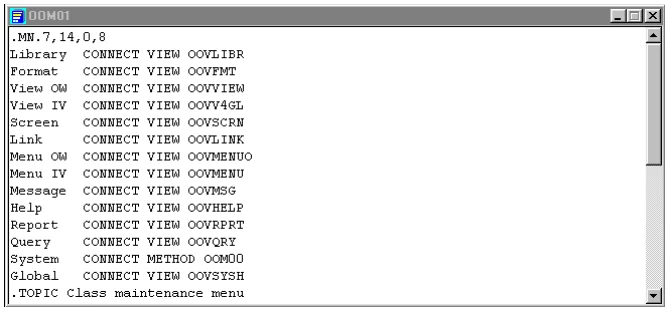
Section titled “F1 Key”You can view and maintain the definition controlling a menu by pressing F1 while the menu is displayed. The following figures show the result of pressing F1 while the standard Dictionary-IV menu is displayed:
Menu Definition
F11 Key
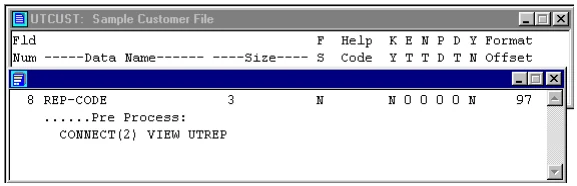
Section titled “F11 Key”Whenever the cursor is in a data element name field of a screen or a view you can press the F11 key to obtain the definition of the data element name. You can also maintain the data element name at this point through the F11 key.
Whenever you are in doubt, select Help (F6) to tell you what your options are. Help changes as you move from place to place through the system.