

*JPSD - Initialize Disc Environment
Purpose
This utility initializes the user’s environment by locally enabling and disabling all configured disks according to the user’s instructions.
Procedure
To run this utility from Thoroughbred Basic Console Mode, type:
RUN “*JPSD” and press Enter.
To select this utility from the Thoroughbred Basic Utilities Menu, type one of the following:
J and press Enter.
*J and press Enter.
*JPSD and press Enter.
Menu option # and press Enter.
A screen similar to the following will be displayed:
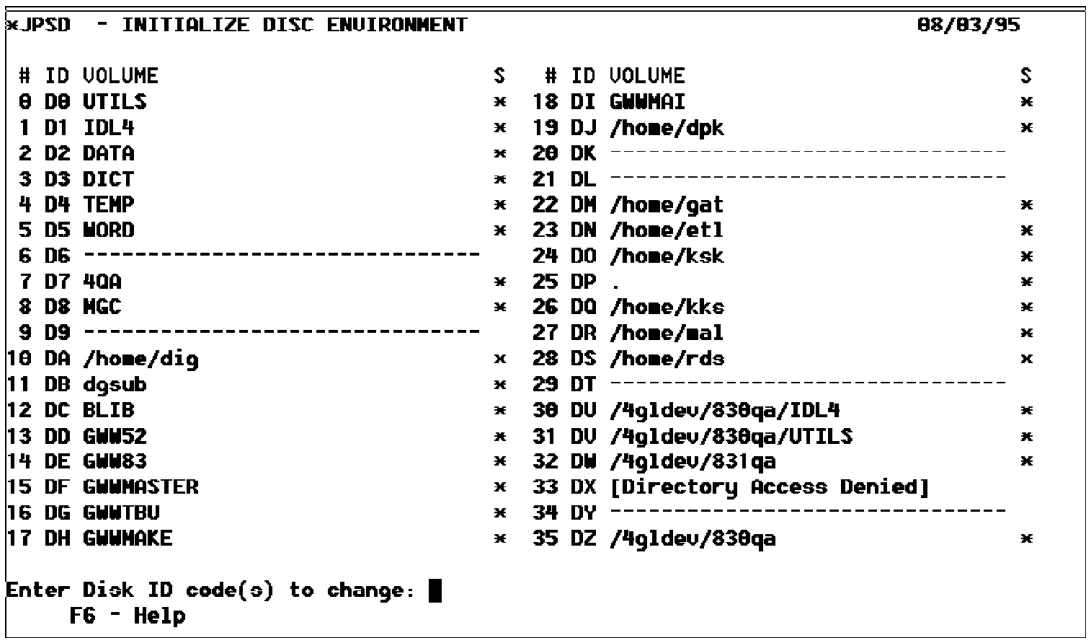
The following information is displayed:
- #
- is the disk number. Thoroughbred Basic directives can use the disk number. There can be up to 36 disk numbers.
- ID
- is the disk name or disk ID, which is used to open directories.
The disk name is two characters in the Dx format, where x is a number from 0 through 9 or a letter from A through Z. The value of x is used to locally enable or disable disks.
- VOLUME
- is the directory name as specified within the host operating system.
A line of dashes indicates an invalid directory name.
The [Directory Access Denied] message indicates a directory that the user cannot access.
- S
- is the disk status. There are two valid values:
A * (asterisk) indicates a disk that is locally enabled.
A blank space indicates a disk that is locally disabled.
To locally enable or disable disks you must enter a value for the following message:
Enter Disk ID code(s) to change:
Valid values are the second character of the ID field for each disk. If the maximum of 36 disks is specified, valid values are 0 through 9 and A through Z. To change disk status, type the second character of the disk ID and press the Enter key. You can specify more than one value at a time.
Examples
Use the sample screen on the preceding page as the model for all examples:
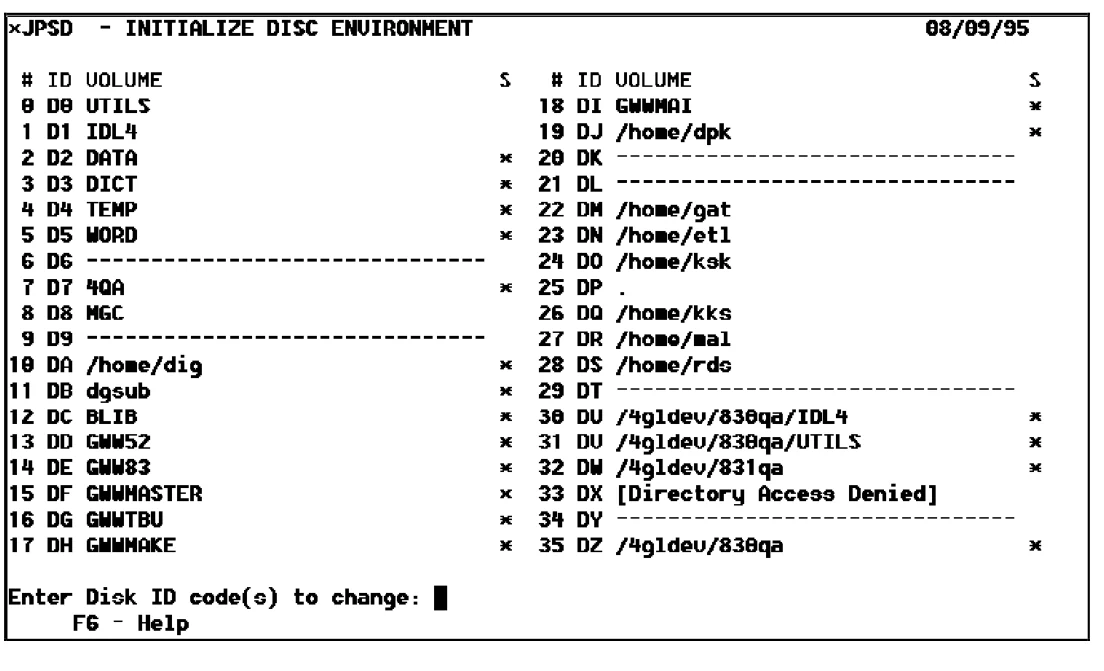
- To disable the D8 disk, type 8 and press the Enter key. The space character will be displayed in the S field.
- To disable the D0 and D1 disks type 01 or 10 and press the Enter key. The space character will be displayed in the S field.
- To disable disks DM through DS, type the M through S characters in any order and press the Enter key.
After making the changes in the above examples, the following sample screen would be displayed:
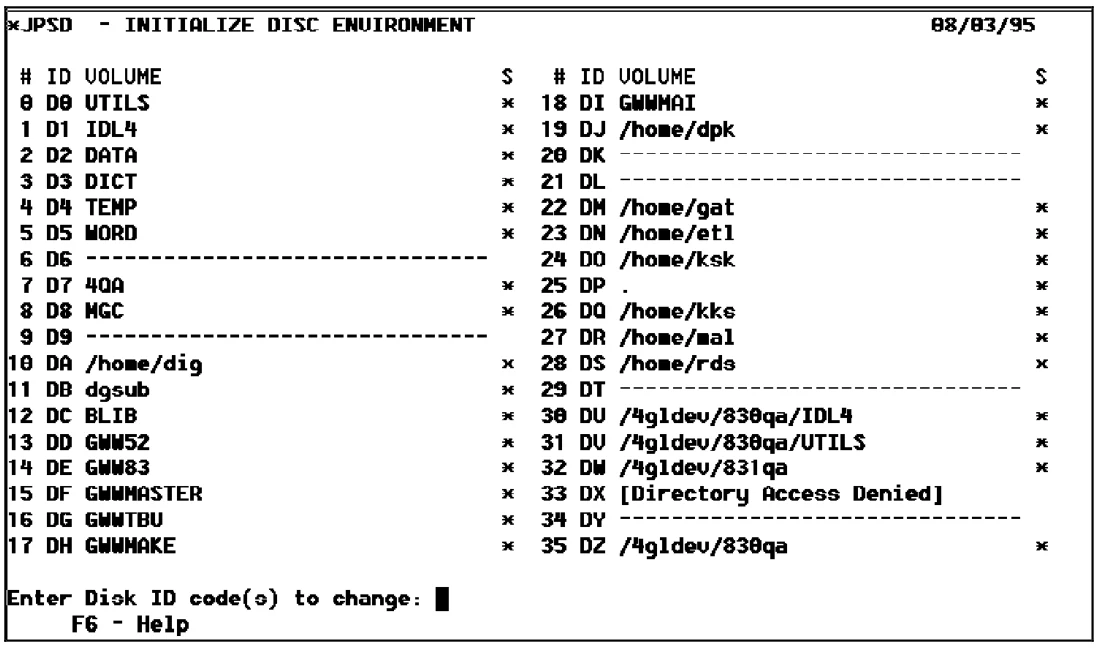
To revert the status of all disks changed in the example above, type 8, 0, 1, M, N, O, P, Q, R, and S in any order and press the Enter key. The following sample screen would be displayed:
Error Messages
- A RESERVED OR DISABLED DISK CANNOT BE CHANGED
- A Reserved or Disabled disk can only be changed using the ENABLE or RELEASE directive.
- ERROR HAS OCCURRED AT STATEMENT 'xx' 'CR' TO RETRY
- An unexpected error has occurred while trying to change a directory. Retry the procedure.
- ERROR xx HAS OCCURRED CR TO CONT OR CTL-IV TO END
- An unexpected error has occurred while trying to change a directory. Retry the procedure.
- ONLY CONFIGURED DISKS MAY BE CHANGED
- The disk you are trying to access is not configured.
- ONLY EXISTING DIRECTORIES CAN CHANGE
- The specified directory does not exist. Make sure that you have entered the correct name and retry.
From the Thoroughbred Basic Utilities, version 8.9.1. Open this page in the PDF