

TbredComm AutoLogons tab
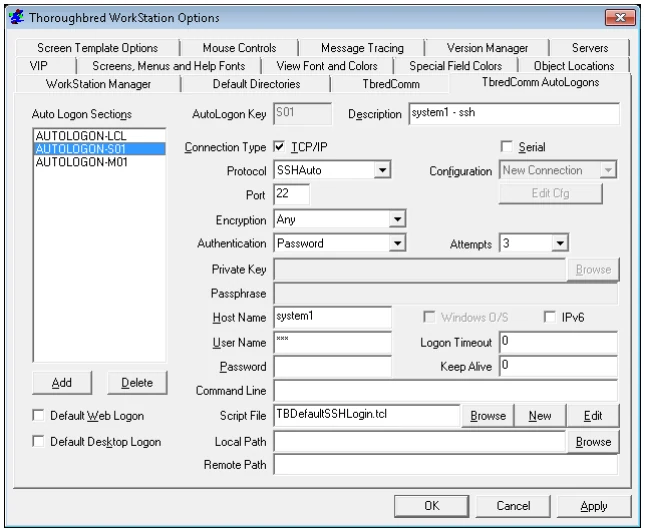
Add, Change or Delete AutoLogon Definitions
The AutoLogon key is a 3-character label that defines a set of parameters including a login script to automate all or part of the host login sequence. Once an AutoLogon has been created, you can create a shortcut on your desktop to execute your application using that AutoLogon.
To create a shortcut, use the Windows Shortcut Wizard. For more information on creating shortcuts for TbredComm please refer to the Start TbredComm section in the TbredComm Reference manual.
- Add a logon Select the Add button. The system prompts Enter 3 Character key. Type the 3-character logon. Select OK to add. Select Cancel to exit without adding. Now you may begin defining the logon.
- Change an existing logon Highlight the selection and make changes to Description, Connection Type, Host Name, User Name, Password, etc.
- Delete an existing logon Highlight the selection and select Delete. The system prompts: Are you sure? Select Yes to delete Select No to exit without deleting.
Default Web Logon Check this box if the current AutoLogon is to be used as the default login when the browser is invoked.
Default Desktop Logon Select this option if the current AutoLogon is to be used as the default when selecting Desktop Application Menu items. A menu selection is made from either the WorkStation Manager, Desktop, or Start button.
AutoLogon Key This is a 3-character label that is used to identify a set of AutoLogon parameters. The key is used to construct a unique entry in the Tbred.ini file. All the options you select for this key automatically create the appropriate entries in the Tbred.ini file. You are prompted to enter this only when creating a new AutoLogon.
Description
Type the descriptive name of the AutoLogon. TbredComm displays this description
during the remote connection dialog and in the TbredComm title bar. When a
TbredComm window is minimized part of this description is displayed in the task bar.
Connection Type Select the type of communication (TCP/IP or Serial) that exists between host and client. For more information see TbredComm Remote Host Connection.
- TCP/IP Set the TCP/IP Protocol, Port, Encryption Type, Authentication, Private Key, and Passphrase. Then follow the instructions below for entering the Host Name/IP Address, Logon, Password, Timeout, Command Line, and Logon Script.
-
Serial Configuration If you select Serial Configuration, you can edit the configuration by selecting the Edit Cfg button. Select this button and the following window appears:
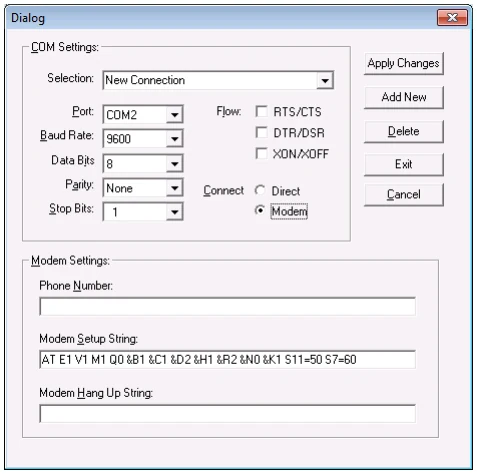
Here you can configure the Serial connection. Select the appropriate port, baud rate, data bits, parity, stop bits, flow (PTS/CTS, DTR/DSR, XON/XOFF) and method of connection (Direct or Modem). If you select modem, you must then define the Phone Number, Modem Setup String, and Modem Hang Up String. For more information see TbredComm Remote Host Connection.
Host name
Type a valid IP address or the remote host name for this logon.
User Name
The system prompts for a User Name and then for a confirmation. Enter a valid user
name defined on the host. This field is encrypted in Tbred.ini.
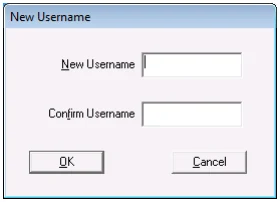
Select OK to accept the name. Select Cancel to exit without accepting.
If you require an operator to enter a user name each time they logon to the host, leave this field blank. If you have existing AutoLogons defined in your Tbred.ini file, edit the file and remove the appropriate entry.
username=user-nameFor more information see AutoLogon Scripts.
Password The system prompts for a Password and then for a confirmation. Enter a valid password for the user name on the host. This field is encrypted and saved in the Tbred.ini file.
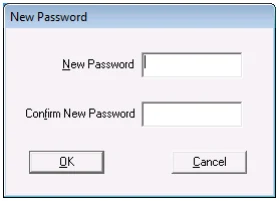
Select OK to accept the password. Select Cancel to exit without accepting.
If you require an operator to enter a password each time they logon to the host, leave this field blank.
If you have existing AutoLogons defined in your Tbred.ini file, edit the file and remove the appropriate entry.
password=passwordIf you enter an invalid password for the host, TbredComm exits after it detects the host performed an invalid logon.
Attempts
Select the number of login attempts. The default number of login attempts is 3.
Windows O/S Check this to populate INF(3,2) and INF(5,2) with the Domain User Name when connecting to TS Environment for Windows (Telnet Basic). This provides a unique account name for each Basic session.
IPv6
Check this to first try connecting to the specified host using IPv6 connectivity. If that fails, TbredComm will try again using IPv4 connectivity.
Logon Timeout Seconds The default timeout is 120 seconds. This is indicated by a timeout value of 0. For more information see AutoLogon Timeouts.
Keep Alive This option allows you to keep TbredComm sessions alive during periods of inactivity. The default value for a new Autologons is defined on the TbredComm tab. To enable, enter the number of seconds of inactivity before a “KeepAlive” packet is sent to keep the connection alive. To disable, enter 0 for the number of seconds.
Command Line Select this button to display the Command Line dialog box. This supports the command arguments that would normally follow ./b.
To start Basic with an alternate IPLINPUT file enter that file name in the command line window.
For example:
IPLWIN.TXTstarts Basic using IPLWIN.txt
Script File Select this option to create a new script file, select an existing script file, or edit an existing script file. Each AutoLogon configuration must be associated with a script file.
A script file is a simple ASCII text file that may be maintained with Notepad or any text file editor. Script files must be located in vip-data-path\Tsi\Scripts and should have an extension of .tcl (although it is not required). Three default scripts are provided.
- TBAppPromptCmd.tcl
- This script uses the User Name and Password specified in the AutoLogon Dialog Box. Use this script with a Desktop Application Menu selection (executable applications from the WorkStation Manager, Desktop, or Start button). For more information see the VIP for Dictionary-IV manual (Desktop Application Menus).
- TBDefaultLoginPassword.tcl
- This script uses the User Name and Password specified in the AutoLogon Dialog Box. This script cannot be used for Desktop Application Menus (executable applications from the WorkStation Manager, Desktop, or Start button).
- TBDefaultSSHLogin.tcl
- This is a default script distributed with TbredComm and is required when making SSH connections
- TBDefaultWinBasic.tcl
- This is a default script, which is distributed with VIP for connecting to the TS Environment.
For more information see AutoLogon Scripts.
In the OES example shown earlier, you will see the following script: OESStartup.tcl. Below is this sample script.
# This TbredComm logon script will do the following:# 1. Use the user id saved with the autologon# 2. Prompt the user for their password to enforce systemsecurity# 3. Wait for the expected host prompt# 4. Change directory# 5. Start BASIC with an IPLINPUT file that will RUN "00"# 6. Pause briefly# 7. Send a S and a <CR> keystroke to select the Sample Systemmenu# 8. Pause briefly# 9. Send a <CR> to select 'The System'
waitfor login:send $username$crwaitfor Password:send $password$crwaitfor tsi]$send cd /usr/basic$crwaitfor tsi]$send ./basic IPLINPUTpause 1send S$crpause 1send $cr
Local Path Enter the path and name or click Browse to select a local directory which will be used as the $localpath argument, if specified, when starting a ‘File Transfer’ from the TbredComm System menu.
Remote Path Enter the name of the directory on the host which will be used as the $remotepath argument, if specified, when starting a ‘File Transfer’ from the TbredComm System menu.
From the WorkStation Manager, version 8.9.1. Open this page in the PDF