

Multi-Language
This feature allows you to create an application with a user interface in multiple spoken languages that is independent of the 3GL and 4GL application programs.
This is done by defining language versions of your Format definitions (data element descriptions), Screen text, View headings, Message text, windowed on-line Help, Queries, and reports along with defining a language code for each Dictionary-IV operator.
It is the language code associated with the operator code that controls which language version of a definition is presented.
Example:
PRINT SCREEN reads the Screen definition with the language code that matches the language code of the operator. An operator running with a language code of EN sees the English version of the screen, an operator running with a language code of FR sees the French version of the screen.
If the definition does not exist in the current language, the system searches the dictionary for that definition in any one of the enabled languages. This search starts with the English language code continues through all enabled language codes until the definition is found. This is referred to as the first found version of the definition.
Installing a New Release and Upgrading
Section titled “Installing a New Release and Upgrading”TSI products contain only the English definitions. Therefore, if you have made modifications to any of the TSI definitions, these will be lost when you perform an upgrade. Any definition with a language code other than English will not be replaced.
The Dictionary Compare utility will help you to identify which English TSI definitions have been
changed in the new release and which have been added.
This utility can be used in one of two ways:
- Compare the dictionary of a new release to that of a previous release. This identifies which definitions have changed or have been added. Since TSI distributes English only, this compares only the English definitions.
- Compare a translated dictionary with a standard TSI dictionary to identify definitions with language codes other than English. This can be used to easily identify which definitions have been translated. In addition, a bk file is created containing the translated definitions so that these definitions can easily be restored to another dictionary.
You can use the dictionary Backup/Restore utility to create a backup (bk) file of all the TSI definitions that you have translated. For more information see the Utilities Reference section in this manual.
However, after you restore these definitions, you must make any changes to the definitions that have been made in the new release.
In some cases, you might choose to simply re-translate some definitions.
PGCHARBASE Conversion Utility
Section titled “PGCHARBASE Conversion Utility”The Dictionary-IV product is shipped using the default pgcharbase (portable graphics character base) setting of $C0$. For more information see the Thoroughbred Basic Reference Manual.
If you install Dictionary-IV over a release where the PRM PGCHARBASE is not $C0$, you may experience some problems with the display of the Dictionary-IV screens, menus, and on-line help. You must convert the PGCHARBASE of the new Dictionary-IV definitions.
Verify your IPLINPUT file. It should contain PRM DONTCHECKTEXT. This will make the screens, menus and on-line help more readable.
It should contain the PRM PGCHARBASE value into which the Dictionary-IV definitions are to be converted.
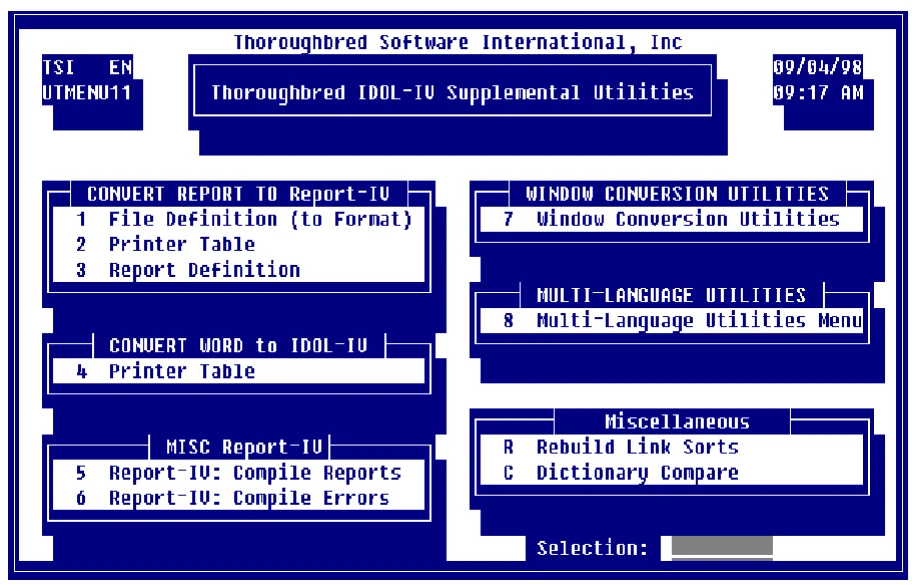
From the Supplemental Utilities menu select Window Conversion Utilities.
Supplemental Utilities Menu
Windows Conversion Utilities Menu
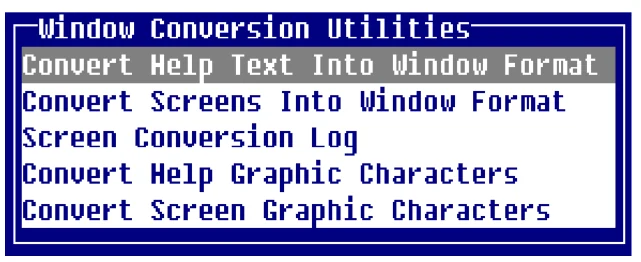
Select Convert Screen Graphic Characters and convert all TSI libraries.
Convert Screen Graphic Characters
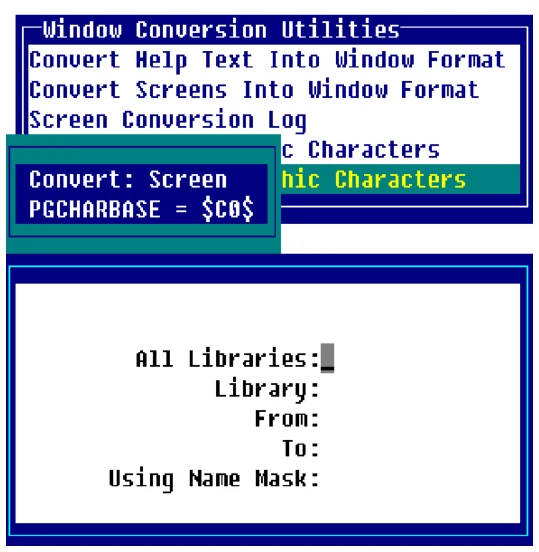
Remove PRM DONTCHECKTEXT if appropriate.
Set-up
Section titled “Set-up”To use the Multi-Language feature you must complete the following set-up.
Converting TSI Libraries
Section titled “Converting TSI Libraries”Before you can select or enable another language code, you must first copy all of the TSI libraries to all the languages that you intend to enable.

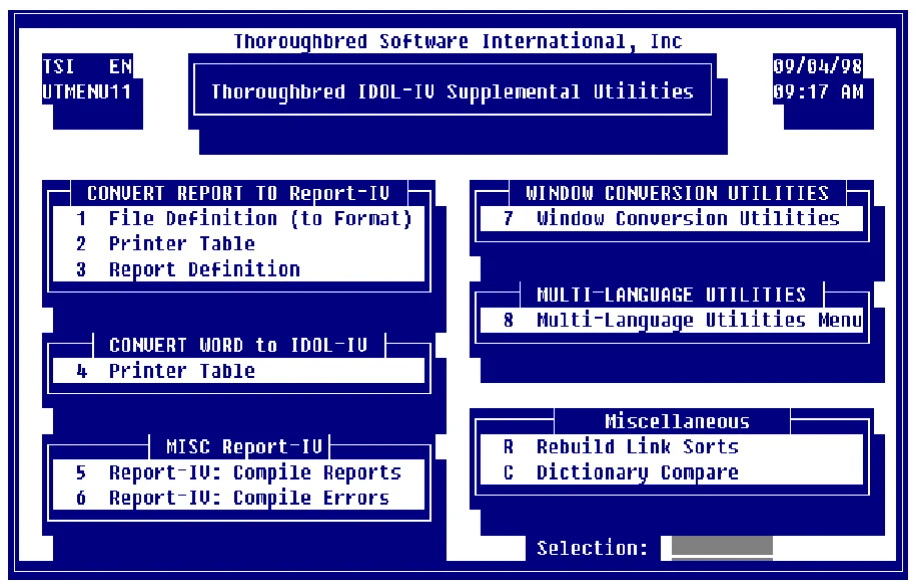
From the Dictionary-IV Supplemental Utilities Menu select the Multi-Language Utilities Menu.
Dictionary-IV Supplemental Utilities Menu
The system displays the following:
Multi-Language Utility Menu - Definition Conversion
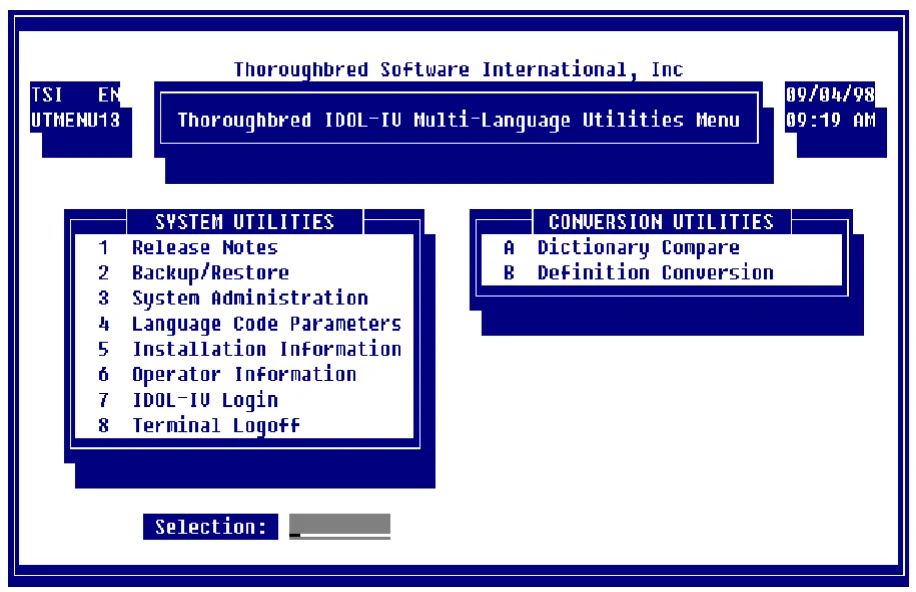
From here, select Definition Conversion, this will copy a library of definitions from one language to another. There is on-line help available by pressing F6.
| The | TSI libraries that must be converted are: |
|---|---|
| 4G | 4GL Example Library |
| 8D | 8.n On-line Help |
| 8U | Thoroughbred UNIX Shell |
| ID | Dictionary-IV Library |
| OO | OPENworkshop |
| OE | OPENworkshop Examples |
| Q4 | Query-IV Library |
| UT | Utilities Library |
The system displays the following:
Copying Definitions to a Different Language
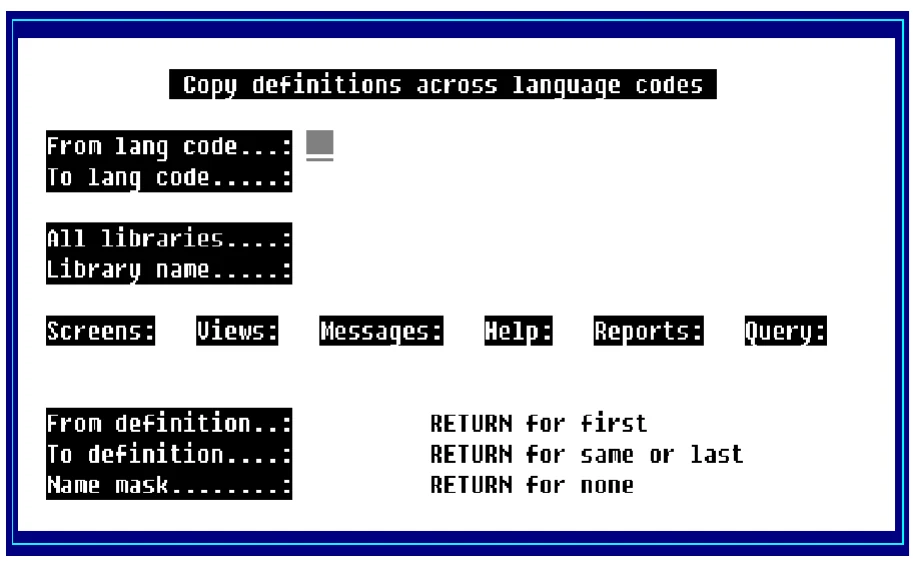
Enter the following information:
From lang code
Type the two-character language code and press Enter. This is the language code to be copied.
To lang code
Type the two-character language code and press Enter. This is the language code to receive the copies.
All libraries
Select one of the following:
Y Converts selected definitions for all libraries. The system goes to the Screens field.
N Converts selected definitions for only the library you select. The system goes to the Library name field.
Library name
Type the two-character library name and press Enter.
Screens
Select one of the following:
Y Converts all Screens in the selected libraries
N Does not convert Screens.
You must select Y for one of these definition types (Screens, Views, Messages, Help, Reports, or Queries).
Views
Select one of the following:
Y Converts all Views in the selected libraries.
N Does not convert Views.
You must select Y for one of these definition types (Screens, Views, Messages, Help, Reports, or Queries).
Messages
Select one of the following:
Y Converts all Messages in the selected libraries.
N Does not convert Messages.
You must select Y for one of these definition types (Screens, Views, Messages, Help, Reports, or Queries).
Help
Select one of the following:
Y Converts all Help in the selected libraries.
N Does not convert Help.
You must select Y for one of these definition types (Screens, Views, Messages, Help, Reports, or Queries).
Report
Select one of the following:
Y Converts all Reports in the selected libraries.
N Does not convert Reports.
You must select Y for one of these definition types (Screens, Views, Messages, Help, Reports, or Queries).
Query
Select one of the following:
Y Converts all Queries in the selected libraries.
N Does not convert Queries.
You must select Y for one of these definition types (Screens, Views, Messages, Help, Reports, or Queries).
From definition Type the one to six character definition and press Enter. This is the first definition in the range. Press Enter for the first.
To definition Type the one to six character definition and press Enter. This is the last definition in the range. If you select First in the previous field, press Enter again to select the last definition. If you typed a definition in the previous field, press Enter again to select the same definition.
Name mask
Type the masking you want the system to perform to select the definition names.
Enabling/Disabling Language Codes
Section titled “Enabling/Disabling Language Codes”Dictionary-IV supports twelve language codes. The default language code for each operator is English. A language code must be enabled in Language Code Parameters before it can be selected. To prevent an operator from selecting a language that has not yet been translated, language codes can be disabled. From the System Administration options, select Language Code Parameters.
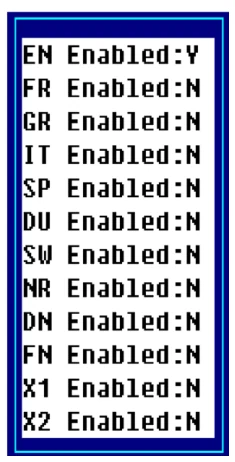
For information about how to make your selections see the Introduction of the Dictionary-IV User Guide.
Once a language code has been disabled, that language code cannot be selected. One exception is the dictionary Backup/Restore utility, where it is more logical to allow the selection of any language code, regardless of the enabled/disabled status.
A list of all enabled language codes is maintained in the data dictionary. This allows the Dictionary-IV product to determine if an environment is Multi-Language or not. If any language code but English (EN) is enabled, an installation is determined to be a Multi-Language environment.
Operator Code Parameters
Section titled “Operator Code Parameters”The operator language code is maintained by the Operator Code Information selection available from the System Administration options.
Operator Code Information - Current Language Code
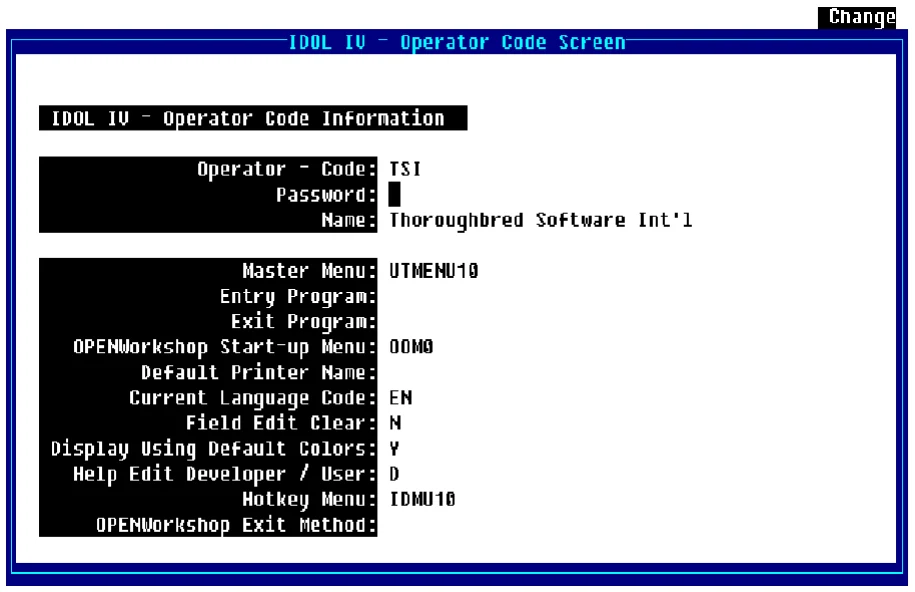
Remember you will not be allowed to select a language that has not yet been enabled. For a list of language codes press F6 on the Current Language Code field. For more information about selecting and saving this information see the Introduction of the Dictionary-IV User Guide.
Help Edit Developer/User
Section titled “Help Edit Developer/User”Fundamental to on-line help, is the ability to define a new help module as you work. The user must be defined as a developer. For more information about developer/user see the Utilities Reference section of this document.
The Help Edit Developer/User parameter allows you to control how on-line help will be processed when the help definition does not exist in the current language. Select Operator Code Information and the system displays:
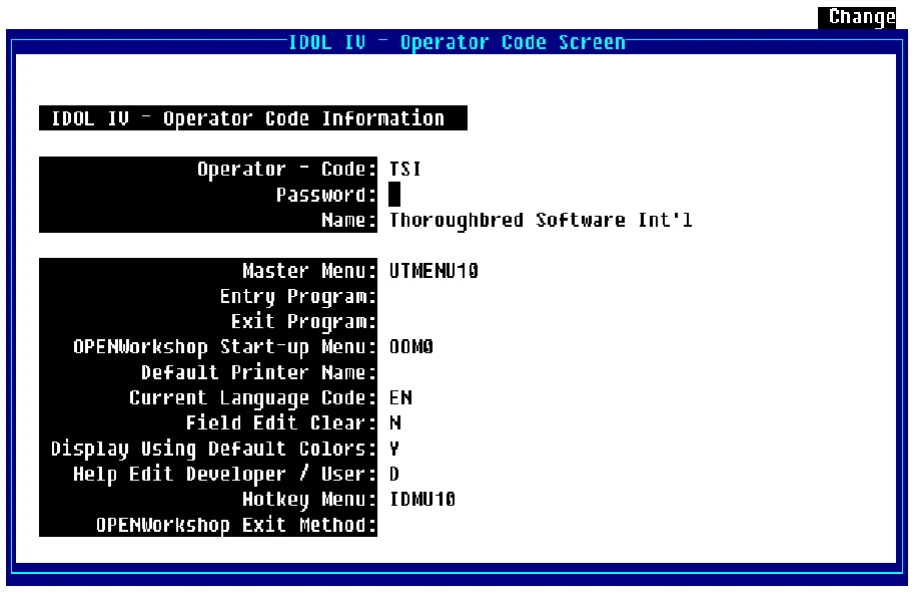
If an operator code is defined as a Help Edit Developer and the on-line help definition does not exist in the current language, the developer will have the ability to define the on-line help.
If an operator code is defined as a Help Edit User and the on-line help definition does not exist in the current language, the system will present the first found language version of the Help definition.
Specifying Multi-Language Definitions
Section titled “Specifying Multi-Language Definitions”This cannot be done until all the TSI libraries have been converted to all the languages you will be enabling. For more information see the Utilities Reference section in this document.
This section presents the exceptions to Definition Maintenance for Multi-Language applications. For information about elements of Multi-Language applications that are common to Definition Maintenance see the Formats section of the Dictionary-IV Developer Guide.
Formats
Section titled “Formats”Dictionary-IV supports Multi-Language data element descriptions. For each data element, a data element description can be entered for the various language codes. Whenever a view of data elements is presented, the current language data descriptions will be displayed. When entering formulas, you must still enter the data element name, not the Multi-Language data name description.
Select 1-Edit from the Dictionary-IV Development Menu or press F1 from any Dictionary-IV menu. The system displays the following:
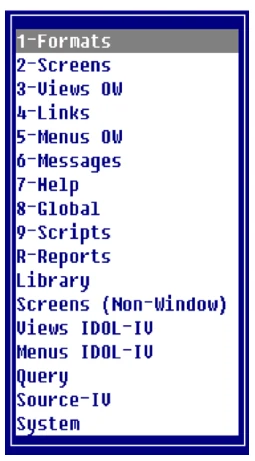
Select 1-Formats. The system displays the following view:
Format View
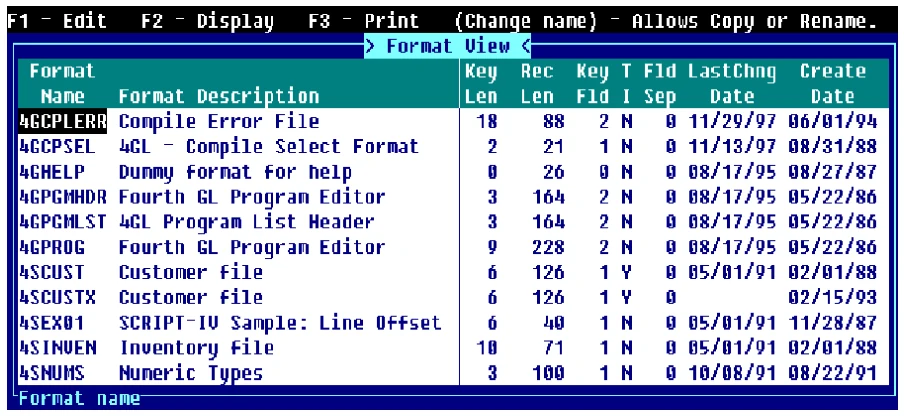
Press F1 to edit the Format. The system displays the following:
Format Editor
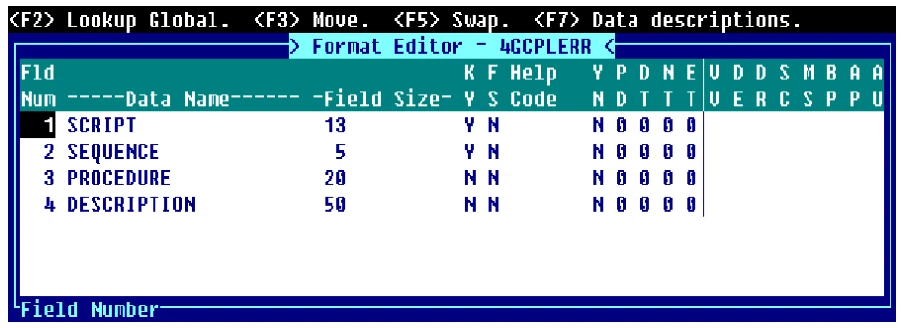
Press F7 to display a View similar to the following:
Multi-Language Data Descriptions
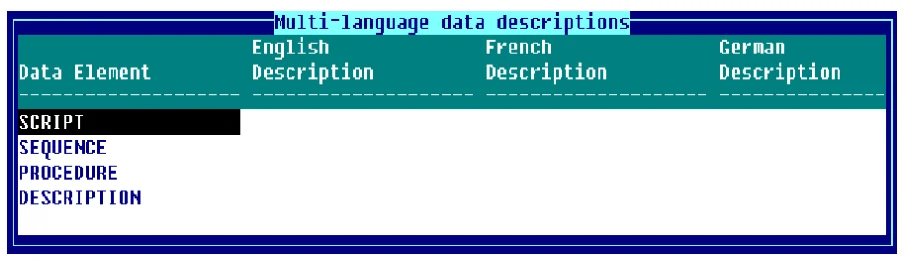
From the view above you can enter a description for each Data Name or press F1 to generate default English Data Descriptions based on the Data Name. When displaying the Data Name view, the descriptions display in the current language. These descriptions can be up to 20 characters and can contain special characters (such as spaces) not supported in Data Names.
This invokes a view that allows you to enter data element descriptions for up to twelve languages. To view the languages that do not appear in the window use the Tab and Back Tab keys. When entering data element descriptions, you must enter a description for all data elements in a specific language.
Maintenance of the Data Descriptions is done using an OPENworkshop view. This allows you to delete and arrange the columns in a convenient format. The view size and location may be changed. Rows cannot be deleted or added.
For more information, see CONNECT VIEW in the Dictionary-IV User Guide.
Multi-Language Valid Values
Section titled “Multi-Language Valid Values”The Valid Entries list in Format definition must contain all valid values for all possible languages. The translation capabilities of the Valid Entries lists can be used to translate that list to a set of constants.
For example, assume you have a list of payment term codes, which English might be C,0,3,6,9 for Current, 0 days, 30 days, 60 days and 90 days. This same list in FR would be A,0,3,6,9. The Valid Entries list would be 0,C,A,0,3,6,9:C,C,0,3,6,9.
It is recommended that Yes/No fields not be used in a Multi-Language environment, instead Valid Value Lists should be used. A Valid Value List defined for an English and Dutch environment that replaces a Yes/No field would be: 0,Y,J,N:Y,Y,N.
For more information on valid values, see the Formats in the Dictionary-IV Developer Guide.
Multi-Language Messages
Section titled “Multi-Language Messages”Messages in the message dictionary are supported in a Multi-Language environment as long as your format references a Message dictionary.
Delete and Copy Definitions by Language When the option to delete or copy a definition is selected and it is determined that the installation is a Multi-Language environment, a language selector menu will be displayed. You can then select one or more of the enabled language codes.
If a disabled language is selected a message will be displayed indicating that this menu item has been disabled.
Yes/No The prompt/constant message #1 in all message dictionaries is used to process Yes/No fields in format definitions and all Yes/No Messages.
The first two characters of the Message text are used to validate the input of a Yes/No message or a Yes/No field. The remaining text is used as part of the Yes/No Message text. By translating prompt/constant message #1, all the Yes/No message processing and Yes/No field processing will be done in the current language.
For example, define the French version of prompt constant message #1 as ON (Oui/Non)?. When the current language is French, all Yes/No message input and Yes/No field input will be validated against an O or N.
Input Messages Input messages allow for Valid Entry lists that can contain translation values. This allows you to define an input message in multiple languages but with a common value to be returned by the message processor.
Message Definition

Other Class Definitions
Section titled “Other Class Definitions”This section describes Multi-Language exceptions for the following: Library, Screen, View, Messages, On-line Help, Report, and Query definition.
Class definition name If you enter a definition name that does not exist in the current language, Dictionary-IV Multi-Language treats the name as a new definition.
For more information see the Dictionary-IV Developer Guide.
Delete and copy maintenance All class definitions display the current language code in a box in the upper right corner. Press F1 to select the maintenance mode.
Select the class definition to copy. The system displays a menu of all enabled language code options. You may select or deselect from those languages only. You cannot select a disabled language.
You may then copy the class definition using the normal procedure described in the Dictionary-IV Developer Guide.
Library maintenance does not provide a box showing the current language. You may however copy or delete classes from a library using the same procedure described above.
For more information see the Dictionary-IV Developer Guide.
Backup/restore The backup/restore utility displays a menu of all enabled language code options. You may select or deselect from any of these languages.
In this case, however, you may also select from the disabled languages. There may be existing files that are in a disabled language that must be backed up or restored
For more information, see the Dictionary-IV Developer Guide.
From the Dictionary-IV Administrator Guide, version 8.9.1. Open this page in the PDF