

Templates
Screen templates are specialized graphical screen definitions used to assign visual properties and characteristics to graphical screens and Dictionary-IV graphical menus. Templates can be applied to default screens at runtime or they can be applied to a graphical screen loaded in the Graphic Screen Designer.
Because screen templates are saved on the host in the Dictionary, they require a corresponding character screen definition. Like other graphical screens, the corresponding character screen definition is stored in Dictionary-IV (IDDBD). The graphical details are stored in the GUI Dictionary (IDDBB).
Following standard Dictionary-IV naming conventions, on the host a template name is from 3 to 8 characters where the first two characters are the library name. A screen template must reference the format definition UTFVT. This is a standard format that must be used by all template definitions. The GUI screen type for a template is a type 4. A default template, UTSV001 is supplied and installed both on the host and the client.
For performance, templates are cached on the client. When cached on the client the current language code and time stamp are appended to the template name. For example, the template UTSV001 on the host might be cached on the client as UTSV001-EN-0515031871001.
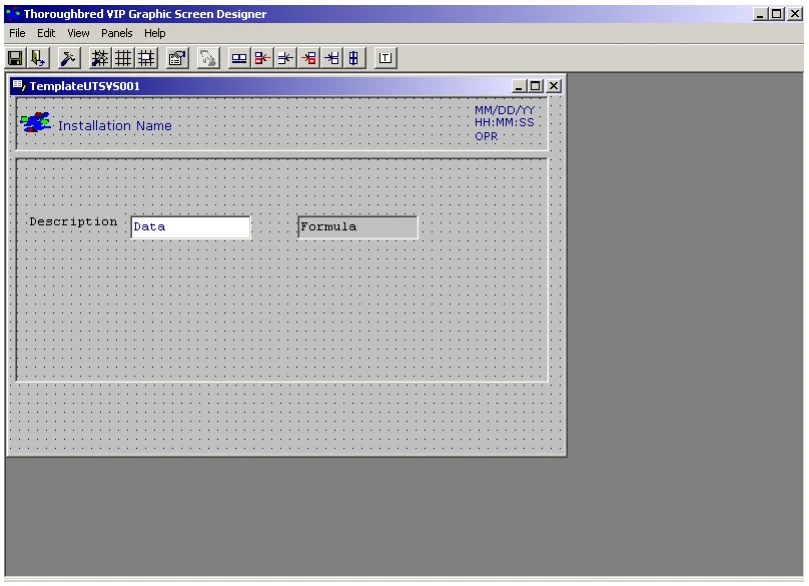
A template can contain the following objects:
- Label control - Used to apply font and color properties to all text on a screen.
- Input control - Used to apply font properties to all input fields on a screen.
- Header panel - Used to apply a header panel to a screen. Typically, header panel contains the company logo, company name, date and time.
- Data panel - Used to apply a data panel to a screen. Typically, a data panel contains all the screen input fields.
- Footer panel – Used to apply a third optional panel.
- Image controls – Used to add images that are common to all screens.
- Button controls – Used to add command buttons that are common to all screens.
The following image is the template UTSV01 loaded in the Graphic Screen Designer:
Applying Templates To Screens
Section titled “Applying Templates To Screens”Selecting a template to apply to a default graphical screen at runtime is done in the WorkStation Manager. For more information see the WorkStation Manager manual (Screen Template Options tab). Only templates that are cached on the client will be available for selection. To cache a template on the client or to update an existing template cached on the client, load the template in the Graphic Screen Designer then exit. It is not necessary to save the template back to the host, simply loading it in the Designer will update cache.
When a list of templates is displayed for selection, the extended template names are listed: template name, language code, and time stamp. For example: UTSV001-EN-0515031871001.
The template is only applied when a default screen is generated. If a default screen is cached on the client, the template will not be applied. To clear local cache. make a slight modification to the corresponding character screen definition. This will update the last change date and time in the screen header, forcing a new default screen to be generated for all VIP clients.
For information on applying templates to custom graphical screens see Graphic Screen Designer.
Create, Copy, Rename and Delete Templates
Section titled “Create, Copy, Rename and Delete Templates”New templates are not created from scratch. To create a new template, on the host copy an existing template definition. The default template UTSV001 has been provided for this purpose. UTSV001 can be used to create (copy) custom template definitions. Follow standard Dictionary-IV copy procedures to copy a screen definition.
To rename a template definition, rename the template definition on the host using standard Dictionary-IV procedures to rename a screen definition.
To delete a template definition, delete the template on the host using standard Dictionary-IV procedures to delete a screen definition. In this case you will be given the option to delete both the character and graphical screen or just the graphical screen.
To access a new, copied, or renamed template for editing, load the template in the Graphic Screen Designer.
Backup/Restore Templates
Section titled “Backup/Restore Templates”To backup or restore a template, select the corresponding character screen definition. For example, to back up the template UTSV001, simply select the screen UTSV001 for backup. For more information, see backup/restore of graphical screens in this manual.
From the VIP for Dictionary-IV Reference, version 8.9.1. Open this page in the PDF