

Connect - TCP/IP (Protocol: Raw and Telnet)
Connections can be made using the standard TbredComm connection dialog or by defining TbredComm AutoLogons in the WorkStation Manager. For more information about AutoLogons please see the WorkStation Manager reference manual.
From the TbredComm menu bar select the Connect menu and then select Connect - TCP-IP. The following screen appears.
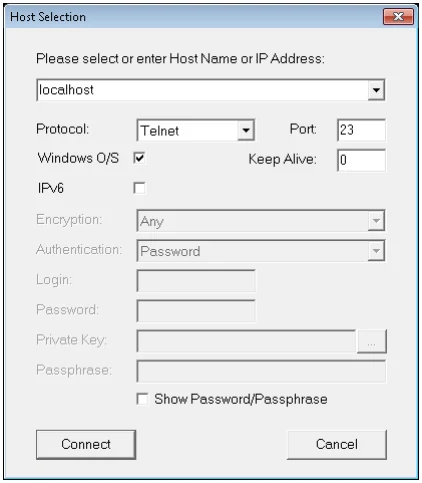
Host name/IP address selection Enter either the host name or the IP address of the Host name. The list box button can also be used to select a host from prior defined TCP/IP connections.
Protocol
Select the desired protocol from the Protocol drop down list box. The default protocol is telnet.
Raw:
Allows you to establish a connection to the specified host using the raw protocol.
Telnet:
Allows you to establish a connection to the specified host using the telnet protocol.
Port
Enter the desired port for the connection. The default port is 23.
Window O/S Check the Window O/S check box if you are connecting to TS Environment for Windows (Telnet Basic). This will populate INF(3,2) and INF(5,2) with the Domain User Name providing a unique account name for each Basic connection.
Keep Alive Enter the number of seconds of inactivity before a “KeepAlive” packet is sent to keep the connection alive. The default is defined by the Default Keep Alive defined on the TbredComm tab of the WorkStation Manager. A 0 value will disable Keep Alive.
IPv6
Check the IPv6 check box to first try connecting to the specified host using IPv6 connectivity. If that fails, TbredComm will try again using IPv4 connectivity.
Connect Select the Connect button to make the connection. Once the conneciton is established, the host will prompt you for your login and password.
Cancel
Select the Cancel button to exit the connection dialog.
To connect using an AutoLogon please see the WorkStation Manager manual.
For Secure Shell protocols, please see the Connect TCP/IP (Protocol: SSH1, SSH2, SSHAuto ) section later in this manual.
From the TbredComm Reference, version 8.9.1. Open this page in the PDF