

Importing VIP Screens
The VIP Import Utility is provided to allow migration from VIP 4.0x to VIP 4.10.
- To move graphical screens to another host please see Screen Backup/Restore in this manual.
- To import graphical screens from VIP 4.0n to VIP 4.10 use the VIP Import Utility.
This is a one-time upgrade process to allow you to use your existing VIP GUI screens. If you plan to generate all new GUI screens, there is no need to import your existing definitions. There are two steps to importing your existing VIP GUI screens to the host.
- Prepare the host environment for the import process.
- Import the screens and templates to Dictionary-IV.
Prepare Host Environment
Section titled “Prepare Host Environment”The import utility requires both the VIP .frm files and the VIP .msg files. The .pos files are optional. If the corresponding .pos file can be opened, the saved location from the client will be saved with the GUI screen definition on the host.
Windows
Section titled “Windows”In a VIP 4.0x installation these files can typically be found on the client in the following folders.
.frm files:
C:\Tsi\ObjectCache\Screensg.msg and .pos files
C:\Tsi\ObjectCache\Screens.frm files for templates
C:\Tsi\ObjectCache\ScreenstUNIX/Linux
Section titled “UNIX/Linux”The files must reside on the host. If you are running the Import Utility on a UNIX host, you must first move the files to the host. The recommended (not required) directories for a UNIX host are:
.frm files
/usr/basic/Screensg.msg and .pos files
/usr/basic/ScreensDefault Values
Section titled “Default Values”The Import Utility interface has default values for the location of your screen definitions. These default values are maintained in the Format UTFVSIM1.
The default value for the .frm files is maintained in UTFVSIM1.START-SCRN-NAME.
The default value for the .msg and .pos files is maintained in UTFVSIM1.SCRNS-PATH. To modify the default values to reflect your environment, edit this data element.
The following are example default values for UTFVSIM1.START-SCRN-NAME:
C:\Tsi\ObjectCache\Screensg/usr/basic850/ObjectCache/Screensg/usr/development/basic/ScreensgThe following are example default values for UTFVSIM1.SCRNS-PATH:
C:\Tsi\ObjectCache\Screens/usr/basic850/ObjectCache/Screens/usr/development/basic/ScreensThe same GUI Import Utility is used for importing VIP screen templates, however there are some special considerations. VIP templates are stored and managed in the Dictionary in the same way as VIP GUI data entry screens. For this reason, each GUI template must have a corresponding character definition and must reference the format definition UTFVT.
Rename or copy your templates in ObjectCache\Screenst to an 8-character Dictionary-IV compatible name. The language code and the file extension are not counted. For example:
Rename or Copy
DEFAULTTEMPLATE-EN.frm to UTVIP01-EN.frm
Move the templates from ObjectCache\Screenst on the client to the host. Template definition files are also .frm files and must be placed in the same directory with the data entry screen .frm files.
On the host select Dictionary-IV screen maintenance. Copy (Do Not Rename) the character screen UTSVS001 using the new 8-character name of your template. For example:
Copy
UTSVS001 to UTVIP01
In the above example the original template DEFAULTTEMPLATE-EN.frm will be maintained in Dictionary-IV as UTVIP01.
Importing Screens
Section titled “Importing Screens”Do Not turn on VIP, the import utility must be run in character mode. The import utility uses several system calls that are not currently supported by VIP.
From the OPENworkshop/Dictionary-IV Utilities Menu select the VIP Utilities option.
Select the VIP GUI Screen Import option.
You will be prompted:
Log file VIPSIML: Clear Append ExitSee below for more information on how to use this log file.
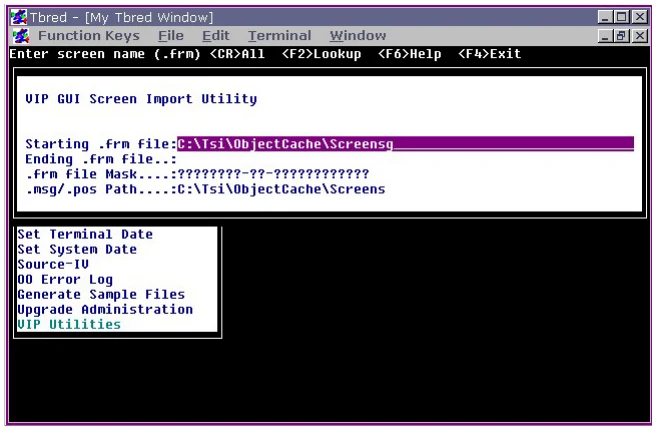
The VIP GUI Screen Import Utility screen displays. The following image illustrates running the import utility on a Windows host.
Starting .frm File
Section titled “Starting .frm File”Type the name of the first form file (VIP screen) to be imported and press Enter.
Press Enter to select all the .frm files in the specified directory.
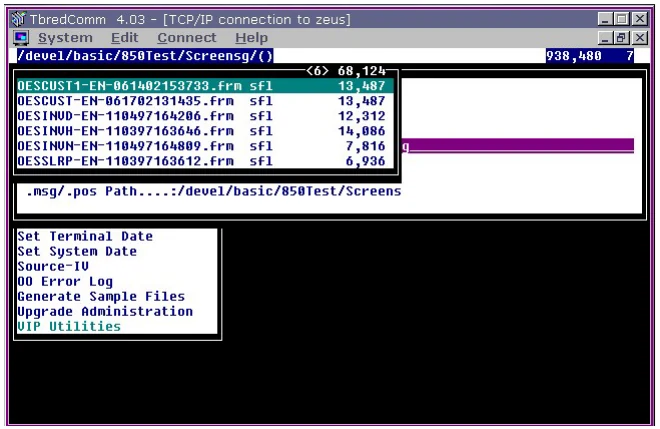
Press F2 for a LookUp of all the .frm files in the specified directory.
Press F4 to exit the import utility.
If the screen frm file is not in a directory defined by a DIR entry in your IPLINPUT file, you must enter the fully qualified name.
The default directory is maintained in the Format definition UTFVSIM1 as a default value for START-SCRN-NAME. Edit this format modifying the default value to reflect your environment. For example:
C:\Tsi\ObjectCache\Screensg
/usr/basic850/ObjectCache/Screensg
/usr/development/basic/Screensg
The following illustrates the F2 LookUp function on a UNIX host:
Ending .frm File
Section titled “Ending .frm File”See “Starting .frm File.”
./msg ./pos Path:
Type the directory where the .msg and .pos files are located on the host and press Enter.
Press Enter if these files are in a directory defined by the IPLINPUT file.
Press F2 for a Lookup of available directories.
Press F4 to exit the import utility.
The .pos files are optional. These contain the saved location of the GUI screen on the client. If a corresponding .pos file is found, that information will be stored with the GUI definition on the host.
If the screen .msg and .pos files are not in a directory defined by a DIR entry in your IPLINPUT file you must enter the fully qualified path where the .msg and .pos files are located.
The default directory is maintained in the Format definition UTFVSIM1 as a default value for SCRNS-PATH. Edit this format modifying the default value to reflect your environment.
During the import process the status of each GUI screen will be recorded in the VIP Import Log file. If a GUI screen fails to import, the log file will contain appropriate error messages. After all selected screens have been imported; the VIP Import Log View will be displayed.
VIP Import Log View
Section titled “VIP Import Log View”VIP Screen Name
The name of the imported VIP GUI screen definition.
Import Date
Date the VIP screen was imported to Dictionary-IV.
User Comments (Usr Cmt)
This text field is not used by the import utility. This field has been included for the developer to make any comments or notes regarding a particular screen. If you should select the option to ‘Clear’ the VIP Import Log, these comments will be lost.
Status
PASSED or FAILED.
Error Code
A list and explanation of error codes generated by the import utility.
Error Details
This is an occurrence field containing up to 5 entries. This provides detailed
information regarding the error.
From the VIP for Dictionary-IV Reference, version 8.9.1. Open this page in the PDF