

Using TS Network DataServer
The following describes how to access and manage server connections.
Operating System Interface
Section titled “Operating System Interface”The Thoroughbred server makes any Thoroughbred native file accessible to a client. This includes Programs and Object Libraries. Your entire application may reside on the server.
If your application does an operating system check, the results are based on the Client Basic. It is important to understand that instructions that are operating system specific may not generate expected results.
For example, even though your entire application resides on a UNIX Server, a Windows Client cannot use commands like the following: OPEN (OPT=SHELL), or SYSTEM “ls -1”, etc.
Server Process
Section titled “Server Process”Starting the Server Process
Section titled “Starting the Server Process”UNIX/Linux Execute the tsmgr program with root privileges (UNIX Server). The Server Process must be running in order for any client to connect. This program is a daemon that continually checks for clients attempting to connect and attempts to create a Server Process for each client.
Windows 10/Windows 11/Windows Server 2016/Windows Server 2019/Windows Server 2022/ Windows Server 2025
The installation sets up the Thoroughbred Service. The server process is initiated each time the system is started.
You can manually start and stop the Server Process through Services in the Control Panel.
Managing the Server Processes
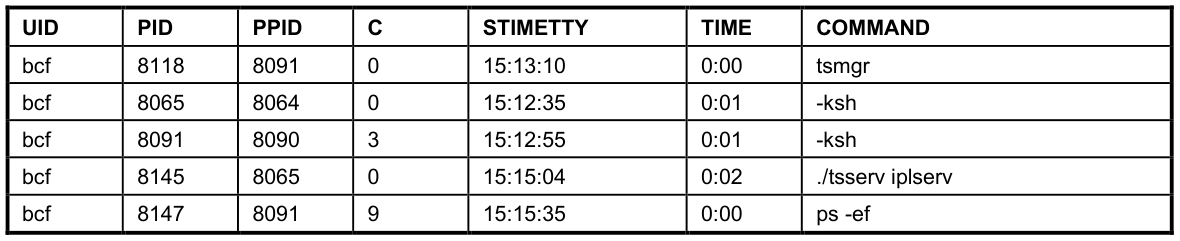
Section titled “Managing the Server Processes”A server system that is running properly has one instance of the Startup Program (tsmgr) running and one instance of the Server Process (tsserv) running for every client that is connected.
For a given client machine and server system, there is a one-to-one correspondence between the client and server processes. When a client connects to a server, a Server Process is created for that client by tsmgr. When the client quits, the associated Server Process (tsserv) also terminates.
UNIX/Linux For UNIX operating systems the ps command can be used to produce a listing of processes that are currently running. You can pipe the output to grep to display only the relevant information. The output should be similar to the following:
List of Processes Currently Running - UNIX
If you must stop a process, use the command:
kill -9 PIDThe process id can be determined from the output of the ps command by looking under the PID column. This is the only way to stop the Startup Program (tsmgr).
Windows 10/Windows 11/Windows Server 2016/Windows Server 2019/Windows Server 2022/ Windows Server 2025
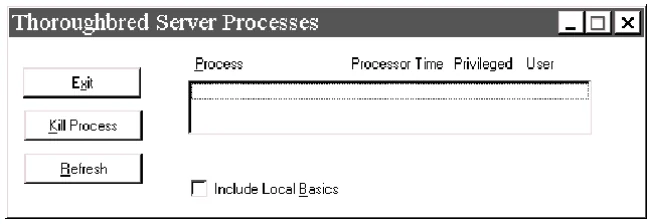
For Windows operating systems the Thoroughbred utility tbpview.exe can be used to produce a listing of processes that are currently running. This program can be found in the Thoroughbred folder. When tsmgr is not running, the (empty) output should be similar to the following dialog box.
List of Processes Currently Running
Server Authorization
Section titled “Server Authorization”The Server Process requires an Activation Process similar to Thoroughbred Basic. If any server defined in the IPLINPUT file has not been activated, the user will be given the option to authorize that server.
Client Connection
Section titled “Client Connection”Once the Server Process is up and running, clients can begin to connect. For each DEV line in the IPLINPUT file that specifies a connection to a server, an attempt is made to connect to that server.
- If an existing connection already exists, the existing virtual circuit will be used for communication.
- If no existing connection exists, a virtual circuit to the server will be created.
- If a connection cannot be made, an appropriate error message will be displayed. The device will be disabled.
Reestablish a Connection
Section titled “Reestablish a Connection”To reestablish a connection, use the following comment:
ENABLE disk-no,"RECONNECT"Managing the Number of Connections
Section titled “Managing the Number of Connections”The server manages the number of connections. Each time a new connection is initialized, the user count will be incremented. When a user exits Basic (RELEASE), the user will be removed from the count.
OPENing Data Files
Section titled “OPENing Data Files”Thoroughbred client follows the same methodology as standard Basic when searching for files. The disk directories are searched in the order they are defined in the IPLINPUT file.
If the client Basic attempts to OPEN /home/data/filename, the search starts with the first hierarchical disk defined in the IPLINPUT file. The client and each server may have a hierarchical disk directory defined in the IPLINPUT file. Adding a server ID to the above path S1:home/data/filename does not force access to the server. In this example the server ID S1 is ignored and the search is done as if the server ID did not exist.
Data Security
Section titled “Data Security”The server Process (tsserv) is installed with the set-UID bit set. Therefore, the client has the same permissions as the owner of the Server Process (tsserv) when accessing files on the server.
TS Network DataServer provides additional security with an access restriction capability designed to prevent unauthorized access to your server and data.
When a remote Basic client attempts a DataServer connection, the dataserver process will validate the remote basic’s IP address using the new file TCBSERV. If this file does not exist in the same directory as tsmgr/tsserv, Basic and DataServer will behave the same as in the past. The TCBSERV file contains IP addresses for allowed connections as well as accessible directories. If the IP address is not in this file, Basic will display the message that it could not connect to the dataserver. If any of the paths defined in the Client IPL file are not in the allow list:
- Current Basic will fail at startup with an error message
- Older Basics will fail with an ERR=13 during I/O attempts
A sample TCBSERV text file looks like:
[192.168.19.41][192.168.19.42]/acct1/DATA/acct1/IDL4 [192.168.19.43]/u1/DSGIn the above example only IP addresses 41,42 and 43 would be allowed to connect to this DataServer.
- 41 would have access to all the directories.
- 42 would have access to only the /acct1/DATA and /acct1/IDL4 directories.
- 43 only has access to /u1/DSG.
Communications
Section titled “Communications”While TCP/IP is designed to provide reliable bi-directional communications, situations may occur where both the client and server are waiting for a response from the other. This may occur when the client and server are running different operating systems, as for example a Windows client and a UNIX server.
If the server does not respond to a client request after a specified period of time, the client will timeout. The client then starts sending special synchronization messages to the server in an effort to resynchronize with the server. Once the server responds with the proper synchronization sequence, the original request is retransmitted and processing continues.
The timeout value is initially set to one second. After each timeout, the timeout value is doubled. Therefore, the client will timeout after 1 sec., 2 sec., 4 sec., etc. A typical hang sequence might look like:
Timeouts - Hang Sequence
Section titled “Timeouts - Hang Sequence”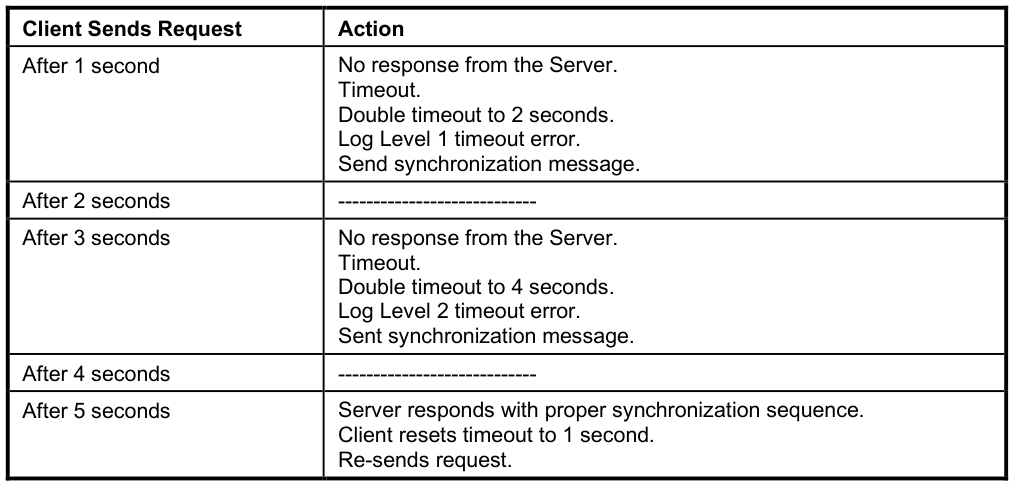

At this point the client and server resume normal communications.
The timeout errors are logged internally. You can get a listing of these errors with the command:
DUMP IPLDEVS “STATS=YES”For more information see the Troubleshooting section later in this manual.
From the TS Network DataServer Reference, version 8.9.1. Open this page in the PDF