

Screens - Introduction
Unique to screens is the ability to use default or custom graphical screens. For both graphical screen types, any change made to the corresponding character screen definition will be reflected in the graphical screen. All VIP clients will present a graphical screen based on a common character definition on the host. For better performance, the graphical screen is cached on the client. Each time a screen is invoked the host will compare the last change date and time and language code to the graphical screen cached on the client. If these do not match and a custom screen exists on the host, the custom screen will be downloaded and cached on the client. If these do not match and a custom screen does not exist on the host, a new default screen will be generated and cached on the client.
Control Types
Section titled “Control Types”Both default and custom screens will create control types based on the data element attributes as defined by the format.
- Standard input fields will be collected using a text box control.
- Calculated (formula) fields will be displayed using a text box control using special foreground and background colors. See Special Field Colors later in this section.
- Security fields will be displayed using a text box control using special foreground and background colors. See Special Field Colors later in this section.
- Text fields will be displayed and edited using a graphical text editing control.
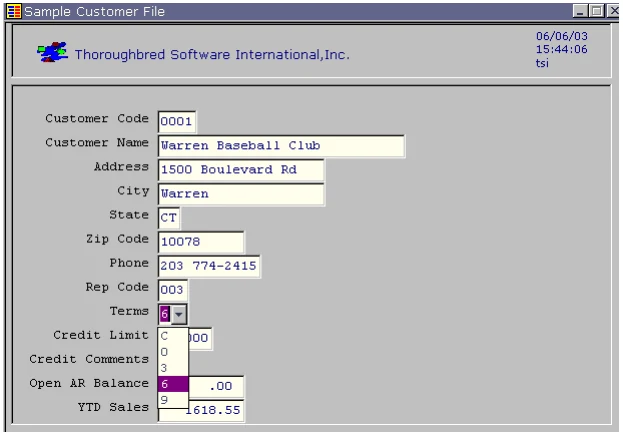
- Valid Value lists will be displayed and selections collected using a ComboBox control. Clicking on the ComboBox button will display a drop down list containing a list of valid values.
- Context Menus are automatically generated for all fields. A right mouse click on the active field will display a context menu. This menu displays options based on the attributes of the data element as defined by the format definition. For more information on data element Context Menus see the Views section of Creating Graphical Presentations.
In addition to the above, custom screens support button controls and image controls. Please see the Screens-Custom in a following section.
The following image is an example of a default graphical screen with a ComboBox control used for processing the Valid Value list defined for the Terms field.
Special Field Colors
Colors for calculated (formula) fields, security fields, and highlighted (current) field can be set in the WorkStation Manager. These color properties can be applied at run time to both default screens and custom screens. For more information see the WorkStation Manager manual (Special Fields Color tab).

From the OPENworkshop Reference, version 8.9.1. Open this page in the PDF