

Using Query-IV
Before you can begin to create queries using Dictionary-IV, your system must be properly configured. Check with your System Administrator before you begin.
Procedure for set up
Section titled “Procedure for set up”This section will take you through the steps you should follow to create queries.
Dictionary-IV must be running. You can start Thoroughbred Dictionary-IV using one of the following methods:
- From the Thoroughbred Basic Utilities Menu, type ID and press Enter.
- From Thoroughbred Basic Console Mode, type RUN“ID” and press Enter.
As a default the system displays the Thoroughbred Dictionary-IV copyright screen.

Press Enter to continue to the Operator Login Screen. The system prompts:
Thoroughbred Dictionary-IV - Enter Operator Code:______Type your operator code and press Enter. See your System Administrator for your Operator Code.
Once Dictionary-IV is running you may execute Query-IV as follows:
- Type TQ at any Dictionary-IV menu and press Enter. The system displays the Query Control Window.
- Type RUN“Q4GO” from Thoroughbred Basic Console Mode and press Enter. The system displays the Query Control Window.
- Type Q4GO from the Thoroughbred Basic Utilities Menu and press Enter. The system displays the Query Control Window.
- Press F1 from any Dictionary-IV menu and select Query. The system displays the Query View. To display the Query Control Window from the view press F1–Edit. To perform maintenance within the view, refer to the Dictionary-IV User Guide.
Set Operator Preferences
Section titled “Set Operator Preferences”This function allows you to set such defaults as query description, output device (terminal/printer), and library name. It also allows you to set the exit program name. For more information, see the Operator Preferences section later in this document.
Create and Maintain the Queries
Section titled “Create and Maintain the Queries”To create and maintain queries use the Query Control Window. To access the Query Control Window see the Login section above.
Query Control Window with Query Framer
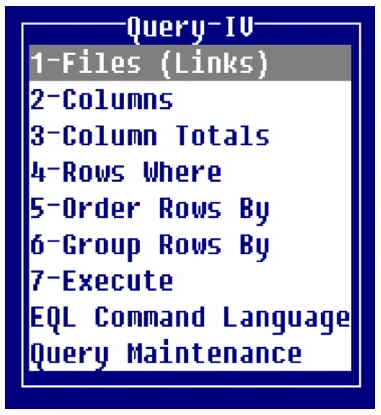
The following function keys are available from the Query Control Window:
Enter To select an option.
- F4
- To exit.
- F6
- To display on-line help.
- F7
- To select Special Functions.
The Query Control Window allows you to create, maintain, and execute queries. It also allows you to access the EQL Command Language (SQL compatible language) for editing Queries. For more information, see the Query Framer and EQL Command Language sections later in this document.
The following description briefly shows how to frame a query, run it, save it, and exit Thoroughbred Query-IV. More examples can be found in the Sample Queries and Databases section of this document.
Every query must specify something from the first two selections in the Query Framer: Files (Links) and Columns. All other selections are optional.
If you accessed Query-IV by pressing F1 and selecting Query the system will display the Query View:
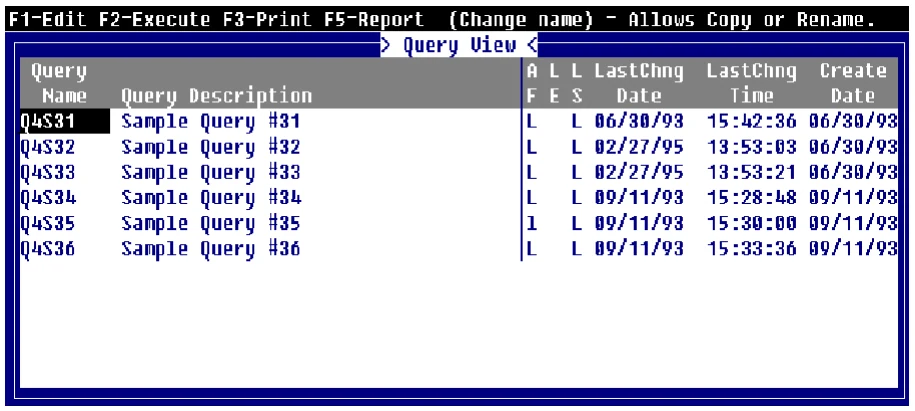
To access the Query Control Window from the Query View press F1-Edit. For information on maintenance within the view, refer to the Dictionary-IV User Guide.
Select a Link
Select Files (Links). The Link selection window displays. Press F10 and the system prompts:
Enter key value:Type Q4EMPLOY and press Enter. The system highlights the Link name that you typed. Press Enter to select the Link name. It displays in the Files (Links) window. Press F4 to exit the Link selection window.
Select Columns
Select Columns. The column selection window displays, select Employee Name and Job Description.
Press F4 to exit the column selection window.
Execute the Query Select Execute. The table that you requested in your query is displayed. Assuming that you selected the columns EMPLOYEE-NAME and JOB-DESCRIPTION, this is what the resulting query table looks like:
| Employee Name | Job Description |
|---|---|
| Douglas | Bookkeeper |
| Roland | Programmer |
| Bell | Marketing Rep. |
| Parker | Programmer |
| Watson | Marketing Rep. |
| Alexander | Sales Rep. (Regional) |
| Drummond | Programmer |
| Johnson | Sales Rep. |
| Mason | Sales Rep. (Regional) |
| Brady | Sales Rep. |
| Perkins | Sales Rep. |
| Allen | Sale Rep. (Regional) |
| Davis | Bookkeeper |
End of Report. <CR> to continue.Press Enter, and the Query Control Window displays.
The EQL Command
When you create your query through the Query Framer Thoroughbred Query-IV creates an EQL
command from your selections.
To see the EQL command from the Query Control Window, select EQL Command Language. This displays the EQL window. Press F9 to generate the EQL command from the Query Framer selections.
The syntax of the EQL command is:
SELECT columns FROM linkThe EQL command in this example is:
SELECT EMPLOYEE-NAME, JOB-DESCRIPTION FROM Q4EMPLOYOnce you learn Thoroughbred Query-IV, you can directly enter, edit, and execute queries in this EQL Command Language window. Press F4 to return to the Query Control Window.
Save the Query You can use Thoroughbred Query-IV simply to examine the database without saving your queries. However, you can save the query either while you are in Thoroughbred Query-IV or when you leave.
- To save the query while you are in Thoroughbred Query-IV, select Query Maintenance from the Query Control Window. The Query Maintenance Window displays. Select New Query (Clear). Whenever you select New Query (Clear) or Retrieve Query, you may save the current query.
- To save the query when you exit, press F4 and you may save the current query.
Logoff
Section titled “Logoff”First press F4 until you return to Dictionary-IV. There are several ways to exit Thoroughbred Dictionary-IV.
To return to the Operator Login Screen:
Type LOF at any Dictionary-IV menu and press Enter.
To return to the operating system:
Select the Terminal Logoff option at the Dictionary-IV Control Menu or the Dictionary-IV Development Menu.
To return to the Operator Exit program:
Press F4 at any Dictionary-IV menu until you reach the initial menu. When you reach this menu press F4 to run to the operator exit program. You may define this exit program using the Operator Information utility. For more information, see Operator Information in the Utilities section of this document.
To return to Thoroughbred Basic Utilities:
Select the BASIC Utilities Menu option from the Dictionary-IV Control Menu.
To run another Thoroughbred Software product:
Press F3 and make a selection. When you run one of these products from Dictionary-IV, you are automatically logged in with the current operator code.
To run a program:
Type a slash (/) or a colon (:) followed by the program name and press Enter. Examples: /DESKMGR or :DESKMGR.
To run another menu:
Type ;menu-name and press Enter. The menu-name is the 3 to 8 alphanumeric character name of the menu to display. Examples: ;UTMENU10 or ;UTMENU22.
Timeout:
Exits to the Operator Login Screen. Timeouts occur when you leave a terminal unused at a Dictionary-IV menu. The amount of time before logoff can be set in the System Administration options.
Thoroughbred Query-IV Menus
Section titled “Thoroughbred Query-IV Menus”In this section the Query-IV menus are briefly described. For more information, see the appropriate section in this document.
The following menus are provided in the Query Control Window:
- Query Framer
- EQL Command Language
- Query Maintenance
Query Framer
Section titled “Query Framer”This menu is used to create and execute queries.
Files (Links)
Selects the File or Link to use to retrieve data for this query. You select one of these before doing
anything else.
Columns Selects the Data Names from the File or Link to be used for this query. You must also select from this option before doing anything else.
Column Totals
Totals numeric columns.
Rows Where
Sets conditions for selecting data from the File or Link.
Order Rows By Allows you to select a sort or create a temporary sort. You cannot Order Rows By and Group Rows By in the same query.
Group Rows By Groups rows together by the specified Data Name and produces a summary row for each group. You cannot use Order Rows By and Group Rows By in the same query.
Execute
Executes the query.
EQL Command Language
Section titled “EQL Command Language”The EQL Command Language window allows you to create and edit an SQL-compatible query language.
Query Maintenance
Section titled “Query Maintenance”Allows you to edit queries and schemas.
Retrieve
Retrieves the selected query.
Delete
Deletes the selected query.
Rename
Renames the selected query.
Copy
Copies the selected query.
List
Lists a defined range of queries to the terminal or a printer.
Print Definitions Prints copies of the actual query definition, containing all of the specifications, content, and Format information.
New Query (Clear)
Allows you to create a query from a clean slate not a copy of another query.
Query Parameters
Directs you to the method for viewing or editing operator parameters.
Schemas
Allows you to create and edit queries that use more than one database.
From the Query-IV Reference, version 8.9.1. Open this page in the PDF