

Special Field Colors
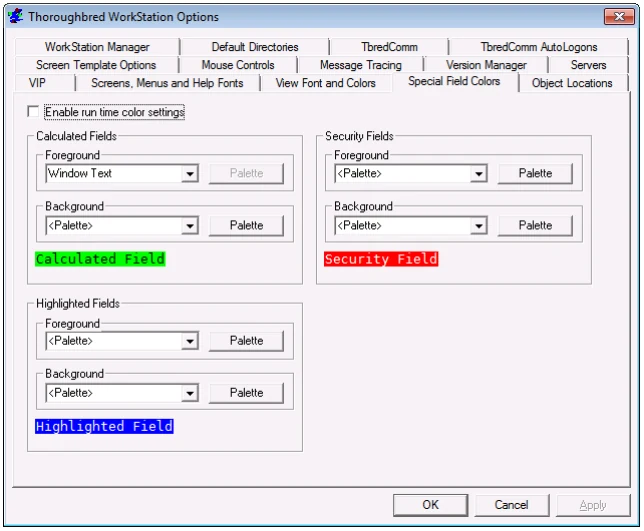
This option allows you to set default foreground and background colors for Calculated Fields, Security Fields, and the Highlighted (Active) Fields. These settings are applied at runtime only. They are not applied while editing a screen definition and they are not saved with the screen definition.
Enable run time color settings
Check this box to enable the special field colors at run time.
Foreground/Background Dropdown Menu Buttons First select the foreground and/or background color of the “special field” to define. You can select from the following:
<None> Select the default colors
<Pallette> Select a special color from the Pallet button (see below).
<other-selections> Select the dropdown menu button to display a list of settings defined by the desktop appearance (Control Panel→Display Properties→ Appearance tab). These include: Desktop, Active Title Bar, Inactive Title Bar, Menu Bar, Window Background, Menu Text, Window Text, Active Title Bar Text, Application Workspace, Highlight, Highlight Text, Button Face, Disabled Text, Button Text, and Inactive Title Bar Text. When one of these items has been selected, the current color of that item is applied to the field at runtime.
Palette button
Select the Palette button to display the standard color selector palette.
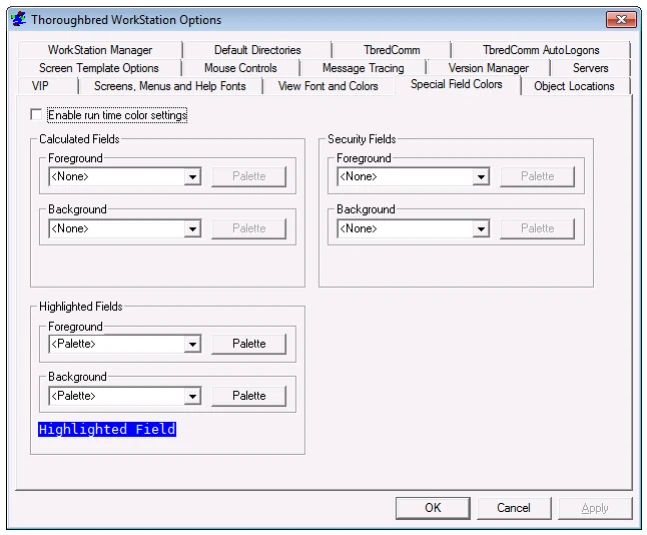
For example, change the foreground color to white and the background color to blue for
Highlighted Fields. See the results below.
For more information see the View Font and Colors tab.
From the WorkStation Manager, version 8.9.1. Open this page in the PDF