

IDOL to Dictionary-IV Conversion
The information in this section should be used only by experienced developers who are familiar with the original Thoroughbred IDOL.
If you are converting an IDOL-based application to Dictionary-IV, the application will need modifications to run properly. To aid in the conversion, Dictionary-IV provides several functions that convert IDOL definitions into Dictionary-IV components. Both IDOL and Dictionary-IV must be installed on the system doing the conversion.
The following IDOL components can be converted using the IDOL to Dictionary-IV Conversion Functions:
- Record Layouts for File Maintenance or Data Entry
- Selector Screens
- File Maintenance Screens
- Data Entry Screens
- Menus
- Help
This document offers specific conversion information for each type of IDOL definition.
The conversion functions are available in Dictionary-IV Definition Maintenance.
Record Layouts
Section titled “Record Layouts”To convert an IDOL record layout, from any Dictionary-IV menu type /IDNFM0 and create a new format. But before you enter any data elements in the format, press F11 at the data element field select IDOL Conversion.
The system prompts for the type of record layout to be converted:
(F)ile Maint Screen or (D)ata Entry Screen
Type F or D to select the type of record layout and press Enter. The system prompts:
Enter IDOL File Name or Number:
Type an IDOL file name or the file number (1-999) and press Enter. The system reads the IDOL record layout and reformats the data into the Dictionary-IV format.
Repeat this procedure for each record layout to be converted.
Screens
Section titled “Screens”To convert an IDOL selector, file maintenance, or data entry screen layout, from any Dictionary-IV menu type /IDNSC0 and create a new non-windowed screen. But before you design the screen, press F11 to select IDOL to Dictionary-IV Conversion. The system prompts:
(S)elector Screen, (F)ile Maint Screen or (D)ata Entry Screen:
Type S, F, or D and press Enter to select the type of screen to be converted.
The system then asks for the screen you want to convert. Depending upon the type selected, one of the following prompts will appear:
Enter IDOL Selector Number:
Type a Dictionary-IV selector number from 1-99 and press Enter.
Enter IDOL File Name or Number:
Type a Dictionary-IV file name or the file number from 1-999 and press Enter.
Enter IDOL Data Entry Screen Number:
Type a Dictionary-IV data entry screen number from 1-199 and press Enter.
The system reads the Dictionary-IV definition and reformats the data into the Dictionary-IV screen. Note that the file maintenance and data entry screens contain data element definitions, whereas the selector screen needs a menu input definition (use format IDMENUIN for the menu input definition).
To convert an IDOL selector, from any Dictionary-IV menu type /IDNMN0 and create a new menu. But before you enter any menu selections in the menu, press F11 to select IDOL to Dictionary-IV Conversion. You are asked to enter the IDOL selector number:
Enter IDOL Selector Number:
Type the IDOL selector number to be converted and press Enter. The system reads the IDOL selector and reformats the data into the Dictionary-IV menu.
To convert IDOL help text, from any Dictionary-IV menu type /IDNHP0. But before you enter a help module name, press F11 at the Help Name field to select IDOL to Dictionary-IV Conversion. The system prompts:
(C)onvert IDOL Documentation or (R)emove Display Flag:
Type C or R and press Enter to select the correct function.
When IDOL help modules are converted, a flag is set that tells Dictionary-IV that this help module came from IDOL and that it should be displayed the same way that IDOL displays it.
The Convert IDOL Documentation (C) option allows you to retain the IDOL display settings so that when help is requested, it will be displayed the same way that IDOL displays it.
The Remove IDOL Display Flag (R) option allows you to turn off the standard IDOL help display method.
If you wish to display these help modules like all other Dictionary-IV help (with window borders), the Remove IDOL Display Flag option will allow you to do this. This removes the IDOL display flag so that when help is requested, it is displayed with the standard Dictionary-IV window border.
The IDOL Documentation Conversion screen is then displayed:
Screen to Convert IDOL Documentation to Dictionary-IV Help
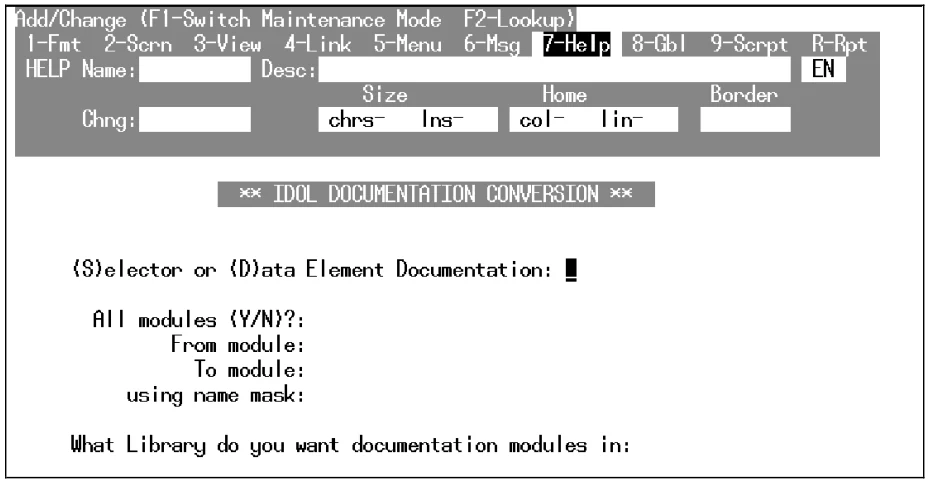
The system prompts for the help modules to be converted:
(S)elector or (D)ata Element Documentation:
Selector help refers to Menus, and data element documentation refers to file maintenance Screens. Type S or D and press Enter to make your selection. The system then prompts for the module(s) to be converted:
All modules?:
Select Y to convert all of the IDOL help modules. If Y is selected, no further options are available.
From module:
To module:
When selecting a range of definitions, use the following specifications:
- Pressing Enter indicates first or last name definition. If a
- from definition" name is entered, pressing
- Enter
- at the to definition field enters the same name.
Module name lets you start or end at that definition.
Part of a definition name may be used if appropriate.
using name mask:
A name mask allows you to select definitions without specifying each individual name. If you do not wish to use a mask, bypass this prompt by pressing Enter.
A mask sets up a matching test. If a definition name matches the mask, then it is selected. If no match is made, it is bypassed.
A mask contains match and passing characters. The characters in a definition name must match all of the match-characters (the same character and position) for it to be selected. The pass character (?) is used to indicate that no match in this position is needed.
| Mask | Action | Definition Names |
|---|---|---|
| A? | selects | AB Ac A1 |
| avoids | aB cA 11 |
Is the Displayed Information Correct?
Y Starts the procedure with the displayed information.
N Allows you to respecify the displayed information.
If you are converting IDOL documentation, the system prompts:
What Library do you want documentation modules in:
Type the 2-character ID of the library where you want the help modules stored and press Enter.
From the Dictionary-IV Administrator Guide, version 8.9.1. Open this page in the PDF