

Library/Source Maintenance
When you select the Library/Source Maintenance option from the Source-IV Main Menu the system displays the Library File View:
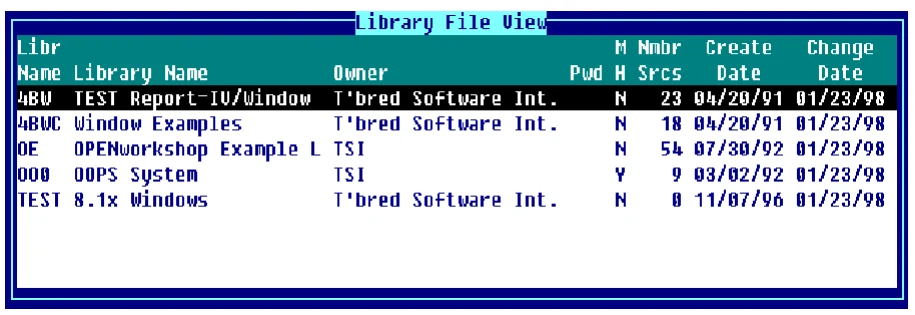
Keys available in the Library File View:
- Enter
- Selects the library or Source document.
- Shft-Ins
- Adds a library or Source document.
- Shft-Del
- Deletes a library or Source document.
- Up/Down Arrow
- Moves the lightbar up/down one record.
- Page Up/Down
- Moves up/down one full window.
- Home
- Go to the top/bottom of the file view.
- F1
- Displays the Source File View.
- F3
- Print.
- F4
- End.
- F7
- Undo change.
- F8
- Search/Replace.
- F10
- Enter Goto value.
- F16
- Print hard copy.
Library Maintenance
Section titled “Library Maintenance”Library Maintenance is performed from the Library File View.
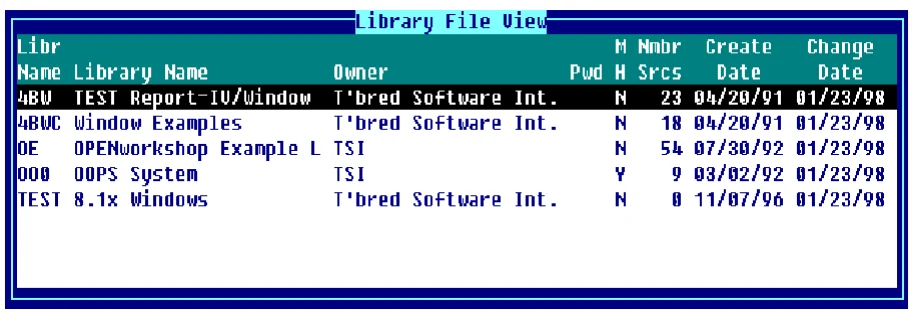
Add To add a library press Line Insert from the Library File View. The system inserts a blank line. Enter a library name from one through four characters long. If you enter a name and the library does not exist, you will be allowed to create the library automatically.
If you enter a new name, you are adding a new library. If you enter an existing name, the system will display the following message:
A record already exists with the key used to define the record being added tothe file. Add request will be denied.Change To make changes to a library from the Library File View, select the library and highlight the field to be changed, type over the information displayed. If you make changes to the library name the system displays a window showing the library name and the name the library is being changed to. The system then displays a pop-up menu with the option to Cancel, Copy, or Rename.
Delete To delete a library from the Library File View, highlight the library name and press Line Delete. The following prompt is displayed:
Delete Record?Select one of the following:
Y Deletes the library.
N Keeps the library.
If you are deleting a library that has Source definitions defined the system displays the Library Delete Selection window:
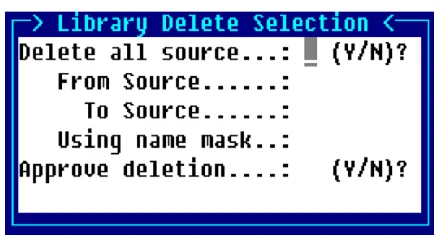
Delete all source?
Y All Source documents in the specified library will be deleted
N A range and selection mask option will be deleted.
From Source Enter the name of the first Source document. If you want to start with the first Source document in the library, press Enter.
At this field you can press F2 to display a view of Source documents in the selected library. The Up Arrow and Down Arrow keys can be used to scroll to the desired Source document name. Pressing Enter will select the Source name.
To Source Enter the name of the last Source document to be selected. If you pressed Enter on the From Source field and you want to end with the last Source document in the library, press Enter. Otherwise pressing Enter will apply the same name as the name entered in the From Source field.
At this field you can press F2 to display a view of Source documents in the selected library. The Up Arrow and Down Arrow keys can be used to scroll to the desired Source document name. Pressing Enter will select that Source name.
Using name mask A mask allows selection of similar names without specifying each individual name. The mask specifies which part of the name must match exactly and question marks are used to indicate that any characters in the same position as the question mark are allowed.
Examples:
mask ABC??? (selects names that begin with ABC)
mask 12??ab (selects names starting with 12 and ending with ab)
To select names:
AAA123 AAA456 AAArty AAABCD AAAQWE
Use mask: AAA???
To select names:
12TT34 RTTTTT TTTT aaTT 1TTT23
Use mask: ??TT??
Approve deletion?
Y Approval is required before Source document is deleted.
N Source is deleted without approval.
Rename To rename a library from the view, highlight the library name and type the new name over the existing name. The system will display a window showing the library name and the name the library is being renamed to. The system also displays a pop-up menu with the option to Cancel, Copy, or Rename. Select Rename to rename the library.
Copy To copy a library, select the definition name from the view and type the name to copy to over the existing text. The system will display a window showing the library name and the name the library is being copied to. The system also displays a pop-up menu with the option to Cancel, Copy, or Rename. Selecting Copy will copy the library with the new name and the original library will still exist. If you copy to a library that does not exist the system will display the following message:
Library has not been created yet, RETURN to continue.You must add the library name in the Library File View as described above in the Add section.
If the library exists the system displays the Library Copy Selection window:
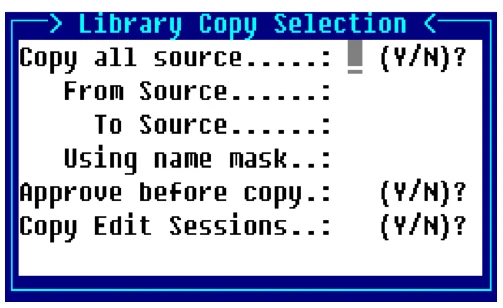
Copy all source?
Y All Source documents in the specified library will be copied.
N A range and selection mask option will be copied.
From Source Enter the name of the first Source document. If you want to start with the first Source document in the library, press Enter.
At this field you can press F2 to display a view of Source documents in the selected library. The Up Arrow and Down Arrow keys can be used to scroll to the desired Source document name. Pressing Enter will select that Source name.
To Source Enter the name of the last Source document to be selected. If you pressed Enter on the From Source field and you want to end with the last Source document in the library, press Enter. Otherwise pressing Enter will apply the same name as the name entered in the From Source field.
At this field you can press F2 to display a view of Source documents in the selected library. The Up Arrow and Down Arrow keys can be used to scroll to the desired Source document name. Pressing Enter will select the Source name.
Using name mask A mask allows selection of similar names without specifying each individual name. The mask specifies which part of the name must match exactly and question marks are used to indicate that any characters in the same position as the question mark are allowed.
Examples:
mask ABC??? (selects names that begin with ABC)
mask 12??ab (selects names starting with 12 and ending with ab)
To select names:
AAA123 AAA456 AAArty AAABCD AAAQWE
Use mask: AAA???
To select names:
12TT34 RTTTTT TTTT aaTT 1TTT23
Use mask: ??TT??
Approve before copy?
Y Approval is required before Source document is copied.
N Source is copied without approval.
Copy Edit Sessions?
Y Edit session that exists for a Source will be copied to the destination library, replacing any editing sessions that already exist.
When copying Source to another library, you have the option to copy the edit history. However, if you intend to copy the Source back to the original library and you had not copied the edit history along with the Source, the edit history in the original library will be deleted (or replaced if the destination library had the Maintain Edit History flag turned on). In cases where you intend to copy the Source back to the original library, you should answer Y to this question.
N Edit session history for this Source will not be copied.
Note: The source library ‘Copy’ option returns to the selection screen rather than to the source view only when a range of source has been selected for copy. When all sources are selected, the copy will return to the source view.
Source Maintenance
Section titled “Source Maintenance”Press F1 from the Library File View to display the Source File View:
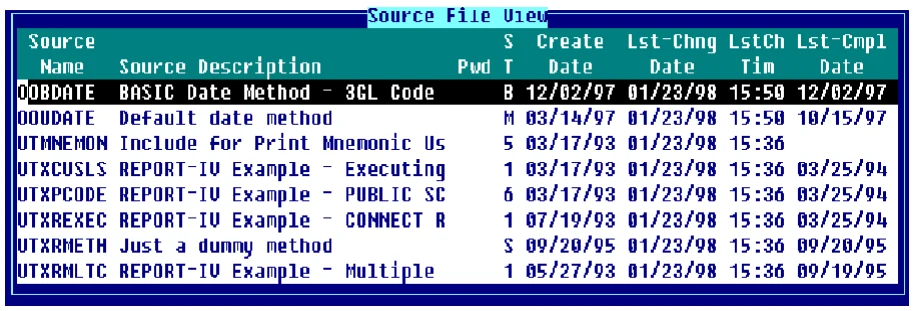
Add To add a Source definition press Line Insert from the Source File View. The system inserts a blank line. Enter a Source name from one through eight characters long. If you enter a name and the library does not exist, you will be allowed to create the library automatically.
If you enter a new name, you are adding a new definition. If you enter an existing name, the system will display the following message:
A record already exists with the key used to define the record being added tothe file. Add request will be denied.Change To make changes to a Source definition from the view, select the Source definition and highlight the field to be changed, type over the information displayed. If you make changes to the Source definition name the system displays a window showing the definition name and the name the definition is being changed to. The system then displays a pop-up menu with the option to Cancel, Copy, or Rename.
To make changes to the Source definition press F1 to edit, make the changes and press F4 to save the definition or changes to the definition. The following prompt is displayed:
Save report modifications?Select one of the following:
Y Saves the Source definition.
N Does not save the Source definition.
Delete To delete a definition from the view, highlight the Source definition name and press Line Delete. The following prompt is displayed:
Delete Record?Select one of the following:
Y Deletes the Source definition.
N Keeps the Source definition.
Rename To rename a Source definition from the view, highlight the definition name and type the new name over the existing name. The system will display a window showing the definition name and the name the definition is being renamed to. The system also displays a pop-up menu with the option to Cancel, Copy, or Rename. Select Rename to rename the definition.
When you rename a definition, it does not have to remain in the same library. If you rename it to a library that does not exist, you can create the library automatically.
Copy To copy a definition, select the definition name from the view and type the name to copy to over the existing text. The system will display a window showing the definition name and the name the definition is being copied to. The system also displays a pop-up menu with the option to Cancel, Copy, or Rename. Select Copy to copy the definition with the new name and the original definition will still exist. The system will prompt:
Do you want to copy the edit session history?Select one of the following:
Y Will copy the edit session history.
N Will copy only the Source.
When you copy the definition, it does not have to remain in the same library. If you copy it to a library that does not exist, you can create the library automatically.
From the Source-IV, version 8.9.1. Open this page in the PDF