

The User Interface
OPENworkshop Presentation Classes (View, Screen, Menu, Report, Query, and Help) are used by developers to implement the user interface for the application. These are described in more detail later, but the OPENworkshop user interface contains some important features that are highlighted below.
Navigating through an OPENworkshop Application
Section titled “Navigating through an OPENworkshop Application”OPENworkshop offers a user interface model that is quite different from traditional menu-controlled, form-oriented data processing systems. It is important that you gain a clear understanding of the flexibility and benefits that OPENworkshop offers the user at an early stage. The sample application delivered with OPENworkshop will give you an opportunity to try it for yourself.
The OPENworkshop user interface begins with the view. The view is used as the primary display while an OPENworkshop application is running. Traditional systems begin with a menu or screen.
As in a spreadsheet, a view presents information in rows and columns. It is a form of presentation that is dense in information, and highly flexible.
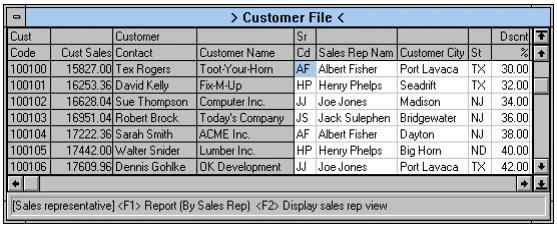
The view shown above gives information about customers and their orders. It could be considered to be a starting point for anyone concerned with processing orders.
The view allows users to explore information throughout the system. In the view shown above, select Report (F1) while in the Sales Rep column to produce a report of sales by Sales Reps. Alternatively, select Display Sales (F2) to display information about Sales by Sales Reps.
Users can chain from view to view almost without restriction. Select Close (F4) to return to the previous item.
Developers can make other classes available through select functions. Pop-up menus, screens, reports and queries, and more views can all be associated with select functions for any column.
Many of the above effects can also be achieved through other development environments. The difference is the ease with which the OPENworkshop developers can create this level of flexibility, without losing control of the integrity of the data managed by the application.
The following are some of the rules that an OPENworkshop user can rely upon when working within a view:
-
If you can see it, you can find out more about it.
The Customer Sales column gives the total sales to the customer. Move the cursor to that column, select Invoice Detail and OPENworkshop opens a view showing details of all invoices.
-
If you can see it, you can change it.
The user can modify the data within any of the fields displayed in a view, provided the developer has allowed it. When the data is changed, methods and triggers ensure that all other related files are also modified appropriately. OPENworkshop can control these modifications, ensuring that only valid values are entered. Data validation can be as simple or complex as needed.
-
If you can’t see it, it won’t take long to find it.
With OPENworkshop the developer does not have to carefully predict where a user may wish to go next from any screen or menu option. The environment makes it easy for the developer to open doors to views, and it deals with data consistently, without having to close and open programs.
-
If you have to go do something else, everything will still be here when you come back.
Partway through entering a sales order you may need to go and attend to an outstanding invoice. OPENworkshop not only lets you do this, but it preserves the entire context and restores it when you return, without the developer having to make specific arrangements to allow it.
-
You’ll wonder how you did without it.
A system that begins with the view is unconventional at first. We are too used to the rigid control that menus imply. Use the system for a day or so, and you will see the advantages it offers.
Mix both Character Terminals and Graphical Workstations
Section titled “Mix both Character Terminals and Graphical Workstations”OPENworkshop offers a unique choice for the physical presentation of these Classes. The user may be equipped with a character terminal or a graphical workstation. Graphical workstations are PC-based workstations running a Microsoft operating system.
Also, all of these options can be mixed in a single application site, with a single set of code.
OPENworkshop manages the communication with the specified user interface device as appropriate.
It would not be uncommon to implement a business system on OPENworkshop with a mixture of character terminals and graphical workstations.
A View presents information in rows and columns. Like a spreadsheet, it is a form of presentation that is dense in information, and highly flexible. People naturally relate to this layout, once they see how flexible it is.
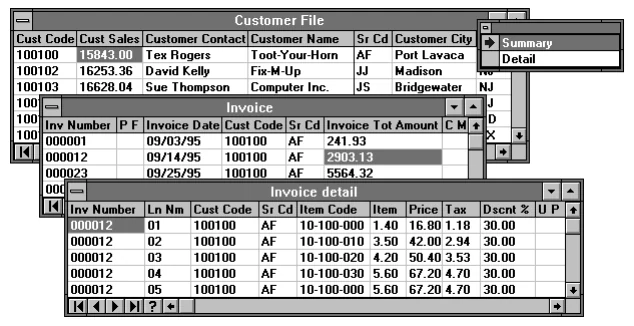
The Views shown here give information about customers and invoices.
The Views allow the user to explore information throughout the system. As the user moves around, options for action are presented. If the user is operating a character terminal, options are associated with Function Keys, and the options available are described on the top line of the display. On a graphical workstation, options are displayed as a list, and may be selected using the mouse.
OPENworkshop allows the developer to specify a different list of options for each column. Thus, the options can relate directly to the Data Object currently highlighted.
Screens
Section titled “Screens”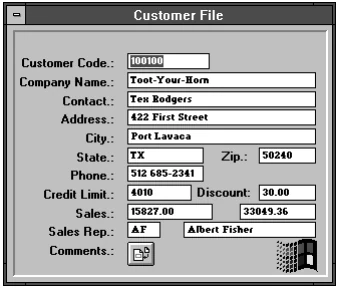
In contrast to a View, an OPENworkshop Screen presents information for one instance of a data set at a time, set out as a form. This layout is used to collect or display detailed information where numerous collections of data are shown simultaneously.
A Screen supports the same Pre- and Post-processing options as a View, and therefore allows the user identical flexibility to move to other Classes, modify or lookup data, and return.
OPENworkshop offers the developer a number of menu types. The simplest option is the classical “list” of options from which to choose.
A Selection Menu allows you to scroll through a list and make a selection. The parameters associated with the selection pass to a Method.
A Matrix Menu displays options in a matrix. The user moves the highlight to the required cell in the matrix, and then selects it. This form of presentation can significantly reduce the number of layers of Menu required in many applications.
The Help system allows the developer to build Help into all levels of the user interface. At each step, Help can be displayed as a simple instruction, or a menu of levels. The Help system also supports a Subject Index, which the user can use to seek help by using keywords.
From the OPENworkshop Reference, version 8.9.1. Open this page in the PDF