

Mouse Controls tab
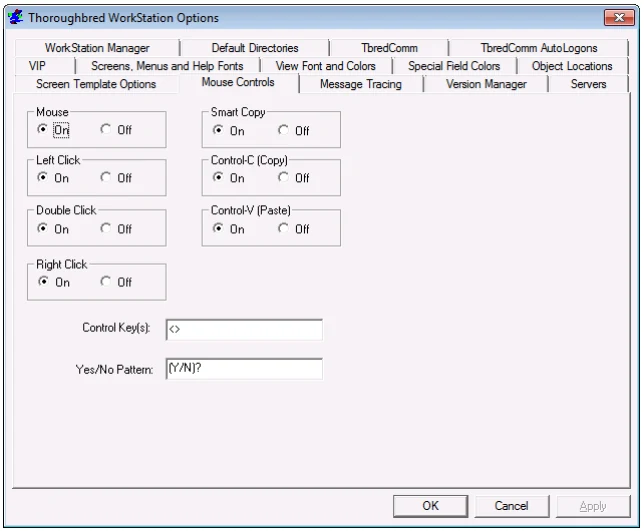
Mouse
Enable (On) or disable (Off) the detection of mouse events.
Left Click
Enable (On) or disable (Off) the use of the left mouse button.
Double Click
Enable (On) or disable (Off) the use of a double-click of the left mouse button.
Right Click
Enable (On) or disable (Off) the use of the right mouse button.
Smart Copy Enable (On) or disable (Off) the smart copy feature, which determines how to highlight multiple lines of text. When smart copy is disabled, the selection of multiple lines of text will wrap around the end of each line. When smart copy is enabled, the selection of multiple lines of text will not wrap around the end of each line, allowing the selection of a column.
To paste text in the TbredComm emulation window, position the cursor where the text is to be pasted and then from the TbredComm Menu Bar select Edit and then Paste. The text is copied to the clipboard and is available to all window applications supporting paste from the clipboard.
To paste text in the TbredComm emulation window, position the cursor where the text is to be pasted and then from the TbredComm Menu Bar select Edit→Paste.
Control-C(Copy)
Enabled (On) or disable (Off) the ability to copy text using the Ctrl+C keys.
Control-V(Paste)
Enabled (On) or disabled (Off) the ability to paste text using the Ctrl+V keys.
Control Keys
Control keys are identified by a starting and ending character, for example type “<>” in the Control Key text box. Function keys can also be identified by a starting character of “F” and an ending character, for example “F-”. When the user clicks in an area encompassed by the start and end characters, the text will be interpreted. If the text contains a known control key code then that control key will be posted to the Basic
INPUT statement.
Multiple Control Key values can be defined. Use a comma to separate entries. For example, type “<>”, “()”,“{}” “<>, (),{},F-,F=” in the Control Key text box.
For example if you type “<>” in the Control Key(s) text box, clicking on the “F” or the “4” in <F4> returns a CTL value of 4.
For example if you type “F-” in the Control Key(s) text box, clicking on the “F” or the “4” in F4-End returns a CTL value of 4.
Yes/No Pattern
The Yes and No characters are identified by a starting, ending and separator character, for example (Y/N).
( is the start character
) is the end character
/ is the separator character
When the user clicks in an area encompassed by the starting and separator character or the separator and ending character, the text will be interpreted. If the text matches the yes/no pattern, the clicked character will be posted to the Basic INPUT statement. Only a single character is sent to INPUT, this is equivalent to an INPUT SIZ=1.
For example, if you type “(Y/N)” in the Yes/No Pattern text box, clicking on the “Y” in (Y/N)? returns a Y. Clicking on the “N” (Y/N)? returns an N.
From the WorkStation Manager, version 8.9.1. Open this page in the PDF