

Backup/Restore
This selection allows you to backup Source documents and edit session history from libraries into a specified backup file. You can edit (add/delete) the contents of an existing backup file. You may also restore Source documents and edit session history from a specified backup file back into libraries.
- Note:
- The Source Backup/Restore has been modified to convert the source dates as needed to be compatible with previous versions. If a source backup is done in 8.4.2 and restored on a pre 8.4.2 release, the source dates will be converted to their old format.
The naming conventions for backup files are:
8SCbknnn (Source backup file name)
nnn is a user-supplied suffix. This suffix can be your initials or an application code, etc.
8SCUbknnn (Edit Session History backup file)
nnn is a user-supplied suffix that will be the same as the suffix for the Source backup file.
When you select Backup/Restore from the Source-IV Main Menu the system displays the following:
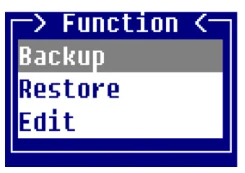
Backup
When you select Backup the system prompts:
Enter name for backup file 8SCbk:__________Enter the three-character suffix that will be added to “8SCbk”. The backup file name will be “8SCbknnn”. This will be the file name used when a backup, restore, or edit operation is done. Also, when the backup is placed on or recovered from media the file name will be 8SCbknnn. You can create a new bk file by entering a name that does not already exist.
- Note:
- If you are backing up edit history you will need to move both the 8SCbknnn and 8SCUbknnn files to the media in order to properly recover Source and edit history.
If you enter the name of an existing file the system prompts:
Backup file already exists. Do you want to Append?Select one of the following:
Y The backup will be added to the existing bk file, replacing any Source modules, which are already in the bk file.
N The bk file is cleared and a new file is created with the new data.
The date and time the backup file was created is displayed.
The system displays the Backup Selection window:
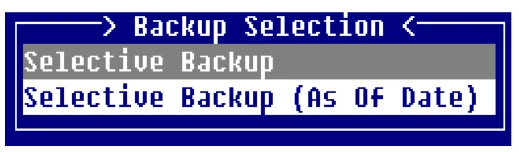
Selective Backup This selection allows you to specify single or multiple Source documents from a specified library for backup.
Selective Backup (As Of Date)
This selection allows you to select single or multiple Source documents from a specified library and compare the last changed date with a date that you will enter. If the Source documents have been changed on or after the date entered, the Source document will be written to the backup file. This selection allows you to specify single or multiple Source documents from a specified library for backup.
The backup file may have documents from more than one library. The backup file can then be placed on tape or disk for recovery whenever needed.
When you select Selective Backup or Selective Backup (As Of Date) the system displays the Library Backup Selection window:
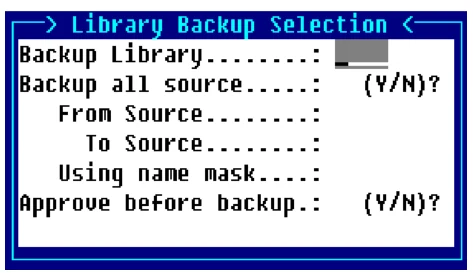
Backup Library Enter up to 4 characters any combination of letters, numbers, or characters except (spaces ? / \ * [ ] @) for the library name that is used to specify a library in which Source documents are kept.
Press F2 for a view of currently defined library names. You may wish to use the Up Arrow and Down Arrow keys to scroll to the desired library name and press Enter to select that library.
The last library used by the editor will be automatically displayed in this field. Pressing Enter will select that library.
Backup all source?
Y All Source documents in the selected library will be selected for backup.
N Enter a range or a single Source document for backup.
From Source Enter the name of the first Source document. If you want to start with the first Source document in the library, press Enter.
Press F2 to display a view of Source documents in the selected library. The Up Arrow and Down Arrow keys can be used to scroll to the desired Source document name. Pressing Enter will select the Source name.
To Source Enter the name of the last Source document to be selected. If Enter was pressed on the From Source field and you want to end with the last Source document in the library, press Enter. Otherwise pressing Enter will apply the same name as the name entered in the From Source field.
Press F2 to display a view of Source documents in the selected library. The Up Arrow and Down Arrow keys can be used to scroll to the desired Source document name. Pressing Enter will select that Source name.
Using name mask A mask allows selection of similar names without specifying each individual name. The mask specifies which part of the name must match exactly and question marks are used to indicate that any characters in the same position as the question mark are allowed.
Examples:
mask ABC??? (selects names that begin with ABC) mask 12??ab (selects names starting with 12 and ending with ab)
To select names:
AAA123 AAA456 AAArty AAABCD AAAQWE
- Use mask:
- AAA???
- To select
- names:
12TT34 RTTTTT TTTT aaTT 1TTT23
- Use mask:
- ??TT??
Approve before backup?
Y Approval is required before Source is backed up. The system will prompt for each file:
Are you sure you want to backup?N Source is backed up without approval.
Restore This selection allows you to restore Source documents and edit session histories from a specified backup file back into libraries. When you select Restore the system displays the Library Restore Selection window:
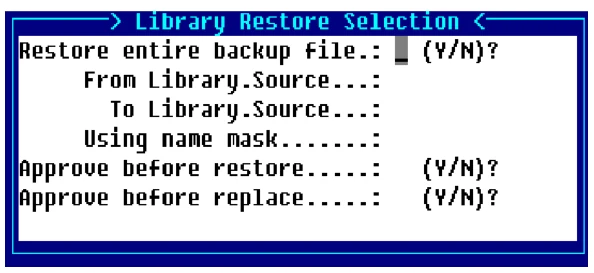
Restore entire backup file?
Y Every Source in the backup file selected will be restored into its associated library.
N Enter a range or a single Source for restore.
From Library.Source For a range of Source, enter the name of the library and a period ‘.’ followed by the first Source to be selected for restoration. If you want to start with the very first Source in the first library, press Enter.
Press F2 to display the Source File View of the selected backup file. This list contains all of the Source within the selected backup file. You may wish to use the Up Arrow and Down Arrow keys to scroll to the desired Library.Source name. Pressing Enter will select that Library.Source name.
To Library.Source For a range of Source, enter the name of the library and a period ‘.’ followed by the last Source to be selected for restoration. If you want to end with the very last Source in the last library, press Enter.
Press F2 to display the Source File View of the selected backup file. This list contains all of the Source within the selected backup file. You may wish to use the Up Arrow and Down Arrow keys to scroll to the desired Library.Source name. Pressing Enter will select the Library.Source name.
Using name mask This can be used to specify a mask that selects which Source is to be selected for this function. By using a mask you can select Source files having similar names without specifying each individual Source name. To pass by this item, press Enter.
- Note:
- Masks for the restore function do not include the Library name. The Library name must be specified followed by a period '.' and a Source name or mask.
Masks set up a matching test with a Source name. The Source is selected if it matches the mask. If it does not, it is not selected. The mask specifies which part of the Source name must match the mask exactly. It is made up of the exact characters, in the exact position that must be present in the Source name if it is to be selected. The remaining part of the mask is made up of question marks. These question marks indicate that any characters in the same position are allowed and ignored when testing for a match.
Examples:
mask ABC??? (selects any Source whose name begins with ABC) mask 12??ab (selects any Source starting with 12 and ending with ab)
To select Source:
AAA123 AAA456 AAArty AAABCD AAAQWE
Use mask: AAA???
To select Source:
12TT34 RTTTTT TTTT aaTT 1TTT23
Use mask: ??TT??
- Note:
- The Source that is selected matches the mask where the mask characters are not question marks. Also, if you did not want to select Source AAA456, it would have been selected by the first mask. For this reason masks should be used with care.
Approve before restore?Y Approval is required before Source is restored.
N Source is restored without approval.
Approve before replace?Y Approval is required before Source is replaced.
N Source is replaced without approval.
Edit This selection allows you to add or delete Source documents and edit session history from the specified backup file.
If you select Edit the system prompts:
Enter name for backup 8SCbk:Enter the name for backup and the system displays the Backup Source File View:
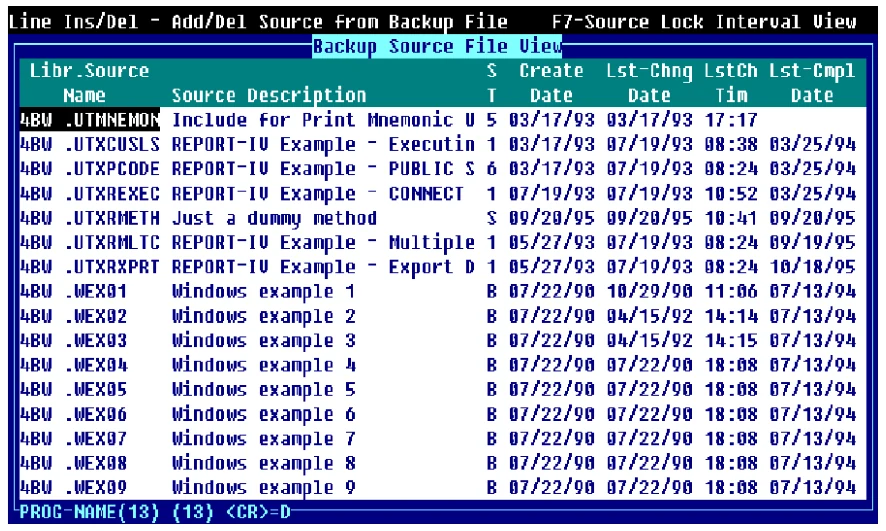
To add a Library.Source name press Line Insert from the Backup Source File View. The system prompts:
Enter Library.Source name to Add:__________To delete a Library.Source name highlight the name and press Line Delete from the Backup Source File View. The system prompts:
Delete record?The Library.Source name and Source description of the name being deleted is displayed.
Select one of the following:
Y Deletes the Library.Source name.
N Does not delete the Library.Source name.
To display the Edit Session History highlight the Library.Source name and press F7.
When you select Backup, Restore, or Edit the system prompts:
Enter name for backup file 8SCbk:__________Enter the three-character suffix that will be added to “8SCbk”. The backup file name will be “8SCbknnn”. This will be the file name used when a backup, restore or edit operation is done. Also, when the backup is placed on or recovered from removable media the file name will be 8SCbknnn.
- Note:
- If you are backing up edit history you will need to move both the 8SCbknnn and 8SCUbknnn files to the media in order to properly recover Source and edit history.
From the Source-IV, version 8.9.1. Open this page in the PDF