

Operator Information, Dictionary-IV Utilities
This utility has the following functions.
- Maintain Operator Code, Password, and Name. Operator Codes are used to gain access to Dictionary-IV through the login procedure. It is recommended that each operator have their own operator code and that this code be used whenever they log into the system. A default operator code of TSI is installed with the system and should not be deleted. For added security, a password may be added to it.
- Both operator codes and optional passwords can be from 1 to 3 characters in length and any characters (upper or lowercase or numbers) may be used. Operator name is general and optional information. Listings of operator codes and associated data are available with the Operator Listing utility.
- Maintain Default Master Menu, Entry/Exit Programs, and Default Printer. These fields allow you to specify the menu to be displayed after an operator logs in and the program to run when the operator exits. You can also specify a program to be executed when the operator code is entered, but the program must RUN “ID” when it is terminated.
- A default printer name can be specified. Whenever the system prompts for a printer, the default printer is used as the first printer name in the printer line. Pressing Enter selects this printer. The master menu and exit program defaults can also be specified for Installation Information, but those set for an Operator Code have precedence.
Select Operator Information from the Dictionary-IV Utilities menu. The system displays the following:
Operator Information – Dictionary-IV Utilities
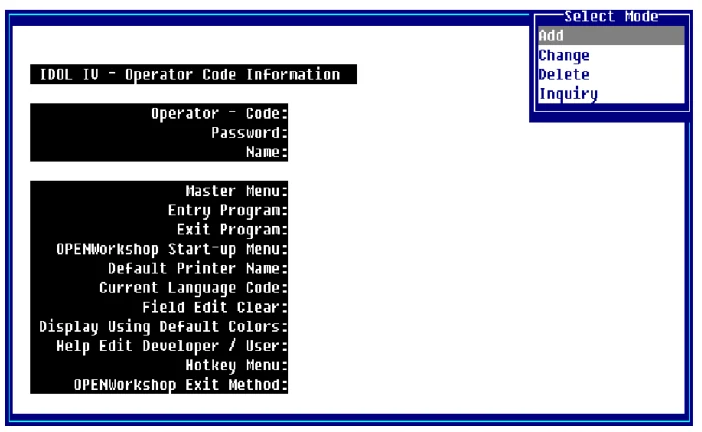
You must select a mode from the pop-up menu. The following modes are available from the Operator Information menu:
Add
This mode allows you to add a record to the file.
If you try to add a record that already exists, the system switches to the change mode. When data entry is complete the system prompts:
Add this record? Yes-Add record No-Do not add record
<F4> Make corrections.
Select one of the following:
Y Adds the record.
N Does not add the record.
F4 Returns to the record. You may make corrections.
Change
This mode allows you to edit a record in the file.
The change mode functions as the add mode except the change mode does not switch to the add mode if a record does not exist.
The system prompts:
Key specified not on file, <CR> to continue.
You can select the next record by pressing the Down Arrow key at the last key field on the screen. You can select the previous record by pressing the Up Arrow key at the first key field on the screen.
When the changes are complete the system prompts:
Save Changes? Yes-Update record No-Do not update record
<F4>Make Corrections.
Select one of the following:
Y Adds the record.
N Does not add the record.
F4 Returns to the record. You may make corrections.
Delete
This mode allows you to delete a record from the file.
Type the key to the record (unique identifier) and press Enter. If the system finds the record, the system prompts:
Delete record?
Select one of the following:
Y Deletes the record from the file.
N Does not delete the record, but allows you to continue selecting records to delete.
While in delete mode, you can select the next record for deletion by pressing the Up Arrow key or the previous record by pressing the Down Arrow key.
Inquiry You can enter the key of an existing record to display, or you can select the next record by pressing the Down Arrow key, or the previous record by pressing the Up Arrow key.
Operator Code Type from 1 to 3 alphanumeric characters for the operator code and press Enter. This is the code that must be entered at login.
Password Type from 1 to 3 alphanumeric characters for the password to be associated with this operator code and press Enter. When the system requests this operator code, the system will also request this password. This is an optional field.
Name Type from 1 to 30 alphanumeric characters for the operator name and press Enter. This is an optional field.
Master Menu
Define the menu to display at login. The default is the Dictionary-IV Control Menu (UTMENU10).
Entry Program Define the program to execute for this operator at login. It may be a standard Basic program or a Dictionary-IV script.
Exit Program
Define the program to execute at logoff. The default is the login program (UTLOGIN).
OPENworkshop Start-Up Menu This field defines the starting menu that will be displayed when OPENworkshop is executed. The default menu name is OOM0.
Default Printer Name
Type the printer name (LP, P1,P2, etc.) to define the default printer.
Current Language Code Type the 2 character valid language code. Press F6 for a list of valid language codes. You can only select a language code that has been enabled by System Administration.
For more information see the Multi-Language section of this document.
Field Edit Clear
Select one of the following:
Y For all data input, the entire field clears when the first keystroke is not a field editing key (character insert, character delete, etc.).
N The field is not cleared.
This allows you to automatically clear a data input field when the first keystroke is a character and not a field editing key.
Display Using Default Colors
Select one of the following:
Y Uses the default colors from the Windows Configurator.
N Use the colors saved with definitions
No matter what colors are defined and saved with a particular definition, each user can define their own colors.
Help Edit Developer/User
Select one of the following:
D When the requested on-line help does not exist in the current language, you will be given the option to define it “on the fly.”
U When the requested on-line help does not exist in the current language, the help displays in an alternate language. If the help is not defined in any of the enabled languages, an error message displays.
For more information see the Multi-Language section of this document.
Hotkey Menu
Allows you to specify the hotkey menu to display when you press Ctrl-P at any Dictionary-IV prompt.
A hotkey menu is a Dictionary-IV pop-up menu, which is a .MN. type of window help.
For more information see Help Definition in the Dictionary-IV Developer Guide
An example is the standard Dictionary-IV hotkey menu IDMU10.
There are several considerations to keep in mind when defining a hotkey menu:
- A standard pop-up menu allows you to define a selection value to be returned to the calling program. Since a hotkey menu is invoked by and processed by Dictionary-IV, any returned selection values not supported by the Dictionary-IV hotkey processing are ignored.
- The hotkey menu does support a calculator and calendar function. To add the calculator function, add a menu selection line with a return value of 1. To add the calendar function, add a menu selection line with a return value of 2.
- Hotkey menus support CONNECT MENU, CONNECT HELP, CONNECT VIEW, CONNECT SCREEN, CONNECT REPORT, CONNECT QUERY.

OPENworkshop Exit Method This value is used to designate the method that is to be called when an OPENworkshop menu times out. This value can also be set for an Operator Code (and has precedence over the value in Installation Information). If no value is set in either the Installation Information or the operator record, no time out will occur from the menus.
From the Dictionary-IV Administrator Guide, version 8.9.1. Open this page in the PDF