

IDOL Script Editor
Thoroughbred provides limited support for the older IDOL Script-IV editor. Scripts maintained by the IDOL script editor cannot be compiled using the Source-IV compiler. It is strongly recommended that you import your scripts to Source-IV. Please refer to the Source-IV manual for details.
To enter the script editor, log on to Dictionary-IV. The Dictionary-IV Control Menu will be displayed:
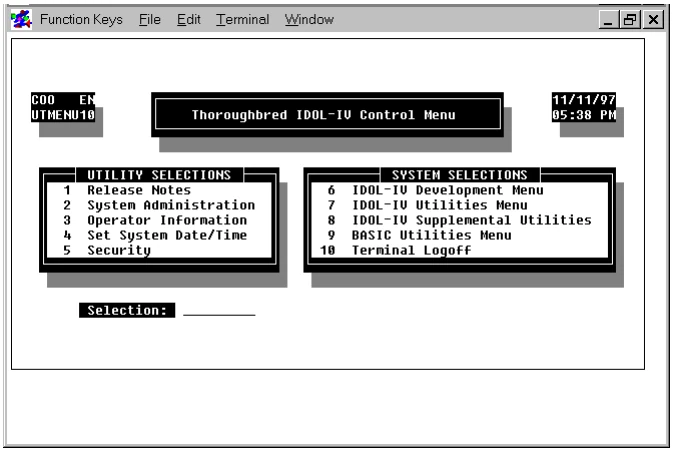
Type the number that corresponds to the Dictionary-IV Development Menu and press the Enter key. The Dictionary-IV Development Menu will be displayed:
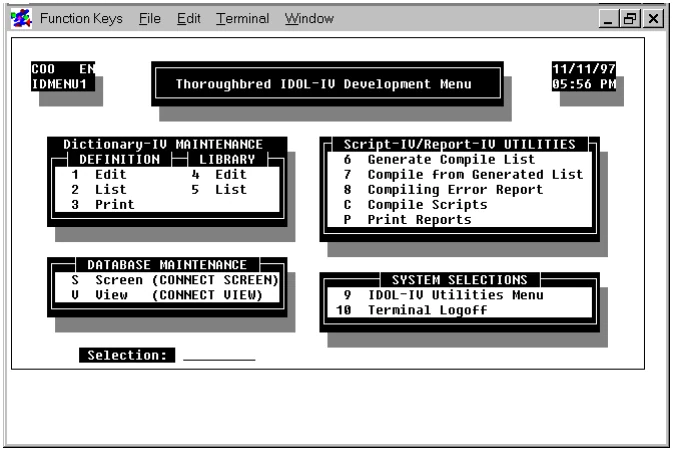
Type the number that corresponds to the Edit Definition function and press the Enter key. A pop-up menu will be displayed:
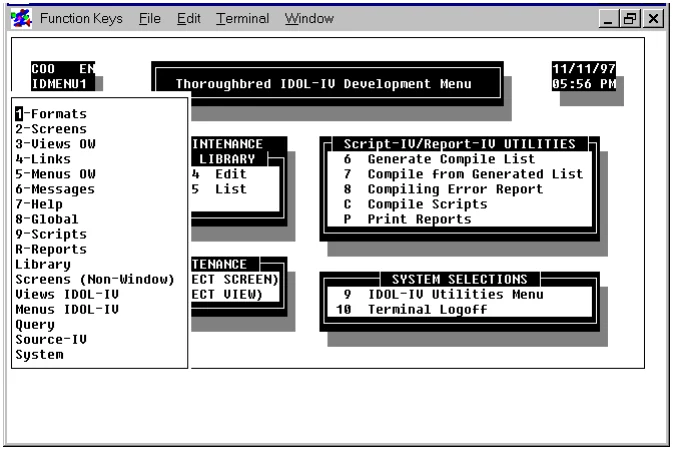
Type the number that corresponds to Scripts and press the Enter key. You will be placed in the Script Definition screen:
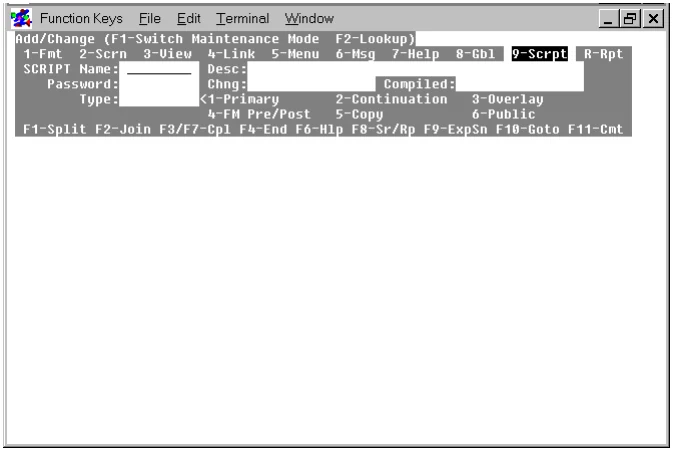
The Script Definition screen provides the following features:
- The maintenance mode is displayed on the first line.
- The definition facilities are displayed on the second line.
- The components of the script definition are displayed on lines three through six.
- The function keys active in the script editing area are displayed on the seventh line.
- The script editing area occupies the remainder of the screen.
These features are described in the following sections.
Maintenance mode
Section titled “Maintenance mode”The maintenance mode is displayed on the first line. For more information on maintenance modes see the section on Components of Script Definition in this manual.
Definition Facilities
Section titled “Definition Facilities”This selector message enables you to switch to other definition facilities. For more information on these definition facilities see the Dictionary-IV Developer Guide.
Components of Script Definition
Section titled “Components of Script Definition”- SCRIPT Name:
- Type from 3 to 8 alphanumeric characters for the name of the script and press the Enter key. This field is mandatory.
Characters one and two are the library name. Characters three through eight are the script name. If the library does not exist, the system allows you to create it here.
See the Dictionary-IV Reference Manual, which provides a file naming convention you may implement.
The following function keys are available from the SCRIPT Name: field:
F1 Switches maintenance mode:
- Add/Change
- mode enables you to create a new script or edit an existing script.
- Delete mode
- enables you to delete an existing script.
- Rename mode
- enables you to rename an existing script.
- Copy mode
- enables you to copy a script.
F2 Displays a lookup of existing script names. For more information see the section on Script Definition Lookup.
F4 Exits. Press once to go to the Definition Facilities, which are discussed below. Press again to return to the Dictionary-IV Development Menu.
F6 Displays on-line help. For more information see the section on Getting Help.
- Desc:
- Type up to 40 alphanumeric characters for the description of this script and press the Enter key. This field is optional.
- Password:
- Type from 1 to 3 alphanumeric characters and press the Enter key. The system will ask you to verify the password. This field is optional.
- Chng:
- Displays the date of the last change to the script definition. The system generates this field.
- Compiled:
- Displays the date when the script was last compiled. The system generates this field.
- Type:
- The following values are available:
1 - Primary Script
2 - Continuation Script
3 - Overlay Script
P - API Pre/Post Processing Script
4 - File Maintenance Pre/Post Processing Script
5 - Copy Script
6 - Public Script
U - Utility Script
Type the number or letter that corresponds to the script type and press the Enter key. This field is mandatory.
For more information on script types see the Different Types of Scripts section in this manual.
Function Keys Active in the Script Editor
Section titled “Function Keys Active in the Script Editor”The following function keys are available in the script editor:
- F1
- Split a line
- F2
- Join lines
- F3
- Compile and save a script
- F4
- Exit the script
- F6
- Help key, which opens the on-line help system. For more information, see the section on Getting Help
- F7
- Compile and save a script
- F8
- Search and replace, press twice to reuse a previous search
- F9
- Expand screen. Press again to reset the screen to its original size.
- F10
- Goto a procedure
- F11
- Enter a comment line
Other Editing Keys Active in the Script Editor
Section titled “Other Editing Keys Active in the Script Editor”The following keys are available in the script editor:
- Moving on a Line
-
- Left Arrow
- Move left one character
- Right Arrow
- Move right one character
- Back Tab
- Move left one tab stop. The Script-IV editor has preset tabs
- Tab
- Move right one tab stop. The Script-IV editor has preset tabs
- Moving Between Lines
-
- Up Arrow
- Move up one line. At the bottom of a window, move up half a window
- Down Arrow
- Move down one line. At the top of a window, move down half a window
- Page Up
- Move up one window
- Page Down
- Move down one window
- Return/Enter
- Move cursor to the beginning of the following line
- Home
- Moves the cursor according to how many times the key is pressed:
- Move to the left side of a line
- Move to the top of the window
- Move to the beginning of text
- Move to the end of text
- Deleting Characters
-
- Backspace
- Delete the character to the left of the cursor
- Delete
- Delete the current character
- Line Clear
- Delete characters to the right
- Line Delete
- Delete the entire line
- Inserting Characters
-
- Insert
- Pushes characters to the right
- Line Insert
- Inserts a blank line
Getting Help
Section titled “Getting Help”At any point where Script-IV is waiting for you to enter something, you can press the F6 key and get instructions. In addition to help at menus and prompts, Script-IV provides a help network within the script editor itself. You can use the on-line help in the script editor as a reference when creating scripts. In many cases there are different levels of help you can access by pressing the F6 key again.
For example, if you are defining a script, you can press the F6 key at the SCRIPT Name: field to learn more on how to name a script. The following screen will be displayed:
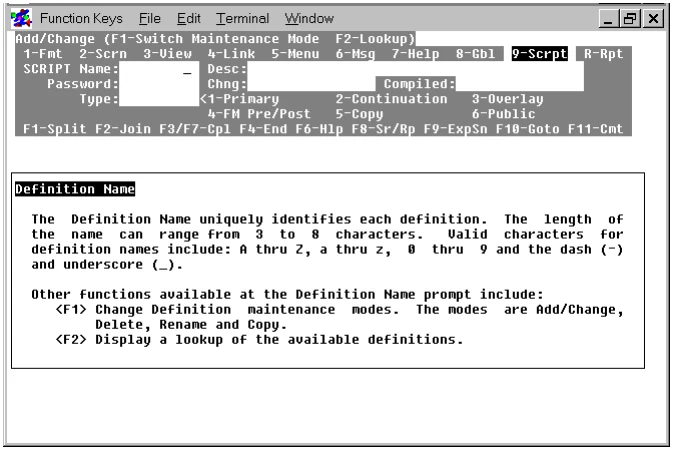
A help window displays information on valid values for script names. Many help windows enable you to retrieve more detailed information on a subject by pressing the F6 key again. In this case, pressing the F6 key will display the following screen:
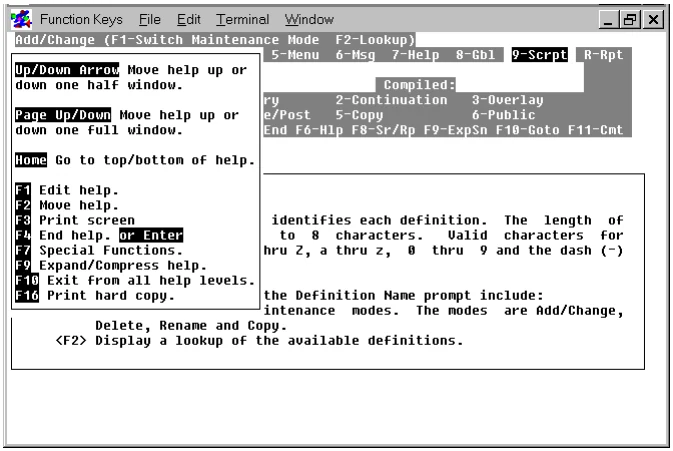
A second help window is displayed. It contains information on the keys you can use in the help system. To return to the previous help window, you can press the F4 key. To return to the SCRIPT Name: field, press the F4 key again.
Script Definition Lookup
Section titled “Script Definition Lookup”To lookup existing scripts, you can press the F2 key on the SCRIPT Name field. A screen similar to the following screen will be displayed:
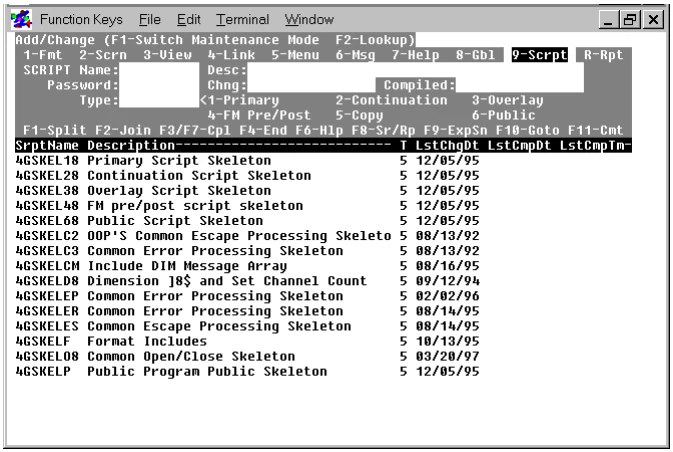
Each entry displays the script name, a description of the script, the number that specifies the type of script, the date the script was last modified, the date the script was last compiled, and the time the script was last compiled. You can use the Page Down, Page Up, or arrow keys to display information on all the scripts in the list.
To select and edit a script you can use the Page Down, Page Up, up arrow, or down arrow keys to move to the name of the script you plan to modify and press the Enter key. You will be returned to the Script Definition screen where you can edit the selected script.
If you decide to exit from the script list, press the F4 key twice.
From the Script-IV Developer Guide, version 8.9.1. Open this page in the PDF