

Views
OPENworkshop and Dictionary-IV views automatically convert to a grid control. Any change made to the corresponding character definition is reflected in the grid control. All VIP clients present a graphical view based on a common character definition on the host.
For performance, the graphical view is cached on the client. Each time a view is invoked the host compares the last change date and time to the graphical view cached on the client. If these do not match, an updated graphical view is generated and cached on the client.
View Prompt Messages View prompt messages are displayed in the VIP Status Bar control. The Status Bar control is refreshed when moving from cell to cell. Please see the Messages section earlier in this chapter.
Location of Objects Often with a graphical presentation, the desired location of objects is not identical to the character-based location. The graphical view location can be saved on the client. For more information, please see refer to the WorkStation Manager manual (Object Locations tab).
Mouse Control A single left click in a cell will select a cell displaying it in an alternate color. The cell displays in the color set in the “Lock Colors” definitions. For more information see the WorkStation Manager manual (View Fonts and Colors tab).
Once a cell is selected a right mouse click displays a context menu. This menu displays options based on the attributes of the data element as defined by the format definition.
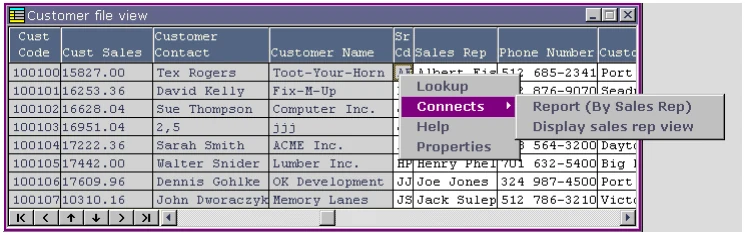
- LookUp: If a LookUp is defined for the data element, select the option from the context menu to invoke the LookUp. If a LookUp is not defined, the option is disabled.
- CONNECTs: If one or more CONNECTs are defined for the data element, selecting one of the connect options from the context menu invokes the CONNECT. If CONNECTs are not defined, this option is disabled.
- Help: If help is defined for the data element, selecting this option from the context menu invokes Help. If help is not defined for the data element, this option is disabled.
- Properties: This is only available in developer mode. Selecting this option displays the data element attributes. This is equivalent to pressing F11 in character mode.
A double left click of the selected cell activates that field for editing. A cell activated for editing displays using the Desktop Display Properties for a selected field indicating it can be edited. Clicking off an activated field will return a <CR> to the host.
By default, data is aligned within a cell using the same rules as a character view. Data is centered in a column when the column width is greater than the data width. Masking data to the defined column width results in data being either left or right justified. In a graphical presentation this does not always yield the desired results. Optionally, you can set VIP to right align all date fields, numeric fields, and all fields with padding types of 1 or 3. All other field types and padding types are left justified. This is controlled from within the WorkStation Manager. For more information see the WorkStation Manager (VIP tab).
The grid control contains a scroll bar with buttons to navigate within the view. The scroll bar buttons work as follows:
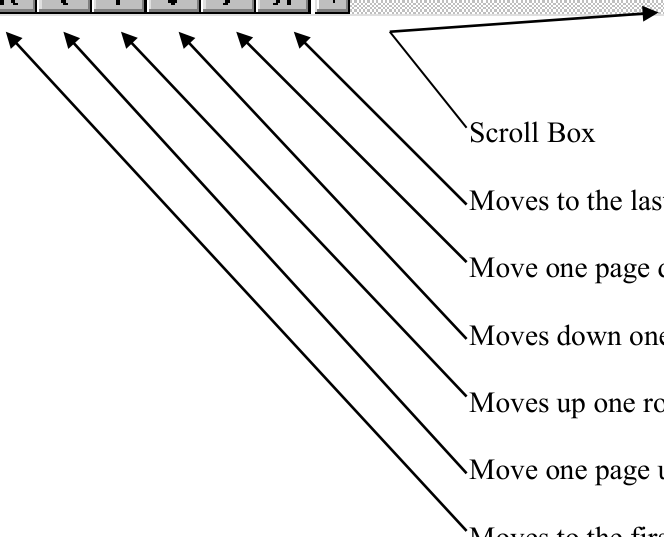
Moves to the last record in the file.
Moves to the first record in the file.
Resizing the Grid Control
Section titled “Resizing the Grid Control”The grid width and grid column widths are expandable using standard Windows procedures. Grab the window edges or corners to change the grid width. Grab the column edges or corners to change the column width.
The new grid width and grid column widths are always automatically saved on the workstation. This feature is separate from the option to save View locations.
Selecting Font and Color
Section titled “Selecting Font and Color”Default fonts and colors can be set from the WorkStation Manager. For proper cell alignment fixed-width fonts are recommended. Default colors can be set for the view grid, column headings, and locked columns. See the WorkStation Manager Options (View Font and Colors tab). Recommended fonts for on-line help are DejaVu Mono, Courier New, and IBMPCDOS. For more information, please see refer to the WorkStation Manager manual (View Font and Colors tab).
Custom view fonts and colors can be set for individual views. When a view displays, from the VIP Menu Bar select Options → View Fonts. This font selection will only be applied to the current view. From the VIP Menu Bar select Options → View Colors to select colors. These color selections will only be applied to the current view. To save the view settings, you must have selected Yes for View Location in WorkStation Manager Options (Object Locations tab).
Dynamic View Colors
Section titled “Dynamic View Colors”You can use application code to control view colors at runtime. For example, it is possible to have all negative numbers in a column to be displayed using white text on a red background. Background and foreground colors can be set for a cell, a column, a range of columns, a row or a range of rows. This is accomplished by either passing SETCOLOR syntax or the name of a View Color Method to the View class.
SETCOLOR
The SETCOLOR syntax is user friendly but does have some limitations. It does not support user defined columns and does not support compound conditionals within a single WHEN clause. This approach to setting view colors is preferred when the color rules are fairly simple and straightforward.
The SETCOLOR rules are passed to the View class in VIEW$[29].
SETCOLOR SYNTAX
SETCOLOR foreground+background BY COL.data-name|ROW WHEN conditionSETCOLOR Required syntax.
foreground Required color word to define the foreground color. Use any valid Basic color keyword. For example: WHITE, BLACK, etc.
background Required color word to define the background color. Use any valid Basic color keyword. For example: MAGENTA, LBLUE, etc.
BY Required syntax.
**COL.**data-name To set the color for a column, specify the keyword COL before entering the column data-name. For example, COL.CUST-CODE. The data elements supplied with the COL option must be defined in the primary Format definition. For example, the OEVCUST view can only reference data elements defined in OEFCUST. You cannot refer to a user-defined column (ex: OELSLRP.SR-NAME) using the simple SETCOLOR syntax. The COL option and the ROW option are mutually exclusive within the same rule.
ROW To set the color for the entire row use the ROW option.
WHEN Required syntax.
condition Supply a SELECT WHEN style condition. The same rules that apply to passing a SELECT WHEN clause to the View class apply to the SETCOLOR WHEN clause. This is done in VIEW$[29]. For more information see the OPENworkshop manual.
To set multiple rules separate each by a comma ( , ). Each rule is evaluated in the order in which it is received and the number of rules is only limited by the maximum string size (64k).
SETCOLOR rules are applied to the row when either moving off a column or moving off the row.
SETCOLOR Examples
The following example will set an entire row to white on magenta when the CUST-
CODE is 100102.
DIM VT$[29];VT$[1]="OEVCUST",VT$[29]="SETCOLOR WHITE+MAGENTA BY ROW WHEN" + "#OEFCUST.CUST-CODE = "+QUO+"100102"+QUO;CALL "OO3A",VT$[ALL]The following example will set CUST-SALES column to white on cyan when the CUST-SALES are greater than 16,999.00.”
DIM VT$[29];VT$[1]="OEVCUST",VT$[29]="SETCOLOR WHITE+CYAN BY COL.CUST-SALES WHEN" "#OEFCUST.CUST-SALES=> 16999";CALL "OO3A",VT$[ALL]The following example will set the SR-CODE column to white on blue when the SR-CODE = “HP.”
DIM VT$[29];VT$[1]="OEVCUST",VT$[29]="SETCOLOR WHITE+CYAN BY COL.SR-CODE WHEN"+ "#OEFCUST.SR-CODE = "+QUO+"HP"+QUO;CALL "OO3A",VT$[ALL]The following will apply all three rules in sequence:
DIM VT$[29];VT$[1]="OEVCUST",VT$[29]="SETCOLOR WHITE+MAGENTA BY ROW WHEN" + " #OEFCUST.CUST-CODE = "+QUO+"100102"+QUO + "; SETCOLOR WHITE+CYAN BY COL.CUST-SALES WHEN"+ " #OEFCUST.CUST-SALES=> 16999"+ "; SETCOLOR WHITE+CYAN BY COL.SR-CODE WHEN"+ " #OEFCUST.SR-CODE = "+QUO+"HP"+QUO;CALL "OO3A",VT$[ALL]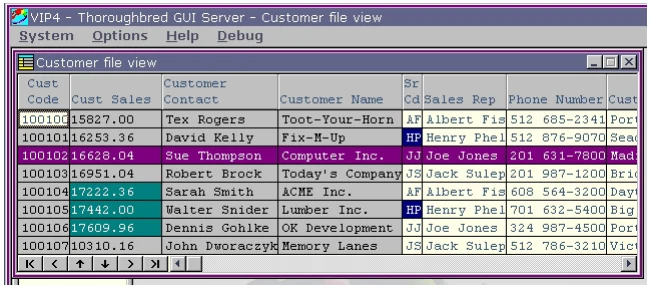
View Color Method
A user defined View Color Method does require application code but does not have the same limitations found in the simple SETCOLOR syntax. This approach for setting view colors is preferred when the color rules are complex and more flexibility is required.
The user defined View Color Method name is passed to the View class when performing a CONNECT VIEW. The View class will execute the View Color Method when moving off a column or moving off a row. The View Color Method then constructs the appropriate color parameters to be applied to the view by the View class. The View Color Method must pass the color parameters to the View Color API for parsing. The View Color API will interpret the supplied color parameters and generate compact syntax that is in turn processed by the View class.
The following diagram illustrates the process flow when using a View Color Method:
Host application code invokes the View
class supplying the user defined View
Color Method name
The View class calls the supplied View
Color Method
View Color Method exits returning generated view
- The View Color Method calls the View
- color syntax to the View
- Color API passing the view color
- class for processing
parameter
| View Color API exits | |
|---|---|
| The View Color API generates the | returning generated view |
| appropriate view color syntax for the | color syntax for the View |
| View class | class |
- View Class SetColor Method Name Syntax
-
SETCOLOR METHOD=method-name
SETCOLOR METHOD Required syntax.
method-name The name of the method to be executed. Pass the View class the View Color Method name in VIEW$[29]. For more information about VIEW$[29] see the OPENworkshop manual.
- View Color Method CALL/ENTER List
-
METHOD V$[ALL],VCOLR$[ALL],LNK$[ALL]V$[x,y] View Class Array Supplied by the View Class
[0,0] (1,1) Length of column attribute entry. (2,1) Number of view used column. (3,1) Number of view deleted columns. (4,1) Number of view heading rows. (5,n) New column id and column number string. (6,1) New column number. (7,1) Next new column id. (8,1) Next new column number. (9,n) n column id & n column number. [0,1] (1,1) Column window address (column). (2,1) Column window address (row). (3,1) Column width. (4,1) Column dataname number. $00$ implies new column. (5,1) New column id. (6,n) New column data (build by view method). V$[0,n](6) will be displayed by the view CLASS when the next row is printed. V$[0,n] Same as V$[0,1] VCOLR$[ALL] View Color Array[0] API returns “.” when no errors else returns one of the following error codes:
“100” Not enabled “101” Supplied parameters invalid “102” Supplied function requires supplied color parameters “103” Supplied row and column parameters invalid “104” Supplied row range invalid “105” Supplied column range invalid “106” Supplied cell range invalid “107” Supplied foreground color invalid “108” Supplied background color invalid
The content of [0] is used by the view class to determine how it should process colors. Upon returning from the view color method:
If VCOLR$[0]=“.” AND VCOLR$[3]<>“” the view class will assume a valid color command string was built by the API and will apply it.
If the above conditions fail the view class will build a command string for this row to apply the default view colors.
[1] Column, row information supplied by the View class
| (1,3) | Current column number, 1 based. |
|---|---|
| (4,3) | Current row number, 1 based. |
| (7,3) | First data row number, 0 based. |
| (10,3) | Last data row number, 0 based. |
[2] Color parameters built by the View Color Method, passed to the color API.
| (1,1) | Mode: “S” Set color parameters supplied in VCOLR$[2] “R” Reset entire view back to default colors |
|---|---|
| (2,3) | Starting column number, 1 based. “999” to change all columns in the starting row (5,3 ). “998” for the current column in the view. When VCOLR$[2](1,1)=”S” color parameters in bytes 5 through 61 must be supplied. Multiple color parameters are supported. When supplying multiple color parameters, each set must be padded to 30 bytes. |
| (5,3) | Starting row number, 0 based and include heading rows, must be >=VCOLR$[1](7,3) and <=VCOLR$[1](10,3). “999” to change all rows for the column specified in (2,3). “998” to change the current row. |
| (8,3) | Ending column to define a range. “999” to change all columns in the ending row. “ “ no ending column. |
| (11,3) | Ending row to define a range must, be >=VCOLR$[1](7,3) and <=VCOLR$[1](10,3). “999” to change all rows in the ending col. “ “ no ending row. NOTE: When both ending column and ending row are “ “ the starting column and row values are applied to the ending column and row values. |
| (14,9) | Foreground color, Basic color keyword padded 9 bytes |
| (23,9) | Background color, Basic color keyword padded 9 bytes |
| (32,30) | Next set of color parameters |
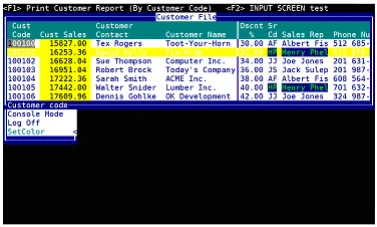
The format is:
#rrggbb
where:
# is required syntax
rr is a red value
gg is a green value
bb is a blue value
For example: #ff00ff
When neither a foreground nor a background color is supplied the view default colors are applied.
VCOLR$[3] SetColor command string built by the API and returned to the View Color Method. This string must be returned to the View class.
LNK$[ALL] - See link array in the OPENworkshop Manual.
Example Call View Class
METHOD MSGX$[ALL]Call View Class with a View Color Method name.
....PROCEDURE
      DIM VT$[29];      VT$[1]="OEVCUST",      VT$[29]="SETCOLOR METHOD=OEVCOLOR";      CALL "OO3A",VT$[ALL];      GOTO CUEXIT
Example View Color Method (OEVCOLOR):
METHOD V$[ALL], VCOLR$[ALL],LNK$[ALL]This method (OEVCOLOR) is called by the View Class.
….
PROCEDUREFORMAT INCLUDE #OEFCUST,OPT="NONE";
! By default if VCOLR$[3] does not return to the view class a color command.!    string, the current row will be initialized to default view colors. It!    is not necessary to reset row colors back to defaults.

! When CUST-CODE is 100101 display entire row using white on magenta:
      IF #OEFCUST.CUST-CODE = "100101" ! If row is customer code 100101         VCOLR$[2]=:+                  !    Set color parms:             "999"+                    !         all cols in this row +             VCOLR$[1](4,3)+           !         this row number +             "   "+                    !         no ending col (range) +             "   "+                    !         no ending row (range) +             PAD("WHITE",9)+           !         foreground color +             PAD("MAGENTA",9)          !         background color      FI;                              ! enidf! The next examples perform a test on a column basis, regardless of the! current column. This code is an example of how to determine which column! in a view contains what data element name. In most real-life cases, this! is not necessary, the format entry number in the view array is sufficient.! This is simply an example if this type of logic should be required.

! When CUST-SALES > 15,000 display that column in this row using!   black on yellow
      IF #OEFCUST.CUST-SALES > 15000   ! If cust sales > 15000         FX$="#OEFCUST";               !    Set format name         FOR V=1 TO NEA("V$",2);       !    Loop through data elements            EN=DEC(V$[0,V](4,1)),      !      Get format entry nbr            DN$=ATR(FX$,EN,21);        !      Get its data name            IF CVT(DN$,128)="CUST-SALES"!     If its the right one               VCOLR$[2]=:+            !          Set color parms:                   STR(V-1:"000")+     !               this col +                   VCOLR$[1](4,3)+     !               this row +                   "   "+              !               no ending col (range) +                   "   "+              !               no ending row (range) +                   PAD("BLACK",9)+     !               foreground color +                   PAD("YELLOW",9),    !               background color               V=NEA("V$",2)+1         !         Force end of loop            FI;                        !      endif         NEXT V                        !    Next data element in format      FI;                              ! endif
! When SR-CODE=HP print both the SR-CODE and sales rep name (<Ax>) using! light green on blue. This uses a column range to set the color of two! consecutive columns.
      IF #OEFCUST.SR-CODE="HP"         ! If sales rep is H         FX$="#OEFCUST";               !    Set format name         FOR V=1 TO NEA("V$",2);       !    Loop through data elements            EN=DEC(V$[0,V](4,1)),      !      Get format entry nbr            DN$=ATR(FX$,EN,21);        !      Get its data name            IF CVT(DN$,128)="SR-CODE"  !      If its the right one               V0$=V$[0,0],            !         Get col attr string               EL=ASC(V0$(1,1)),       !         Get len of col attr entry               NC$=V0$(EL),            !         Get 'new col A<x>' string               NC=POS("A"=NC$,2);      !         Scan for new col "A"               IF NC                   !         If found rep name                  CN=ASC(NC$(NC+1,1))  !            Get rep name col nbr               FI;                     !         endif               VCOLR$[2]=:+            !         Set color parms:                   STR(V-1:"000")+     !              this col +                   VCOLR$[1](4,3)+     !              this row +                   STR(CN-1:"000")+    !              ending col (name) +                   VCOLR$[1](4,3)+     !              this row +                   PAD("LGREEN",9)+    !              foreground color +                   PAD("BLUE",9),      !              background color               V=NEA("V$",2)+1         !         Force end of loop            FI;                        !      endif         NEXT V                        !   Next column      FI;                              ! endif
* Call API to construct the set color command string required by view class
      IF LEN(VCOLR$[2])>1              ! If have something         VCOLR$[2]="S"+VCOLR$[2];      !    Set API function: set colors         CALL "OO3AV01",VCOLR$[ALL],   !    Call API, color array,                          V$[ALL]      !              view array      FI;                              ! endif
* Will exit back to view processing with VCOLR$[3] built for the view class.
      GOTO CUEXIT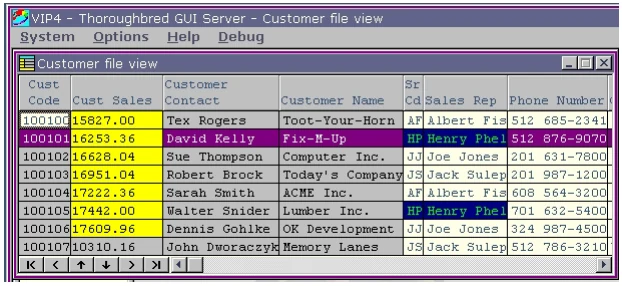
From the VIP for Dictionary-IV Reference, version 8.9.1. Open this page in the PDF