

INPUT SCREEN
FUNCTION
This command uses screens defined in Dictionary-IV to prompt for and accept operator input from the terminal.
SYNTAX
INPUT SCREEN screen-name [CLEAR] [data-options]      [LINE OFFSET IS numeric-value] [process-options]      [RESUME]
      data-options:
         DATA |         DATA-NAME data-name |         DATA-NAME LIST data-name [, data-name ...] |         KEY
      process-options
[PRE PROCESS ALL | data-name, procedure [data-name, procedure] ...] [POST PROCESS ALL | data-name, procedure [data-name, procedure] ...] [POST-HELP PROCESS IS procedure]- screen-name
- the name of a screen defined in Dictionary-IV.
- data-name
- a data name defined in Dictionary-IV and used as a data element in the screen.
- numeric-value
- a data name, variable, constant, or expression that results in an integer.
- procedure
- the name of a procedure to perform.
NOTES
- Input is controlled by the operator, the type of field defined in the format, the INPUT SCREEN data-option, and any specified process-options.
- The data-options enable you to select and control the input fields on the screen.
- The process-options enable you to specify processing before or after input, and after on-line help is displayed.
- INPUT SCREEN does not automatically print the screen before input. Use PRINT SCREEN to display the screen.
- The CLEAR option always clears all data fields defined on the screen before the data-option is performed.
- The data-options are mutually exclusive.
- If no data-options are specified, INPUT SCREEN defaults to input of all data fields on the screen.
- The DATA option specifies input to all data fields on the screen.
- The DATA-NAME option specifies input starting at the designated data name, even if a required field precedes the starting data name. It does not restrict input or movement to other fields.
- The DATA-NAME LIST option specifies input to a list of data names and restricts input and movement from fields other than those specified in the data name list. The field control keys will move to the closest available field specified in the data name list. Entry is by screen element order list.
- The field control keys available to the operator during an INPUT SCREEN are:
| Key | Cursor Movement |
|---|---|
| F10 | Goto field number |
| down-arrow | Next field |
| up-arrow | Previous field |
| PgDn | Last field |
| PgUp | First field |
| Ctrl-P | Initiates Hotkey Menu |
-
The KEY option only specifies input to primary key fields. It can be used when key fields are defined on the screen. If no KEY fields are defined on the screen, the input is ignored.
-
This command supports formats that contain non-contiguous key fields.
-
The LINE OFFSET option is used to specify an offset position for input of the specified data fields. If LINE OFFSET is not specified, the default line position for the data fields defined in the screen is used, which is equivalent to a line offset of 0. If LINE OFFSET specifies a positive integer, the data-option adds the offset to the default line position.
-
The RESUME option begins screen input at the data item specified by screen-name.FIELD-NO. For example:
LET screen-name.FIELD-NO = 5INPUT SCREEN screen-name RESUMEbegins input at the fifth field on the screen. The screen-name.FIELD-NO variable must contain a valid field number before the INPUT SCREEN RESUME command.
-
You can use all of the process-options in the same INPUT SCREEN command. The PRE PROCESS option associates data names with procedures for fields that need processing before operator input to the field. The POST PROCESS option associates data names with procedures for fields that need processing after operator input to the field. The POST-HELP PROCESS specifies a procedure to perform after on-line help is displayed.
-
You can specify PRE PROCESS ALL or POST PROCESS ALL. These clauses enable you to specify a pre-processing or post-processing procedure that works on all of the screen fields rather than having to specify a pre-processing or post-processing clause for each data element.
-
The PRE PROCESS and POST PROCESS options are independent of the Pre-Process and Post-Process options defined by a format. In Script-IV, the format Pre-Process and Post-Process options are not executed except by the CONNECT commands. For more information on these commands see the descriptions of the CONNECT HELP, CONNECT MENU, CONNECT QUERY, CONNECT REPORT, CONNECT SCREEN, and CONNECT VIEW commands.
-
The procedures specified in the process-options are not restricted. They can perform other commands, such as another INPUT statement or DO procedure. The Script-IV variables that interact with the INPUT command, such as COLUMN, FIELD, LENGTH, LINE, or TERM-KEY, can be used in these procedures. The FIELD variable cannot be used in a POST-HELP PROCESS procedure.
-
The TERM-KEY variable can be used to specify an input time limit.
-
Text field data cannot be entered using INPUT SCREEN. To enter text field data, you must add the record and then use the CHANGE command to obtain the text field input window.
INPUT SCREEN now supports the ability to get the current occurs value while in a POST PROCESS procedure. This value is now saved in a CGV (Common Global Variable) called OCCURS. This is accomplished in your script code by adding the example code to your POST PROCESS procedure for occurs fields.
Note: The occurrence fields must be separated and defined in the screen definition as individual fields. For more information see Screen Definition in the Dictionary-IV Developer Guide
POST-PROCEDURE
      LET O1=NUM(CGV("OCCURS"))
The variable O1 (oh-one) will contain the occurs value that the user is currently on. If this is done on a non-occurs type field, the value will be 1.
EXAMPLES
INPUT SCREEN 4STOPSC1
INPUT SCREEN 4STOPSC2 KEY
INPUT SCREEN 4STOPSC2 DATA-NAME CUST-CONTACT      POST PROCESS CREDIT-LIMIT, 12-MAKE-CHANGES
INPUT SCREEN 4SBOTSCR LINE OFFSET L0-1      POST PROCESS ITEM-CODE, 16-VERIFY-ITEM            BASE-PRICE, 18-TAX-EXTENSION
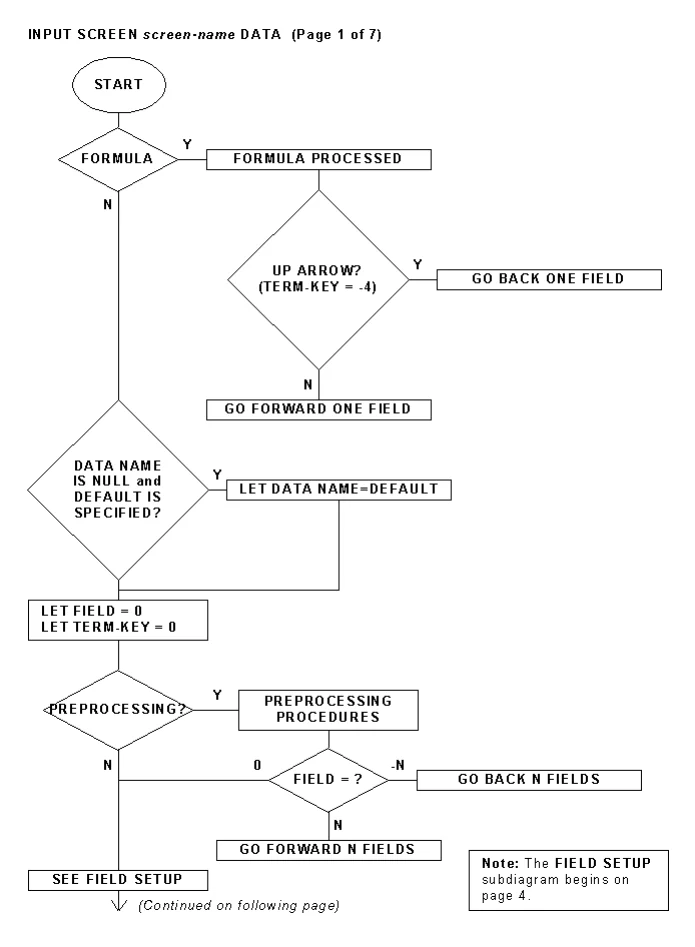
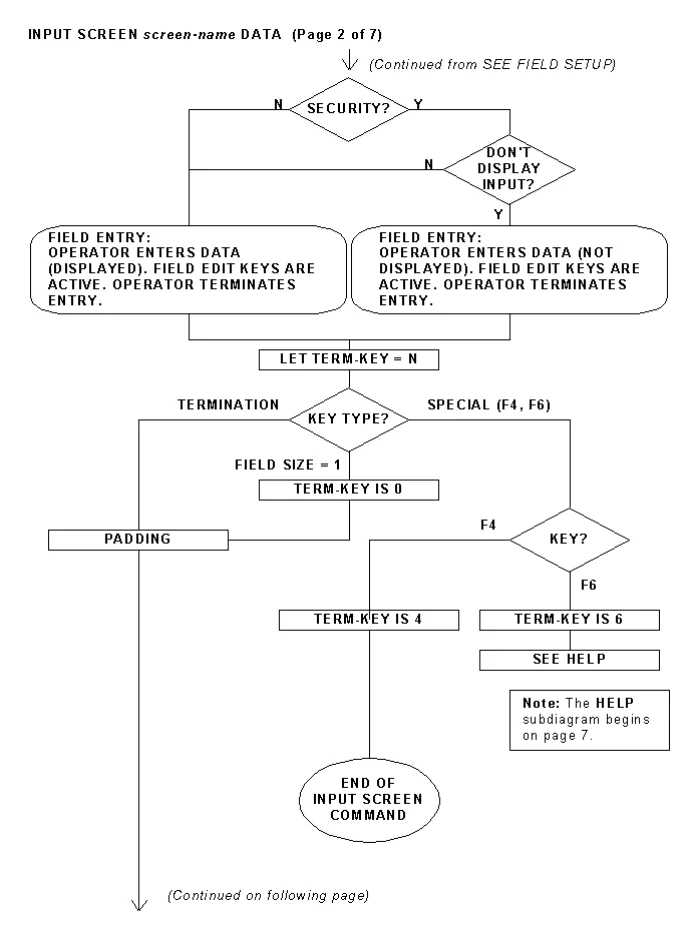
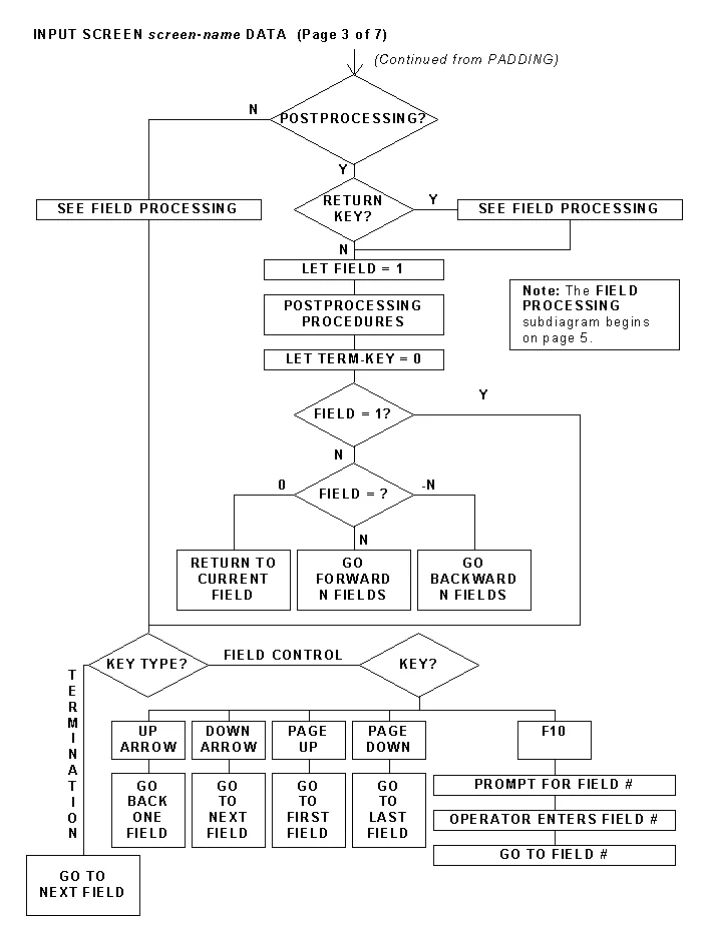
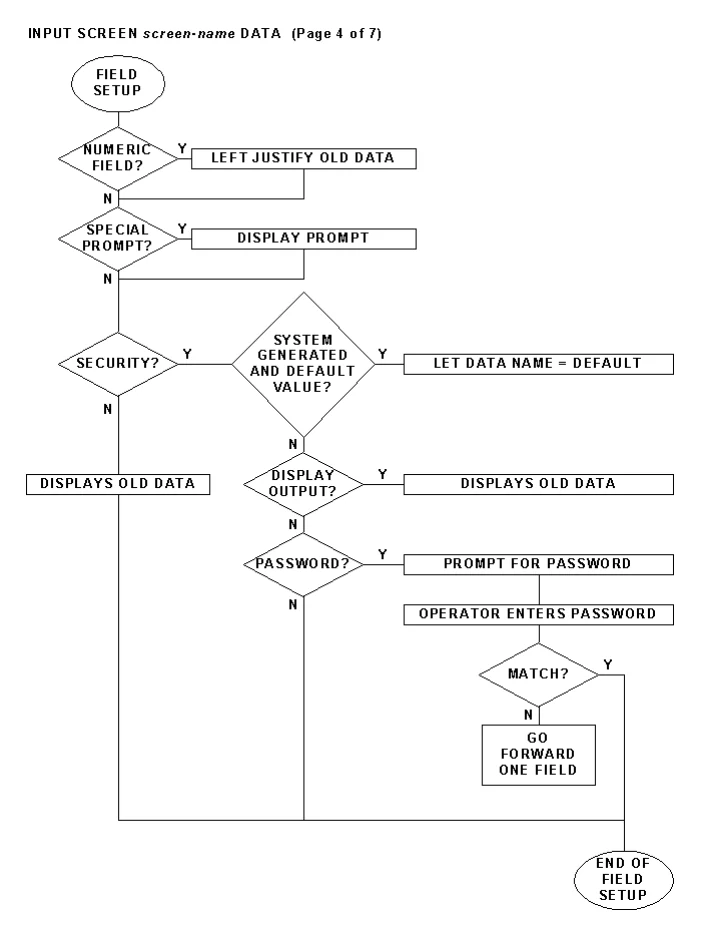
The following pages contain a flowcharted example of an INPUT SCREEN command.
SEE ALSO
CHANGE, COLUMN, FIELD, FIELD-NO, LENGTH, LINE, OPEN SCREEN, PRINT SCREEN, SN, TERM-KEY, section on Terminal Keyboard Values in the Script-IV Developer Guide.
INPUT SCREEN Example
INPUT SCREEN Example
INPUT SCREEN Example
INPUT SCREEN Example
INPUT SCREEN Example
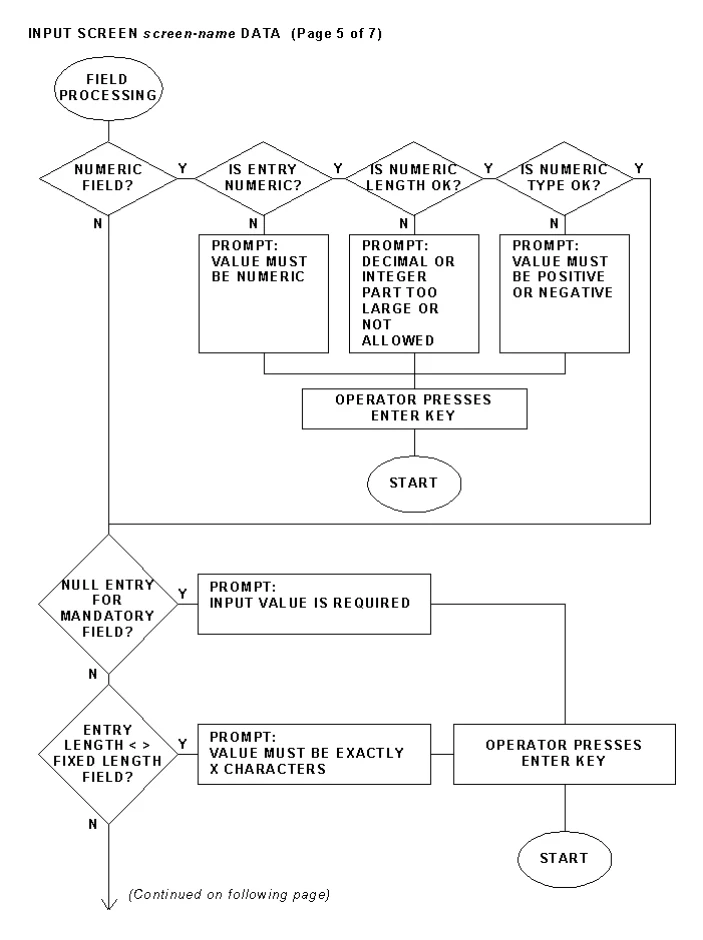
INPUT SCREEN Example
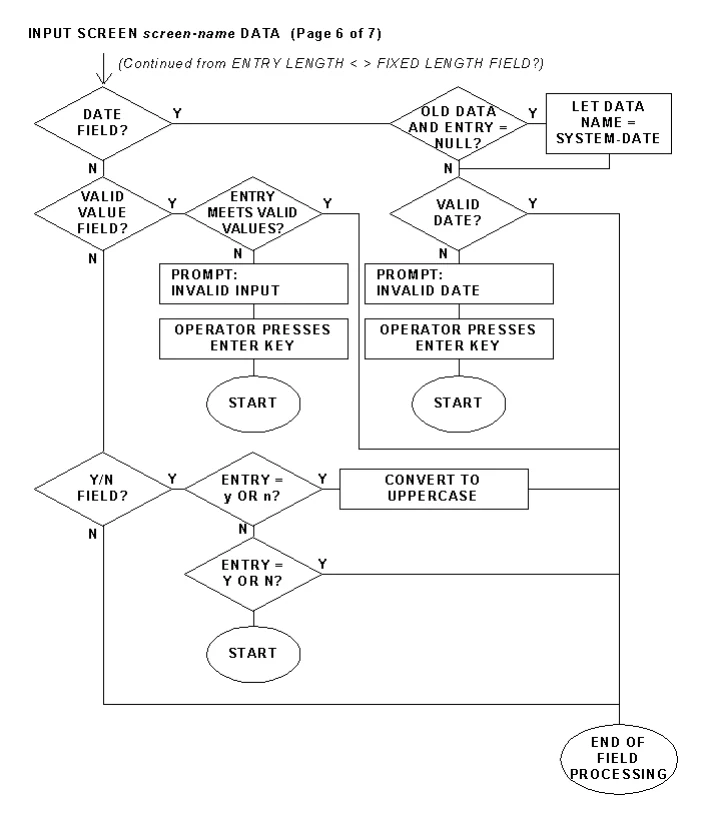
INPUT SCREEN Example
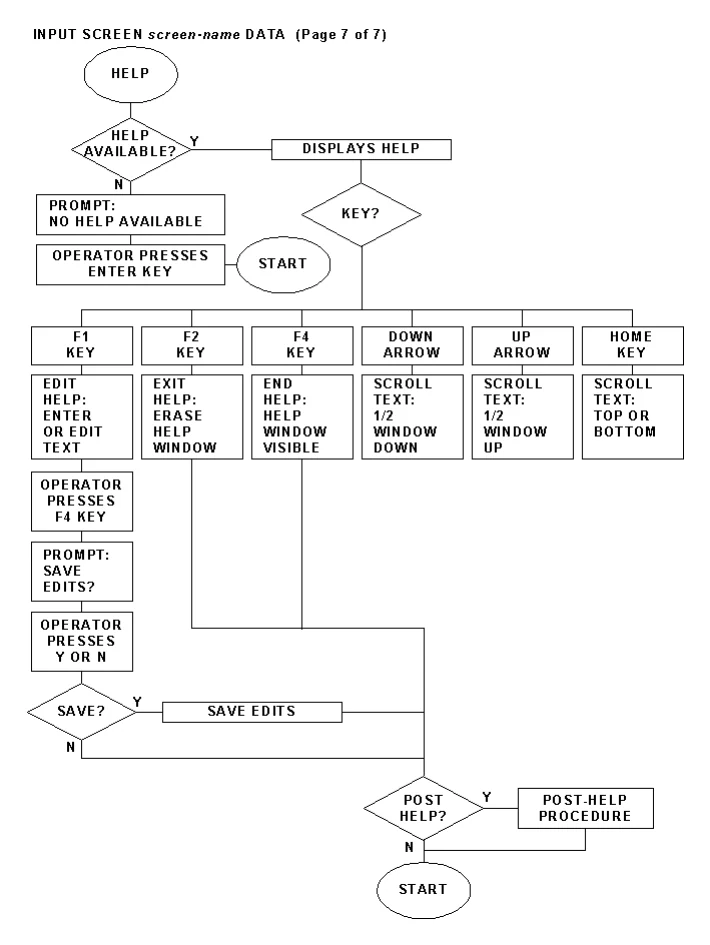
From the Script-IV Language Reference, version 8.9.1. Open this page in the PDF