

F7 Special Functions
Press F7 to display the following:
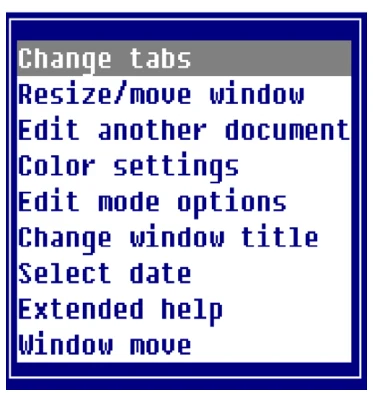
Change tabs Select Change tabs. Any character, except a period, will create a tab stop. The Period key and the Space Bar enter periods.
| <T….T….T….T….T….> | |
|---|---|
| < | Sets the left margin. |
| > | Sets the right margin. |
| T | (Or character other than a Period or a Space Bar) sets tab stop. |
Use Up and Down Arrow keys to move the tab line up and down through the text. You can then set margins and tabs for lines to inserted in the text or reformat existing text. To reformat, reset margins and tabs, press F5, and press F4 to exit the Change tabs option. The system reformats the text.
Once the left margin is set, using Change tabs, you may press F11 return the left margin to column one for the current line only. For each line that follows, the left margin returns to the Change tabs setting.
Resize/move window
Select Resize/Move Screen. The system displays the resize box in the lower right corner.
Resize Window
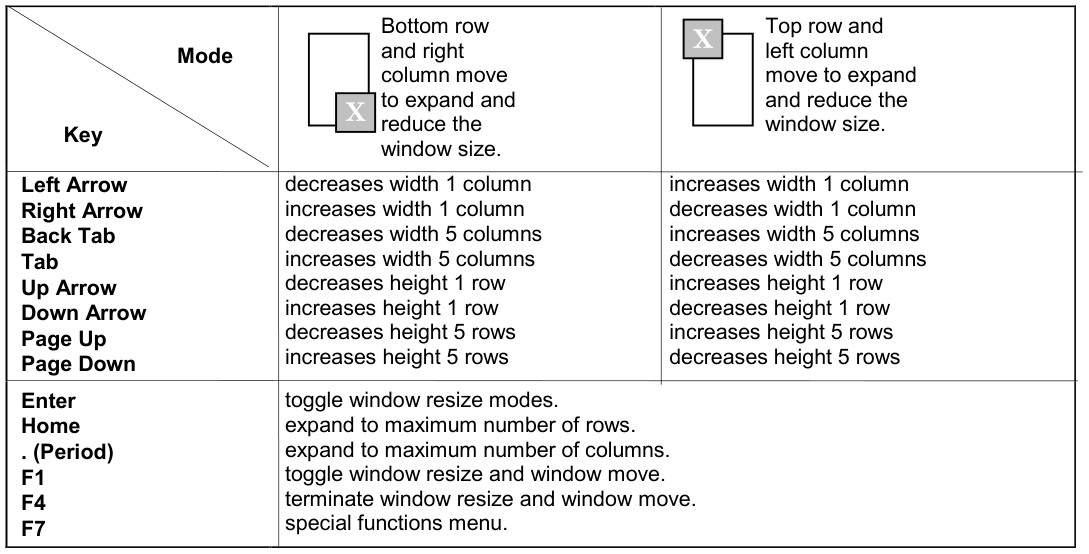
Press F7 to select one of the following options:
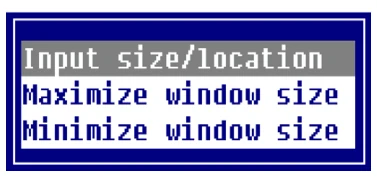
Input size/location
Allows you to change the size of a text window. The window text values display in an input window.
Window Size: 78 columns, 14 rows.
Coordinates: column 0, row 7.
The window size values are columns and rows of text excluding borders.
Maximize window Expands the window size to the maximum size allowed. The location does not change. The window expands from top to the bottom and from right to left.
Minimize window Reduces the window size to the minimum size allowed. The contracts from bottom to the top and from right to left.
Move Window
Press F1 to toggle between resizing and moving the window.
| Key | Description |
|---|---|
| Left Arrow | Moves to the left 1 column. |
| Right Arrow | Moves to the right 1 column. |
| Back Tab | Moves to the left 5 columns. |
| Tab | Moves to the right 5 columns. |
| Up Arrow | Moves up 1 row. |
| Down Arrow | Moves down 1 row. |
| Page Up | Moves up 5 rows. |
| Page Down | Moves down 5 rows. |
| Enter | Toggle window resize modes. |
| Home | Expand to maximum number of rows. |
| . (Period) | Expand to maximum number of rows. |
| F1 | Toggle window resize and window move. |
| F4 | Terminate window resize and window move. |
Edit another document Enter the name of a file (including the full path), Dictionary-IV Help definition name (llhhhhhh), or a Source-IV source name (.llll.ssssssss).
If the file or document is found, the contents will be displayed and you may continue editing.
Document Names
- lldddddd specifies a Dictionary-IV help definition in library ll.
- .llll.dddddddd specifies a Source-IV document in library llll.
Files
- /usr/lib/doc1 specifies a UNIX text file doc1 in the UNIX directory /usr/lib.
- \TBSC\DOC1 specified a Microsoft Windows text file DOC1 in the Microsoft Windows directory \TBSC.
- D:\TBSC\DOC1 specified a Microsoft Windows text file DOC1 in the Microsoft Windows directory D:\TBSC.
Cut/paste
- / <> specifies a view of cut text blocks. From this view cut text blocks can be selected, deleted, or edited.
- / <> 3 specifies cut text block 3.
- / <> C specifies that all saved cut text blocks are to be cleared. This option along with the cut text block view delete option should be used to minimize the number of cut text blocks loaded in memory.
Document Lookup
- F2 displays Dictionary-IV Help definitions for all libraries.
- ll F2 displays Dictionary-IV Help definitions in library ll.
- .F2 displays Source-IV libraries.
- .ll. F2 displays Source-IV documents in library ll.
- /usr/lib/ displays files in UNIX directory path /usr/lib.
Color Settings
For information on color settings see F15 Character/graphic mode Video attributes, graphics.
Edit Mode Options This window allows characteristics of the editor to be modified. These characteristics include the action of the Page Up and Page Down keys, graphics, the right margin alignment, and hyphenation features used by the Format Text function (F5).
Functions are applied only when you select the Execute option. Press F4 to exit the menu and abandon any changes.
The X to the right of a selection indicates that the selection is enabled. Press the Space Bar to enable or disable an option.