

8NPSD - Configure and Maintain Terminal Tables
Purpose
The 8NPSD utility helps you configure and maintain terminal tables. You must install Thoroughbred Basic and Thoroughbred Dictionary-IV. You must use the *NPSD utility to configure your terminal for Thoroughbred Basic Windows. Before you use the 8NPSD utility you must run Thoroughbred Dictionary-IV and log in to identify your terminal to Dictionary-IV.
- Note:
- If you do not have Thoroughbred Dictionary-IV you can use the *NPSD utility to build and modify terminal tables. For more information on how to use this utility please refer to the description of the *NPSD utility.
Procedure
To run this utility from Thoroughbred Basic Console Mode type:
RUN “8NPSD” and press Enter.
To run this utility from the Thoroughbred Basic Utilities Menu type:
8NPSD and press Enter.
A window similar to the following displays:
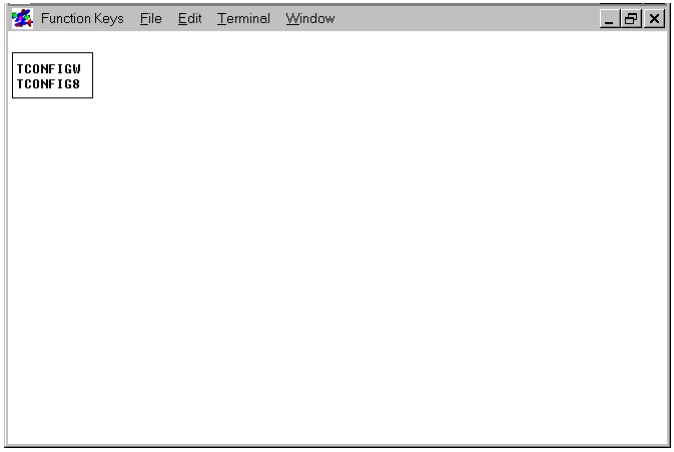
This window allows you to select either TCONFIG8 for non-windowed terminals or TCONFIGW for windowed terminals.
To maintain terminal tables that do not use Thoroughbred Basic Windows, move the cursor to
TCONFIG8 and press Enter.
To maintain terminal tables that will use Thoroughbred Basic Windows, move the cursor to TCONFIGW and press Enter.
A window with menu options similar to the following displays:
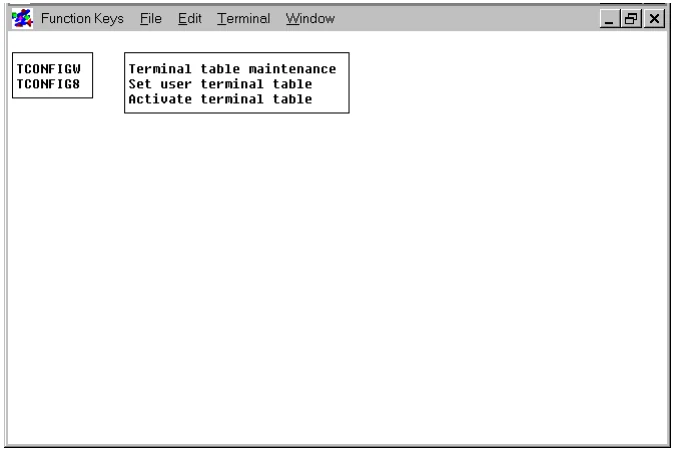
This window provides a menu with options for:
- Terminal table maintenance
- Set user terminal table
- Activate terminal table
Terminal Table Maintenance
Section titled “Terminal Table Maintenance”This option allows you to maintain names and descriptions of all terminal tables in the chosen TCONFIG file.
To maintain Terminal Tables, move the cursor to highlight the option Terminal table maintenance and press Enter.
The Terminal Table Maintenance screen is displayed:
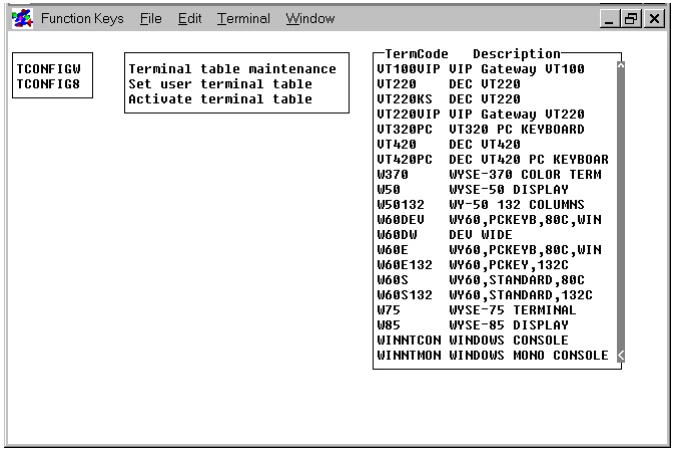
To select a terminal table to maintain, move the cursor over the selected table and press Enter.
You can scroll through the view using the standard view movement keys to select the highlighted item.
Highlight the terminal table you want to edit and press Enter. The terminal table is loaded for editing.
To obtain information about the Terminal Table Maintenance Editor, press F6. Press F3 to get more on-line information about the 8NPSD utility. On-line help contains information on headers, edit and function keys, screen control, mnemonics, escape code entry rules and CTL control values. You may also review the *NPSD utility section found later in this section.
Press F4 to complete the edit session.
The prompt displays:
Save (Y/N)?
Y Saves the changes
N Cancels the changes
If you answered N, you are prompted again:
Are you sure (Y/N)?
Y Cancels the changes
N Allows you to make additional changes
How to Add a Terminal Table
Section titled “How to Add a Terminal Table”The recommended way to add a new terminal table is to copy an existing terminal table similar to the one you want to create and modify it. (Refer to the Copy procedure later in this section) However, when no other terminal table approximates the one you want to create, add a new terminal table as follows:
Press Insert anywhere from within the Terminal Table Maintenance view. The system automatically sorts the names when you save.
A view appears similar to the following:
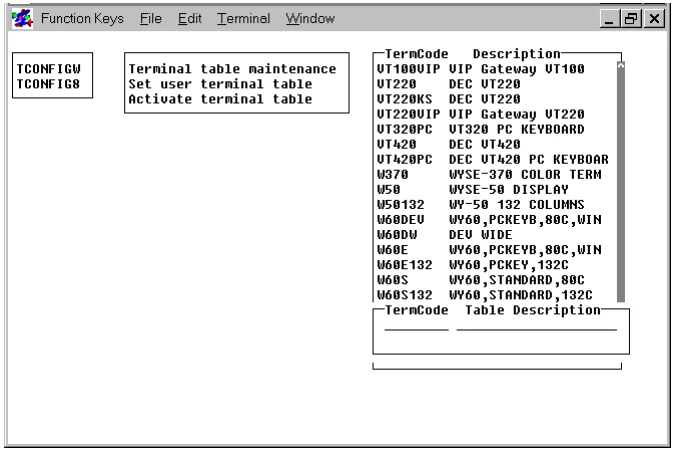
Enter the TermCode and Table Description for the terminal table you want to add.
The system prompts:
Correct (Y/N)?
Y Adds the new terminal table
N Allows you to edit the names
A table with default values is created.
Modify the default values by moving the highlight cursor over the newly created terminal table and press Enter.
Press F4 to complete the edit session.
The prompt displays:
Save (Y/N)?
Y Saves the changes
N Cancels the changes
If you answered N, you are prompted again:
Are you sure (Y/N)?
Y Cancels the changes
N Allows you to make additional changes
How to Delete a Terminal Table
Section titled “How to Delete a Terminal Table”Move the cursor over the selected table and press Delete.
A view appears similar to the following:
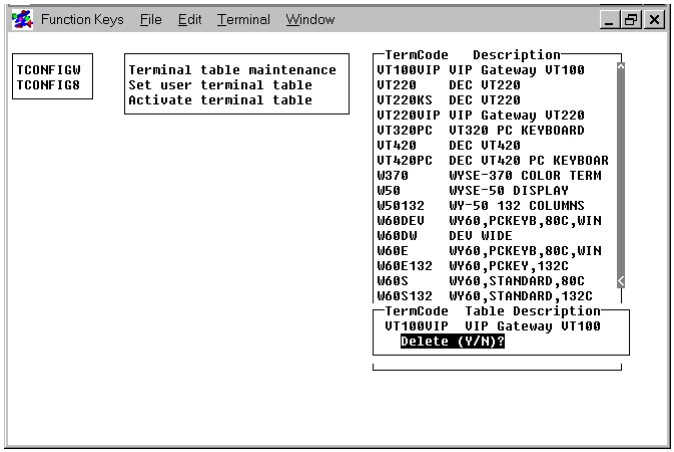
The prompt displays:
Delete (Y/N)?
Y Deletes the terminal table
N Does not delete the terminal table
How to Copy a Terminal Table
Section titled “How to Copy a Terminal Table”Highlight the terminal table you want to copy and press Enter. The terminal table will be loaded for editing.
You can change the terminal table code name that is displayed on the first line of the table. At this point, you can also edit the newly copied table or you can exit and edit the information at a later time.
Press F4 to exit the editor.
The prompt displays:
Save (Y/N)?
Y Saves the new terminal table. The system gives you the option to overwrite the terminal table or save it as a new name. You must enter a new terminal table name
N Does not copy the selected terminal table
If you answer Y to this prompt, the following window appears:
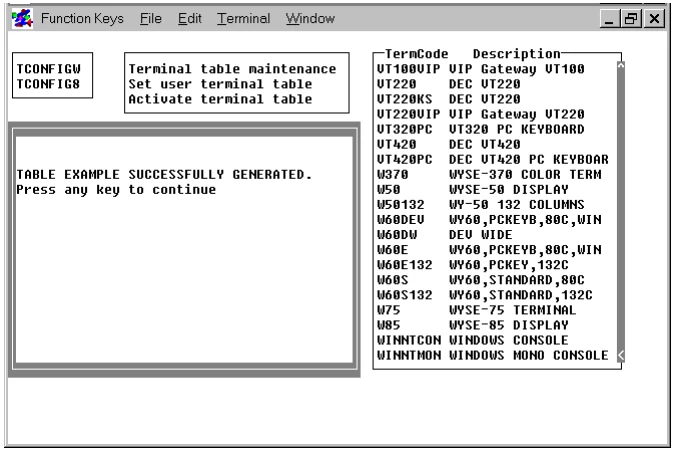
If you answered N, you are prompted again:
Are you sure (Y/N)?
Y Cancels the changes
N Allows you to make additional changes
How to Set the User Terminal Table
Section titled “How to Set the User Terminal Table”This option allows you to maintain terminal table assignments, which are used when Thoroughbred Dictionary-IV run time is executed.
To set user terminal tables, move the cursor to highlight the option Set user terminal table and press Enter.
A view appears with devices and assigned terminal tables:
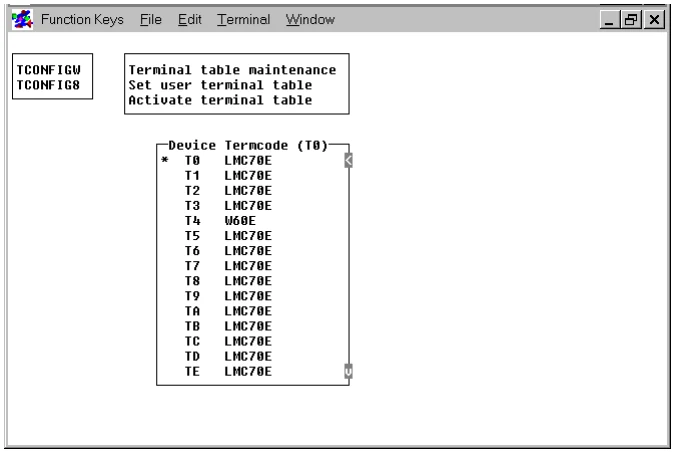
To select a device and terminal table to maintain, move the cursor over the selected device and terminal table and press Enter.
You can scroll through the view using the standard view movement keys to select the device you want or press F4 to return to the previous window.
How to Change a Terminal Table
Section titled “How to Change a Terminal Table”Highlight the selected terminal device that is to be changed, and press Enter.
A view appears similar to the following:
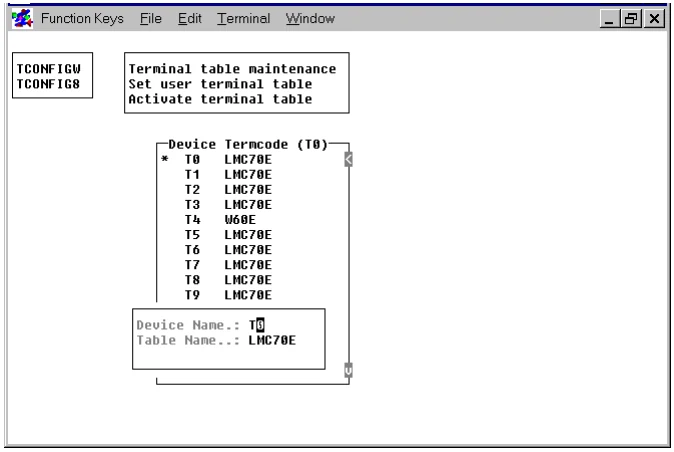
Edit the Device Name and/or Table Name as desired.
The prompt displays:
Correct (Y/N)?
Y Applies the changes
N Allows you to edit the names again
Press F4 to exit.
The prompt displays:
Save (Y/N)?
Y Saves the changes
N Cancels the changes
How to Add a Terminal Table
Section titled “How to Add a Terminal Table”Press Insert anywhere from within the view. The system will automatically sort the names when you save.
A view appears similar to the following:
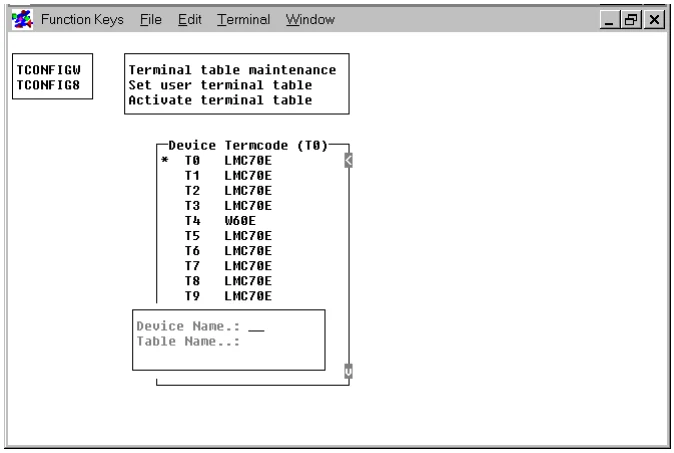
Type the Device Name and Table Name for the table you want to add.
The prompt displays:
Correct (Y/N)?
Y Adds the new names
N Allows you to edit the names
Press F4 to exit.
The prompt displays:
Save (Y/N)?
Y Saves the changes
N Cancels the changes
How to Delete a Terminal Table
Section titled “How to Delete a Terminal Table”Highlight the terminal device you want to delete.
Press Delete. A view appears similar to the following:
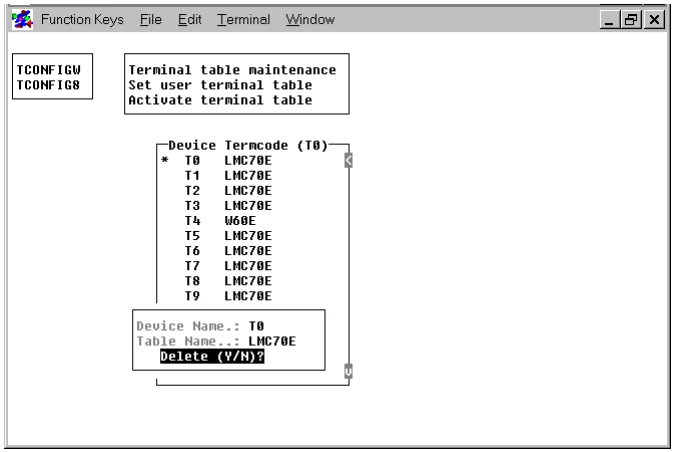
The prompt displays:
Delete (Y/N)?
Y Deletes the device
N Does not delete the device
Press F4 to exit.
The prompt displays:
Save (Y/N)?
Y Saves the changes
N Cancels the changes
How to Activate Terminal Tables
Section titled “How to Activate Terminal Tables”This option allows you to select a new terminal table that is to be used for communication with your terminal for the current Dictionary-IV run time session. To permanently assign a new terminal table each time Dictionary-IV run time is executed, you must use the Set terminal table option.
To activate a terminal table, move the cursor to highlight the option Activate terminal table and press Enter.
The following screen is displayed:
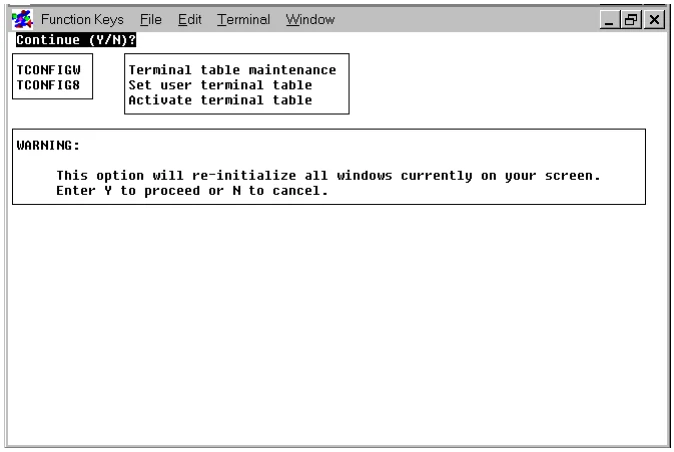
The prompt displays:
Continue (Y/N)?
Y Continues the activation process
N Cancels the activation process
To activate the terminal, enter Y.
A view appears with terminal table codes and descriptions.
Highlight the terminal table that is to be used for communication with your terminal for the current Dictionary-IV run time session.
You are now returned to the first window.
Error Messages
- CURSOR MASK NOT DEFINED
- A cursor mask must be defined in order for the terminal table to work properly.
- ESCAPE/BACKSPACE/NULL CHARACTER NOT DEFINED
- The Escape, Backspace and Null characters need to be specified in the terminal table.
- NO FUNCTION KEYS DEFINED
- Function key definitions have not been specified in the terminal table.
- NO MNEMONICS DEFINED
- It is required that certain mnemonics be defined for proper terminal operation. Refer to the on-line help for mnemonics for a list of the required mnemonics.
- MNEMONIC STRING FOR 'mnemonic name' TOO LONG
- A mnemonic escape sequence cannot be longer than 255 bytes.
- CANNOT BUILD TABLE DUE TO ERRORS
- The terminal table will not be saved because of catastrophic errors.
- TABLE TOO LARGE
- The generated terminal table is too large to save in the TCONFIG file.
- INVALID TRANSMIT CODE FOR MNEMONIC 'mnemonic name'
- The escape sequence for this mnemonic has been specified incorrectly.
- TABLE 'table name' SUCCESSFULLY GENERATED
- The terminal table has been generated and saved and can now be used.
- TCONFIG FILE IS READ-ONLY
- The TCONFIGW or TCONFIG8 file was defined as a read-only file. Changes cannot be written to the file. Change the set of permissions for the file before attempting to write to it.
From the Thoroughbred Basic Utilities, version 8.9.1. Open this page in the PDF