

Installation Information
This utility has a number of functions:
- Maintain/display name of installation site.
- Maintain/display default master menu and exit program.
- Enable/disable function keys.
- Enable/disable global menu functions.
- Enable/disable field edit clear.
- Define text field save Format.
- Define whether or not color maps will be saved.
- Enter a menu timeout value.
- Enable/disable operator statistics.
- Enable/disable link/view object library.
This is a protected utility. If security is active, access to this utility is restricted to those individuals with knowledge of the system password.
Default specifications allow you to select the master menu to be displayed after an operator logs on and to specify the program to run when the operator exits. If no values are specified, the system uses the Dictionary-IV lead-in menu (UTMENU10) and the Thoroughbred Basic Utilities Menu Program (UTLOGIN) for defaults.
Defaults can also be set for an operator (by Operator Code) and have precedence over values in the Installation Information.
Select Installation Information from the Dictionary-IV Utilities Menu or from the System Administration options. The system displays the following:
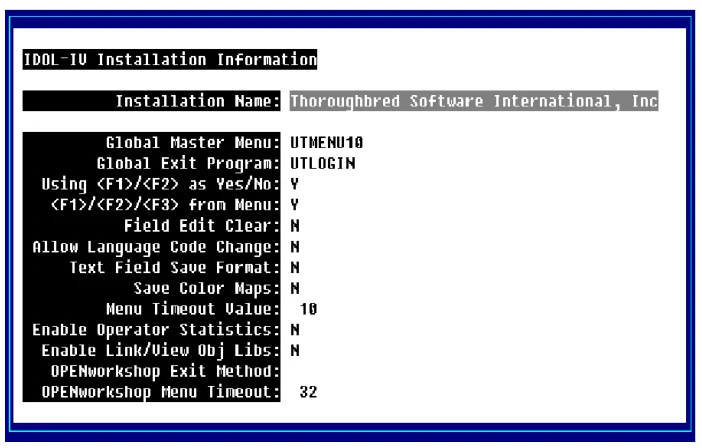
Installation Name
Type up to 40 alphanumeric characters for the name of the installation site and press Enter.
Global Master Menu Type the name of the menu to display when the operator logs on and press Enter. If this value is set in Operator Information, the Operator Information value overrides this menu name. The default is UTMENU10.
Global Exit Program Type the Basic program to execute when the operator exits Dictionary-IV. If this value is set in Operator Information, the Operator Information value overrides this program name. The default is the Dictionary-IV Login program (UTLOGIN).
Using <F1>/<F2>/ as Yes/No:
Enables the F1 key for a Yes response and the F2 key for a No response in Yes/No fields.
Select one of the following:
Y Enables the F1 and F2 keys in Yes/No fields.
N The F1 and F2 keys are ignored in Yes/No fields.
This flag will enable the F1 and F2 keys for Yes/No response. Select Y at this field and F1 can be used in Dictionary-IV to answer Yes to a prompt and F2 can be used to answer No.
<F1>/<F2>/<F3> from Menu
Select one of the following:
Y Enables F1, F2, and F3 at the menus.
N Does not enable F1, F2, and F3 at the menus.
Field Edit Clear
Allows non-edit keys to clear an entire field when you begin typing in that field.
Select one of the following:
Y For all data input, the entire field clears when the first keystroke is not a field editing key (Character Insert, Character Delete, etc.).
N Does not clear the field. You must type over existing data.
Allow Language Code Change This option allows you to specify whether or not F7 is available from a menu to change the current Operator Language Code. This value can also be set for an Operator Code (and has precedence over the value in Installation Information).
Y F7 allows the operator to temporarily change their language code.
N F7 is not available from a menu to change the current operator language code.

Text Field Save Format This allows you to define the format in which text fields are to be saved when edited. The new format is not compatible with Thoroughbred Basic Level 7 and T/OS systems. Select one of the following:
O (Old) Saves the text field in the old format (compatible with Basic Level 7 and T/OS Systems). Text fields previously saved in the new format will be loaded, edited, and saved in the old format; video attributes and/or colors will be lost.
N (New) Saves the text field in the new windows format (TSI Window Text). Text fields previously saved in the old format will be loaded, edited, and saved in the new format, allowing video attributes and/or colors to be embedded in the text.
Save Color Maps This allows you to define whether or not color will be saved for window type screens and help. Select one of the following:
Y The color for window type screens and help will be saved.
N The color for window type screens and help will not be saved.
Menu Timeout Value Enter a value from 0 to 255 for the number of minutes before a Dictionary-IV menu will timeout and return to the Operator Code message. Enter 0 for no timeout.
Enable Operator Statistics
Select one of the following:
Y Maintain operator statistics.
N Do not maintain operator statistics.

Enable Link/View Obj Libs This field indicates whether or not to use object libraries to store link and view definitions to enhance system performance.
Y Enable use of libraries.
N Disable use of libraries.
OPENworkshop Exit Method This value is used to designate the method that is to be called when an OPENworkshop menu times out. This value can also be set for an Operator Code (and has precedence over the value in Installation Information). If no value is set in either the install information or the operator record, no time out will occur for menus.
OPENworkshop Menu Timeout This value ranging from 0 to 255 defines the amount of time that will elapse before an OPENworkshop menu will timeout and call the defined exit method. The value specified is in minutes. This value can be set for an Operator Code (and has precedence over the value in Installation Information). If no value is set in either the install information or the operator record, no time out will occur for menus. To disable the timeout feature if desired, specify 0.
The system prompts:
Save Changes?
Select one of the following:
- Yes
- Update record
- No
- Do not Update record
- <F4>
- Make Corrections
From the Dictionary-IV Administrator Guide, version 8.9.1. Open this page in the PDF