

**PSD - Utilities Menu/Maintenance
Purpose
This utility displays the Thoroughbred Basic Utilities Menu on the terminal and asks the user to select the utility to be run. It may also be used to add and delete utilities from the menu.
Procedure
To access this utility from Thoroughbred Basic Console Mode, type:
RUN “**PSD” and press Enter.
The Thoroughbred Basic Utilities Menu is displayed. Depending upon your operating system, the Thoroughbred Basic Utilities Menu looks something like this:
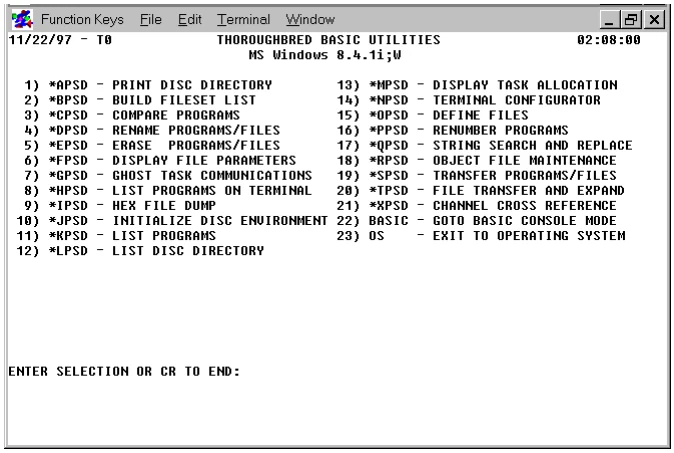
At the prompt:
ENTER SELECTION OR CR TO END
You have several options. You can:
- Type the name or number of the utility to be run.
- Type the name of any program to be executed.
- Press F4 or Enter to enter Thoroughbred Basic Console Mode.
- Begin the Add a Utility to the Menu procedure (explained in this section).
- Begin the Delete a Utility from the menu procedure (explained in this section)
Add/Delete a Program
The names and descriptions of all the programs listed on the Thoroughbred Basic Utilities Menu are stored in a DIRECT file named *UTIL. This file stores a maximum of 30 program names. When a name is added to or deleted from *UTIL, the file is initialized and an updated screen is displayed.
Adding a Program
To add a program to the Thoroughbred Basic Utilities Menu, type the following at the Thoroughbred Basic Utilities Menu prompt:
@ADD
Press Enter and the system prompts:
NAME:
Type the name of the program to be added to the Utilities Menu and press Enter. The program name entered can be up to 8 characters long. After a valid program name has been entered, the system responds with the following:
DESCRIPTION:
Type a description of the program to be added and press Enter.
Note: If the total length of the program name, a hyphen, and the description is greater than 32 characters, the description will be truncated.
After all the information is entered the system prompts:
INITIALIZING CONTROL FILE:
and returns to the Thoroughbred Basic Utilities Menu with the new program listed. To enter another program to the Utilities Menu, repeat this procedure.
Deleting a Program
To delete a program from the Utilities Menu, enter the following at the Thoroughbred Basic Utilities Menu prompt:
@DELETE
The system prompts:
NAME:
Type the name of the program to be removed from the list. The system returns to the Thoroughbred Basic Utilities Menu with the program removed.
Error Messages
- CAN'T OPEN CONTROL FILE "*UTIL"! ERR=xx
- The **PSD Utility could not access the selector control file. The program may have been renamed, deleted, locked, etc. The run is aborted.
- CONTROL FILE IS FULL
- The control file already contains the maximum number of utilities and another utility may not be added.
- INVALID SELECTION
- Either a selection greater than the number of utilities in the menu, or the name of a non-existent program, was entered. Enter another selection.
- xxxxxxxx IS ALREADY IN THE UTILITY MENU
- The named utility is already listed in the utilities menu and cannot be added.
- xxxxxxxx IS NOT IN THE UTILITY MENU
- The named utility is not listed in the utilities menu and cannot be deleted.
From the Thoroughbred Basic Utilities, version 8.9.1. Open this page in the PDF