

TS ReportServer Window
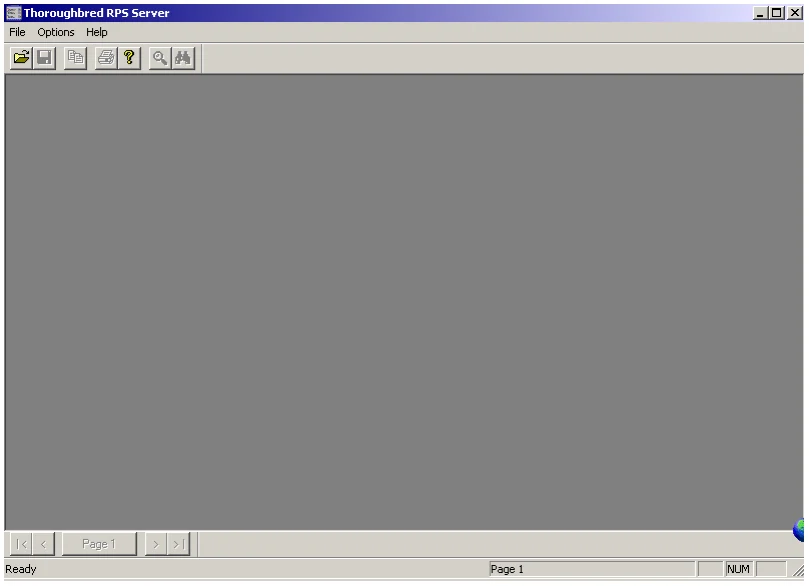
The main TS ReportServer GUI Server window is displayed when TS ReportServer is selected as the output device on the host or when you select the TS ReportServer icon on the client from the VIP program group.
File
Open an rps file
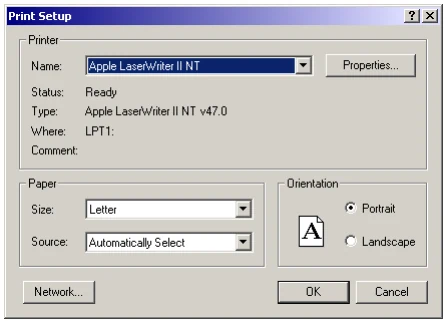
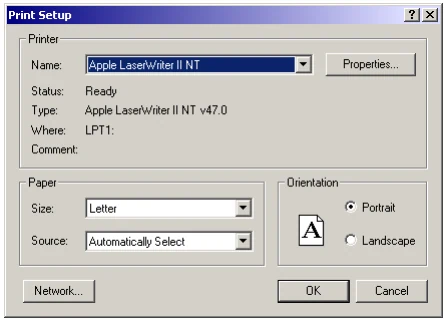
Print Setup to select the printer properties, etc.
Recent Files to select from the last files opened.
Exit TS ReportServer.
Options
Check (display) or uncheck (remove) the Status Bar, Pagebar, and Toolbar from the TS ReportServer window. See the graphic above to see where these are located.
Check Paged Scroll to scroll the last 100 pages of the report history.
Help
Access TS ReportServer help.
Open a Report
Section titled “Open a Report”From the TS ReportServer window select the File menu and then select Open.
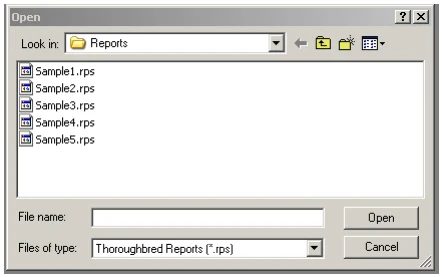

The .rps files above are sample reports that are stored in vip-user-path\TSI\Reports. Select Sample1.rps and the following report appears:
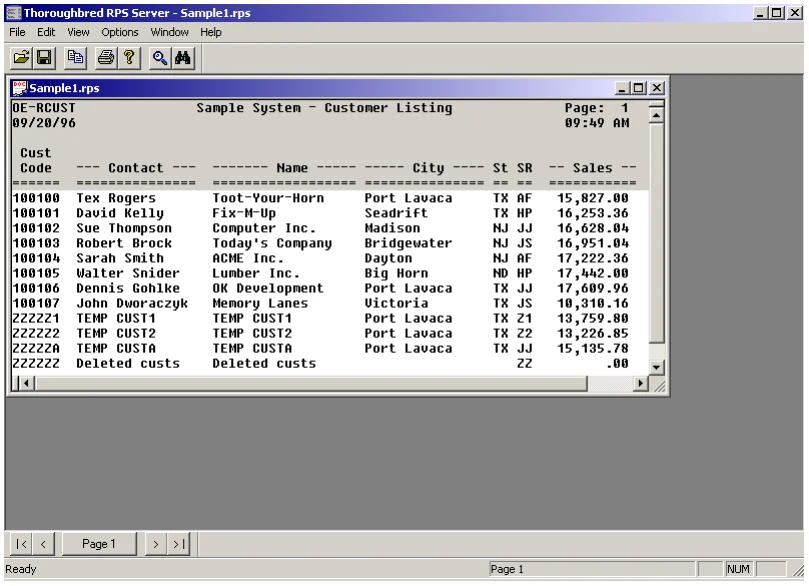
File
Open an .rps file located in vip-user-path\TSI\Reports.
Close the currently highlighted report.
Save the currently highlighted report.
Save As an .rps or .txt file.
Print the currently highlighted report.
Print Preview of the report before printing.
Print Setup
Displays the dialog box below so you can select the printer, paper size, orientation, etc.
Recent Files displayed are listed.
Exit TS ReportServer
Edit - Select Copy, Find or Select All
View – Select Zoom In, Zoom Out, or select the Font.
Options – Select to view any or all of the following: Toolbar, Pagebar, Status Bar or Paged Scroll.
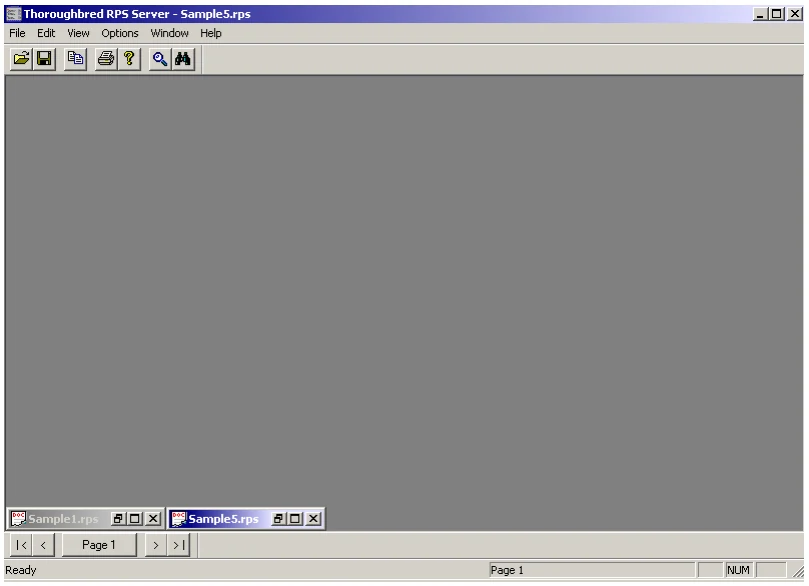
Window – Select to Cascade or Tile the windows. You can also Arrange Icons. This simply means that when you minimize a report window, an icon for the report displays at the bottom of the window (see below).
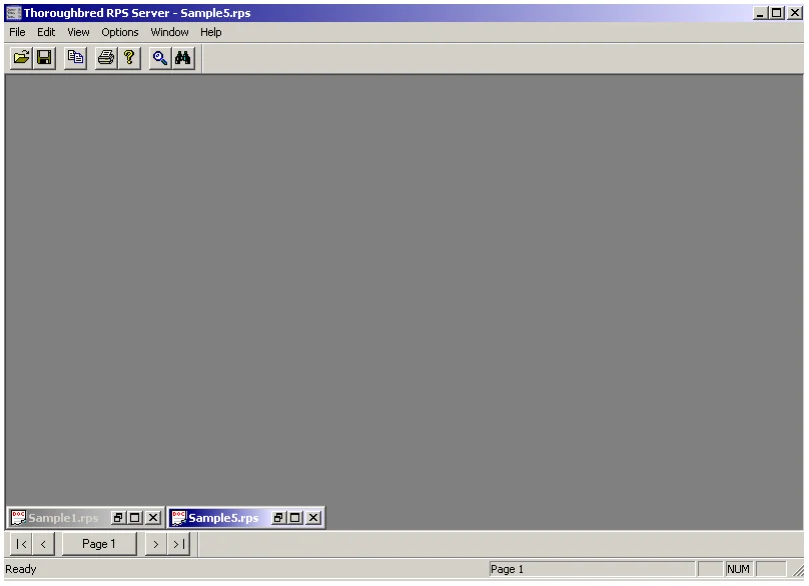
and you move one of the “icons” (see below).
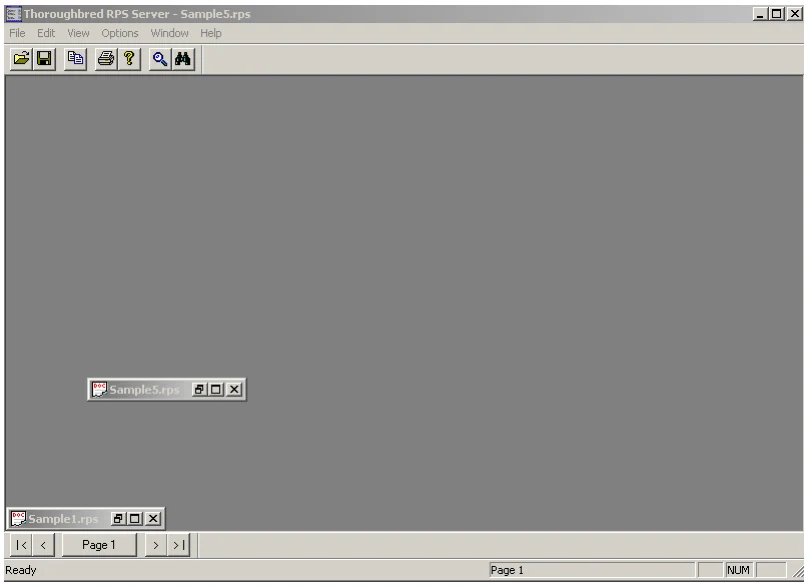
Select Windows→ Arrange Icons to place them back at the bottom of the screen (see below).
Help – Select the Help index or find the version number (About).
Toolbar
Section titled “Toolbar”The Toolbar can be moved using normal Windows procedures. The following buttons are available from the Toolbar:

Open and Save
Open – This button allows you to open an .rps file to edit.
Save – This button allows you to save the file (the first time opened) or to save edits to the report.

Copy
Copy – This button allows you to copy the edited file to the clipboard.

Print and About
Print – This button allows you to print the edited file.
About – This button displays the TS ReportServer version.

Font Size and Find
Font Size – This button allows you to zoom in or out in the report.
Find – This button allows you to search the file for characters, numbers, or words.
Split Screen Viewing
Section titled “Split Screen Viewing”With TS ReportServer you can split reports both vertically and horizontally. Each pane contains a set of scroll bars allowing each to be scrolled independently of the other. It supports a total of four panes: two vertical split panes and two horizontal split panes.
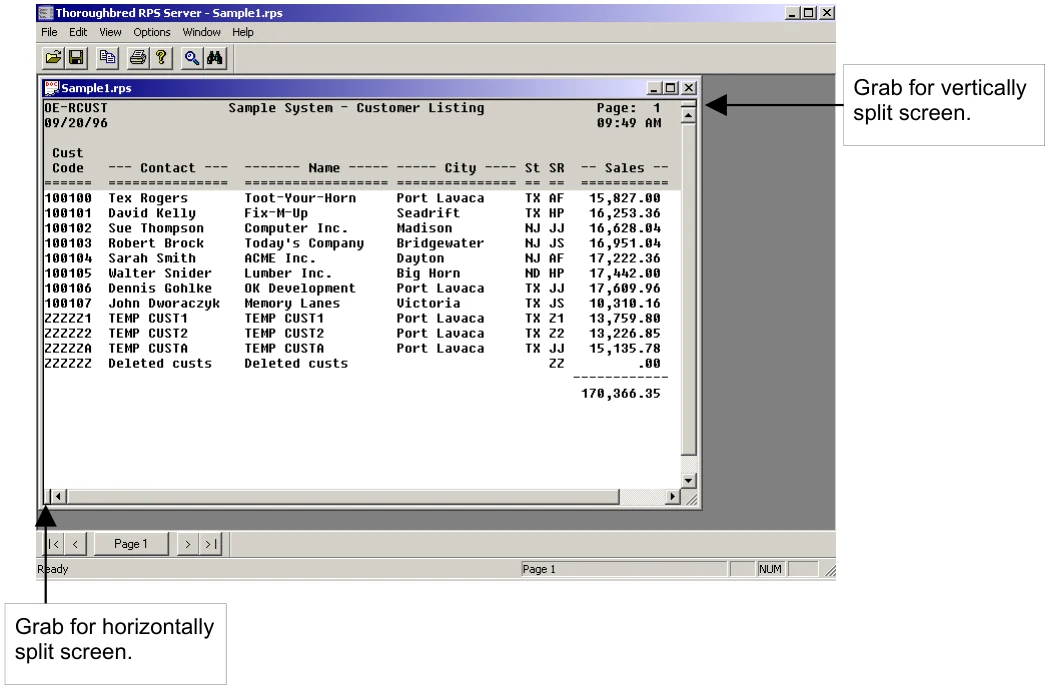
To create two vertical panes Grab the little button on top of the vertical scroll bar (see graphic above) and then drag your mouse down.
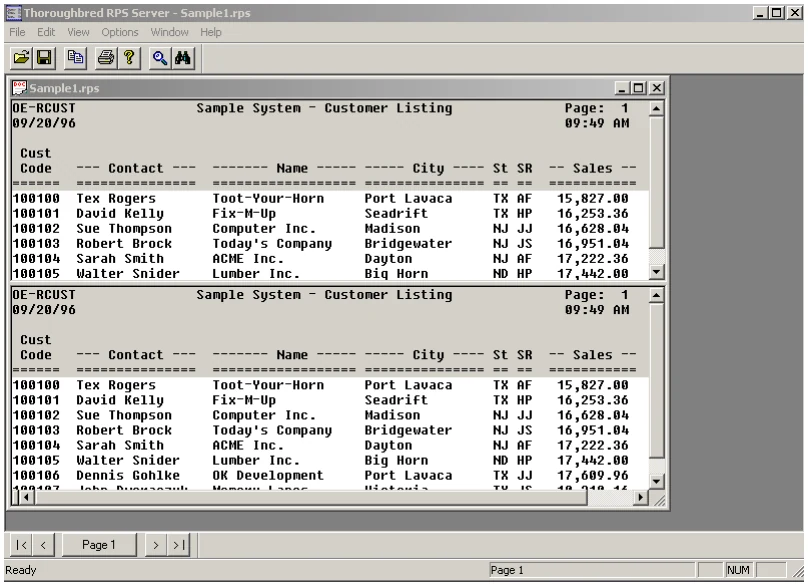
You now have two vertical panes that can be scrolled independently. To create a single pane, reverse the procedure used to create two panes.
To create two horizontal panes Grab the little button on the left of the horizontal scroll bar (see graphic at the beginning of this section) and then drag your mouse to the right.
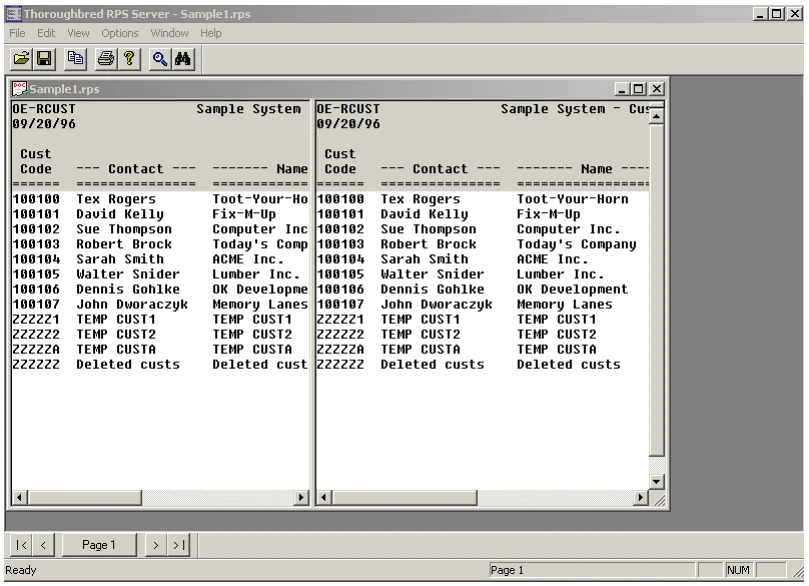
You now have two horizontal panes that can be scrolled independently. To create a single pane, reverse the procedure used to create two panes.
To create four panes Simply perform the two procedures above and you will have a split screen similar to the one below:
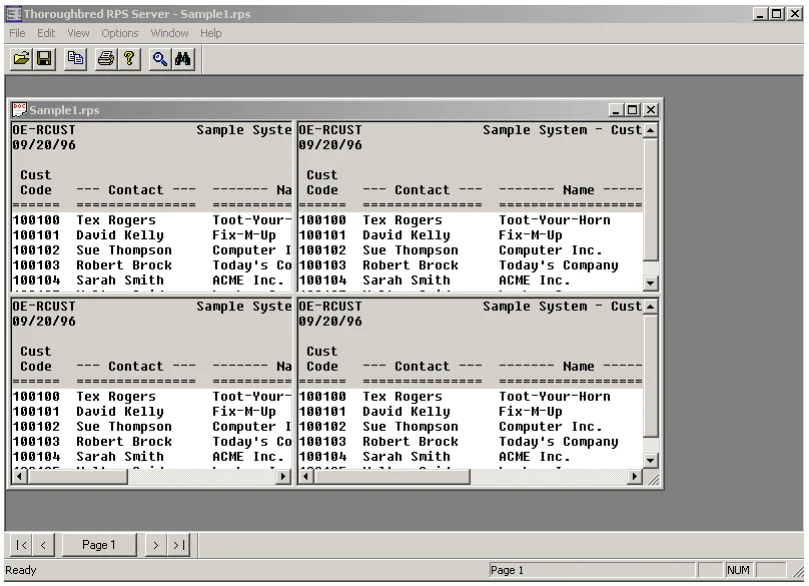
The frame can be resized using normal Windows procedure. Grab any side or corner and enlarge or decrease the size.
Save a Report
Section titled “Save a Report”A report can be saved by selecting File menu Save, by closing a report window or by closing the main TS ReportServer window. The following message is displayed for the top report displayed in the main TS ReportServer window:
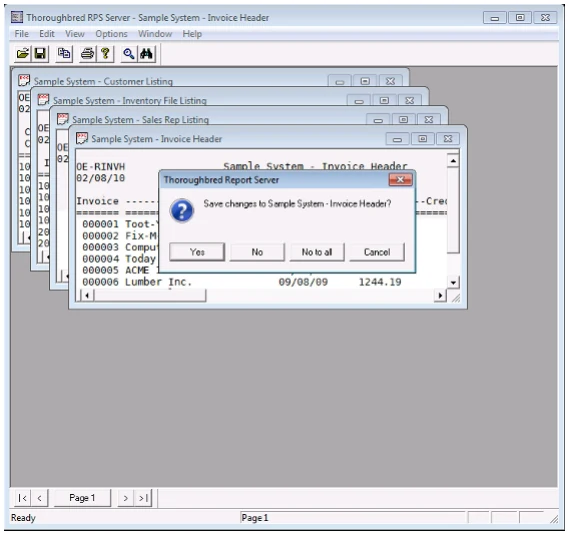
Yes – Will save the report prompting for a file name, location, and a file extension.
No – Will close the report without saving it.
No to all – Will close the current report without saving and will not prompt you to save when closing other report windows. This eliminates the need to respond No for each opened report.
Cancel – Closes the save dialog and without doing anything.
TS ReportServer allows you to save a report in two formats.
Saving as a Thoroughbred Reports file (*.rps)
Section titled “Saving as a Thoroughbred Reports file (*.rps)”- From the File menu select Save. The report file will be saved to the default folder. The default folder location is set from the WorkStation Manager Default Directories tab. If none is supplied report files will be saved in vip-user-path. For more information, please see the WorkStation Manager Manual.
- From the File menu select Save As and then you can save the report as a TS ReportServer file (.rps) in the folder of your choice.
Saving in a different format
Section titled “Saving in a different format”From the File menu select Save As and then you can save the report as a text file (txt) in the folder of your choice.
Copying to the Clipboard
Section titled “Copying to the Clipboard”From the Edit menu select Copy and then you can Paste the report in any DDE compliant application.
From the TS ReportServer, version 8.9.1. Open this page in the PDF