

Views
A View displays multiple records at one time and allows database maintenance. It displays each record on a separate line. Since in Format definition you may specify up to 255 data names (fields), you may find data written past the edge of the window.
You can use the Up Arrow, Down Arrow, Left Arrow, and Right Arrow keys to scroll through the data.
You may create multiple views for one file, If you have a lengthy customer file containing a customer code, name, address, contact, telephone, sales y-t-d, and notes, you can create a telephone listing view from this file.
If you are operating in a Multi-Language environment, see Multi-Language in the Dictionary-IV Administrator Guide.
Types of Views
Section titled “Types of Views”After creating a Format, Link, and data file, like screens, you may create two types of views:
Default
Section titled “Default”The system generates a default OPENworkshop View when selecting View Database Maintenance (CONNECT VIEW). You may perform Database Maintenance immediately or create a custom view.
Custom
Section titled “Custom”You may create a custom OPENworkshop View from the default view. You can move columns, delete columns, etc. and save the OPENworkshop View with another name. In the View header you define the Link/Format for the view, determine whether data can be edited form the view, and define the help window size. In the View Editor you can manipulate the columns to create the view.
You can maintain Dictionary-IV Views created in previous releases from Views Dictionary-IV.
OPENworkshop Views
Section titled “OPENworkshop Views”Selection
Section titled “Selection”Select 1-Edit from the Dictionary-IV Development Menu or press F1 from any Dictionary-IV menu. The system displays the Class pop-up menu.
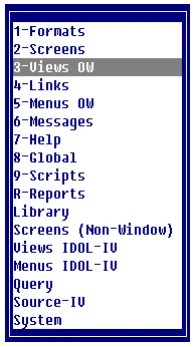
Select 3-Views OW.
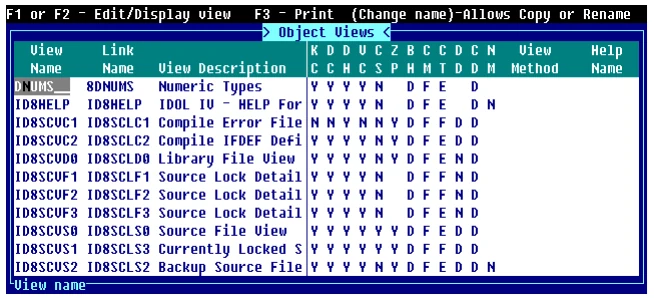
Quick Key Reference
Section titled “Quick Key Reference”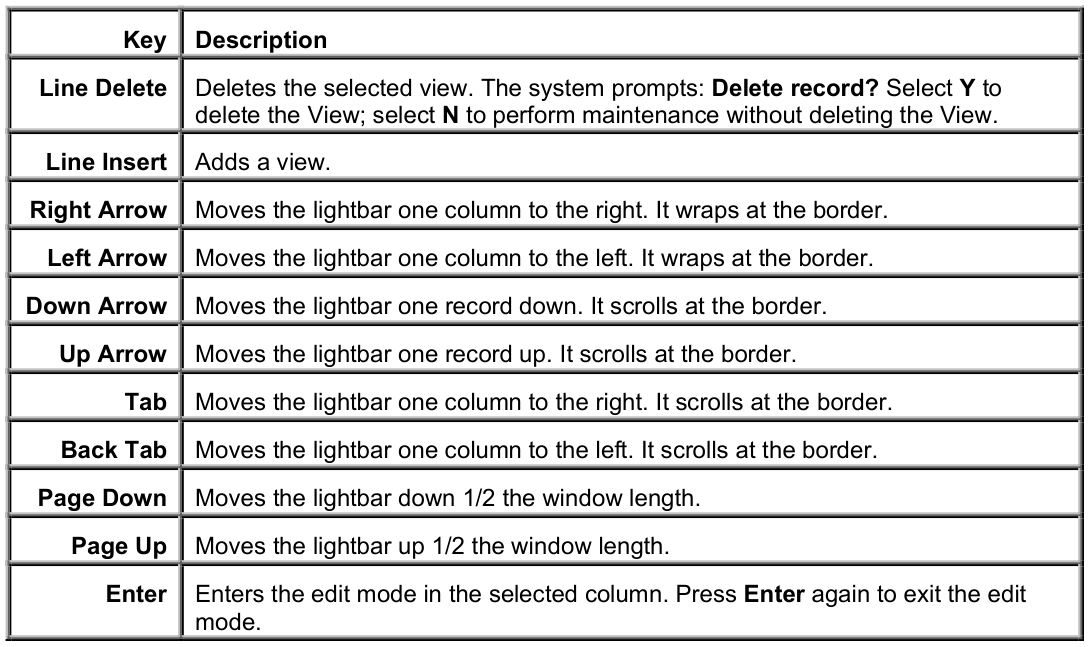
The following function keys are available:
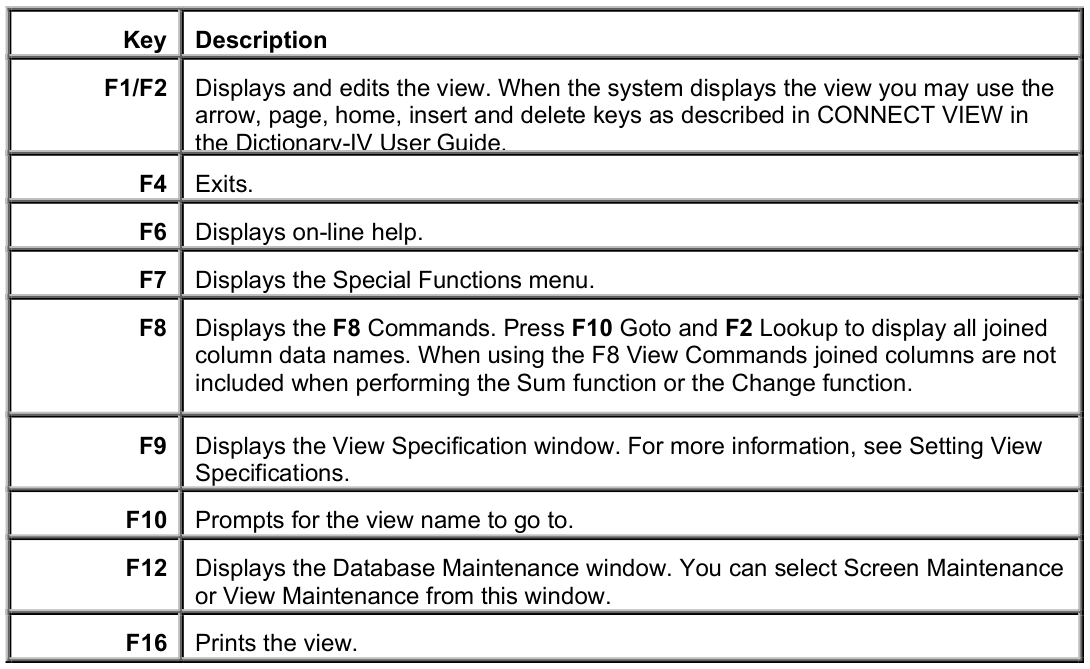
Components of OPENworkshop Views
Section titled “Components of OPENworkshop Views”OPENworkshop Views displays all views in all libraries. This view contains all the features of View definition maintenance and view database maintenance. You can also modify the appearance of this view.
For more information about editing the appearance of a view, see View definition. For more information about View Maintenance, see CONNECT VIEW in the Dictionary-IV User Guide.
If you are operating in a Multi-Language environment see Multi-Language in the
Dictionary-IV Administrator Guide.
The OPENworkshop View is composed of the header information and a listing of the existing views.
OPENworkshop View Header Information
Section titled “OPENworkshop View Header Information”The header information consists of existing view names, view descriptions, link name, and view specifications as defined in View definition.
View Name
From the View Name column you may perform view maintenance.
For information about performing view maintenance or changing the appearance of a view, see CONNECT VIEW in the Dictionary-IV User Guide.
Link Name
Type from 3 to 8 alphanumeric characters for the link to be used for this view.
View Description
Type up to 40 alphanumeric characters for the view description.
OPENworkshop View Detail Information
Section titled “OPENworkshop View Detail Information”Once you have added, copied, or renamed a view, you may change the view specification. You can press F9 to display and edit the view specifications window.
Key Changes (KC)
Controls the ability to add and delete records and to use F8 CHANGE, DELETE, COPY, and MOVE commands in a view. Select one of the following:
- Y
- Allows changes to the key fields in the view.
- N
- Does not allow you to change the key fields.
Data Changes (DC)
Controls the ability to add and delete records and to use F8 CHANGE, DELETE, COPY, and MOVE commands in a view. Select one of the following:
- Y
- Allows changes to the non-key fields in the view.
- N
- Does not allow you to change the non-key fields.
Display Headings (DH)
Turn on or off the view headings. Select one of the following:
- Y
- Allows you to display the headings.
- N
- Does not display the headings.
View Changes (VC)
Controls the ability to delete or insert columns or to save a view. Select one of the following:
- Y
- Allows view specification changes.
- N
- Does not allow view specification changes.
Sort Changes (CS)
Turn on or off the ability to use F5 Sort to select a different sort sequence pattern. Select one of the following:
- Y
- Allows view sort changes.
- N
- Does not allow view sort changes.
View Zero Print (ZP)
Display/print zeros or blanks for the numeric value zero. Select one of the following:
- Y
- Prints zeros (0) when the numeric data is zero (0).
- N
- Prints blanks when the numeric data is zero (0).
Border Heading (BH)
Contains view window heading specifications. The headings always display in the top border of the view window. Select one of the following:
- D
- The view description is centered in the top border.
- V
- The eight-character view name is displayed in the left-most top border.
- B
- Both the eight-character view name and description are displayed in the top border.
- N
- No headings display in the top border.
CR Mode (CM)
Defines the action of the Enter key while in the view. Select one of the following:
- F
- Enter the normal field edit mode.
- S
- Enter screen maintenance.
- s
- Enter screen maintenance and return to View after record is edited.
- E
- Exit the view.
Cursor Type (CT)
Defines the view lightbar specifications. Select one of the following:
- C
- One character cursor marks the column/row intersection.
- E
- Full field lightbar marks the column/row intersection.
- F
- The full row is marked with the lightbar.
Display Data Name (DD)
Display the data names in the bottom border of the view flag. Select one of the following:
- N
- Do not display the data name or description.
- D
- Display the data name.
- d
- Display the data name description.
CR Direction (CD)
Defines the direction of the lightbar movement after pressing the Enter key to modify a field. Select one of the following:
- U
- The lightbar goes up to the prior column row.
- D
- The lightbar goes down to the next column row.
- L
- The lightbar goes left to the previous column.
- R
- The lightbar goes right to the next column.
Numeric Mask (NM)
Defines the default mask for numeric columns in the view.
- N
- Use the format mask without commas. For example: one thousand would be displayed as 1000 refer to Thoroughbred Basic syntax: ATR(FMT$,DN,25)
- C
- Use the format mask with commas. For example: one thousand would be displayed as 1,000 refer to Thoroughbred Basic syntax ATR(FMT$,DN,26).
Each numeric column can also have a display mask defined, which will override the default view numeric mask. Press F3 on any numeric column to define the column mask.
View Method You may use this field only if you have installed OPENworkshop. Contains the name of a developer-supplied method that will be called each time a view row is to be displayed. The method will build all new column values that have been defined by new columns (A<x> through Z<x>). Refer to OE.OEVMCUST as a guide for developing view methods to resolve new column definitions. The VIEW METHOD is specific in the view header. For more information, see the OPENworkshop Reference Manual.
Help Name Contains the name of the help code, which provides overall help for a view. Usually this help should give the user an idea as to the need for a view rather than detail information about individual objects in a view. The help code associated with each data name in the view can be used to accomplish detail help.
Sort Menu Name Contains the name of a menu to be used in place of the default sort selection pop-up menu. This menu can be more application specific than the default sort selection menu.
Example:
In an employee file you may decide to restrict a salary sort from the current operator. You may create a custom sort menu that does not include this salary sort.
When defining a sort menu, you must return a valid sort number with each selection contained in the developer-supplied menu.
View Password
Contains the 3 alphanumeric character password for the view.
Last Change Date
Displays the date of the last change to the selected View OW.
Create Date
Displays the date of creation of the selected View OW.
OPENworkshop View Database Maintenance
Section titled “OPENworkshop View Database Maintenance”For more information about view maintenance, see CONNECT VIEW in the Dictionary-IV User Guide.
OPENworkshop View Appearance
Section titled “OPENworkshop View Appearance”For more information about view maintenance, see CONNECT VIEW in the Dictionary-IV User Guide.
Dictionary-IV Views
Section titled “Dictionary-IV Views”Views Dictionary-IV displays all Dictionary-IV views in all libraries. Starting with version 8.4.1 you can only Rename, Delete, and Copy these views. They are used with PRINT VIEW in Script-IV.
When you do a CONNECT VIEW to a Dictionary-IV View and the OPENworkshop View does not exist, the Dictionary-IV View is used as a template to display an OPENworkshop View. When you save the View, from that same CONNECT VIEW, an OPENworkshop View will be created and saved. For more information about changing the appearance of or performing maintenance on an OPENworkshop View, see CONNECT VIEW in the Dictionary-IV User Guide.
If you are operating in a Multi-Language environment see Multi-Language in the
Dictionary-IV Administrator Guide.
Selection
Section titled “Selection”Select 1-Edit from the Dictionary-IV Development Menu or press F1 from any Dictionary-IV menu. The system displays the Class pop-up menu.
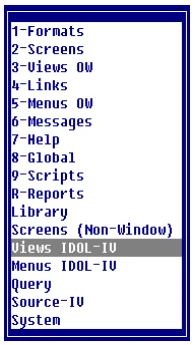
Select Views Dictionary-IV.
Views Dictionary-IV
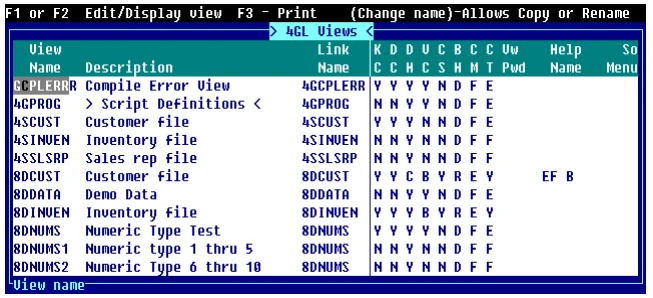
Components of Dictionary-IV Views
Section titled “Components of Dictionary-IV Views”The Dictionary-IV view is composed of the header information and a listing of the existing views.
Dictionary-IV View Header Information
Section titled “Dictionary-IV View Header Information”The header information consists of existing view names, view descriptions, link name, and view specifications as defined in the View definition.
View Names From 3 to 8 characters for the view name. You can copy or rename a view by typing over the View Name.
Description
Type up to 40 alphanumeric characters for the view description.
Link Name
Type from 3 to 8 alphanumeric characters for the link to be used for this view.
Dictionary-IV View Detail Information
Section titled “Dictionary-IV View Detail Information”Once you have copied, or renamed a view, you may change the view specification. You can press F9 to display and edit the view Specifications window.
Key Changes (KC)
Controls the ability to add and delete records and to use F8 CHANGE, DELETE, COPY, and MOVE commands in a view. Select one of the following:
- Y
- Allows changes to the key fields in the view.
- N
- Does not allow you to change the key fields.
Data Changes (DC)
Controls the ability to add and delete records and to use F8 CHANGE, DELETE, COPY, and MOVE commands in a view. Select one of the following:
- Y
- Allows changes to the non-key fields in the view.
- N
- Does not allow you to change the non-key fields.
Display Headings (DH)
Turn on or off the view headings. Select one of the following:
- Y
- Allows you to display the headings.
- N
- Does not display the headings.
View Changes (VC)
Controls the ability to delete or insert columns or to save a view. Select one of the following:
- Y
- Allows view specification changes.
- N
- Does not allow view specification changes.
Sort Changes (CS)
Turn on or off the ability to use F5 Sort to select a different sort sequence pattern. Select one of the following:
- Y
- Allows view sort changes.
- N
- Does not allow view sort changes.
Border Heading (BH)
Contains view window heading specifications. The headings always display in the top border of the view window. Select one of the following:
- D
- The view description is centered in the top border.
- V
- The eight-character view name is displayed in the left-most top border.
- B
- Both the eight-character view name and description are displayed in the top border.
- N
- No headings display in the top border.
CR Mode (CM)
Defines the action of the Enter key while in the view. Select one of the following:
- F
- Enter the normal field edit mode.
- S
- Enter screen maintenance.
- s
- Enter screen maintenance and return to View after record is edited.
- E
- Exit the view.
Cursor Type (CT)
Defines the view lightbar specifications. Select one of the following:
- C
- One character cursor marks the column/row intersection.
- E
- Full field lightbar marks the column/row intersection.
- F
- The full row is marked with the lightbar.
View Password (Vw Pwd)
Contains the 3 alphanumeric character password for the view.
Help Name Contains the name of the help module, which provides the text to use for the view under the application help option.
Sort Menu Name Contains the name of a menu to be used in place of the default selection pop-up menu. This menu can be more application specific than the default sort selection menu.
Example:
In an employee file you may decide to restrict a salary sort from the current operator. You may create a custom sort menu that does not include this salary sort.
When defining a sort menu, you must return a valid sort number with each selection contained in the developer-supplied menu.
Last Change Date
Displays the date of the last change to the selected Class definition.
Create Date
Displays the date of creation of the selected Class definition.
Dictionary-IV View Database Maintenance
Section titled “Dictionary-IV View Database Maintenance”For more information about view maintenance, see CONNECT VIEW in the Dictionary-IV User Guide.
From the Dictionary-IV Developer Guide, version 8.9.1. Open this page in the PDF