

View Font and Colors tab
Define the View colors
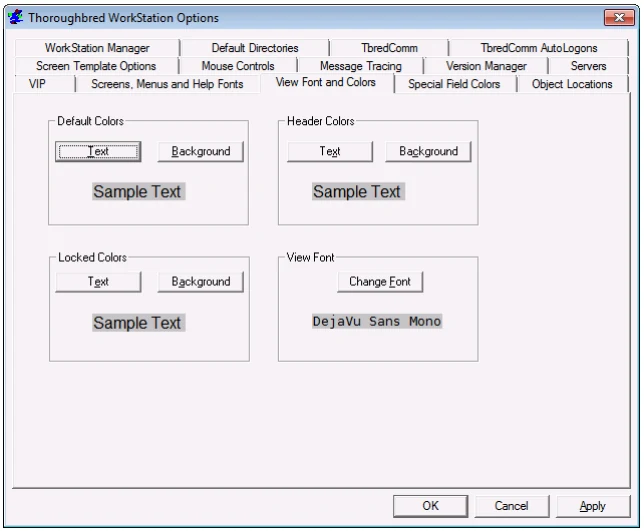
The procedure is the same for setting the Default Colors, Header Colors, and Locked Colors.
With the Text button you can define the color of the display text. With the Background button you can define the color of the area surrounding the display text.
Select Default Color to change the color of the data text or background within your View.
Select Header Color to change the color of the header text or background of your View.
Select Locked Color to change the color of the locked column text or background of locked columns in your View.
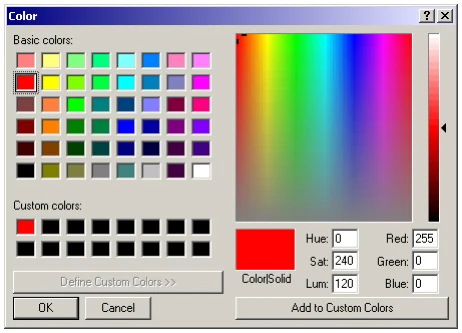
The procedure for selecting the Text and Background color is the same. Define the colors using the usual Windows procedure. Select OK to accept the changes. Select Cancel to exit without saving the change.
Define the View Fonts
Define the font family, style, and point size of your views. Select the Change (View) Font button and the following appears:
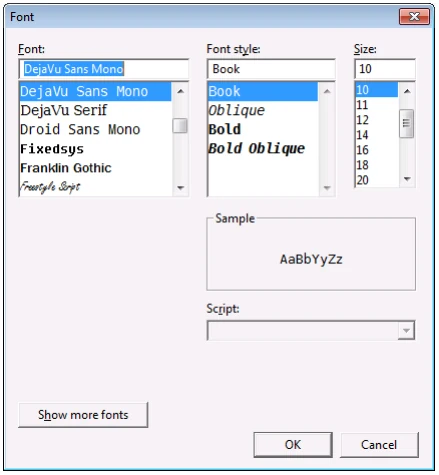
You may highlight the Font family, Font Style, and point Size. Select Apply to accept the change. Select Cancel to exit without saving the change.
From the WorkStation Manager, version 8.9.1. Open this page in the PDF