

Printer Table Maintenance
This utility is used to define and maintain printer tables for your system. Printer tables can be created, copied, and edited. The Printer Assignment Utility can be used to assign these tables to specific printer codes.
Printer tables define mnemonics, which are used to communicate certain functions or operations to the printer. Your printer must support all the capabilities that you use in the table (e.g., fonts, compressed pitch, alternate character sets, etc.). Refer to the printer manual for this information.
Select Printer Table Maintenance from the Dictionary-IV Utilities Menu or from the System Administration options. The system displays the following screen:
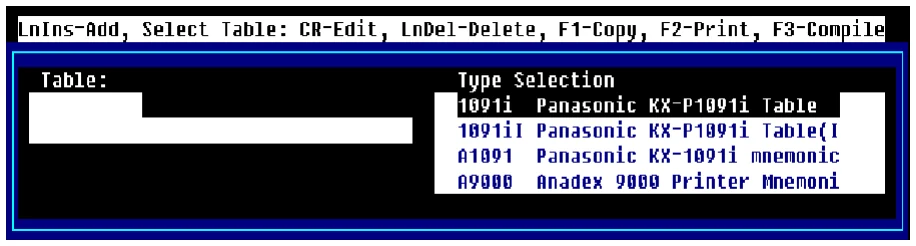
The following keys are available in Printer Table Maintenance:
Line Insert Add a printer table.
Enter Edit a printer table.
Line Delete Delete a printer table.
F1 Copy a printer table.
F2 Print the table list.
F3 Compile the printer table.
Select Line Insert (to add), Enter (to change), Line Delete (to delete) a printer table.
Add Printer Table
Section titled “Add Printer Table”Press the Line Insert key to add a new table. The cursor is positioned at the Table window.
Table
Type up to 6 alphanumeric characters for the Table Name and press Enter.
Description Type up to 40 alphanumeric characters for the description and press Enter. The cursor moves to the printer mnemonics editor. Add printer table commands as needed.
Press F4 to save and exit the definition.
Change Printer Table
Section titled “Change Printer Table”Use the Up Arrow and Down Arrow keys to scroll through the printer selections and press Enter to select a table to be changed.
Description
Change the 40 alphanumeric character description.
Printer Mnemonics
From the description press Enter to edit the printer mnemonics.
The following keys are active in the printer table definition:
- Character/Line Insert keys
- Character/Line Delete keys
- Tab/Back Tab keys
- Page Up/Page Down keys
- Home
The Home key provides progressive movement depending on where the cursor is located: first column, top line of window, first line of text, or end of text.
Each printer command is defined in the following manner:
- command-name
- command-sequence comments
Command Name The command name is a 2 to 6 character identification for the control sequence being defined. This entry must begin in column one of the first definition line.
Command Sequence A command sequence may consist of any combination of Thoroughbred Basic printer mnemonics, hexadecimal, numeric or character constants, internal variables, or other command sequences.
Any numeric value alone will be interpreted as a numeric constant.
Any value enclosed in quotation marks will be interpreted as a character constant.
Any value enclosed by either dollar signs or matching brackets will be interpreted as a hexadecimal constant.
A command sequence, when used in another command sequence definition will be preceded by an ampersand (&). The definition of a command sequence must appear before any reference to that command is made.
A command continuation line must have a colon (:) in column one.
Comments
An asterisk (*) or exclamation mark (!) indicates descriptive information and is ignored by the printer.

The following are some examples of printer table definitions:
RESET ‘ES’,“E” !Reset (This will cause any unprinted data to
!print and the page to be ejected) setting page length !ES’,“&166P” will also feed any unprinted data
| CLOSE | &RESET | |||
|---|---|---|---|---|
| : | ‘ES’,“&10o1x” | !portrait, one copy, letter size | ||
| : | “2e6d62F”, | !top margin 2, 6 lpi, text !length 62 | ||
| : | ‘ES’,“9”, | !clear horizontal margins | ||
| : | ‘ES’,“&A01”, | !left margin zero | ||
| : | ‘ES’,“&d@”, | !underline off | ||
| : | ‘ES’,“(10U”, | !pc8 symbol set | ||
| : | ‘ES’,“(s0p0s0b3T”, | !fixed point upright normal courier | ||
| : | ‘ES’,“(s10.00h12.00V” | !10 pitch 12 point | ||
| OPEN | &CLOSE | !Same as close defaults | ||
| CW10 | ‘ES’,“(s10H” | !10 characters per inch | ||
| CW12 | ‘ES’,“(s12H” | !12 characters per inch | ||
| CW17 | ‘ES’,“(s17H” | !17 characters per inch | ||
| ULON | ‘ES’,“&dD” | !Underline on | ||
| ULOFF | ‘ES’,“&d@” | !Underline off |
The following explains controlling the font, character height and width when slave printing to a GDI printer. This requires a True Type Outline font.
Set the font name:
'ES',$46xx$,"Font Name" - xx = binary length of "Font Name" Max font name length = 31Set the character width and height:
'ES',$57xx$ - xx = $0A$ to $FF$ sets the default width.'ES',$48xx$ - xx = $0A$ to $FF$ sets the default height.
For printers using 600 DPI:
'ES',$573C$ sets 10 CPI ($3C$ = 60)'ES',$4864$ sets 6 LPI ($64$ = 100)These are intended to be used before any data is printed. However, they may be set at any time. A ‘PB’ mnemonic is recommended to ensure complete sequences are sent to the driver. Some usage affects other settings. Example - setting character width will affect sequences referring to the characters, such as set left margin.
The following are example modifications to the STNDRD printer table:
Add the following to the OPEN:
'ES',$460B$,"Courier New",‘ES',$573C$, ! 10 cpi (600/60) (3C) 60 pts'ES',$4864$ ! 6 lpi (600/100) (64)Add or modify the following CW and LI values (assuming a 600 dpi printer):
CW10      'ES',$573C$      ! 10 cpi  (600/60)   60 ptsCW12      'ES',$5732$      ! 12 cpi  (600/50)   50 ptsCW17      'ES',$5723$      ! 17 cpi  (600/35)   35 ptsCW6       'ES',$5764$      ! 6 cpi   (600/100) 100 ptsCW8       'ES',$574B$      ! 8 cpi   (600/75)   75 pts
LI6       'ES',$4864$      ! 6 lpi   (600/100)  100 ptsLI8       'ES',$484B$      ! 8 lpi   (600/75)    75 ptsLI4       'ES',$4896$      ! 4 lpi   (600/150)  150 pts
The DSD() function can be used to retrieve the current settings. This information is only available for Spool Type 3 printers after an OPEN has been executed.
21,2 16 bit unsigned binary Horizontal Resolution23,2 16 bit unsigned binary Vertical Resolution25,2 16 bit unsigned binary Character Width27,2 16 bit unsigned binary Character Height29 up to 31 characters Font Face NameWhen you have finished editing press F4 to save and exit the definition. The system prompts:
Save text?
Select one of the following:
Y Saves changes.
N Exits without saving changes.
The system returns you to the Type Selection window.
Delete Printer Table
Section titled “Delete Printer Table”Scroll to the table that you wish to delete and press the Line Delete key. The system displays the selected printer table and prompts:
Delete this Table?
Select one of the following:
Y Deletes the table.
N Cancels the delete operation.
Print Printer Table
Section titled “Print Printer Table”Scroll to the table that you wish to print and press F2. The printer selection is displayed and the system prompts:
Select Printer (LP): LP________
Type the name of the printer you wish to use and press Enter.
Copy Printer Table
Section titled “Copy Printer Table”Scroll to the table that you wish to copy and press F1. The printer selection is displayed and the system prompts:
Enter Name for new Table______
Type up to 6 alphanumeric characters for the new table name and press Enter.
From the Dictionary-IV Administrator Guide, version 8.9.1. Open this page in the PDF