

Data Classes
Library
Section titled “Library”A library collects all of the classes relevant to an application or subsystem. A library name is two alphanumeric characters, which are used to preface all names of classes in the library.
You can explore the library by moving the cursor from cell to cell in the Library Header, an example of which is shown below:
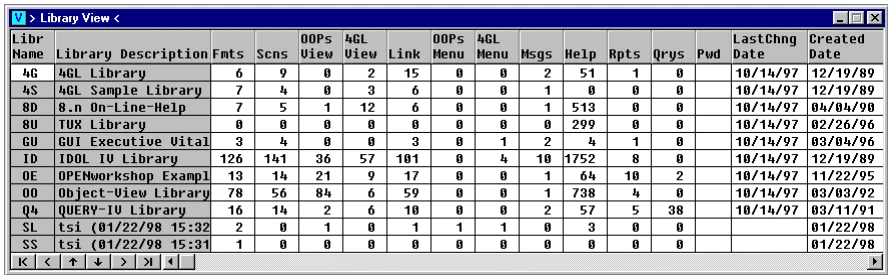
Select View Library Formats to display the Format Header view, which lists all formats defined for the library. View All Formats displays all formats known to the system. Print prints some or all the formats in the library.
Format
Section titled “Format”A format collects a set of data element names that will be stored in a single file in the OPENworkshop file system or that make a logical group for other processing reasons.
To maintain an existing format or to create a new one move to the Format Header view as shown below:
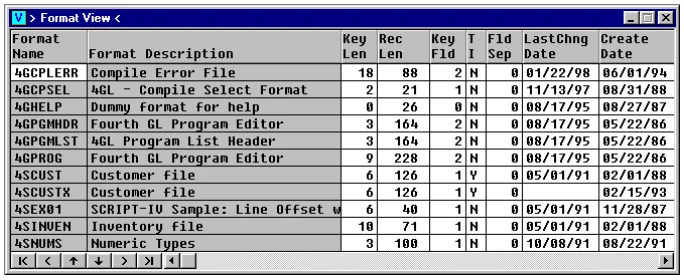
Select Line Insert to add a new format. OPENworkshop creates a new record and waits for you to enter the format name and description. To delete a format, select Line Delete.
To modify a format definition, select Edit (F1) to display the Format Maintenance screen:
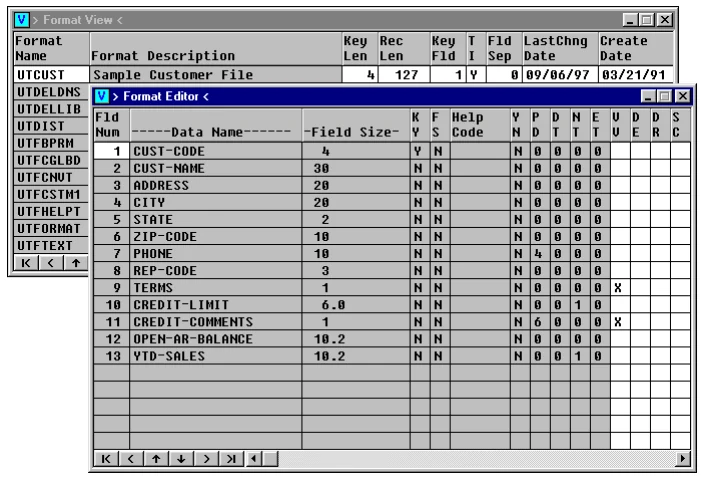
To change an existing data element name, move the cursor to the required data element name using Up Arrow and Down Arrow keys, then select Edit (F1). To insert a new data element name, move to the next blank space and type the required name. Data element names can be reordered in the format by selecting Move.
For more information on maintaining data element names within a format, see the following subsection. The Dictionary-IV Developer Guide also provides extensive information.
Data Element Names
Section titled “Data Element Names”A data element name defines an item of information, together with its attributes. A data element name definition also specifies methods to be used whenever the data item is created, displayed, or amended. The attributes, directives, and methods associated with a data element name are defined in a format.
A data element name defines attributes of the data item, such as length, data type, padding, etc. In addition, it defines directives that control the dynamic behavior of the application when the data element name is used. Please see on-line help or the Dictionary-IV Developer Guide for an explanation of features not covered in this section.
Valid Values
As in Dictionary-IV, OPENworkshop will validate user input to a field against values in a list, a range, a text field, or a lookup file. For more information, see the Dictionary-IV Developer Guide.
See the section on Other Directives later in this section for the full syntax available for Valid Values.
In addition to capabilities provided in Dictionary-IV, OPENworkshop supports the following directives:
Compares the input with key values in the specified view. If the value is present it is accepted, otherwise the view is opened and a valid value can be selected by scrolling in the view. For more information see the section on LOOKUP VIEW later in this section.
Specifies a screen that should be displayed when the cursor is in data entry mode and Select Screen (F9) is selected. Typically, this screen will be used to display full information on the item. For more information see the section on LOOKUP SCREEN later in this section.
Default Values (Preset Values)
Defines a default value that is displayed when the data element name is accessed.
Delete Record
You can specify that a record may only be deleted if the data element name contains a specified value or condition.
Security
OPENworkshop extends the security facilities of earlier releases of Dictionary-IV. Users may belong to one or more security groups. A data element name can be specified only to allow access to members of one or more security groups.
To specify that a data element name should apply security group controls, enter the group or groups allowed access, surrounded by square brackets, in the security field.
Example
[02,31]Specifies that only members of security groups 02 and 31 may access the information in this data element name. This level of security overrides all others described in the Dictionary-IV Reference Manual, but can be used in conjunction with the previously released features as well.
Special Prompts
OPENworkshop displays prompts to users as they move between data element names in a screen or view. In a graphical view the prompt is displayed in the help panel of the view. On a character terminal the prompt is always displayed on the first line of the screen.
These prompts are maintained in the dictionary as a help definition, all special prompts for a format are grouped in a single help text definition. Each prompt takes one line in the help definition, and prompts are indexed by line number. The help definition that contains these prompts has the same name as the format.
The special prompts field of the data element name definition contains the index to the prompt required for this data element name. Each data element name may have a view prompt and a screen prompt.
If a screen prompt is specified, it is displayed whenever the cursor is in the data element name in data entry mode, i.e., in a screen or after data entry mode has been entered in a view.
If a view prompt is specified, it is displayed whenever the cursor is on the data element name in cursor mode. Additionally, if no screen prompt is specified, the view prompt is displayed when in data entry mode.
In the Special Prompts or Message field of a data element name
VP[1];SP[6]specifies VP[1] of the Special Prompts help for the relevant format that contains the view prompt and line 6 contains the screen prompt. The Special Prompts help file can be edited by selecting that option when editing the data element name definition.
Note: For more information, see the section on Defining special prompts later in this section.
Pre-Process
OPENworkshop evaluates and executes any pre-process directives after a data element name has been read and before data is input in a view or screen. Specifically, the pre-process is activated:
- In a view, when the operator presses any alphanumeric or punctuation key or presses Enter to choose data entry mode.
- In a screen, when the cursor moves to a field.
These directives can be used to prepare the data element name for display, or to offer the user choices in the functions to perform. Note that a view method can also be specified for a view to prepare a row for display after a row has been read. For more information, see the OPENworkshop Classes section of this manual.
In addition to facilities offered by Dictionary-IV, OPENworkshop supports the following directives:
Specifies a method to be used to prepare a new row in a view after it has been created using Line Insert. An insert method can only be specified in the first data element name of the primary key of a format. This directive is available in OPENworkshop only. For more information, see the OPENworkshop Methods section of this manual.
CONNECT
Passes control to a method, view, screen, help, menu, report, or query. In most cases, the CONNECT directive specifies a function key that the user must press to make the connection. This directive is available in OPENworkshop and Dictionary-IV.
The following directives are only executed by a view, and only after a CONNECT has been selected and before it is executed.
WRITE MODR
Rewrites a modified row in a view before executing a CONNECT. This directive is available in OPENworkshop and Dictionary-IV.
WRITE NEWR
Writes the row when a new row has been inserted in a view before executing a CONNECT. This directive is available in OPENworkshop and Dictionary-IV.
INDENTV
Forces the next view to be displayed indented relative to the current view. This directive is available in OPENworkshop and Dictionary-IV.
GOTO *
Scrolls the current row to the first row of a view before any CONNECT is executed. This directive is available in OPENworkshop and Dictionary-IV.
Post-Process
OPENworkshop evaluates and executes post-process directives in a view or screen when the user exits from data entry mode:
- In a view, when the user is in data entry mode and presses Enter, or a cursor movement key.
- In a screen, when the cursor moves out of the field.
In addition to the facilities offered by Dictionary-IV, OPENworkshop supports the following directive:
CONNECT METHOD
Executes the specified method after data input is complete in a screen or a view. If the data element name is displayed in a view, the method may return post-processing directives that will be honored by the view before control is returned to the user. Typically, these directives update the displayed row. For more information see the section on Method Return Directives later in this section.
Audit
OPENworkshop retains the audit capabilities of Dictionary-IV, allowing an audit trail of data changes to be maintained. For more information, see the Dictionary-IV Developer Guide.
Example Data Element Name Definitions
Section titled “Example Data Element Name Definitions”The first set of examples is based on the following view, which is taken from the sample application shipped with OPENworkshop.
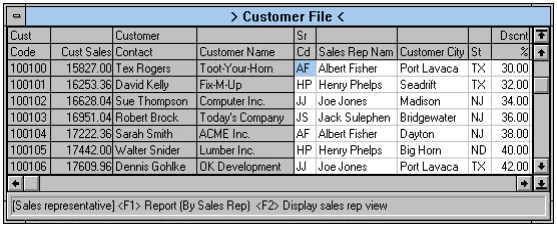
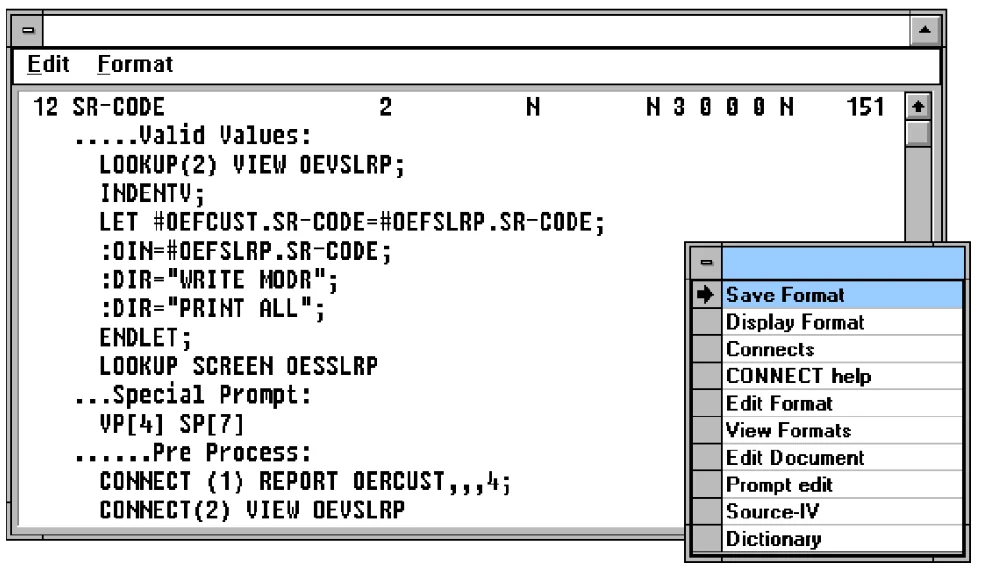
The following example shows the data element name definition for the Sales Rep column.
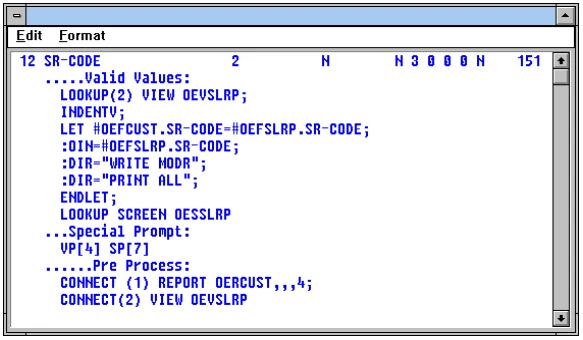
The Valid Values section validates that data entered is a correct and current code then, if so, accepts the data and reprints the row. Pre-process directives allow F1 and F2 to trigger a report and connect to a view.
Defining and Maintaining Data Element Names
Section titled “Defining and Maintaining Data Element Names”OPENworkshop provides two routes for data element name maintenance. The Format Maintenance screen, shown below, is used to create the data element name. See the Format section earlier in this manual for how to access the Format Maintenance screen.
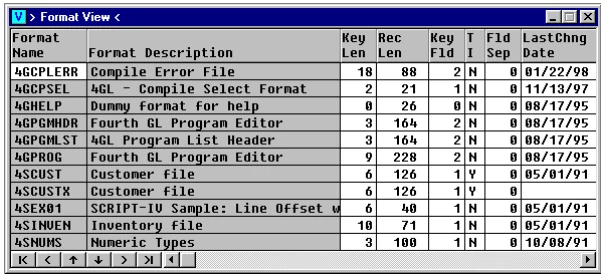
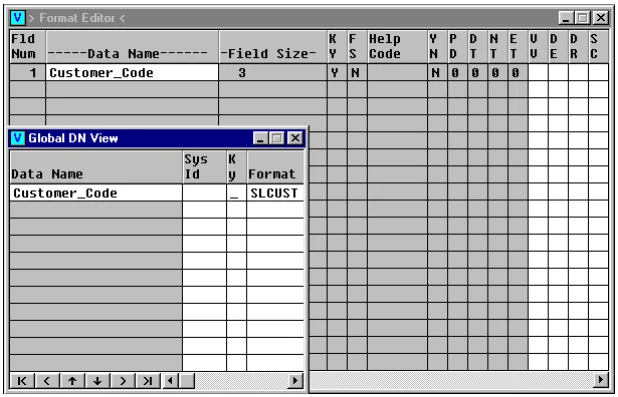
The cursor is positioned at the first data element name field. Type the first data element name required to commence the definition.
If the data element name you supply has already been used OPENworkshop will display a view that allows you to examine the existing definition and use it. You can also press F8 to display a view of all defined data element names. Data element names can be selected from this view.
Options available when pressing F2:
- Display Data Name Detail
- Shows detail of the data element name the cursor is located on.
- Global System Id VIEW
- Displays the Global System Definition. For more information, see the Global Cross Reference System section of this manual.
- Dataname Where Used (ALL)
- Shows the data element name used in the system where format is defined in the global dictionary.
- Dataname VIEW all systems
- Shows a view of all data element names for all systems.
Either select the existing definition or, if this is a new data element name, enter new attributes and directives in the fields provided. For more information on the attributes available for data element name definitions, see the Dictionary-IV Developer Guide.
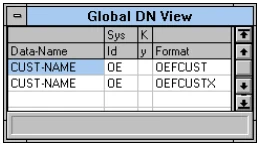
To maintain an existing data element name definition, you can use the screen shown above, but OPENworkshop provides a convenient alternative. This option is available whenever the cursor is in the required data element name field in a view or screen. For example, in the following view select Data Name Edit (F11).
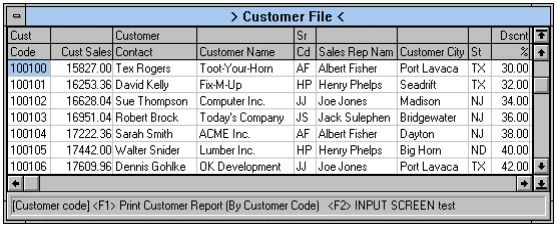
The data element name definition is displayed within a text editor that can be edited using the editor. Attributes are shown in the first line of the file, and succeeding lines display directives that define Valid Values, messages, pre- and post-processing directives, and other definitions for the data element name.
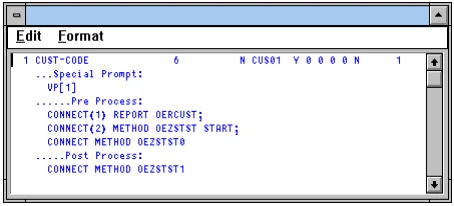
This definition contains directives organized into sections. The editor assists in creating headers for these sections, and handles indentation.
If you wish to add a new section into a data element name definition, position the cursor at the point you wish to insert the new section, then select Insert Section (F11). The resulting menu, shown here, is used to select the type of section required.
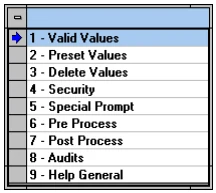
While you are editing a data element name definition a number of useful functions are available. Select Special Functions (F7) to display this menu.
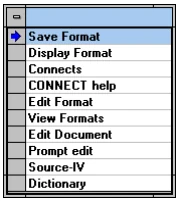
| Function | Description |
|---|---|
| Save Format | Saves the data element name definition as it currently is defined. This must be used, rather than Close, to save your work. |
| Display Format | Displays the definition of the entire format within the editor. However, no changes may be saved after this mode has been entered. |
| Connects | Displays only the CONNECT statements in the data element name definition, hiding other details. |
| Connect Help | Displays extensive help on the use of directives in data element names. |
| Edit Format | Enters format edit. See the Format subsection in this section. |
| View Formats | Displays and enters the Format Header view. |
| Edit Document | Opens the named document in edit mode. |
| Prompt Edit | Opens the special prompt file for the data element name in edit mode, allowing the prompts to be maintained. See the example following this table. |
| Source-IV | Enters Source-IV |
| Dictionary | Enters the main OPENworkshop dictionary menu. |
The following figure shows a sample view with the special prompt displayed for the Sales Representative Code column:
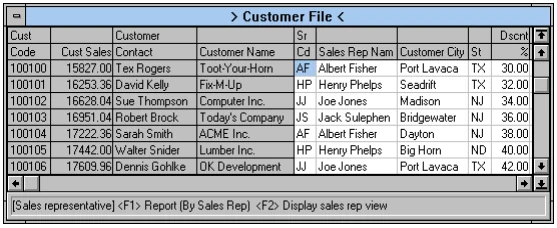
The next figure shows the data element name definition for that column, which was displayed by selecting Data Name Edit (F11).
Defining Special Prompts
Section titled “Defining Special Prompts”Two prompts are used in the previous example for the data element name. They are described as VP[4] and SP[7]. The text of these prompts is defined in the file, which is accessed through Prompt Edit on the Special Functions (F7) menu. This file, shown below, collects together all the special prompts defined for all data element names within the parent format.
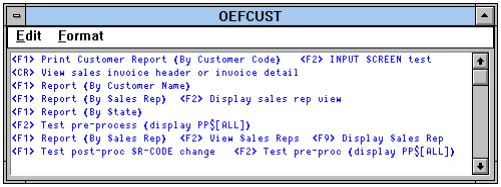
VP[4] instructs OPENworkshop to use the 4th prompt when displaying the data element name in a view, and SP[7] specifies that the 7th prompt is to be used when in edit mode of that data element name.
A link is a Dictionary-IV interface to a data file and associated dictionary definitions. It may be used in scripts, reports, queries, and database maintenance. It specifies default presentation classes (view and screen) to use to display the data and allow it to be edited. The link also specifies any trigger method to be used to ensure that referential integrity is maintained throughout the system when data referenced in the link is updated.
To add or modify a link definition move to the Link Header view for the application.
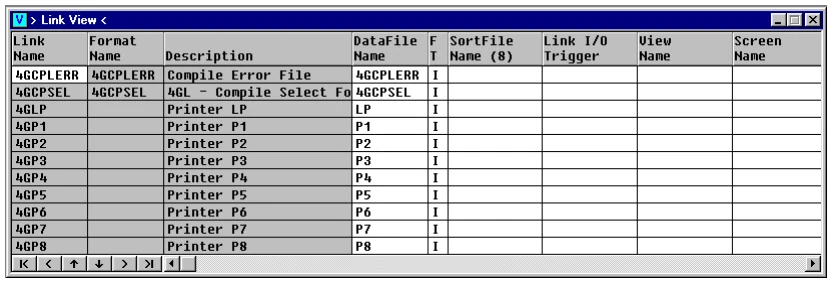
Select Line Insert to add a new link. OPENworkshop creates a new record and waits for you to enter the link name and description. To delete a link select Line Delete.
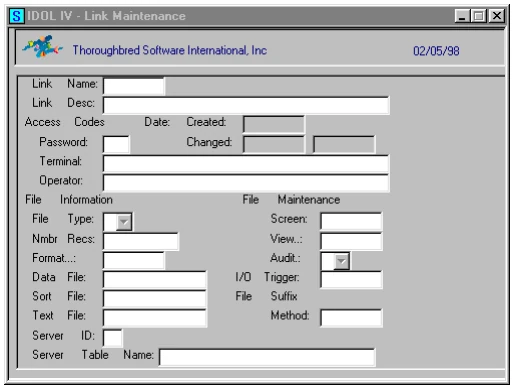
To modify a link definition, select Edit to display the screen for link maintenance.
| Field | Attribute |
|---|---|
| Access Codes | Allows access controls to be set for the data file controlled by this link. Access can be restricted to specific terminals or operator codes, and may be password protected. |
| File Type | Type of file. |
| Nmbr Recs | Number of records to create. When 0 is entered, an automatically expanding file is created. |
| Format | The format-name defines the data items referenced by the link |
| Data File | The name of the file containing the subject data. |
| Sort File | The name of the file containing the sort keys and index. |
| Text File | The name of the file containing text fields, if required. |
| Screen | The name of the default screen to use when F9 is pressed in a view. If no default screen is specified, OPENworkshop creates and displays a default screen whenever F9 is pressed in a view. |
| View | The name of the default view to use when displaying data from the link. |
| Audit | Enable or disable audits. |
| I/O Trigger | I/O trigger methods are responsible for controlling referential integrity in an OPENworkshop application. They are executed, when defined in a link, whenever the data file referenced by the link is about to be updated. Trigger methods ensure that any update is consistently applied across all files that rely on data values in the link. For more information, see the OPENworkshop Methods section of this manual. |
| File Suffix Method | A file suffix method generates a file suffix to be applied to file names to ensure that files are handled unambiguously within the file system. For more information, see the OPENworkshop Methods section of this manual. |
| Encrypt Flag | Enable or Disable AES256 bit strong encryption on Auto-Expanding Direct Files |
For more information on link attributes, see the Dictionary-IV Developer Guide.
From the OPENworkshop Reference, version 8.9.1. Open this page in the PDF