

Links
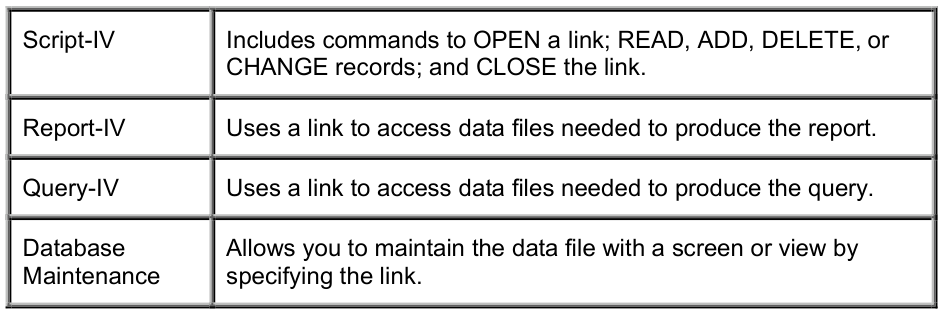
Links are Dictionary-IV interfaces to a data file and associated dictionary definitions. It may be used in scripts, reports, queries, and maintenance.
Data Encryption Auto-expanding Direct Files support AES256 bit strong encryption provided by the OpenSSL Software Foundation. For more information, see the Thoroughbred Basic Manual.
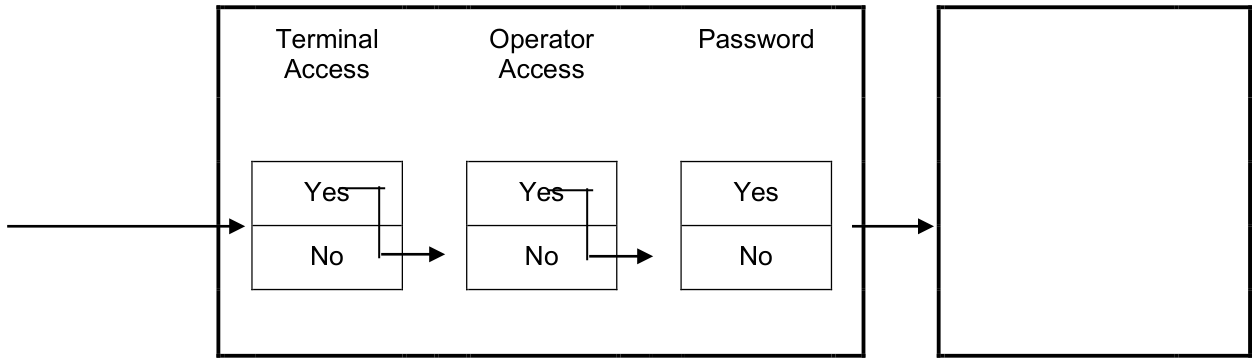
Security A password can be specified for the link in order to restrict access to the link and data file from all but those with knowledge of the password. This feature is active in database maintenance, Report-IV, and Query-IV.
Terminal ID and Operator ID screening can also be specified in a link to define restrictions to the link in database maintenance only. An indicator is used in the link to enable or disable all audits performed on the data file. This feature allows you to keep track of the maintenance performed on individual fields in the file in database maintenance only.
Security Function of a Link in Database Maintenance
Link Data File
Function of a Link
Section titled “Function of a Link”Links are an integral part of Dictionary-IV. This section provides an explanation of the function of a link.
Primary Function
Section titled “Primary Function”The primary function of the link is for access to a data file.
In a 3GL environment, you may access the data directly from the data file, and you must understand and control the layout of the file. There are few, if any, controls on access to the file.
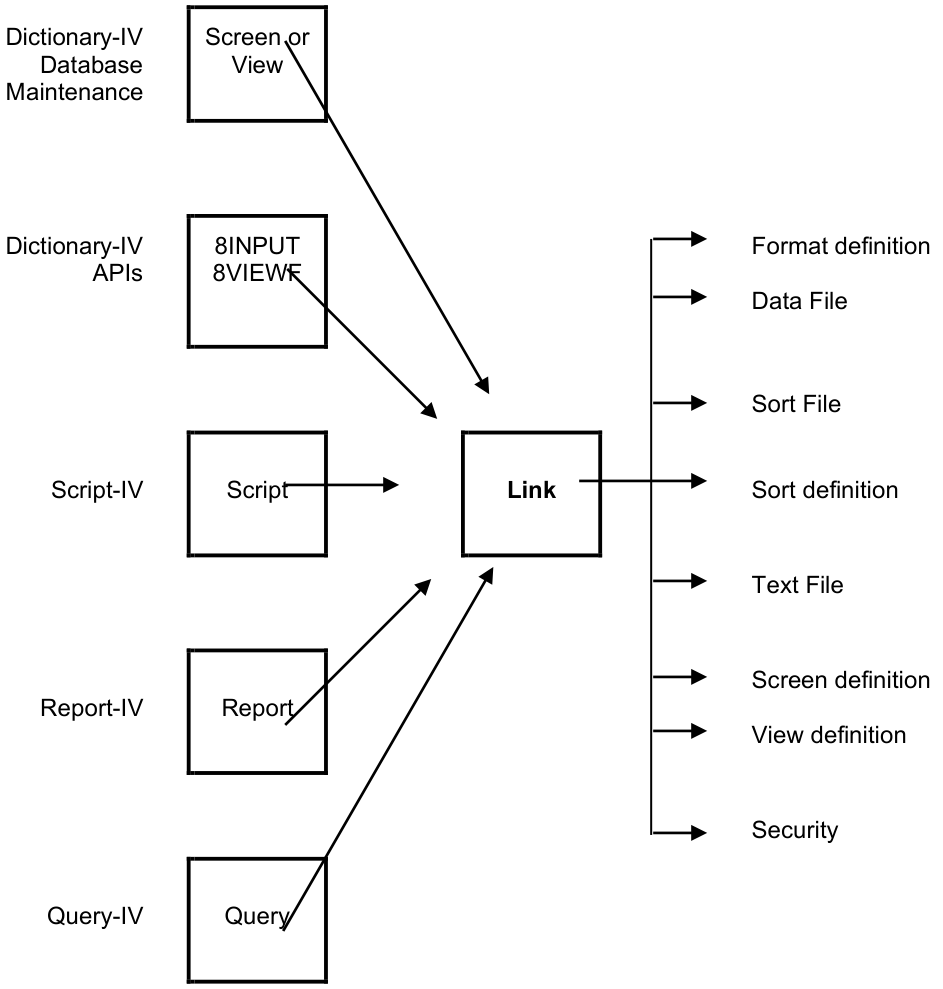
In Dictionary-IV, the interface to the data file is defined in the System Dictionary as a link. The link controls access to the data file. The primary specifications in the link are the format, data file, sort file, sort definition, text file, Screen definition, and View definition. For more information on sorts, see Sort Window. These are used when a link is accessed.
Primary Function of a Link
The format name is used to determine the format of the information in the data file. The secondary key or cross-index sort definitions are used to access the records in the data file in an order other than primary key order.
Depending on the file type, secondary keys may be stored in a separate Sort file.
Structural Integrity
Section titled “Structural Integrity”The data file, sort file, sort definitions, text file, and text records are tied together within a link because they are all based upon the Format definition. The format defines the record structure of the data file and is used as a basis for the sort definitions, and therefore as a basis for the secondary keys in the sort file.
Direct files have separate sort files, MSORT and TISAM files do not. MSORT and TISAM files have separate text files. Direct files do not. For more information, see the Thoroughbred Basic Developer Guide.
This structural interdependence requires that you maintain integrity in your links. The link cannot function logically if you link together physically unrelated definitions or structures.
Physically Related Structures for Direct Files
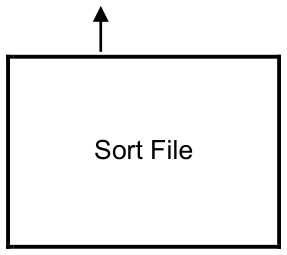
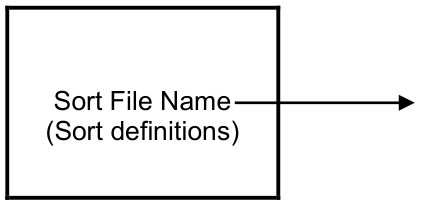
Physically Related Structures for MSORT and TISAM Files
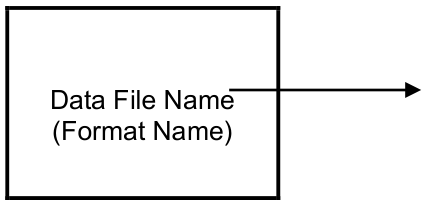
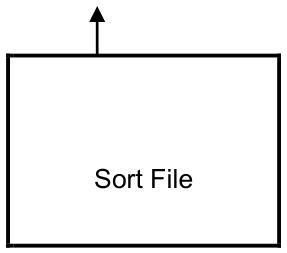
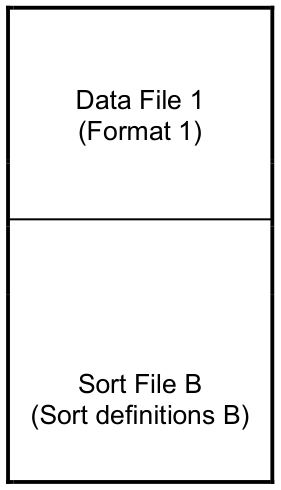
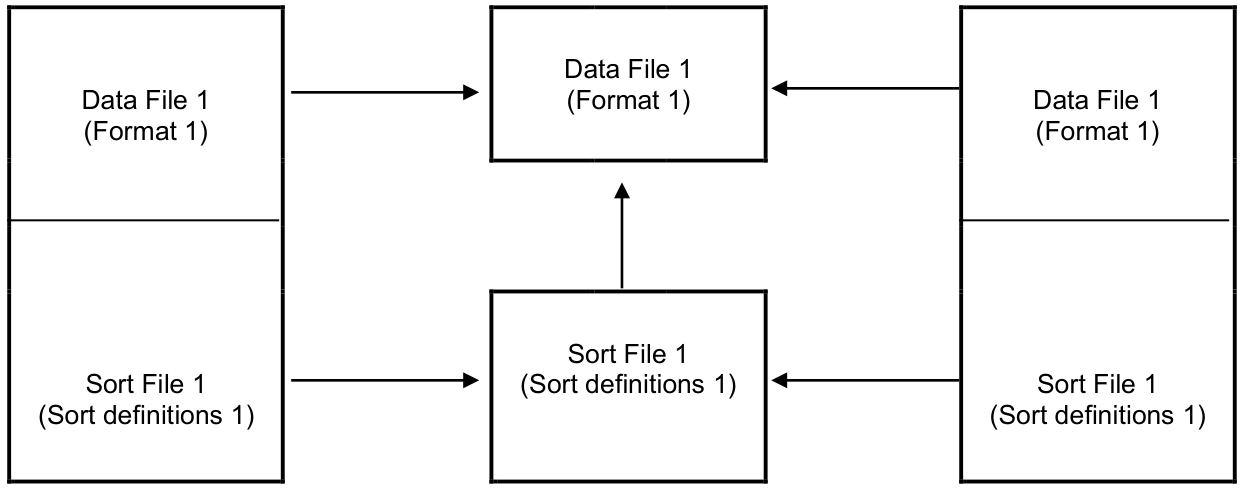
You must maintain structural integrity within a link as well as between links. In a specific link you cannot properly access data if you use a data file and format that are unrelated to each other. In two or more links, you must maintain a 1-to-1 correspondence between the link, data file, sort file, and sort definitions.
If you link together one data file (one format) and two different sort files or two sets of sort definitions in two or more links, you will not be able to properly access the data using a sort.
Multi-format Files The 1-to-1 correspondence is not required in a multi-format file (a single data file that has more than one record layout).
A data file that stores records having more than one type of format is called a multi-format file. For example, if customer orders are stored in one data file, the file may contain order header records and order detail records.
Or perhaps you may store several lists of valid values in one lookup file.
Thoroughbred Dictionary-IV supports multi-format files when a preset key value is preset in the key area.
Create a multi-format File
Define preset key-prefix fields in the formats.
- Add a preset key field to the format. Key presets work best if they are placed at the beginning of the key. Typically, key presets are found in the beginning of the key area. Using this methodology, Dictionary-IV will only access a range of records using the preset value.
- Define the security value for the preset key fields as 3,0.
- Specify a different default value for the preset key fields.
- Define all other attributes the same for the preset key fields (including length and padding).
Define the multi-format file linkage
- Define one link for each format.
- Specify a different format name in each link.
- Specify a different sort file name in each link.
- Specify the same data file name in each link.
Multi-format File Linkage for Direct Files
Link A Data File 1 Link B
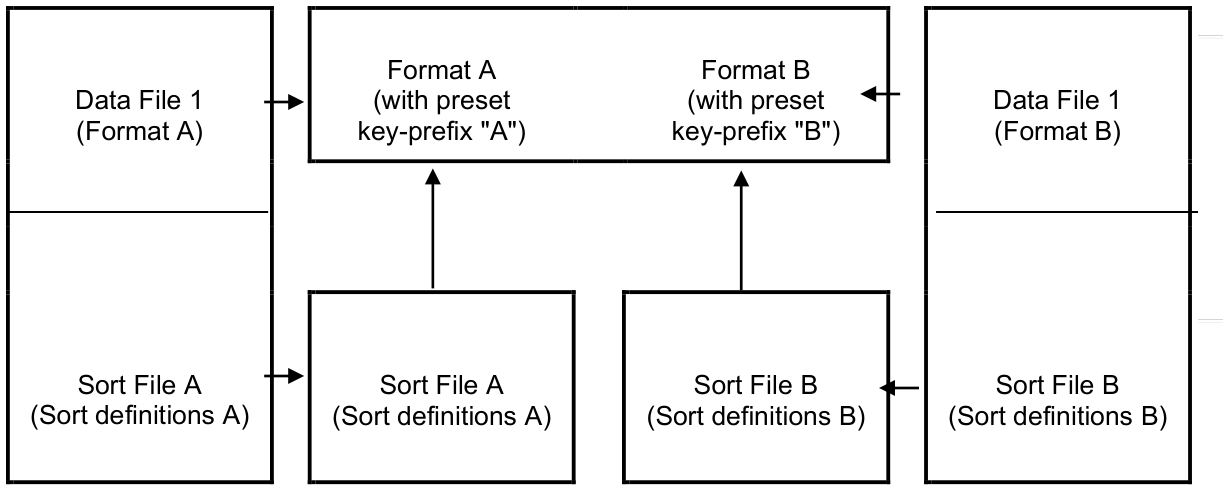
Operation Each link is treated as a logical data file in Thoroughbred Dictionary-IV. When you access the link, you access only those records in the physical data file with the format specified in the link.
Correct 1-to-1 Linkage
Link A Link B
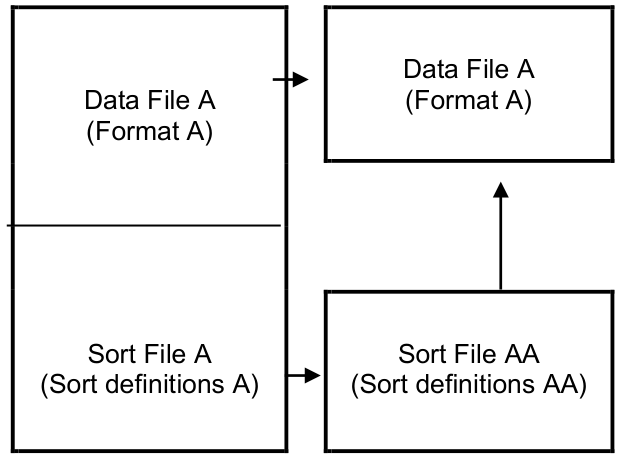
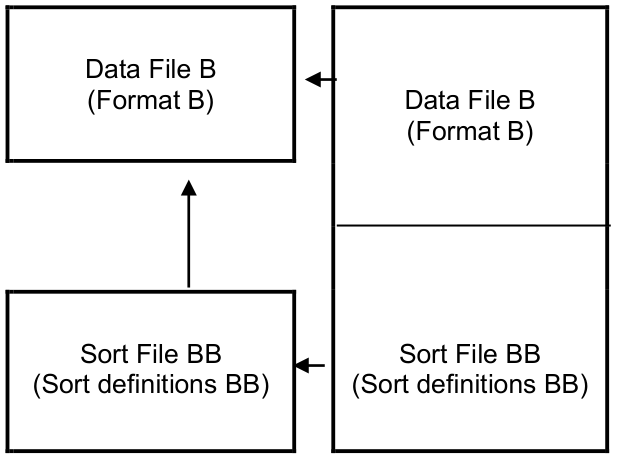
Incorrect Linkages for Direct Files
Link A Link B
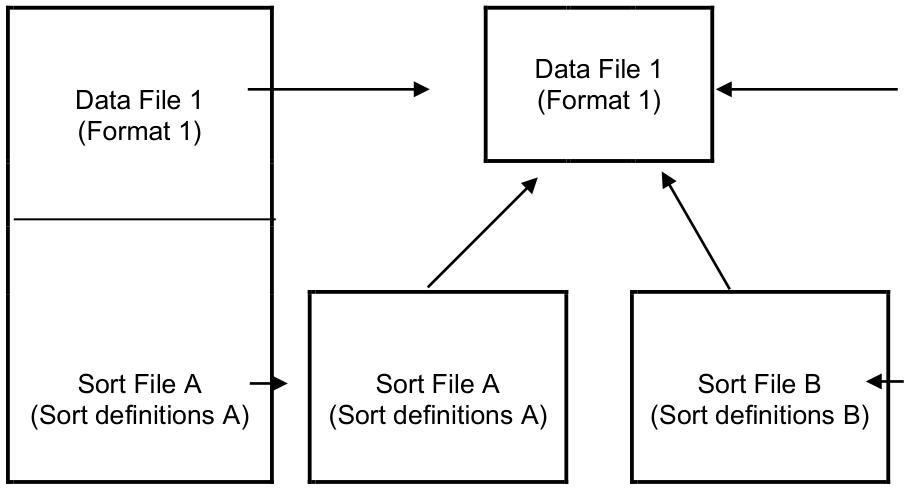
Link A Link B
Using Dictionary-IV database maintenance to create the link for you automatically can help to maintain structural integrity.
Other Functions in Database Maintenance
Section titled “Other Functions in Database Maintenance”In addition to the primary features of a link, several additional features are available in Dictionary-IV Database Maintenance. These include data security, the ability to specify a screen or view for maintenance, define the data file type and size, and define the Server ID.
Selection
Section titled “Selection”Select 1-Edit from the Dictionary-IV Development Menu or press F1 from any Dictionary-IV menu. The system displays the Class pop-up menu:
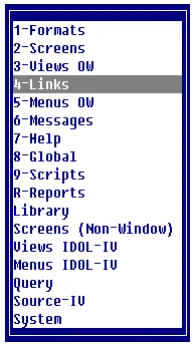
Select 4-Links
Link View
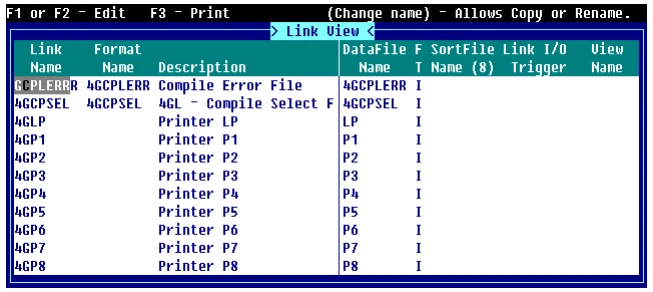
The standard editing keys are active in the Link definition header and the Sort definition window.
From this Link View you can access the Link Name, Format Name, Data File, Sort File, Link I/O Trigger (if you have OPENworkshop installed), View Name, and Screen Name.
Link Name Press F1 to edit the selected Link. For more information, see Link View Detail Information: F1 Edit the Link in this document.
Format Name Press F1 to edit the format of associated with the selected Link. For more information, see Link View Header Information.
Data File Name Press F1 to modify the data file. For more information, see File Transfer and Expand in the Thoroughbred Basic Utilities Manual. Press F2 to display the data file information. For more information, see Display File Parameters in the Thoroughbred Basic Utilities Manual. Press F3 to validate the Format Name, Data File Name, Record size, and File Size.
Sort File Name Press F1 to modify the sort file. For more information, see File Transfer and Expand in the Thoroughbred Basic Utilities Manual. Press F2 to display the sort file information. For more information, see Display File Parameters in the Thoroughbred Basic Utilities Manual.
Link I/O Trigger Press F1 or F2 to Edit/View Methods. You must have OPENworkshop installed to perform this edit/view. For more information, see the OPENworkshop Reference Manual.
View Name Press F1 to edit the View. If a View Name does not exist the system prompts you through creating one. Press F2 to display the View.
Screen Name Press F1 to edit the Screen. If a Screen Name does not exist the system prompts you through creating one. Press F2 to display the Screen. Press F3 to perform Screen file maintenance.
Components of Link Views
Section titled “Components of Link Views”The Link definition is composed of two parts: the header information and the Sort Window.
Link View Header Information
Section titled “Link View Header Information”The Link View header information consists of the Format Name, and Description.
From the Link View you can edit the following by pressing F1 in the appropriate field:
- Format Name
- Data File Name
- Sort File Name
- Link I/O Trigger (This option is available only if you have installed OPENworkshop.)
- View Name
- Screen Name
Link Name Type from 3 to 8 alphanumeric characters for the name of this link and press Enter. This field is mandatory.
Characters one and two are the Library name. Characters three through eight are the link name.
For more information, see Class definition in this document, which provides a file naming convention you may implement.
Press F1 (or F2 to edit the link). The system displays the Link Name, Link Description, Last Change Date, and Create Date. For more information, see Edit the Link.
Format Name Type from 3 to 8 alphanumeric characters for the name of the Format and press Enter. Press F1 to edit the Format, press F2 to display the Format View, or press F3 to display the Format.
Description Type up to 40 alphanumeric characters for the description of this link and press Enter. This field is optional.
Link View Detail Information: F1 Edit the Link
Section titled “Link View Detail Information: F1 Edit the Link”Password Type from 1 to 3 alphanumeric characters for a password and press Enter. If the system security is active and a link password is specified, the password is required to access the link during database maintenance. This field is optional.
Terminal Access Use this field to allow access to or restrict access from the terminals. The syntax is the same as Menu definition.
0, term-code [,term-code]...- 0
- allows access to the specified terminal codes.
- term-code
- defines the 2 alphanumeric character terminal codes for the terminals that can access this selection.
1,term-code [,term-code]...- 1
- denies access to the specified terminal codes.
- term-code
- defines the 2 alphanumeric character terminal codes for the terminals that cannot access this selection.
- If this
- is left blank all terminals have access. Terminal access is applicable to scripts.
For more information about other types of security (i.e. group security), see the OPENworkshop Reference Manual under Security.
Examples:
0,T0,T3
Allows access for terminals T0 and T3.
1,T1
Denies access for terminal T1.
Operator Access Use this field to allow access to or restrict access from the operators. The syntax is the same as Menu definition.
0, oper-code [,oper-code]...- 0
- allows access to the specified operator codes.
- oper-code
- defines up to 3 alphanumeric characters for the codes of the operators that can access this selection.
1,oper-code [,oper-code]...- 1
- denies access to the specified operator codes.
- oper-code
- defines up to 3 alphanumeric characters for the codes of the operators that cannot access this selection.
- If this
- is left blank all operators have access. Operator access is applicable to scripts.
Examples:
0,JBT,NRS
Allows access for operators JBT and NRS.
1,JMG
Denies access for operator JMG.
File Type
Specifies the file type to be created or used. Select one of the following:
- I
- Dictionary-IV file type (Direct, Indexed, or Sort).
- M
- MSORT file (must have key fields defined).
- T
- TISAM file (must have key fields defined).
- U
- Text file. Cannot perform maintenance on this file type.
The value of this field cannot be changed if:
- Sort definitions exist.
- The data file field contains the file suffix character ( @ ).
- The data file exists and the file type is different than the new value being entered.
To specify an auto expanding direct or sort file, set the file type to I and the number of records to 0.
Number of Records (Nmbr Recs)
Specifies the number of records used to create a data file. Valid entries range from 0 to 2, 147,483,647. The default value is 300 records. To specify an auto expanding direct or sort file, set the file type to I and the number of records to 0.
Format Type the 3 to 8 alphanumeric character name for the Format definition contained in this data file and press Enter. Press F2 for a lookup of available Format definitions.
Data File
Specifies the Data file name to be accessed by the Link.
Press F2 for a lookup of currently referenced data file names.
To perform an integrity check and a clean up of secondary key files, press F5 on the data file name. Any extra secondary keys are removed; any missing secondary keys are added. This test is repeated until no more errors are found. This can be run without requiring exclusive use of the data file.
When the suffix character is entered as part of the file name, the current value of the Dictionary-IV FILE-SUFFIX variable will be substituted in place of the file suffix character.
Be sure that the length of the file name does not exceed 14 characters after the file suffix value is substituted.
MSORT and TISAM file names contain data records that end with .dat suffix. Be sure that the length of the file name does not exceed 14 characters after the file suffix value is substituted.
Sort File
Specifies the name of the file containing the file’s sort keys. The default name is the Data file
name plus a .sk suffix.
The default is applied in the link when sorts are created (press F1 or F8 from the sort editor) and the Sort file name is blank.
This field is only entered for Dictionary-IV file types (I). For MSORT (M) and TISAM (T) files, the Data file name is copied into this field when sorts are built. It contains the sort key index and may have an .idx suffix.
If your TISAM files are compatible with ISAM Informix SE and Focus COBOL they may require the extension on the file name (for example, CUST.idx).
Press F2 for a lookup of sort file names used by existing links.
The sort file will not exist until you create and build your first sort. For more information, see the Sort Window.
Text File Type the 3 to 8 alphanumeric character name of the data file to store text fields for MSORT and TISAM file types and press Enter.
When a data file is created, this text file will be created. The default name will be the data file name with the extension .TXT.
This field is only entered for MSORT and TISAM (C-ISAM) file types.
Press F2 for a lookup of currently referenced text files.
Screen File Maintenance Type the 3 to 8 alphanumeric character name for the screen to be used when the Link is referenced for single-record maintenance. Press Enter.
This field is optional and if it is left blank or an invalid screen is entered, then a default screen is automatically generated from the Data Names in the Format definition.
Press F2 for a lookup of available Screen definitions.
View File Maintenance Type the 3 to 8 alphanumeric character name for the view to be used when Link is referenced for multi-record maintenance. Press Enter.
This field is optional and if it is left blank or an invalid view is entered, then a default view is automatically generated from the Data Names in the Format definition.
Press F2 for a lookup of available View definitions.
Audit Enables or disables audits for this Link. Changes made using CONNECT VIEW, or CONNECT SCREEN are recorded in the specified audit file(s).
Audit Function of a Link in Database Maintenance
Data File Link Format Audit File
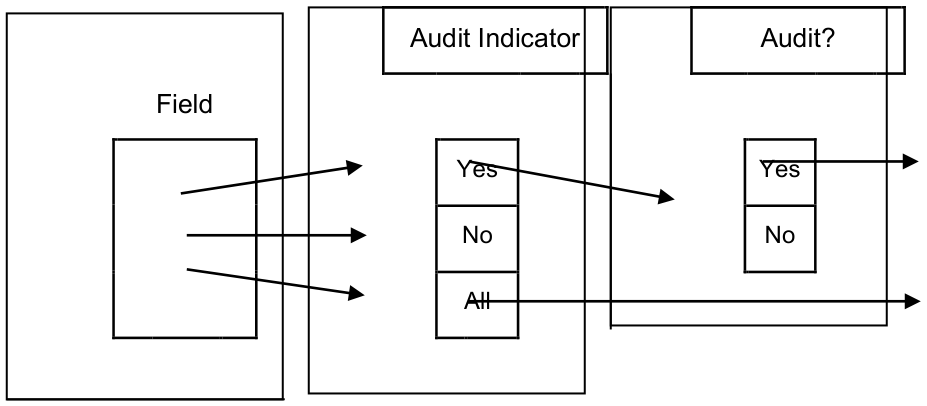

Select one of the following:
- A
- Audits all Data Names in the format. The data indicator (0-7) will be ignored. The default audit file (IDAUDT) is used for elements not specifying an audit file.
- Y
- Audits only Data Names with audit specifications in the format.
- N
- Disables all audits for this Link.
I/O Trigger This field is available only if you have OPENworkshop installed. Defines the name of a Script of Basic method that will be executed each time an update is required to the data file specified in the link. The VIEW class, SCREEN class, and SCRIPT UPDATE directive will execute this method for all updates requested of the class or directive. For more detailed information see the I/O Trigger on-line help.
File Suffix Method This field is available only if you have OPENworkshop installed. A file suffix method can be used to build the file suffix that is contained in the global object #IDSV.FILE-SUFFIX. The file suffix method is specified in the link header and, when specified, will be executed prior to applying a file suffix when a link is opened. When executed, the link name being opened will be passed in entry 1 of a MSG$ array.
CALL "file-suffix-method", MSG$[ALL]
MSG$[0]     Return status.[1]   Link name to be opened.
If the file suffix method can be found it will be executed, if not, it will be ignored and LINK open will continue as if a file suffix method was not specified. Any value in entry [0] is all right.
Server ID Type the 2 alphanumeric character designation for the server system where the data file resides. This value is configured in the IPLINPUT file. Press Enter.
In order for a file to be recognized as a server file by the system, the file type must be set to M and valid information must be entered in Server ID and Table Name fields. If the Server ID or Table Name is blank, the file will be considered a local file.
TS DataServer must be enabled to access this field. For more information, see the TS DataServer documentation.
Server Table Name Type up to 30 alphanumeric characters for the name of the physical file that is accessed in the server native environment and press Enter. This field is only accessible for links that reference server files.
TS DataServer must be enabled to access this field. For more information, see the TS DataServer documentation.
Encryption Flag By default the data encryption flag is set to N. To enable AES256 bit strong encryption see the Encryption Flag to Y and then create a new file. Setting this flag to Y you will not encrypt an existing data file a new data file must be created. For more information, see the Thoroughbred Basic Manual.
Sort Window
Section titled “Sort Window”The Sort window allows you to define sorts.
The Sort command creates secondary keys (cross-indices) that are used to access and display records in an order other than primary key order. The Sort command can specify a Data Name, a part of a Data Name, or combinations of Data Names. It can also specify ascending or descending order and case-sensitive or case-insensitive sorting. Depending on the file type, secondary keys may be stored in a separate Sort file.
Save the Link
Section titled “Save the Link”After entering the header information, the system prompts for saving the link (or modifications).
Link definition follows the standard definition maintenance prompts with the following exceptions.
If a duplicate data file name is found and the format does not have a preset key-prefix (multi-format file), then a warning message is displayed:
WARNING: Link `XXXXXX’ uses this file. Continue anyway?
Select one of the following:
- Y
- To ignore this warning and resolve the conflict later. The link will be saved.
- N
- To return to the link without saving it.
When you complete the header information the system prompts:
Do you want to edit sorts?
Select one of the following:
- Y
- The system displays the Sort window.
- N
- The system accepts the Link definition and you can continue to enter information.
If you select Y and the data file has not been created, the system prompts you through its creation. For more information about the Data file, see definition Maintenance in this document.
Creating Sorts
Section titled “Creating Sorts”In the following sections you will find the function keys and the command syntax available in the Sort Window.
Quick Key Reference (Sort Window)
Section titled “Quick Key Reference (Sort Window)”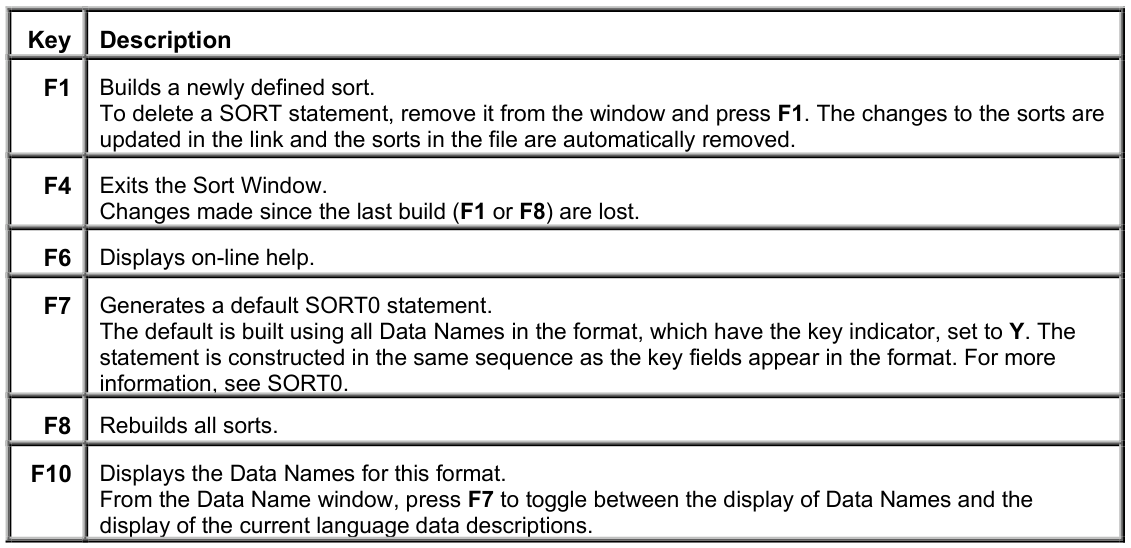
Sort Command Syntax
Section titled “Sort Command Syntax”Define your sorts in the Sort window.
Sort definition Window
SORT Command Syntax

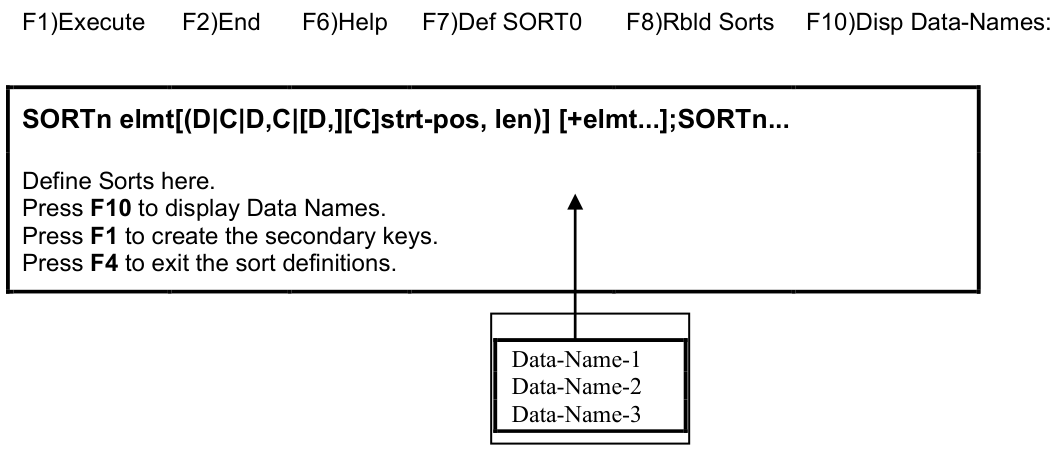
Use the following syntax:
SORTn elmt[(D|C|D,C|[D,][C,]strt-pos,len)] [+elmt...]; SORTn...- SORT
- is the keyword.
- n
- is numeric value from 0 to 99 to identify the definition. Sort 0 defines the primary key order.
- elmt
- is the Data Name from the Format definition to be used as a secondary key or part of a secondary key.
- D
- (optional) is descending order. The default is ascending order.
- C
- (optional) is case-sensitive. The default is case- insensitive. For MSORT and TISAM files, sorting always case-sensitive.
- strt-pos
- is the position to begin the substring. (Cannot be used with D or C options.)
- len
- is the number of characters in the substring.
When the D and/or C options are used, the substring must follow the D/C option.
Examples:
SORT1 CUS-CODE Sorts by the data in the CUS-CODE field. By default, the sort is in ascending order and is case-insensitive. SMITH, smith, and Smith all sort as smith.
SORT2 SLSMN-CODE(D,C) + CUST-CODE(C,D,1,2)
Sorts by the data in the SLSMN-CODE field followed by the data in the first two characters of the CUS-CODE field. Both fields are sorted descending order and case-sensitive. SMITH, smith, and Smith sort differently.
SORT3 BAL-DUE(D)
Sorts by the data in the BAL-DUE field in descending order. In this case the highest value in the field appears first in the order.
SORT4 ITEM-CODE(2,1) + INDEX Sorts by the second character of the ITEM-CODE field followed by the contents of the INDEX field.
SORT5 PHONE-NUM(D,1,3)
Sorts by the first three characters of the PHONE-NUM field in descending order from the highest to lowest value.
SORT0 KEY-3 + KEY-4 + KEY-2 + KEY-1
Defines the order of the primary key for the file.
Non-contiguous primary keys must be defined using a SORT0 statement. Press F7 to generate a default SORT0 containing all key fields in format.
When a SORT0 statement exists or the format contains non-contiguous key fields, CONNECT VIEW or CONNECT SCREEN is used to maintain the file instead of the standard file maintenance system.
The following are special rules for SORT0:
- The SORT0 statement must contain all Data Names that have the key indicator set to Y in the format.
- The strt-pos, len, C, and D options are not valid in SORT0 options.
Sort Description
Section titled “Sort Description”Subscripts
The strt-pos, len, D, and C options cannot be used with a multiple occurrence element.
Sort File Names For Dictionary-IV file types (Direct, Indexed, and Sort files), when no sort file name is specified in the link, the sort file name defaults to the first 12 characters of the data file name specified in the link plus sk.
Example:
Data file = PRMASTERFIL1; Sort file = PRMASTERFILEsk A data file must be unique in the first 12 characters if sort files are to be defined. SORT0 is reserved for the default (primary key access).
Case Sensitivity Specifying a sort as case-insensitive (default) only affects the sorting of the characters A-Z and a-z. Case-insensitive sorting has no effect on numbers or special characters.
Sort Performance
The time it takes to rebuild or update sorts depends on:
- The number of records in the file.
- The number of sort definitions in the link.
- The total length of each sort definition.
To maximize performance, remove unneeded sorts and use subscripting to reduce the length of sorts on large Data Names.
An example is sorting on a 35-character CUST-NAME field. SORT1 CUST-NAME and SORT1 CUST-NAME (1,10) may achieve almost identical results (depending on the nature of the data). CUST-NAME (1,10) is faster and uses 25 fewer bytes for each record in the data file.
Saving Sorts
Sorts cannot be saved (F1 or F8) from multi-record maintenance. Use Link definition
maintenance to save changed sorts.
Multi-record Maintenance From single- or multi-record maintenance press F5 to select a sort number. Sort definition changes cannot be made from file maintenance.
MSORT and TISAM Files
Section titled “MSORT and TISAM Files”Since sort updates on MSORT and TISAM files do not print the current key on the screen, the terminal may appear unresponsive until the update is complete.
MSORT and TISAM files sort data exactly as it is stored in the file. As a result, all MSORT and TISAM sort definitions are case-sensitive, even if the C option is not specified.
Non-unique secondary sort keys can cause problems with applications that use keyed access on secondary sorts. It is recommended secondary sort keys be unique. For example, using the sample format UTCUST and sorting with the REP-CODE field you could define the following sort:
SORT1 REP-CODE + CUST-CODEThis results in a unique key.
If no sorts exist in the link, and indexes already exist in the specified file, a set of sort statements is automatically built. They are based on indexes in the file.
Press F1 to save the generated sort statements in the Link definition. At this point the sort definitions are saved in the link. The system prompts:
Generate defined sorts?
Select one of the following:
- Y
- To rebuild the sorts in the data file.
- N
- To avoid rebuilding the sorts.
Once the sorts are saved, they can be accessed by all components of Dictionary-IV (Script-IV, Report-IV, and Query-IV).
From the Dictionary-IV Developer Guide, version 8.9.1. Open this page in the PDF