

Performing CONNECT VIEW
When you initiate CONNECT VIEW by entering a VIEW name the system displays the selected View.
Quick Key Reference (Field Edit Mode)
Section titled “Quick Key Reference (Field Edit Mode)”- Key
- Description
- Enter
- Switches to the edit field mode for the column selected. From the edit field mode, it also exits to the cursor mode.
- Right/Left Arrow
- Moves lightbar one field right and left. It wraps on border. (See Tab/Back Tab for horizontal scrolling.)
- Down/Up Arrow
- Moves lightbar down and up one row. It scrolls at the border.
- Character Delete
- Removes one character at a time.
- Character Insert
- Inserts one character at a time without over-typing.
- Line
- Deletes records from or adds records to a file.
Delete/Insert
Tab/Back Tab Moves lightbar one field right and left. It scrolls the
view on the border.
- Home
- Positions the lightbar at the first or last row of a view or the top row of a view.
- Key
- Description
- Page Down/Up
- Moves the lightbar down and up. It goes to next/previous page.
- F2
- From any data element that has a sort, pressing F2 in a view will reverse the order of the sort.
- F3
- Prints the window.
- F4
- Exits the view.
- F6
- Displays on-line help.
- F8
- Commands. For more information see F8 Commands.
- F9
- Switches to screen maintenance.
Maintenance Modes
Section titled “Maintenance Modes”In CONNECT VIEW there are no maintenance modes. You may add, change, delete, and view records using the normal text editing keys. For more information see Data/Key Change Flags.
Data/Key Change Flags View Data/Key Change flags determine whether you can use the View to add, change, or delete records. These flags are specified in the View Definition header. The Change Key flag restricts any changes to the key fields. The Change Data flag restricts any changes to the data fields.
The default view sets the flags to restrict changes. You can save the default view, creating a custom view, and then use View Definition to change the file maintenance flags in the definition header. For more information, see Modifying a Default View for Database Maintenance in the Dictionary-IV Developer Guide.
Add
There are two ways to add a record to the file:
- Press the Line Insert key. The system inserts a blank line.
- Go to the last record in the file and press the Down Arrow key. A blank line appears at the bottom of the file.
Begin typing the new data for the new record. The system saves your entry.
If any mandatory columns have not been entered, you will get the following message:
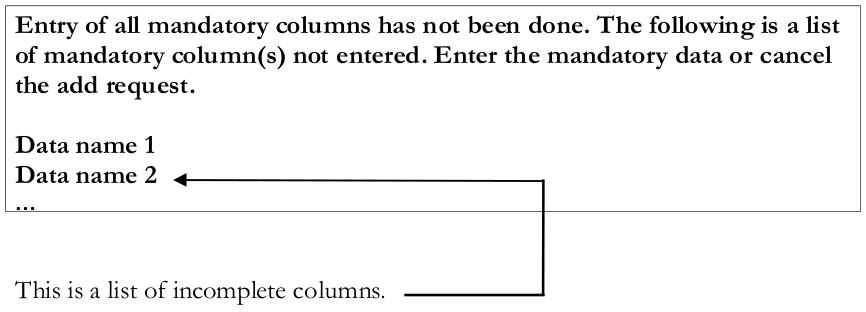
Enter all of the mandatory fields in this list. To cancel the add press Line Delete.
Change
There are two ways to change data in a record:
- Position the lightbar on the column and row to be changed and type the data.
- Position the lightbar at the data to be changed, press Enter, and type the data.
When a field edit is complete press Enter to save the changes and exit the edit mode. If you press F4 after making changes to a field, the system restores the original data.
Delete
To delete a record from the file:
Position the lightbar on the row to delete and press Line Delete. The system highlights the row and prompts:
Delete record?
Select one of the following:
Y Deletes the record.
N Does not delete the record.
If you try to delete a record that does not meet the criteria defined in the Delete Record field in Format definition, the system displays the following message:
To delete selected record, the following condition must be true.
The system displays the condition or conditions. Press F4 to return to the previous record.
F8 Commands
Section titled “F8 Commands”| You may perform | the following commands: |
|---|---|
| Command | Description |
| COUNT | Counts the rows in the current view. |
| LIST | Lists the rows in the current view. |
| Outputs the rows in the current view to a printer. | |
| SUM | Sums the numeric columns in the current view. |
| COPY | Copies rows in the current view to another link. |
| CHANGE | Changes the rows in the current view. |
| DELETE | Deletes rows in the current view. |
| MOVE | Moves a row in the current view to another link. |
| QUERY | Creates a query that is populated with the information |
| contained in the current view. | |
| EXPORT | Exports the data currently displayed in the View to a |
| .txt file. | |
| EXCEL | Exports the data displayed in the current View to an |
| Excel spreadsheet on the Windows workstation using | |
| Thoroughbred’s Gateway for Windows. |
Each of the F8 Commands allows you to perform the command using a specific sort sequence, from/to key range, and selection rule.
- SORT
- select the sort number.
- RANGE From
- select the first value for the range of the selected sort.
- RANGE To
- select the last value for the range of the selected sort.
- SELECT WHEN
- allows you to specify a conditional expression. The expression may contain any valid relational operators. For information see Common Syntax Elements.
You can press F2 to view or select valid data names from a pop-up menu.
Example:
#UTCUST.STATE = “NJ”#UTCUST.YTD-SALES > 2000,AND UTCUST.YTD-SALES <3000 POS(“BASEBALL” = CVT (#UTCUST.CUST-NAME,32))When your specifications are complete press Enter. The following commands are listed alphabetically.
CHANGE Changes the rows in the current view. The data change flag must be set to Y in View edit. The change can be done based on a specific sort sequence, from/to key range and a selection rule.
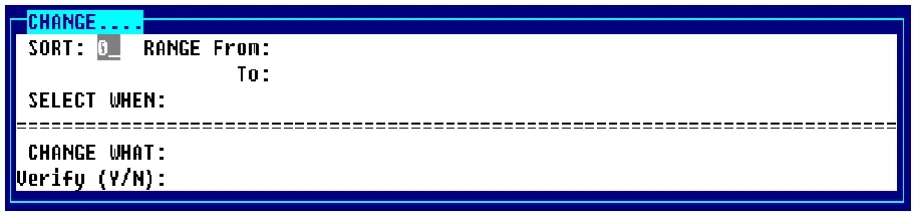
CHANGE WHAT Allows you to specify an assignment expression. The expression can only contain the expression = (equal to).
Press F2 to view or select valid data names from a pop-up menu.
Example:
#UTCUST.STATE = “NJ”Verify
Requests verification for each assignment being changed.
Select one of the following:
Y The system requests verification for each record to be changed.
N The system changes the records without verification.
When your specifications are complete press Enter.
COPY Copies data in the current view to another link. The data in the current view is not affected. The copy can be done based on a specific sort sequence, from/to key range, and a selection rule.
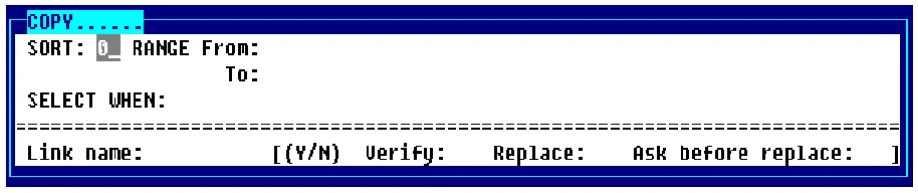
Link name
Type the link name to which the data is to be copied and press Enter.
Verify
Requests verification before each record to be copied. Select one of the following:
Y The system requests verification for each record to be copied. The system will prompt: Copy record? Y copies the record; N does not copy the record.
N The system copies the records without verification.
Replace
Replaces records in the destination link. Select one of the following:
Y Overwrites the record when the key is the same.
N Does not copy the record if the record exists in the destination link. Automatically places an N in the Ask before replace field.
Ask before replace
When you select Y in the Replace field you must select one of the following:
Y The system requests verification before replacing a record.
N The system does not request verification before replacing a record.
When your specifications are complete press Enter.
COUNT Counts the rows in the current view. The count can be done based on a specific sort sequence, from/to key range, and a selection rule.

DELETE Deletes rows in the current view. The delete can be done based on a specific sort sequence, from/to key range, and a selection rule.
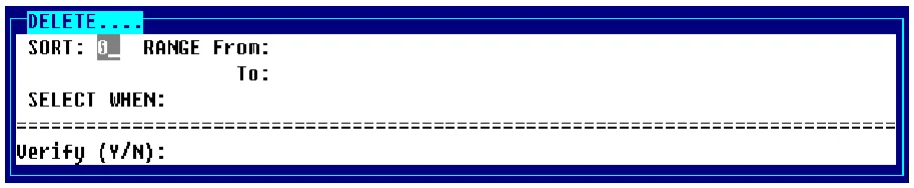
The delete values must conform to the rules defined in Formats. See the Formats section in Dictionary-IV Developer Guide.
Verify
Requests verification for each record to be deleted. Select one of the following:
Y The system requests verification for each record to be deleted.
N The system deletes the records without verification.
When your specifications are complete press Enter.
If you try to delete a record that does not meet the criteria defined in the Delete Record field in Format definition, the system displays the following message:
To delete selected record, the following condition must be true.
The system displays the condition or conditions.
Press F4 to type another value.
EXCEL This option exports the data displayed in the current View to an Excel spreadsheet on the Windows workstation using Thoroughbred’s Gateway for Windows product. The data to be exported can be refined by specifying a SORT, RANGE From/To, and a SELECT WHEN clause.
A new Excel workbook is created each time Excel is selected for output. To change workbooks, select the appropriate Microsoft Excel Book in the task bar, or from the Excel menubar select Window and then select the appropriate Book (window).
EXPORT This option exports the data currently displayed in the current View to a .txt file. The file is created in the default data file directory defined by #IDSV.DISK.NBRDATAFILES.
LIST Lists the rows in the current view. The list can be done based on a specific sort sequence, from/to key range, a selection rules, and text field search rules. The list will be displayed in the view window.
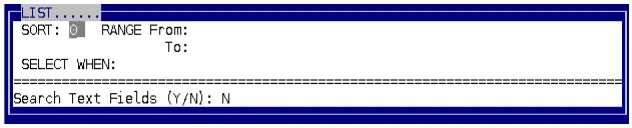
For more information on the LIST function, please see the OPENworkshop reference manual or on- line help.
MOVE Moves rows in the current view. The move can be done based on specific sort sequence, from/to key range and a selection rule. Removes the record from the current view. The system prompts for creating a data file, if this has not been done.
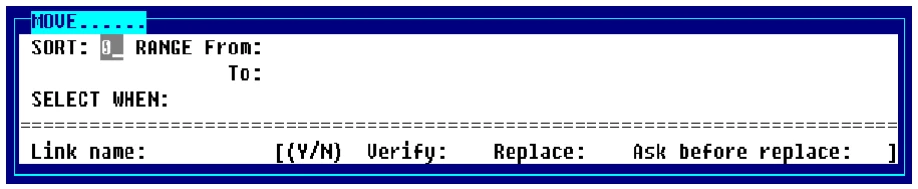
If you try to move a record that does not meet the criteria defined in the Delete Record field in Format definition, the system displays the following message:
To delete selected record, the following condition must be true.
The system displays the condition or conditions.
Link name
Allows you to enter the link name to which the data is being moved.
Verify
Requests verification for each record to be copied. Select one of the following:
Y The system requests verification for each record to be moved.
N The system moves the records without verification.
Replace
Allows you to replace records in the destination link. Select one of the following:
Y Moves the record and replaces records in the destination link.
N Does not move the record if the record exists in the destination link. Automatically places an N in the Ask replace field.
Ask before replace
When you select Y in the Replace field you must select one of the following:
Y The system requests verification before replacing a record.
N The system does not request verification before replacing a record.
When your specifications are complete press Enter.
PRINT Outputs rows in the current view to a defined printer. The print can be done based on a specific sort sequence, from/to key range, and a selection rule.

The system prompts:
Select printer (LP, P1, Pn):
QUERY Opens Query-IV Framer and creates a query that is populated with the information contained in the current view.
SUM Summarizes numeric columns in the current view. The sum can be done based on a specific sort sequence, from/to key range, and a selection rule.

The system displays a listing of all numeric data elements that fit the criteria.
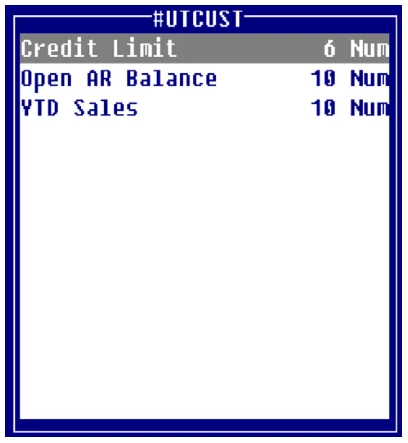
Press Enter to select or deselect a data name. The system adds or removes the data name from the list.
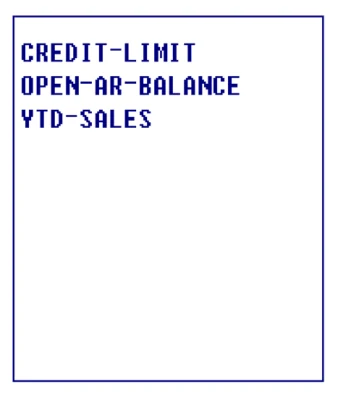
When your selections are complete press F4 and the system displays the view beginning at the upper left corner.
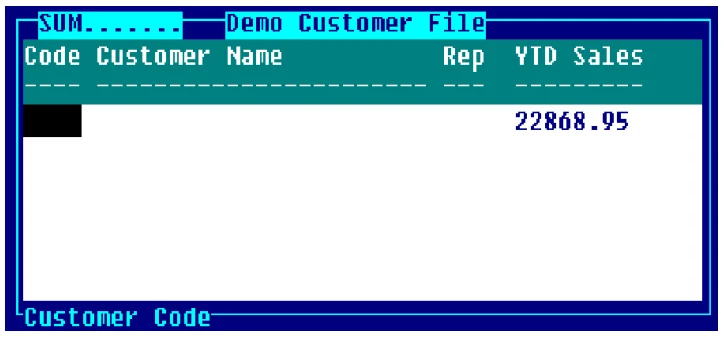
Scroll to the data name you summed.
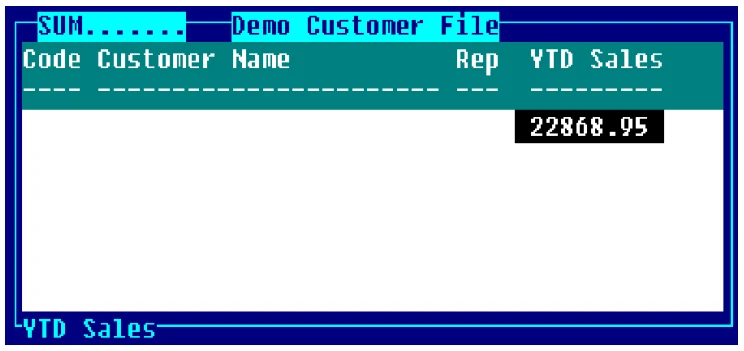
Press Enter to view an arithmetic summary of the data in this data element.
The system displays a screen similar to the following:
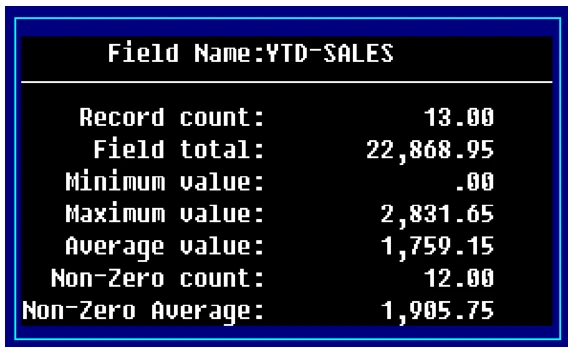
Record count
Displays the total number of records matching the range and selection specifications.
Field total
Displays the sum of all the records matching the range and selection specifications.
Minimum value
Displays the minimum value in the records matching the range selection specifications.
Maximum value
Displays the maximum value in the records matching the range selection specifications.
Average value
Displays the average value in the records matching the range selection specifications.
Non-Zero count
Displays the number of non-zero records matching the range selection specifications.
Non-Zero average
Displays the average of the non-zero records matching the range selection specifications.
From the Dictionary-IV User Guide, version 8.9.1. Open this page in the PDF