

Terminal Configurator
Select Terminal Configurator from the Dictionary-IV Utilities Menu or Terminal Configurator from the System Administration options. The system displays the following:
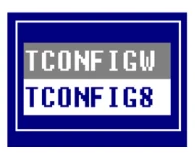
Select one of the following:
TCONFIGW This file holds windowed terminal tables.
- TCONFIG8
- This file holds non-windowed terminal tables.

The system prompts:
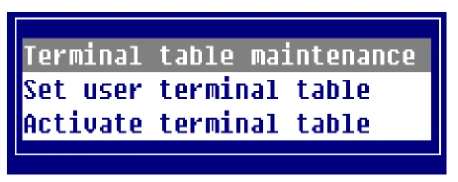
Terminal Table Maintenance
Section titled “Terminal Table Maintenance”This option allows you to edit the terminal table listing. A view appears with the names and descriptions of all terminal tables in the chosen TCONFIG file (TCONFIGW or TCONFIG8).
Terminal Configuration - Terminal Table Maintenance
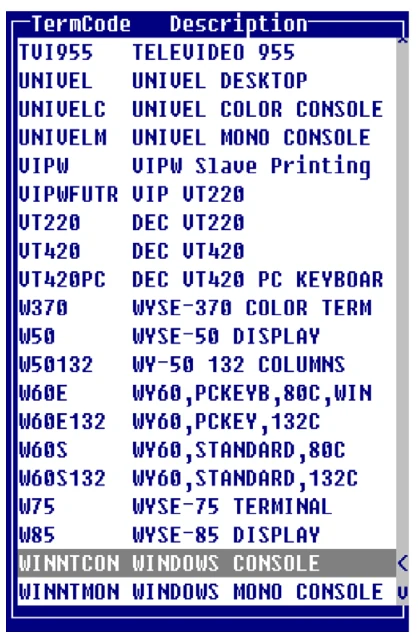
Keys available in this view:
- Enter
- To change or copy this table.
- Line Insert
- To add a new table.
- Line Delete
- To delete this table.
The following function keys are available in add, change, and copy modes:
- F1
- Split Line
- F2
- Join Line
- F3
- Basic Help
- F4
- End/Save
- F6
- On-line Help
- F7
- Special Functions
- F8
- Search/Replace
- F9
- Expand Window
- F10
- Goto
- F12
- Copy
- F13
- Cut/Paste
- F14
- Undo
- F15
- Character/Graphic Mode
- F16
For more information see the Text Editor section in the Dictionary-IV User Guide.
To assist with your editing of terminal tables, the system provides Special Functions. Press F7 and the system displays the following pop-up menu:
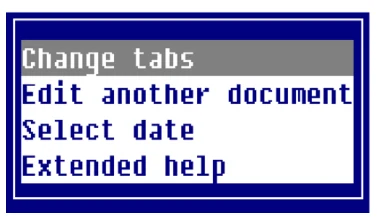
Change tabs
Any character, except a period or space will cause a tab stop.
Edit another document Enter the name of a file (full path), Dictionary-IV help name (llhhhhhh), or a Source-IV source name (.llll.ssssssss).
If the file or document is found, the contents will be displayed and you may continue editing.
Document Names
- lldddddd specifies a Dictionary-IV help definition in library ll.
- .llll.dddddddd specifies a Source-IV document in library llll.
Files
- /usr/lib/doc1 specifies a UNIX text file doc1 in the UNIX directory /usr/lib.
- \TBSC\DOC1 specifies a Microsoft Windows text file DOC1 in the Microsoft Windows directory \TBSC.
- D:\TBSC\DOC1 specifies a Microsoft Windows text file DOC1 in the Microsoft Windows directory D:\TBSC.
Cut/paste blocks
- / > specifies a view of cut text blocks. From this view cut text blocks can be selected, deleted, or edited.
- / >3 specifies cut text block 3.
- / > C specifies that all saved cut text blocks are to be cleared. This option along with the cut text block view delete option, should be used to minimize the number of cut text blocks loaded in memory.
Document Lookup
- F2 displays Dictionary-IV help definitions for all libraries.
- ll F2 displays Dictionary-IV help definitions in library ll.
- .F2 displays Source-IV libraries.
- .ll. F2 displays Source-IV documents in library ll.
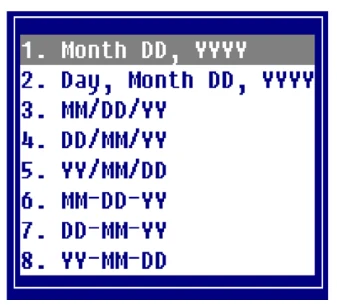
Select date Allows the current date to be placed in the text line at the cursor position. If the date does not fit on the line, the date will be moved left of the cursor until the date fits. Any text located on the line will be replaced with the date. Various date format options are allowed and can be custom tailored to the users need. The formats are displayed in the following pop-up menu:
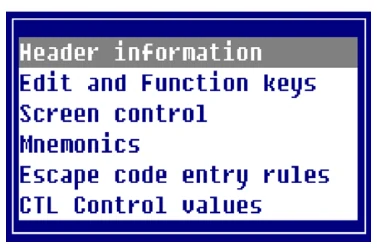
Extended Help This option provides detailed information on how to create and maintain terminal tables. The following pop-up menu displays:
Set User Terminal Table
Section titled “Set User Terminal Table”This option allows you to change, add, or delete a terminal table assignment. A view appears with all the devices and assigned terminal tables. These assignments will be used when the Dictionary-IV run time is executed.
Terminal Configuration - Set User Terminal Table
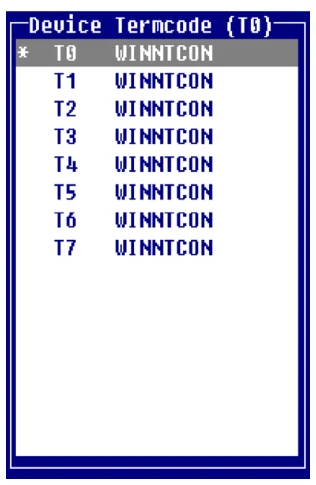
Select a Device/Terminal name and press:
Enter To change Device/Terminal name.
Insert To add a Device/Terminal name.
Delete To delete a Device/Terminal name.
Device Name is a two-character terminal ID code. The first character must be in the set A, B, E, F, H, I, J, K, M, T, U, V, W, X, Y, Z. The second character must be in the set 0-9, A-Z, and a-z.
Table Name is 8 characters in length. The name entered will be the name of the table loaded for the device when Thoroughbred Basic is executed. Press F2 to lookup terminal table names.
When maintenance is complete press F4 and the system prompts:
Save?
Select one of the following:
Y Saves the changes.
N Cancels the changes.
F4 Terminates maintenance.
Activate Terminal Table
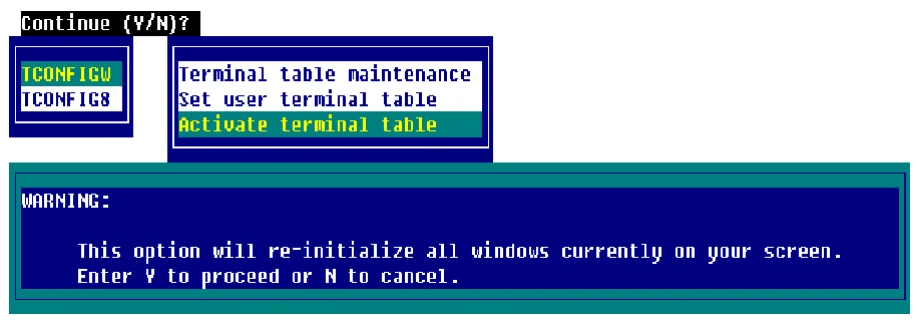
Section titled “Activate Terminal Table”This option allows you to select a new terminal table that is to be used for communication with your terminal for the current Dictionary-IV run time session. To permanently assign a new terminal table use the Set user terminal table option described above.
Select this option and the system prompts:
Press F4 to return to the menu.
This option will re-initialize all windows currently on your screen.
Y To proceed.
N To cancel.
From the Dictionary-IV Administrator Guide, version 8.9.1. Open this page in the PDF