

Examples – Report-IV
Note: The following does not apply to the 3GL wrapper. Please see the 3GL wrapper section in this document.
Example 1
The following Method will set the .pdf file name in the Report-IV to PDF global before performing a CONNECT REPORT to OERCUST.
PROCEDURE
FORMAT INCLUDE #OOFPDF1,OPT="NONE";! Include pdf global#OOFPDF1.PDF-RPT-NAME = "OERCUST"+ ! Override default              #IDSV.OPERATOR-CODE+ !    pdf file name                #IDSV.FILE-SUFFIX;DIM REPORT$[2];                    ! Dim array for reportREPORT$[1]="OERCUST";              ! Set Report-IV nameCALL "OOR",REPORT$[ALL];           ! Execute Connect Report#OOFPDF1.PDF-RPT-NAME="";          ! Clear pdf file nameGOTO CUEXIT                        ! Do standard method exit logic
Example 2
The following Script will set email options. After the report is converted to a .pdf file and saved it will be emailed as an attachment.
MAINLINE
FORMAT INCLUDE #OOFPDF1,OPT="NONE"      ! Include pdf globalLET PDFGLOBAL$=#OOFPDF1,                ! Save settings#OOFPDF1.ENABLE-EMAIL="Y",              ! Enable email option#OOFPDF1.EMAIL-ADDR="cust@tbred.com",   ! Set to address#OOFPDF1.EMAIL-FROM="tbred@tbred.com",  ! Set from address#OOFPDF1.SUBJECT="Customer Master list",! Set subject line#OOFPDF1.BODY="see attached pdf",       ! Set body text#OOFPDF1.EMAIL-REPLY="tbred@tbred.com"; ! Set reply toCONNECT REPORT "OERCUST";               ! Connect to report OERCUSTLET #OOFPDF1=PDFGLOBAL$                 ! Restore global clearing email ops
TERMINATE
Example 3
The following Post Save Method will rename the default .pdf file then display it using Adobe Reader, the default application for the .pdf file extension. For more information on the ‘OB’ and ‘OE’ mnemonics please refer to the TbredComm or the TS Environment for Windows manuals.
PROCEDURE
   FORMAT INCLUDE #OOFPDF1,OPT="NONE";   OLDPDF$=MSG$[1];   NEWPDF$=#OOFPDF1.RPT-PATH+"\CustomerList.pdf";   CMD$="MOVE  "+OLDPDF$+" "+NEWPDF$;   SYSTEM CMD$;   WINDOW CREATE (80,2,1,0);   PRINT ‘OB’,NEWPDF$,’OE’;   WINDOW POP;   GOTO CUEXIT
Example 4
The following Pre Convert Method will validate the selection of the converter as an output device, set the pdf path and file name. This method is executed immediately after the user has selected the printer configured for the Report-IV to PDF converter.
A CALL to OORPDF02 is done to initialize the global format #OOFPDF1 to default settings.
If the report about to be converted is in the “XX” library, an error condition will be returned and the user will be prompted to reselect a printer.
If the report is not in the “XX” library, the path for saved pdf files will be set to default output path and a subdirectory matching the file suffix, the pdf file name will be set to the system date + report name.
PROCEDURE
     FORMAT INCLUDE #OOFPDF1,OPT="NONE";       ! Include global format     DIM MSG1$[1];                             ! Dim array     CALL "OORPDF02",MSG1$[ALL];               ! Call OORPDF02 to init global     IF PDFC$[1](1,2)="XX"                     ! If report is in XX library        PDFC$[0]=""                            !    Set error condition     ELSE                                      ! Else        PDFC$[0]=".",                          !    Set no error        #OOFPDF1.RPT-PATH =                    !    Set pdf output path            CVT(#OOFPDF1.RPT=PATH,128)+        !      to default plus the            PDFC$[5],                          !      current file suffix        #OOFPDF1.PDF-RPT-NAME =                !    Set pdf file name to            PDFC$[1] + PDFC$[4]                !      report name and day     FI;                                       ! Endif     GOTO CUEXIT                               ! Standard method exit
Example 5
The following Method will use a background .pdf file, to overlay a company logo, adjust the left margin to .40, and set the font size to 11.
PROCEDURE
     FORMAT INCLUDE #OOFPDF1,OPT="NONE";     #OOFPDF1.BACKPG="BackgroundLogo.pdf",     #OOFPDF1.LEFT-MARGIN = .40,     #OOFPDF1.FONT-SIZE = "11";     DIM RPT$[1];     RPT$[1]="OERCUST";     CALL "OOR",RPT$[ALL];     GOTO CUEXIT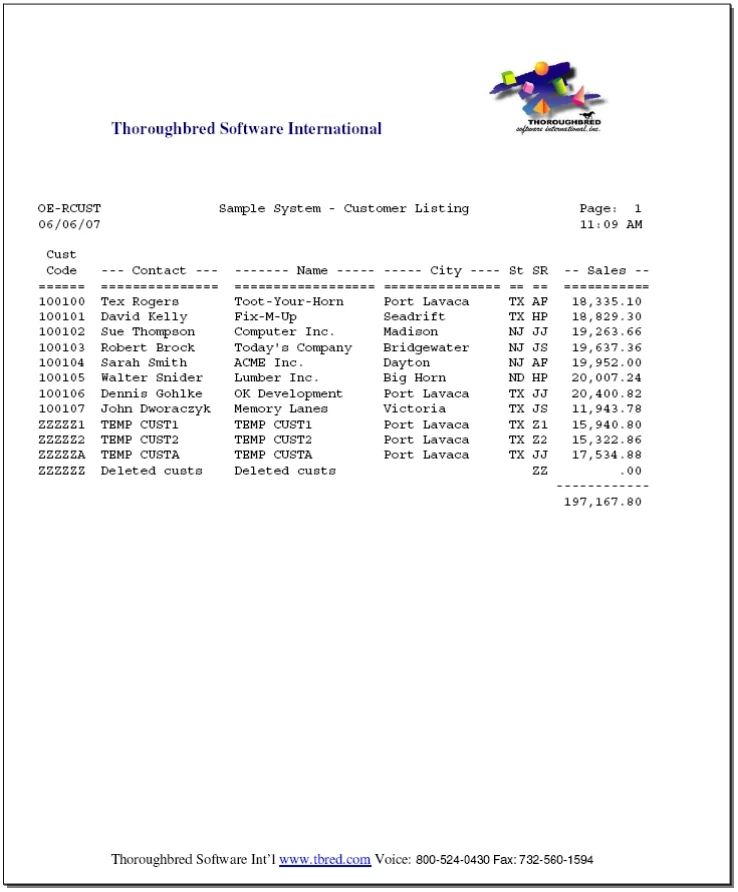
Example 6
The following Report-IV definition will print a barcode.
ENTRY-SECTION
I101   FORMAT INCLUDE #OOFPDF1,OPT="NONE"
I102   LET #OOFPDF1.BARCODE-ENABLED = "Y"   !enable barcode processing
FILE-SECTION
LN     OELCUST
CONTROL-SECTION
REPORT-SECTION
H
H      LL-RRRRRR          XXXXXXXXXXXXXXXXXXXXXXXXXXXXXXXXXXXXXXXXPage
>      A                  B
H      MM/DD/YYHH:M
>      C                                                                    D
H      ---------          ----------------------------------------          ----
D
D      XXXXXX  XXXXXXXXXXXXXXXXXXXXXXXXXXXXXX
>      E       F
D      XXXXXXXXXXXXXXXXXXXXXXXXX
>      G
D      XXXXXXXXXXXXXXXXXXXXXXXXXXXXXX
>      H
D      XXXXXXXXXXXXXXXXXXXXXXXXX XX XXXXXXXXXX
>      I                         J  K
D
DD?????????????????????????????????????????????????????????????????????????
>      L
D
DC     LET LCOUNTER = /LC; LET LC=LCOUNTER + 4Formulas:
A - /R
B - /r
C - /D
D - /T
E - CUST-CODE
F - CUST-NAME
G - CUST-CONTACT
H - CUST-ADDRESS
I - CUST-CITY
J - CUST-STATE
K - CUST-ZIP
L - /FIELD(78) = "<FONT FACE="+QUO+"3of9"+QUO+
" SIZE=10>"+
CUST-CODE +
"<FONT FACE="+QUO+"courier"+QUO+
" SIZE="+
#OOFPDF1.FONT-SIZE-USED+">"3GL Wrapper
Section titled “3GL Wrapper”The 3GL wrapper is a Method (OORPDFX) that serves as an interface between 3GL application code and the PDF converter.
The 3GL application code must generate the plain text file. Each row of the text file should correspond to a row in the PDF output, with data padded appropriately to achieve the desired result.
The file cannot contain any printer escape sequences.
Once the text file has been generated, OORPDFX can be called to convert the text file to PDF format.
Most options are passed to OORPDFX in the form of arguments however font and some formatting options should be embedded in the text file itself. The font face, size and PRE commands must be the first line of the text file.
<FONT FACE=font_name SIZE=font_size><PRE PLAIN>
Valid font names and sizes are documented in the Overview section of this manual.
PRE Specifies the text is preformatted and existing line breaks (ASCII 10) and form feeds (ASCII 12) should be used. Use the “Plain” option for faster processing when you don’t want the program to line break at the right margin.
OORPDFX PDFX$[ALL]
PDFX$[0] On CALL
(1,1) “ “ (blank) – The system command for conversion is done using SYSTEM STMT$
“S” – Shell. The system command will be done using OPT=“SHELL”. This is Linux only.
(2,3) WAIT value. Time to wait after system command is issued
(5,3) Shell channel. Optional channel number to use when (1,1)=“S”
A supplied shell channel will not be closed. This is useful when calling program wants to READ shell for system error messages or prompts. If not supplied, shell channel will be closed. This is useful when want to hide all system prompts/messages from user. Note: This will also hide the prompt “file exists overwrite?”.
PDFX$[0] On EXIT (Set by OORPDFX).
“.” Is returned if the conversion to PDF was successful.
“ERR: “+STR(ERR) in the case of an error.
PDFX$[1] Set by the calling program.
Contains the full system argument for the converter, spaces are required syntax:
path_to_converter+“rpt4pdf”+” “+full_text_file_name+” “+full_pdf_output_file_name+” “+argument_string
path_to_converter
Supply the full path to the pdf converter (rpt4pdf).
text_file_name
Supply the full path to the text file to be converted.
pdf_output_file_name
Supply the full path for the pdf file to be created.
argument_string
Run time arguments. Supported arguments:
-align : Text alignment, valid values are L R C or J
-bm : Bottom margin value. Default is .5 inches.
-imoff : Required Linux, Unix and SCO.
-lm : Left margin. Default is .5 inches.
-lnspace : Line space value in points (1/72 of an inch). Default is 2.
-pageh : Page height in inches. Default is 11 inches.
-pagetxtfont face, number : Font face and point size.
Example: -pagetxfont times,9
Must be one of the supported font name and point sizes. See <FONT FACE=font_name SIZE=font_size><PRE PLAIN> documented earlier in this document.
-pagew : Page width in inches. Default is 8.5 inches.
-pdf : PDF image name. The optional name of a background image (saved as a .pdf) that will be layered with the pdf output. This can be used to apply a company logo to the output.
-rm : Right margin. Default is .5 inches.
-tm : Top margin. Default is .5 inches.
Example:
TEXT “myfile.txt”,3,0;X=UNT;OPEN(X,OPT=”TEXT”)”myfile.txt”;LET R1$="<FONT FACE=courier SIZE=10><PRE PLAIN>";WRITE (X) R1$;
* write report output to text file, when done convert to PDF
DIM PDFX$[1];
LET PDFX$[1]=”/user/lib/basic/PDFConverter/rpt4pdf”+“ user/lib/basic/WORK/myfile.txt”+” /shares/PDFOut/myfile.pdf -imoff -pagew 8.5 -pageh 11”;
CALL “OORPDFX”, PDFX$[ALL];
From the Report-IV to PDF Installation and User Guide, version 8.9.1. Open this page in the PDF