

Library Maintenance
From the Dictionary-IV User Guide you see that the System Dictionary is central to Dictionary-IV. Within this System Dictionary, Dictionary-IV uses Libraries to organize and group Definitions or Classes (Formats, Screens, Views, Links, etc.).
Use Library Maintenance for changing, deleting, renaming, and copying libraries. You may also use Library Maintenance to create new libraries. However, Dictionary-IV allows you to create libraries directly from Definition Maintenance. For more information, see Class definition in this document.
The following options are available in Library Maintenance:
- Edit
- Adds, changes, deletes, renames, and copies Libraries.
- List
- Lists Library names and information about the Libraries to the terminal or printer.
Library Edit
Section titled “Library Edit”Select Library from the Dictionary-IV Menu to display the Library View:
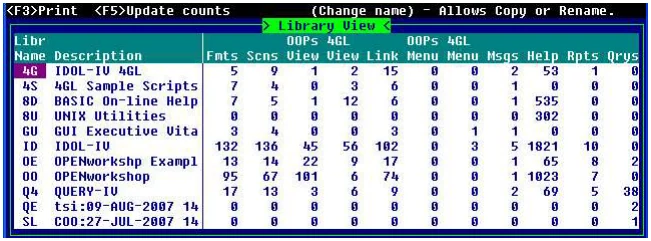
Use this view to change, delete, rename, or copy libraries. For more information about performing maintenance in a View or changing the appearance of a View, see CONNECT VIEW in the Dictionary-IV User Guide.
Field Descriptions
Section titled “Field Descriptions”Library Name (Libr Name)
The Library name becomes the first two characters in the Class definition name and is used by the System Dictionary to organize Classes.
Type the 2 alphanumeric Library name and press Enter. The valid characters are numbers and upper and lowercase alphabetic characters.
Valid Library Name Characters


Library Name
ABCDEFGHIJKLMNOPQRSTUVWXYZ
abcdefghijklmnopqrstuvwxyz
0123456789
Do not use Libraries that have the same name as any of the Thoroughbred Dictionary-IV based applications that you might install on your system.
Thoroughbred Dictionary-IV reserves the following Library names:
Reserved Dictionary-IV Library Names
4G 4S 8D 8S ID OE OO Q4 UTIf you install Solution-IV Accounting, you should not use the following Libraries:
Reserved Solution-IV Library Names
AP AR BR CV FA FS GL IC IM OF OP PM PO PR
S4 TA UP ap ar br fa fs gl ic op po pr ta
When setting up Libraries, it is best to select a Library name that will be easy to remember. You may wish to group Class definitions by:
- Application
- Individual
- Department
If you enter an existing Library name, the system displays the current information, which you may change, delete, rename, or copy. If you add a new Library enter the following header information.
Library Description This is an optional entry used to identify the Library. Type up to 30 alphanumeric characters for the Library description and press Enter.
Contents
Displays the number of Definitions in each Class within an existing Library.
The contents include the number of Formats, Screens, OPENworkshop Views, Dictionary-IV Views, Links, OPENworkshop Menus, Dictionary-IV Menus, Messages, Help, Reports, and Queries.
Pwd This is an optional entry used to restrict access to all definitions in the Library. System security must be active for the password to work. For information, see Operator Code Information in the Dictionary-IV Administrator Guide.
Last Change Date
Displays the date of the last change to the selected Library.
Create Date
Displays the date of creation of the selected Library.
Library Maintenance
Section titled “Library Maintenance”You may add, change, rename, or delete Libraries from the Library View. For more information about performing maintenance from a View or changing the appearance of a view, see CONNECT VIEW in the Dictionary-IV User Guide.
Add/Change Library Press Line Insert and type the Name and Description of a new Library. To change the Library Description, type over the existing Library Description.
Copy/Rename Library
Type over the existing Library Name and Press Enter. The system displays the following:
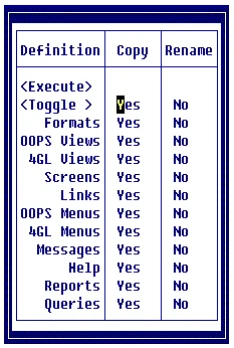
Select <Toggle> and press Enter to toggle all Class definitions. Select a specific Class definition and press Enter to toggle the individual Class definitions.
Selecting Yes copies/renames the Class definition. Selecting No does not copy/rename the Class definition. Select <Execute> to copy/rename the Class definitions.
Delete Library Use this mode to delete part or all of an existing library. Press the Line Delete key. The system prompts:
Delete record?
Select N to exit the record without deleting. Select Y and the system displays the following:
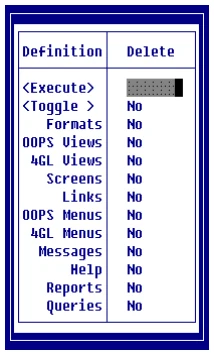
Select <Toggle> and press Enter to toggle all Class definitions. Select a specific Class definition and press Enter to toggle the individual Class definitions.
Selecting Yes deletes the Class definition. Selecting No does not delete the Class definition. Select <Execute> to delete the Class definitions.
The system deletes the Library when you delete all Definitions within the Library.
If you are deleting Link definitions, you are given the option to delete the associated files. If you select Y to delete the data file, you have the option to delete the sort file and text file.
If you are working in a Multi-Language environment the system prompts: