

Connect Direct Line or Modem
When you make this selection from the Connect menu the following screen appears.
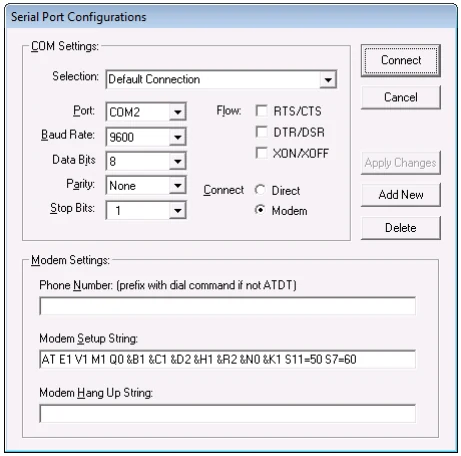
The Serial Port Configurations dialog displays. From this dialog you can define multiple configurations controlling both the COM Settings and the Modem Settings.
This can also be setup before hand from the WorkStation Manager manual (TbredComm AutoLogons tab).
Adding a New Configuration
Section titled “Adding a New Configuration”Select the Add New button. A default configuration called New Connection displays. Type over the Selection name to enter an appropriate configuration name and make all other appropriate changes. Select the Apply Changes button to save the configuration. If you enable Modem connection, the Modem Settings are enabled and any necessary changes can be made in that section of the dialog.
To Make a Connection
Section titled “To Make a Connection”The Serial Port Configuration dialog contains the following:
- COM Settings - Selection, (configuration name), Port, Baud Rate, Data Bits, Parity, Stop Bits, Flow (RTS/CTS, DTR/DSR, XON/XOFF), Connect (Direct or Modem).
- Modem Setting - Phone number, Modem Setup String, Modem Hang Up String.
Highlight the desired Selection and select the Connect button.
Once you are connected, you can access the Dictionary-IV/OPENworkshop files on the host. For more information about working with GUI files, see the VIP for Dictionary-IV manual. For more information about working with Character files, see the Dictionary-IV/OPENworkshop manuals.
From the TbredComm Reference, version 8.9.1. Open this page in the PDF