

F7 Special Functions
Press F7 to display the following:
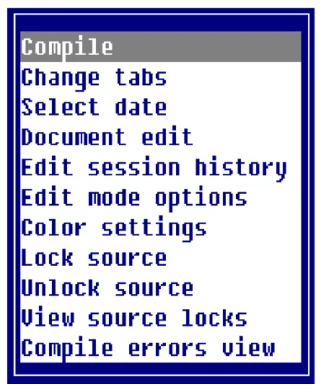
Compile
When you select Compile the system displays the Source Compile Selection input window. The Library Name, Compile everything, From Source, To Source, Using name mask, and Program name fields contain the information for the current Source. You must enter information into the Directory
number/name field. To use the default directory name IDL4, press Enter. When all information is entered the system prompts: Is this correct? If you select N the system places the cursor at the Library Name field allowing you to change any incorrect information.
Change tabs When you select Change tabs the tab bar (line) appears at the top of the Source. You can change tab settings by typing a T where you wish to insert a tab stop. In Source-IV you can type a C (comment character) in the tab line and when you press F11, the cursor will position to the space where the C is in the tab line and insert a “!”. Everything to the right of the comment character is ignored during compilation and not included in the compiled program. The period key and the Space Bar enter periods. For more information, see the Dictionary-IV User Guide.
<T….T….C….T….T….>< Sets the left margin.
> Sets the right margin.
T (Or character other than a Period or a Space Bar) sets tab stop.
C Comment character. Everything to the right of this character will be ignored during compilation.
Use the Up and Down Arrow keys to move the tab line up and down through the text. You can then set margins and tabs for lines to be inserted in the text or reformat existing text.
Once the left margin is set, using Change tabs, you may press F11 return the left margin to column one for the current line only. For each line that follows, the left margin returns to the Change tabs setting.
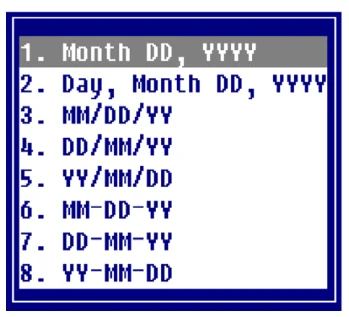
Select date When you select Select date the system places the current date in the text at the current position of the cursor. If the date does not fit on the line, the date moves left of the cursor until the date fits. The date replaces any text on the line.
Various date formats are allowed and can be custom tailored to the users need. The following menu displays:
Document edit
Enter the name of a file (full path), Dictionary-IV help name (llhhhhhh) or a Source-IV Source name (.llll.ssssssss). If a file or document is found, the contents of it will be displayed and editing can be done.
Document Names
- lldddddd specifies an Dictionary-IV Help definition in library ll.
- .llll.dddddddd specifies a Source-IV document in library llll.
Files
- /usr/lib/doc1 specifies a UNIX text file doc1 in the UNIX directory /usr/lib.
- \TBSC\DOC1 specifies a Microsoft Windows text file DOC1 in the Microsoft Windows directory \TBSC.
- D:\TBSC\DOC1 specifies a Microsoft Windows text file DOC1 in the Microsoft Windows directory D:\TBSC.
Cut/paste blocks
- / <> specifies a view of cut text blocks. From this view cut text blocks can be selected, deleted, or edited.
- /< > 3 specifies cut text block 3.
- /< > C specifies that all saved cut text blocks are to be cleared. This option along with the cut text block view delete option, should be used to minimize the number of cut text blocks.
Document Lookup
- F2 displays Dictionary-IV text libraries.
- .F2 displays Source-IV libraries.
- ll F2 displays Dictionary-IV text documents in library ll.
- .llll.F2 displays Source-IV documents in library ll.
- /usr/lib/ displays files in UNIX directory /usr/lib.
- /<> displays a view of cut text blocks.
Edit session history When you select Edit session history the system displays the Source Lock Interval View. This option allows you to view or undo selected edit session history. The edit session history contains all of the editing changes made to the Source text and may be viewed or rolled back so that a Source document can be restored to a previous state. For more information, see the Source Locking and Edit History section in this document.
Edit mode options When you select Edit mode options the system allows you to modify the characteristics of the editor. These characteristics include the action of the Page Up and Page Down keys, graphics, the right margin alignment, and hyphenation.
Functions are applied only when you select the <Execute> option. Press F4 to exit the menu and abandon any changes.
The X to the right of a selection indicates that the selection is enabled. Press the Space Bar to enable or disable an option.
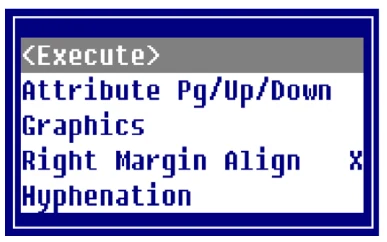
Attribute Pg /Up/Down
X The Page Up and Page Down keys change the current
video attribute.
- Blank
- The Page Up and Page Down keys scroll text pages up and down.
Graphics
X Graphics mode (For more information, see Graphics
Display Attribute).
| Blank | Text mode. |
|---|---|
| Right Margin Align | |
| X | Right margin text alignment on. |
| Blank | Right margin text alignment off. |
Hyphenation
X Hyphenation on.
Blank Hyphenation off.
Color settings These settings allow you to customize the colors used when displaying your source code in the source editor. This can be defined by the user at the operator level.
Note: This change takes precedence over the ability to save a color map with a source module.
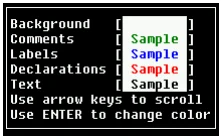
Scroll down to select the background, comments, labels, declarations, and text. Then use the Enter key to select the color to be used for each item in the source.
For information on color settings see, F15 Character/graphic mode Video attributes, graphics.
Lock source The Lock Source option is used to lock a Source module so that multiple edit sessions can be done. Source locks are maintained by operator code and prevent access to the locked Source by all other operators. To unlock a Source lock, after modifications are completed, the Unlock Source option must be used.
When a Source document is locked, you will have the option of supplying a description of the modification being done.
When a source module is locked, a limited F7 menu will display allowing:
Edit session history: Select this option to view the edit session history for the source module, which includes an Undo option. When selected, the edits will be rolled back for display only. The source cannot be saved.
View source locks: Select this option to view all source locks for the current library.
Compile errors view: Select this option to display the Compile error view.
Unlock source The Unlock Source option is used to unlock a previously locked Source document. After the Source is unlocked, all other operators can access it. The history of all edit sessions, while the Source was locked will be saved, and if desired, can be rolled back. The Edit Session History option would be used to roll back previous edit sessions.
View source locks
When you select View source locks the system displays the Currently Locked Source View.
Compile errors view When you select Compile errors view the system displays a view of compile errors that were encountered during the last compile.
From the Source-IV, version 8.9.1. Open this page in the PDF