

TSWebTerm with Dictionary-IV and OPENworkshop
Dictionary-IV Overview
Section titled “Dictionary-IV Overview”TSWebTerm supports creating large Dictionary-IV objects: Views, Screens, Pop Up Menus, Help, Reports displayed to the screen, Text Fields, and Source-IV source. All editors including EDITF support editing large objects. Objects that have been saved with a size greater than 80x24 can no longer be edited using TbredComm, the contents are not scaled down to fit an 80x24 window and text will be truncated.
When using the mouse to resize the browser window it may be necessary to ‘refresh’ the contents. The OPENworkshop hot key menu has been updated to include an option Update Browser Window Size to refresh with browser.
OPENworkshop will detect TSWebTerm and will allow view objects and positions beyond the 80x24 matrix. This example also shows a text field defined for 80 columns by 10 rows at column 20 and row 20.
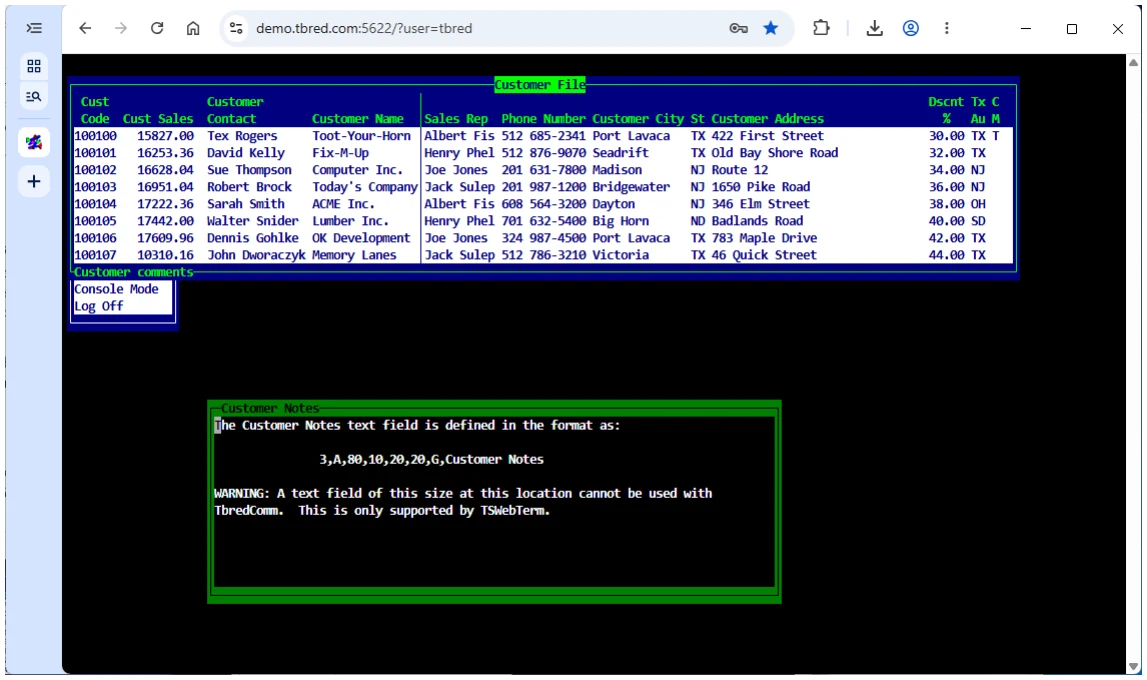
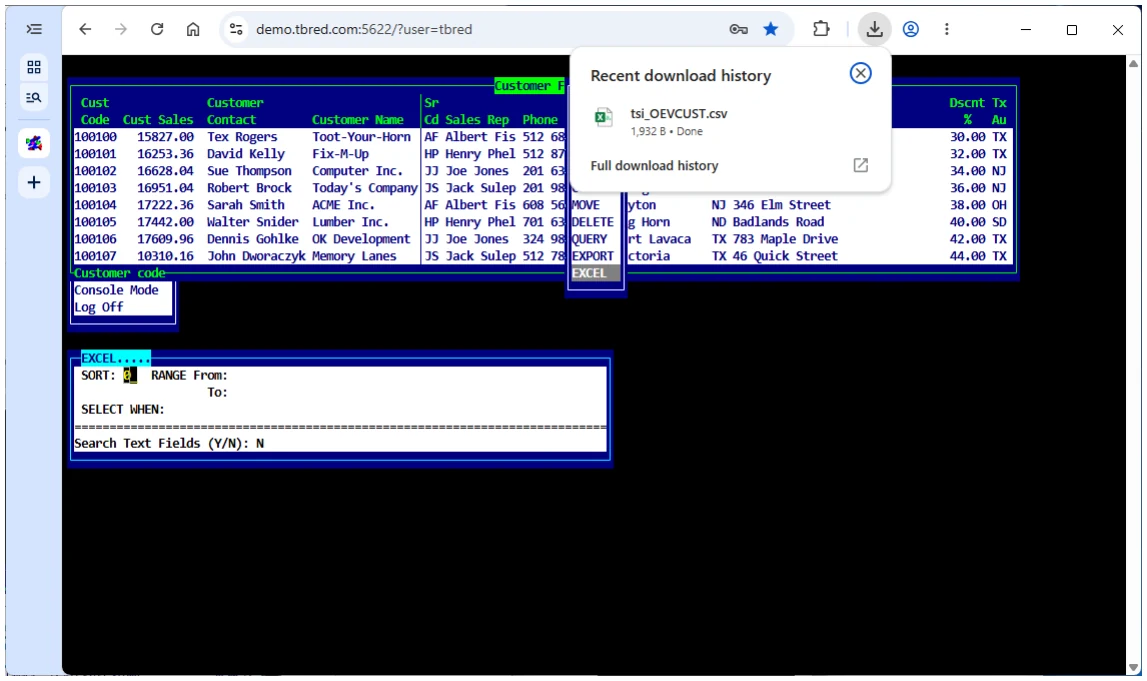
The View F8 Excel option will create the .csv file and the browser will download it. The .csv file can be opened with Excel or any application that supports .csv file types. Depending upon the browser settings the .csv file will be downloaded or opened automatically using the application associated with .csv files. To change this behavior please refer to your browser settings.
When using the View F8 Print option, select a type 2 printer for output and a PDF file will be generated and downloaded by the browser. For more information, please refer to the section on Printing.
Screens
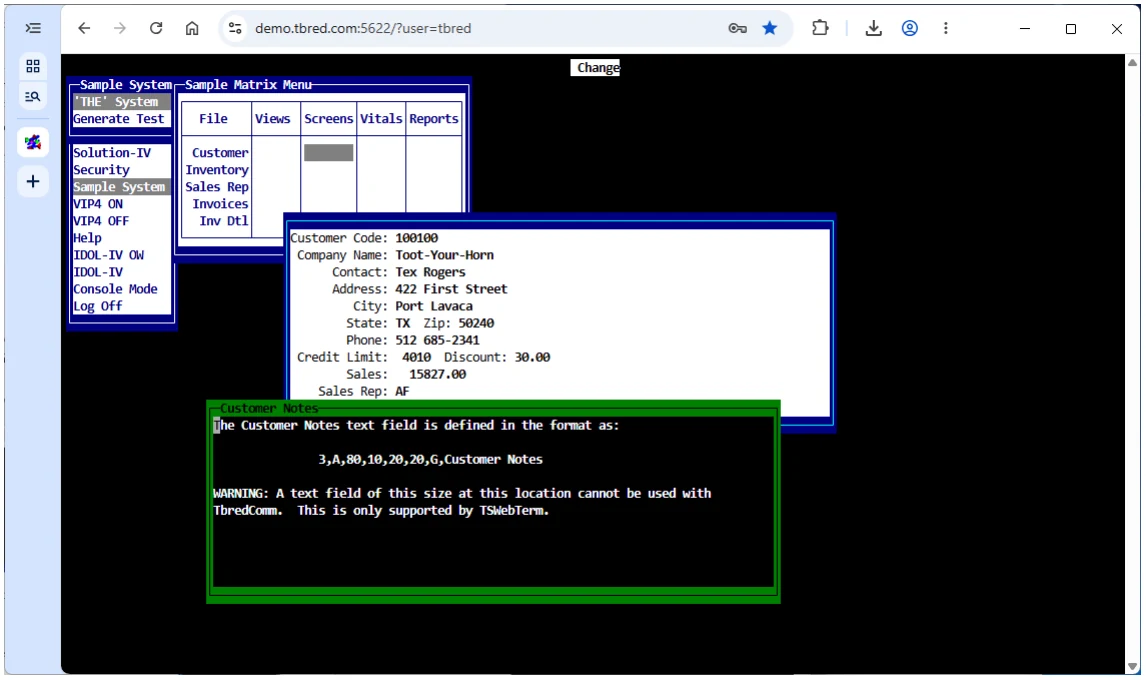
Section titled “Screens”OPENworkshop will detect TSWebTerm and will allow screen objects and positions beyond the 80x24 matrix. This example also shows a text field defined for 80 columns by 10 rows at column 20 and row 20.
Pop Up Menus and Help
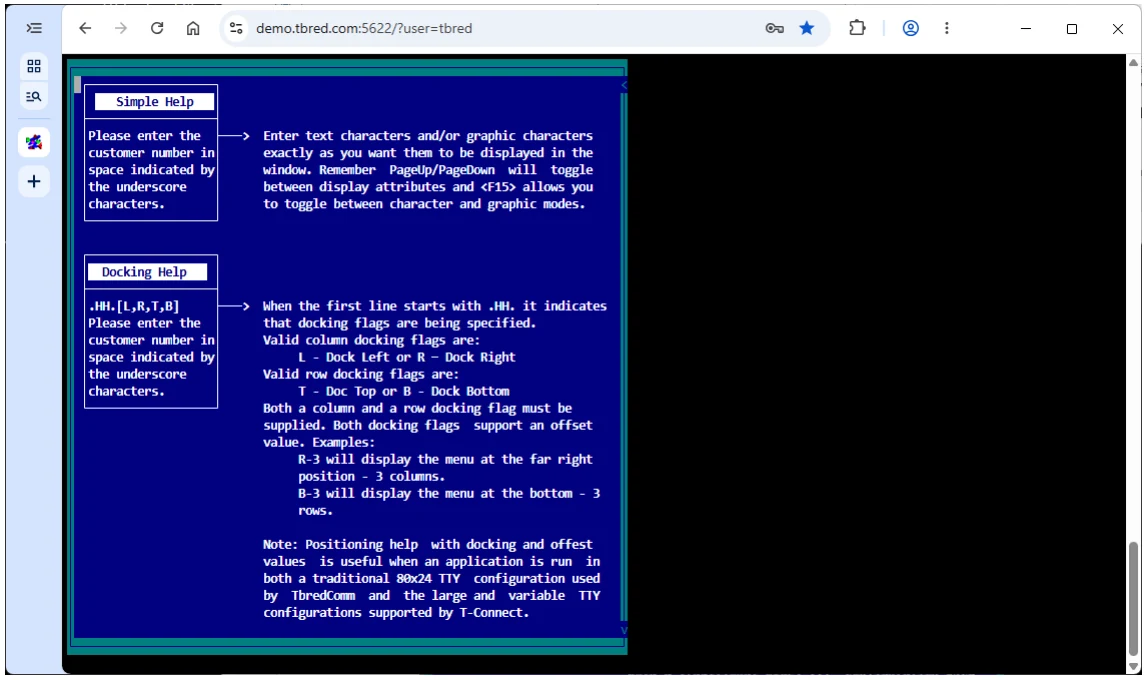
Section titled “Pop Up Menus and Help”OPENworkshop will detect TSWebTerm and will allow PopUp Menus, Help objects and positions beyond the 80x24 matrix. Help definitions that contain the Help type, window size and location in line 0 can specify a ‘Docking’ flag. Valid help types are:
| .HH. | Simple Help |
| .HI. | Index Help. |
| .HM. PopUp Menu | |
| .MM. PopUp Menu | |
| .HF. | Function Key Help |
Valid column docking flags are: L - Dock Left or R - Dock Right
Valid row docking flags are: T - Doc Top or B - Dock Bottom
Both a column and a row docking flag must be supplied. Both docking flags support an offset value. Examples:
R-3 will display the menu at the far right position - 3 columns.
B-3 will display the menu at the bottom - 3 rows.
Positioning help with docking and offset values is useful when an application is run in both a traditional 80x24 configuration used by TbredComm and the large configurations supported by TSWebTerm.
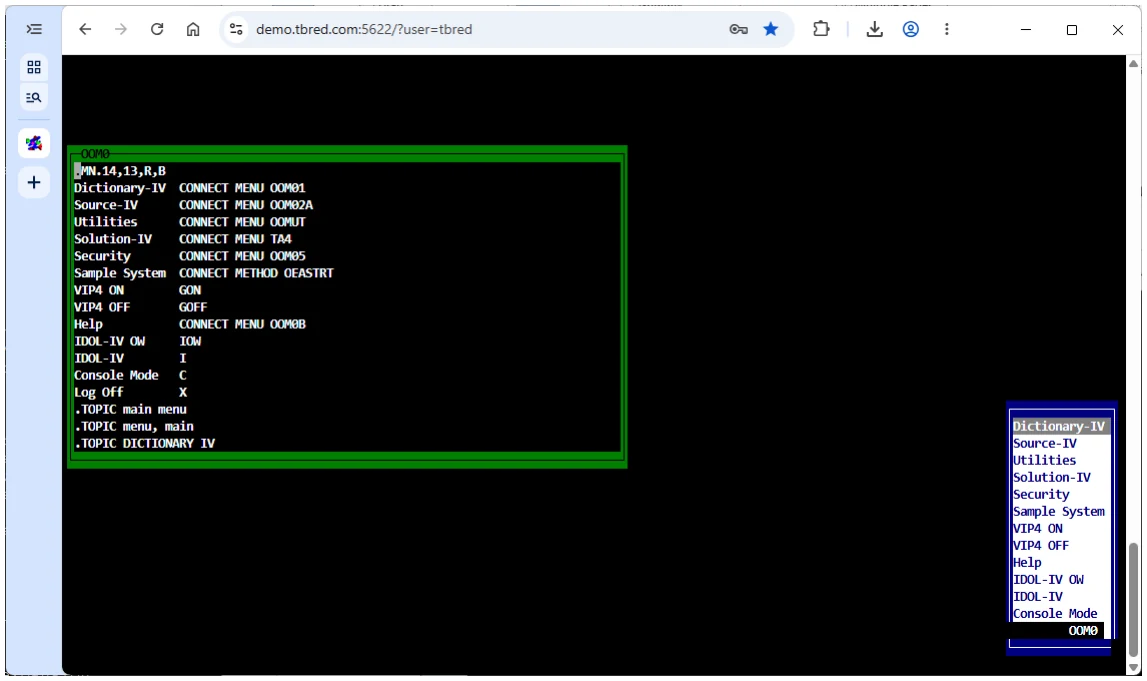
In menu OOM0 setting the first line to .MN.14,13,R,B will result in the main OPENworkshop menu being docket Right and Bottom.
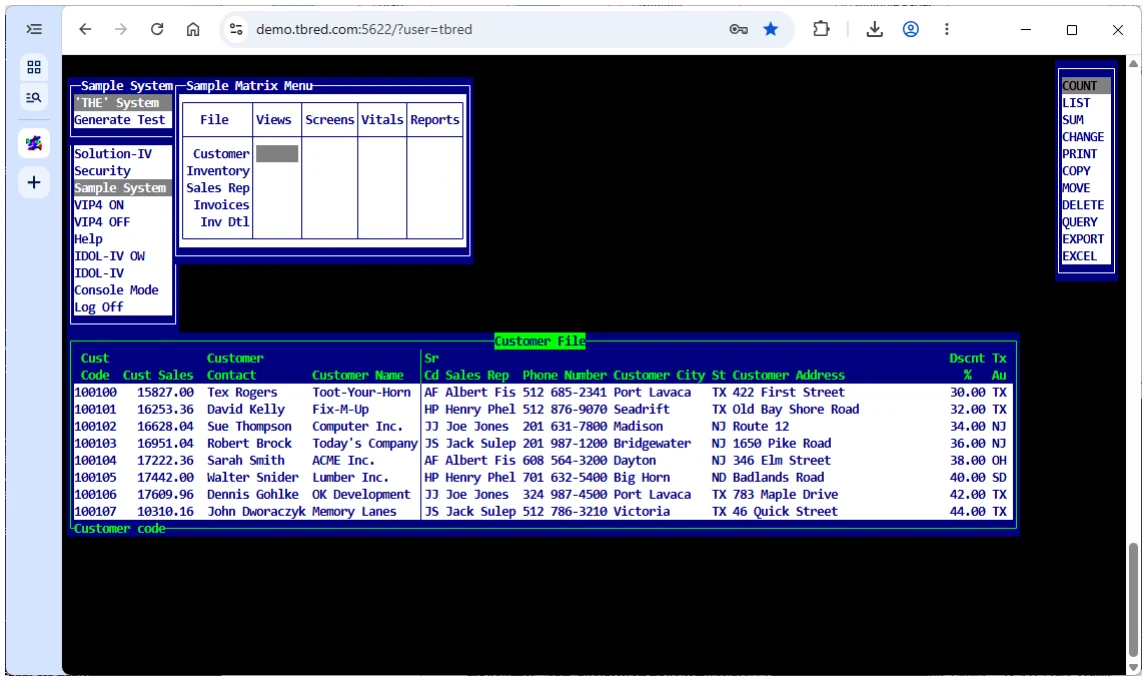
In the following example the F8 View Special Function menu is defined to dock Right and Top:
To review the online help, from the main OPENworkshop menu select Help, Language Help, API Services, and then 8HELP.
Source-IV and EDITF
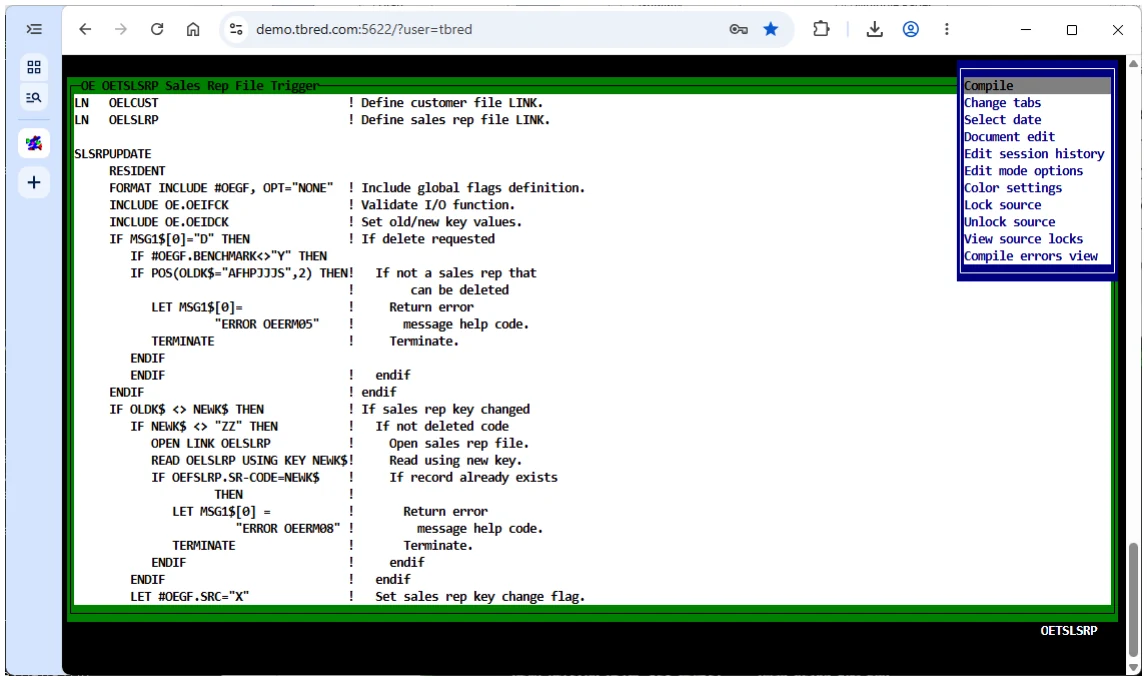
Section titled “Source-IV and EDITF”Both the Source-IV editor and console editor EDITF will maximize the browser space. In Source-IV, wide text (more than 80 cols) is only supported by TSWebTerm, it is not supported by TbredComm. If displayed in a standard 80 column wide emulator window, text beyond column 78 will be truncated. Once saved this way it cannot be undone. A warning message will be displayed before saving an 80 col wide Source definition to a wider width.
Downloading Files
Section titled “Downloading Files”TSWebTerm supports downloading files to the workstation through the browser. To accomplish this
CALL Method GWWCOMD from the application code.
MSG$[0] = Return status, if no error occurred will be “.”
MSG$[1] = “O” dOwnload function
MSG$[2] = DF message string for the browser
(1,4) “DF**” function code
(5,5) length of message starting in byte 5
(10,1) “B” block mode
(11,3) length of directory name
(14,x) directory name
(14+x, y) length of file name
(14+x+y, z) file name
MSG$[3] = “FILE “ + directory name + file name
| In METHOD | the following example MSG$[ALL] | GWWCOMD is CALLed to download a PDF file through the browser: |
|---|---|---|
| …. | ||
| PROCEDURE | ||
| F1$=“/opt/tbred/basic/PDFiles/”, | ! directory containing PDF file | |
| F2$=“A00001.pdf”; | ! file name to download | |
| DIM M$[3]; | ! dim GWWCOMD array | |
| M$[1]=“O”, | ! set function to Open/Download | |
| M$[2]=“DF**”+ | ! set GWWCOMD message type: | |
| “00000”+ | ! message length place holder | |
| “B”+ | ! block mode | |
| STR(LEN(F1$):“000”)+ | ! length of directory name | |
| F1$+ | ! directory name | |
| STR(LEN(F2$):“000”)+ | ! length of file name | |
| F2$, | ! file name | |
| M$[2](5,5)= | ! set length of message string | |
| STR(LEN(M$[2](10)):“00000”); | ! Starting in byte 5 | |
| M$[3]=“FILE “+F1$+F2$; | ! set file name with full path | |
| CALL “GWWCOMD”,M$[ALL]; | ! call GWWCOMD to download the file | |
| GOTO CUEXIT | ! Standard Method exit logic |
From the Thoroughbred Web Terminal Reference, version 8.9.1. Open this page in the PDF